Hello, aspiring ethical hackers. In our previous blogpost, you learnt about password cracking. In this article, you will learn about a tool that cracks Windows log-in passwords offline. The name of this tool is Ophcrack.
New to Ethical Hacking?
Start your journey with The Beginner Ethical Hacker Starter Kit (2026 Edition).
Ophcrack is a free, open-source program that uses rainbow tables to crack Windows log-in passwords. It can import hashes in a variety of formats and can even dump them from SAM files of Windows. It can usually crack any password within minutes. It can be downloaded from here. Ophcrack is also available as a a LiveCD distribution that automatically retrieves, decrypts and cracking of passwords from a Windows system. LiveCD’s are available for Windows XP, Windows Vista and Windows 7.
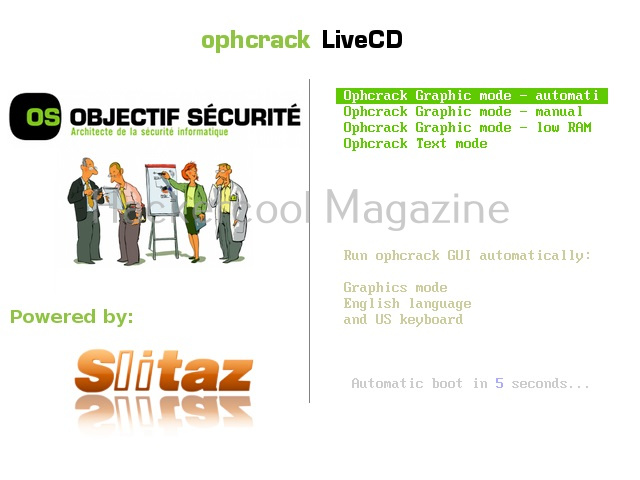
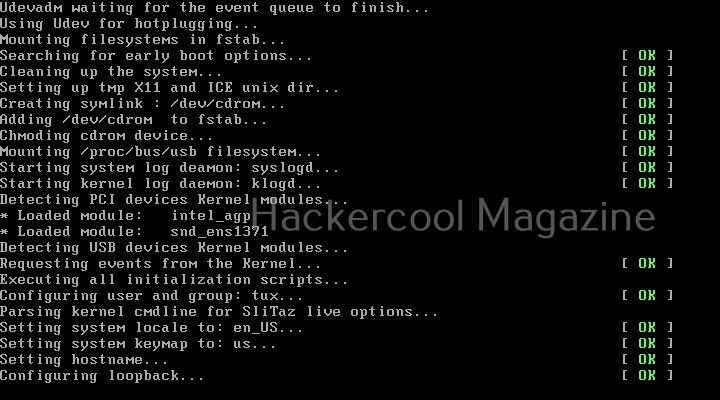
Let’s see how Ophcrack works. For this tool to work, you need to have physical access to the computer whose password you want to crack. Let’s download Ophcrack-XP- live cd for this tutorial since I am testing this on a WIndows XP target. After downloading, you need to make a USB boot device out of this image. Then you need to boot from this USB device. This is what you will see as soon as Ophcrack boots.
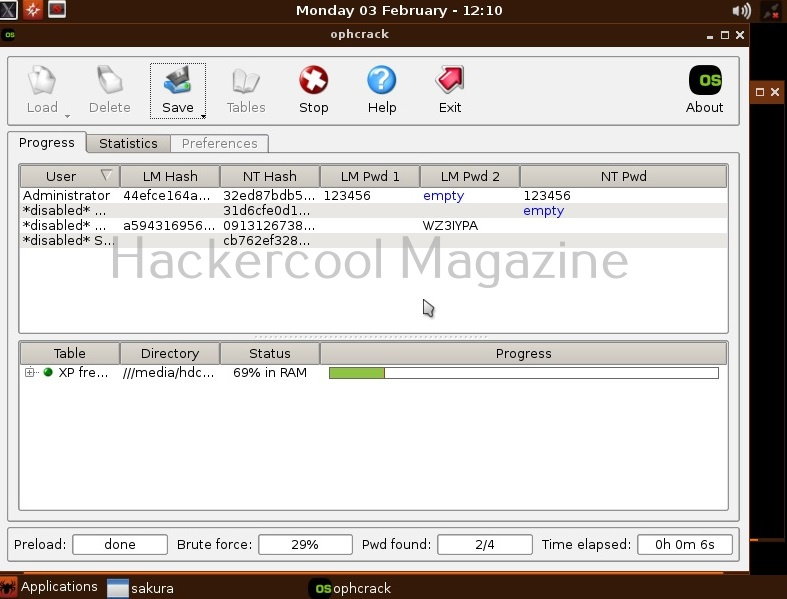
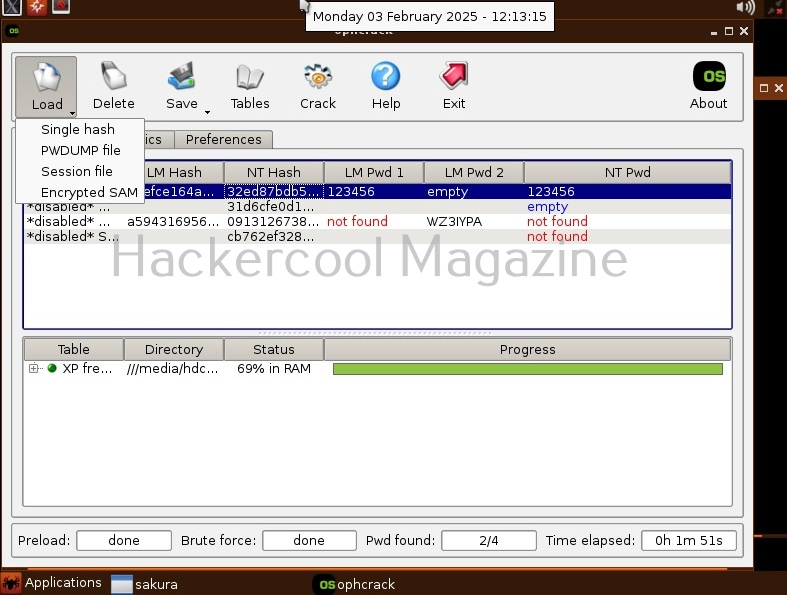
Then, Ophcrack automatically starts loading and cracking hashes of passwords of the user accounts from the target system.
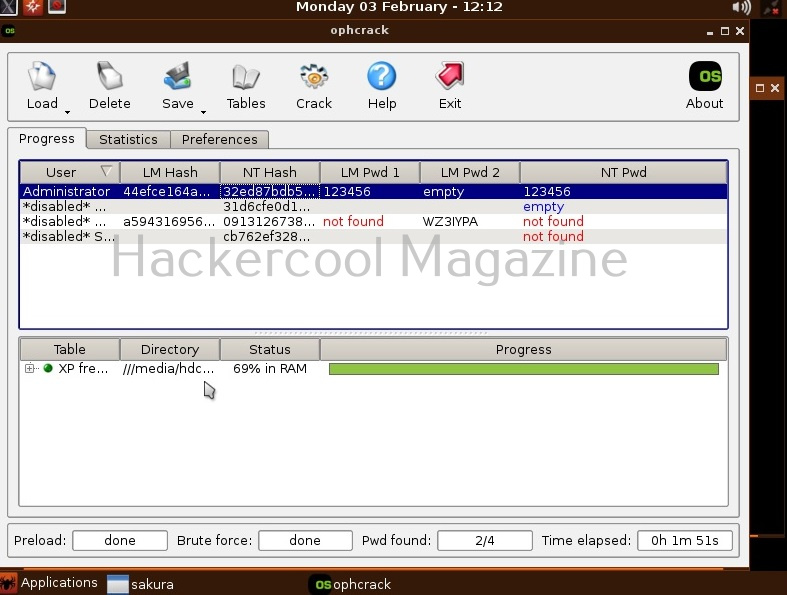
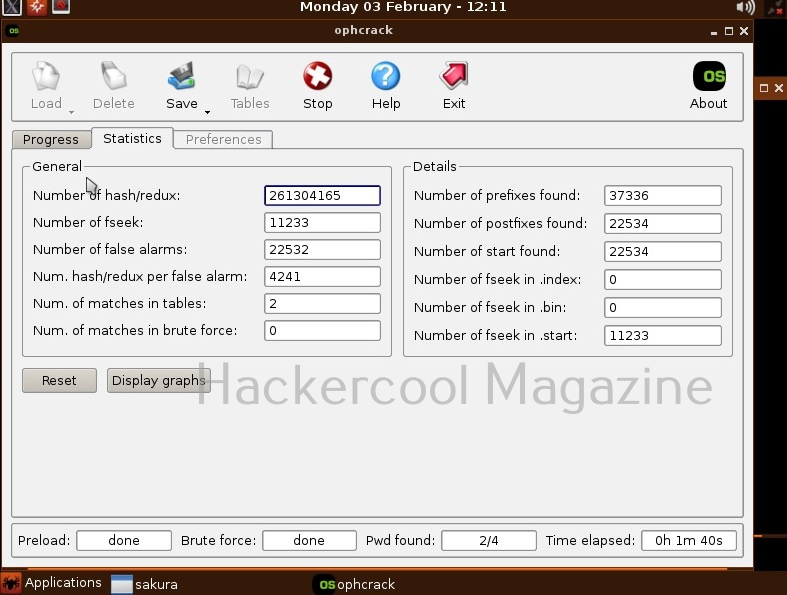
As you can see, Ophcrack cracked the password of user “Administrator”. The password is ‘123456’. All this happens automatically. On the statistics tab, you can see the stats of this tool.
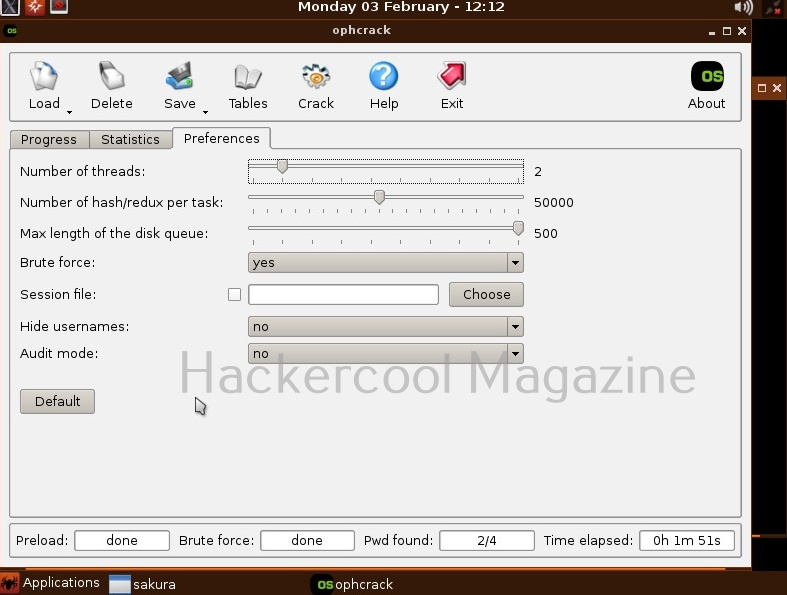
On the preferences tab, you can set the preferences for this tool.
Want to Learn Ethical Hacking Step-by-Step?
If you’re serious about learning cybersecurity, a structured roadmap makes the journey much easier.
Download The Beginner Ethical Hacker Starter Kit (2026 Edition) and discover:
✔ The ethical hacking learning path ✔ Beginner-friendly security concepts ✔ Essential tools ethical hackers use ✔ The most common vulnerabilities explained
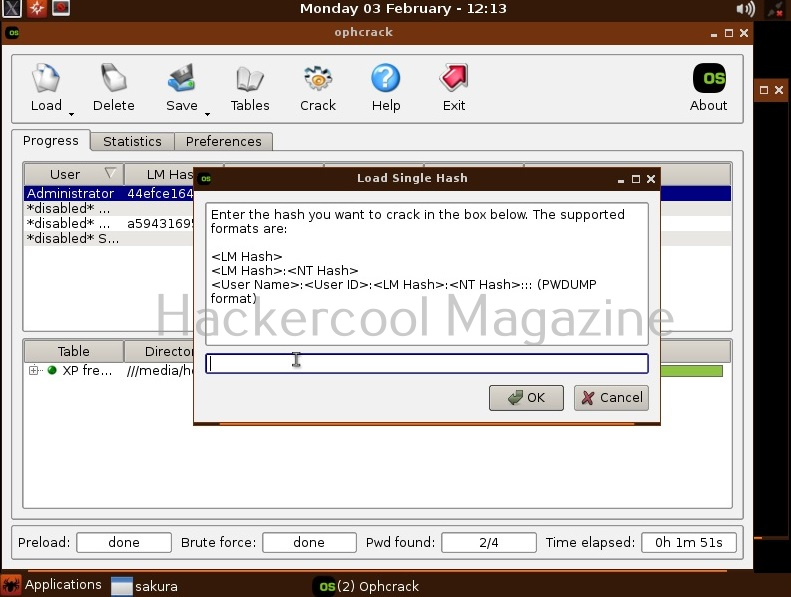
You can even load a single hash, PWDUMP file, session file or encrypted SAM file as shown below.
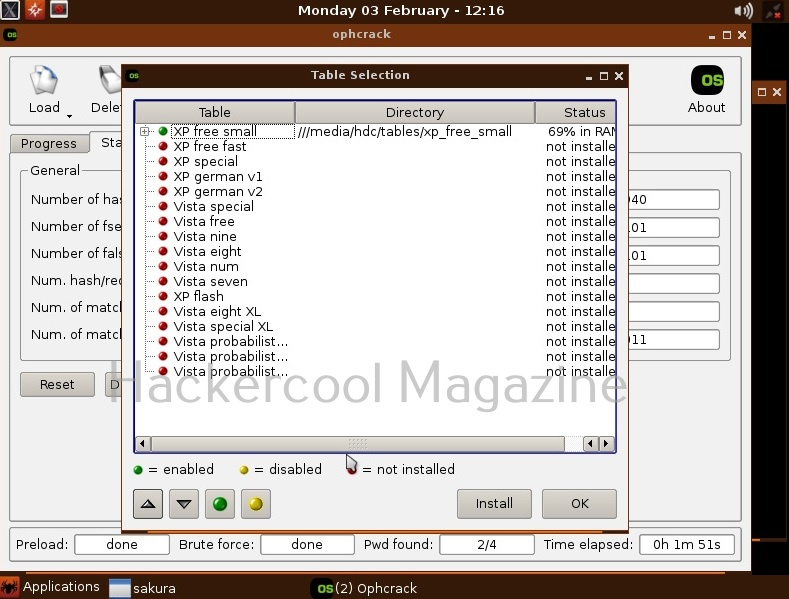
You have read at the beginning of this article that this tool this uses rainbow tables to crack Windows passwords. In the “Tables” option, you can see all the tables installed. You can also download and install other tables as required.
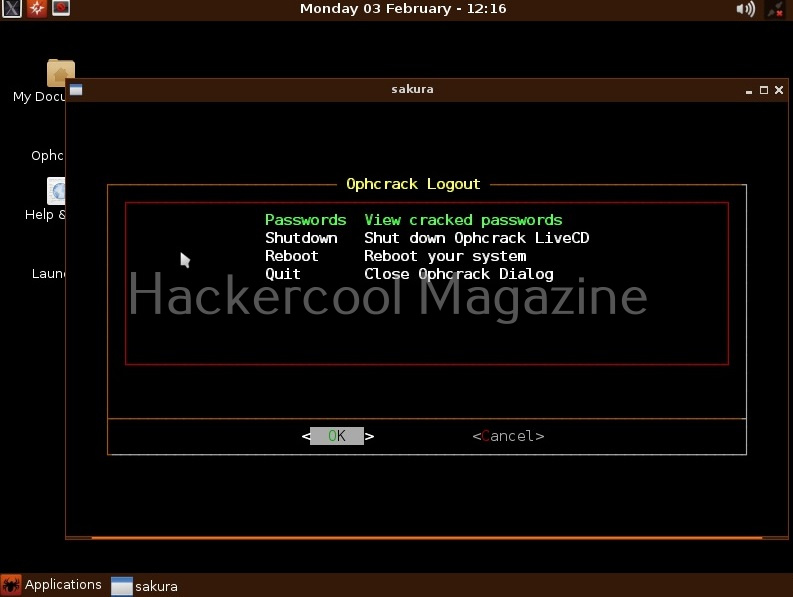
You can save the file with cracked passwords using “save” option. On the Ophcrack logout option, you can see cracked passwords or you can shutdown or reboot the system.
Start Your Ethical Hacking Journey Today
Learning cybersecurity can feel overwhelming at first. The best way to start is with a clear roadmap and the right resources.
Download The Beginner Ethical Hacker Starter Kit (2026 Edition) and get instant access to:
Ethical Hacking Fundamentals A beginner cybersecurity learning roadmap Essential hacking tools every beginner should know Common vulnerabilities explained simply
Hello, aspiring ethical hackers. In one of our previous blogposts, you learnt about password cracking and different types of password cracking techniques. In this blogpost, you will learn about a password cracking tool called John password cracker. Originally, called John the Ripper, John password cracker is a cross-platform software and a very popular password cracker.
New to Ethical Hacking?
Start your journey with The Beginner Ethical Hacker Starter Kit (2026 Edition).
In one of our previous blogposts, you learnt in detail about encryption. Hashing is a method of encryption in which a plain string of text is converted into an encrypted hash. This is a one-way function and hashes cannot easily be converted back to plain string. This technique is often used for storing passwords.
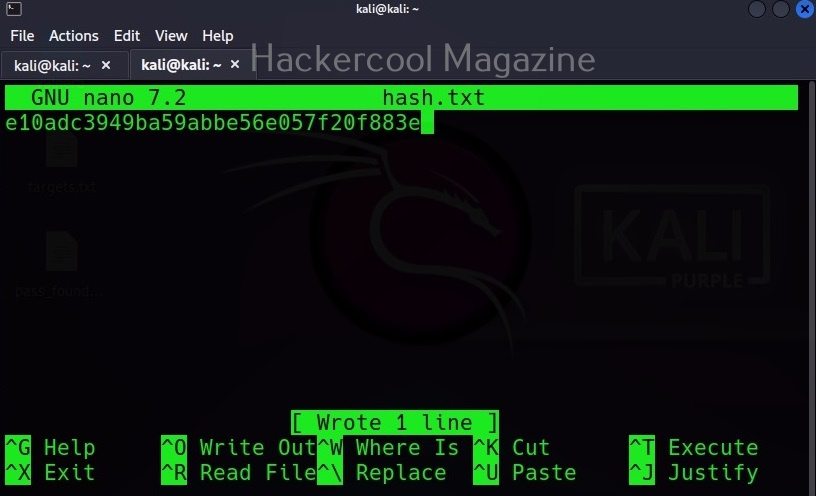
Being one of the most popular password hash cracking tools, John is installed by default in Kali Linux and I will be using the same for this tutorial. To demonstrate the power of John, first we need to create a hash. This can be done using online services like md5encrypt. I copy the generated MD5 hash to a text file named hash.txt as shown below.
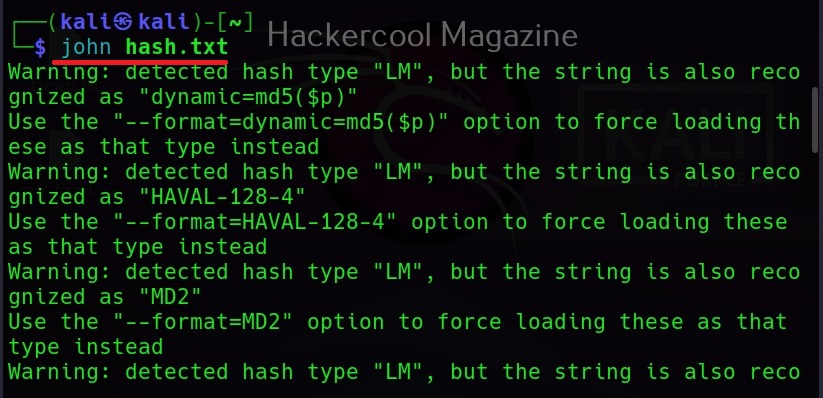
Then all we have to do is submit this file to John as shown below.
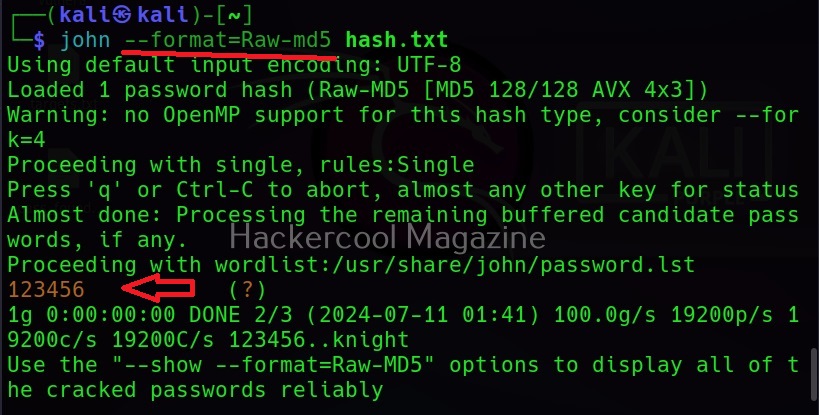
Then John begins to crack the hash in the file. In most of the real-world cases, this will consume lot of time. So, it is good to specify the format of the hash using the ‘–format’ option as shown below. The format of the hash can be identified using hash identification.
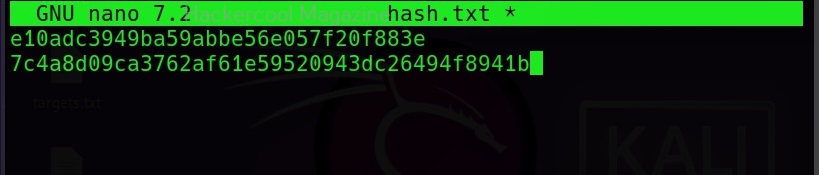
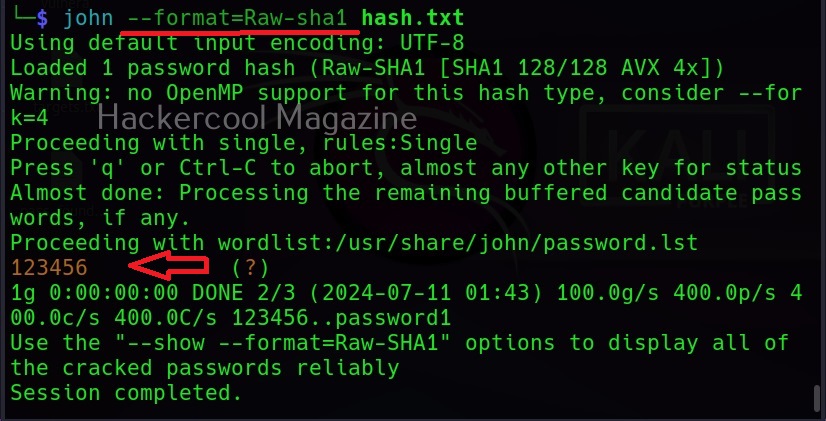
As you can see in the above image, John successfully cracked the password hash. Let’s add a SHA-1 hash now to the same file and try cracking it.
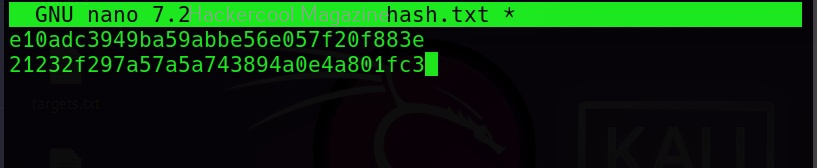
The list of all the hash formats John can crack are many. John can crack a number of password hashes at once. However, they should all be of same format. Let’s add another MD5 hash to the hash.txt file.
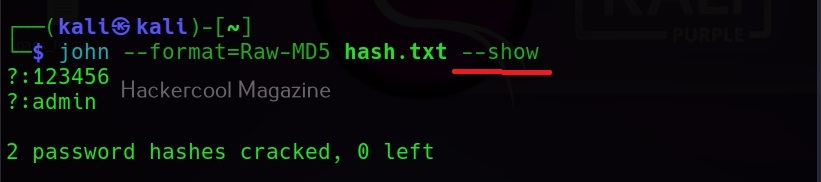
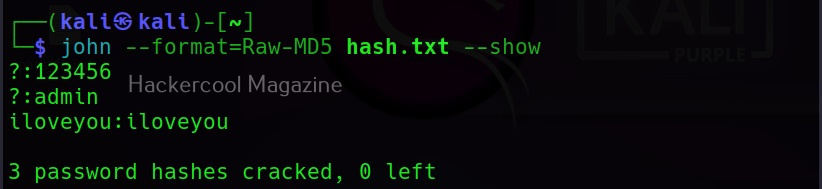
Once a hash is cracked by John, it can be viewed using the ‘–show’ option. For example, all the hashes in file “hash.txt” can be viewed as shown below.
Want to Learn Ethical Hacking Step-by-Step?
If you’re serious about learning cybersecurity, a structured roadmap makes the journey much easier.
Download The Beginner Ethical Hacker Starter Kit (2026 Edition) and discover:
✔ The ethical hacking learning path ✔ Beginner-friendly security concepts ✔ Essential tools ethical hackers use ✔ The most common vulnerabilities explained
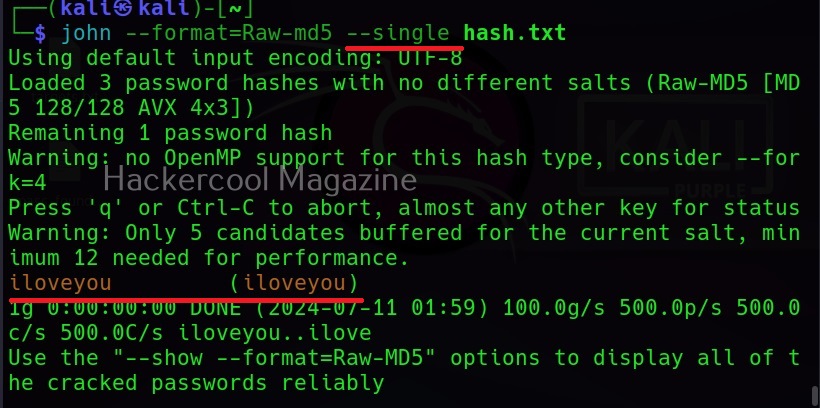
As already mentioned at the beginning of this article, John can use different techniques to crack password hashes. One of them is single mode. People in some cases use the username as a password (or a variation of username as password). Single mode is mostly useful in these cases. When single mode is specified, it tries all the variations of the username to crack the hash. Let’s try it out. I add a password hash along with the username to the file hash.txt.
Then, specifying single mode does this.
Wordlist mode or Dictionary mode
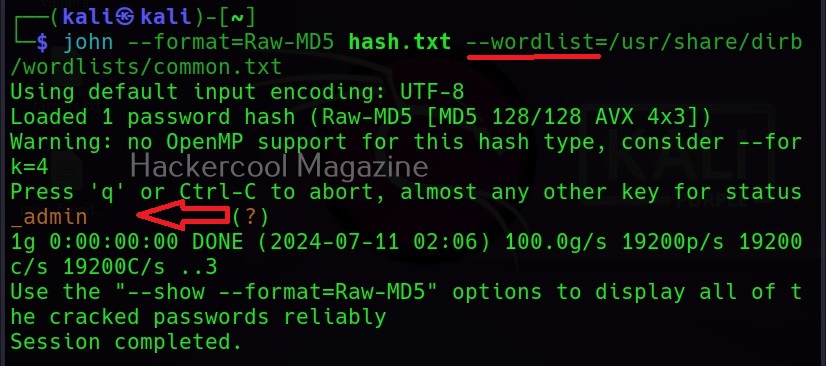
John can also use dictionary mode to crack the hash. I add a new hash to the file hash.txt.
Then all we need to do is specify a wordlist as shown below.
Incremental mode
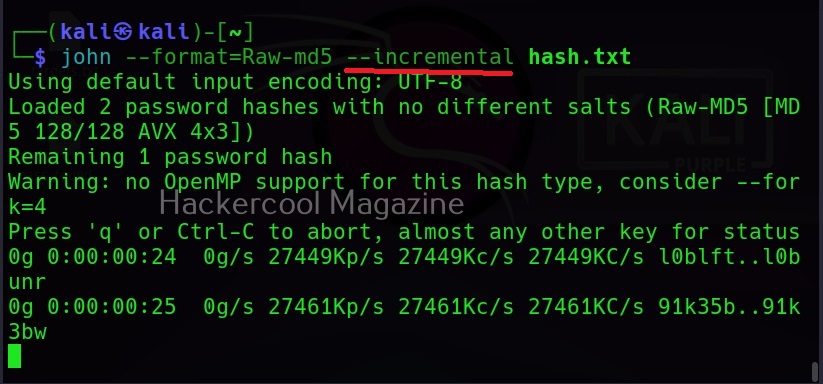
If all those options fail, John still has incremental mode in which the combination of all the techniques are used. But this may take lot of time and resources.
But password cracking is all about patience. Learn how to crack hashes with hashcat.
Start Your Ethical Hacking Journey Today
Learning cybersecurity can feel overwhelming at first. The best way to start is with a clear roadmap and the right resources.
Download The Beginner Ethical Hacker Starter Kit (2026 Edition) and get instant access to:
Ethical Hacking Fundamentals A beginner cybersecurity learning roadmap Essential hacking tools every beginner should know Common vulnerabilities explained simply
Hello, aspiring ethical hackers. This blogpost is a complete guide to Cewl wordlist generator. Cewl stands for Custom Word List generation. It is written in ruby language. Unlike crunch that takes input from us to generate a wordlist, this tool spiders a given website to the depth specified by us and then creates a dictionary or wordlist from it. This wordlist can then be used for password cracking with tools the Brutus, Hydra, Medusa and John The Ripper. It was designed by Robin Wood based on a discussion on PaulDotCom about creating wordlists by spidering a target website.
New to Ethical Hacking?
Start your journey with The Beginner Ethical Hacker Starter Kit (2026 Edition).
Cewl can be downloaded from here. Kali Linux has cewl installed by default and for this tutorial we are using the same. Metasploitable 2will be used as target since it has lot of applications installed that can be used for testing it.
To use cewl, all we have to do is simply supply the URL you want to spider for as shown below.
Then it will create the wordlist for you as shown below.
Keeping the downloaded file (-k)
Specifying the ‘-k’ option the downloaded file can be saved.
Depth of spidering (-d)
When you specify a target to Cewl, it spiders to the dept of 2 by default. You can change it using this option. For example, let’s set the depth to 1.
Or 3 may be.
Minimum word length (-m)
This option can be used to set the minimum length of the passwords cewl creates. For example, nowadays, most services set the minimum length of the password to at least 5. So there’s no use creating passwords with length less than the minimum length your target has set, If you have noticed the above results, the default minimum length for cewl is 3. Let’s set it to 5 for example.
As you can see in the above image, there are no longer passwords of length less than 5.
Spidering other sites (-o)
Setting this option allows cewl to spider another external sites during spidering of the target.
Don’t scan specified paths (–exclude)
If the target website is too large, you may want to skip some paths or maybe you just want to skip some paths as they may not have any passwords. You can use this option what cewl to exclude the paths you don’t want to scan. Then paths should be supplied in a file.
–allowed
This option is used to specify regex patterns of the path to be followed. If the pattern doesn’t match, it drops the scan.
No wordlist please (-n)
If you don’t want the wordlist to be printed, you can use the “-n” option.
Saving the output (-w)
Till now, you have seen that Cewl has been printing the wordlists it creates to the terminal. The output can be copied and pasted in another file to be saved from using as a wordlist. But why take all this effort when we can just save the output to file, using the ‘-w’ option.
Use User agent (-u))
A user agent is a characteristic string that allows web server to identify the browser and operating system and we are using. You can see your user agent here. Using the (-u) option, cewl allows you to be get a specific user agent while spidering the website.
Want to Learn Ethical Hacking Step-by-Step?
If you’re serious about learning cybersecurity, a structured roadmap makes the journey much easier.
Download The Beginner Ethical Hacker Starter Kit (2026 Edition) and discover:
✔ The ethical hacking learning path ✔ Beginner-friendly security concepts ✔ Essential tools ethical hackers use ✔ The most common vulnerabilities explained
Setting this option allow cewl to return group of words along with single words.
Turn all generated passwords to lowercase (–lowercase)
Setting this option allows us to 16 turn all the passwords cewl generates into lower case.
Here is the result.
Include words with numbers too (–with-numbers)
While spidering, if cewl finds any words with numbers in them, it just ignores them. But many passwords contain numbers too. By setting this option, cewl collects numbers as well.
–convert-umlauts
Setting this option to while using cewl converts common ISO-8859-1 umlauts.
Include meta data too (-a)
When we set this option, Cewl includes metadata found while spidering the website apart from the words.
This metadata found is included at the end of the output files as shown below.
Save metadata found to a different file (–meta-file)
You can even save all the metadata found on the target site to a different file as shown below using the “–meta-file” option.
In the above image, you can see that cewl, while processing metadata creates a temporary file. This file known as cewl-temp.pdf is created in the /tmp directory by default. We can change the location of this file by using the “—meta-temp-dir” option as shown below.
Gather emails too (-e)
Not just metadata, you can even process emails using cewl with the ‘-e’ option.
Save collected emails in another file (–email-file)
These collected emails can also be saved in another file using the “–email-file” option.
Show the count for each word (-c)
Setting this option shows the count for each word.
Verbose mode (-v)
Just like every other tool, this tool to has verbose mode that gives detailed information.
Debug mode (–debug)
Similarly, the “–debug” option gives detailed debugging information too.
Authentication
Some sites need authentication to spider it. Cewl allows authentication of websites too.
It supports both basic authentication and digest authentication. The “auth_type” option is used to set the type of authentication. The “–auth _user” and “–auth_pass” option can be used to set username and passwords respectively.
Here’s the output.
Spidering through proxy
Spidering, no matter what the purpose is very noisy. Cewl has an option to spider through a proxy using the “–proxy_host” option.
You can even specify the port of the proxy using the “–proxy-port” option.
Cewl even has feature of authenticating to the proxy server using the “–proxy_username” and “–proxy_password” options.
Start Your Ethical Hacking Journey Today
Learning cybersecurity can feel overwhelming at first. The best way to start is with a clear roadmap and the right resources.
Download The Beginner Ethical Hacker Starter Kit (2026 Edition) and get instant access to:
Ethical Hacking Fundamentals A beginner cybersecurity learning roadmap Essential hacking tools every beginner should know Common vulnerabilities explained simply
Hydra can be downloaded from here. This guide uses Hydra installed on default in Kali Linux and Metasploitable2 as target.
Single username (-l) and Password (-P)
If you want to check a single username and password with Hydra, the syntax is given below. Here we are testing the credentials on target system’s FTP server. This is normally useful when we have a general idea about at least one credential pair.
Hydra will test this credential and come with a result. Here it is found this credential accurate.
What if you can’t guess a password or have no knowledge about at least one credential pair. Then we need to test a large list of credentials using brute forcing by using a wordlist.
Specifying wordlist for usernames (-L) and passwords (-P)
You can specify wordlist containing usernames using the (-L) option and specify the wordlist containing passwords using the (-P) option as shown below.
Here, I am suing the same wordlist for both username and passwords. “Metsaploitable.txt”. These wordlists are normally created or obtained during the enumeration stage. For example, we obtained this during SMB enumeration of the target. Hydra found three credentials valid from this wordlist.
Restore a cancelled session (-R)
Sometimes we may need to test a large wordlist, with thousands of credentials in it. This may obviously take a lot of time and we may have to hit “CTRL+C” sometimes to cancel the session or maybe a power cut ended our scan abruptly.
Do we have to start from the beginning again? Don’t worry. You can restore the session from where you stopped in Hydra as shown below.
RIgnore the previous session (-I)
What if we don’t want to restart that session and to start a session afresh. We can just use the ignore (-I) command which asks it to ignore the previous session.
Scanning unconventional ports (-s)
You know every service has a default port on which it runs. For example, FTP (21), Telnet (23), and HTTP (80) etc. Sometimes administrators configure this service to run on unconventional ports to make them less conspicuous. Using Hydra we can even run password attack on these ports using the (-s) option. For example, imagine FTP is running on the port 2121 and not 21.
Target has SSL enabled (-S)
Using Hydra, we can connect using SSL with this option.
If the service has an old version of SSL, we can use the “-O” option.
Additional checks (-e)
Using this option, you can check accounts for null passwords (n), using username as password (-s) and using password as username and vice versa (-r).
Combo (-C)
Sometimes, instead of an usual wordlist, we have wordlists that have credentials in “login:pass” format as shown below.
If we want to use this type of wordlist, you can use this option.
Want to Learn Ethical Hacking Step-by-Step?
If you’re serious about learning cybersecurity, a structured roadmap makes the journey much easier.
Download The Beginner Ethical Hacker Starter Kit (2026 Edition) and discover:
✔ The ethical hacking learning path ✔ Beginner-friendly security concepts ✔ Essential tools ethical hackers use ✔ The most common vulnerabilities explained
When you are using a wordlist with Hydra, by default it checks all passwords for the first username and then tries the next username. Using this option, we can loop around the passwords. The first password is checked for all the usernames and then it moves to next password and does the same.
Stop after getting the first successful pair of credentials (-f)
This option (-f) makes Hydra stop password cracking as soon as one successful pair of credentials are found.
Target multiple servers (-M)
Hydra allows us to perform password cracking on multiple servers at once. We need to provide a file containing IP addresses of the targets.
Stop after getting once successful pair on multiple servers (-F)
Setting the ‘-F’ option, Hydra stops after getting the first successful pair of credentials on multiple servers.
Saving the output (-o)
Till now, we have seen Hydra showing output on stdout. However, with the “-o” option, we can save the output of the tool to a file.
Format of the output file (-b)
Hydra allows you to save output in three formats, although the default format is text. It also allows you to save output in Json and Json v2 format.
Number of tasks (-t)
Tasks are number of persistent connections Hydra makes while testing. By default, it makes 16 tasks, but this can be changed using this option. For example, let’s set it to 19.
Module specific options (-m)
This option allows us to set module specific options. For example, FTP module in Hydra doesn’t have any module specific options. But other modules like HTTP have it. All the options for a specific module can be seen using the -U option. For example, lets change the option for http-get.
Waiting time (-w)
Hydra waits for 32 seconds for receiving responses for it queries. This option can be used to change this time. For example, let’s set it to 10 seconds.
Waiting time for login attempts (-c)
This option can be used set the waiting time for login attempts Hydra performs. It is useful only when a low task time is used.
Verbose mode (-v) (-V)
Hydra has two verbose mode. The lowercase verbose mode is the default verbose mode in any other tool.
If you want to see each login attempt Hydra makes, you need to use the (-V) option.
That’s all about Hydra password cracker.
Start Your Ethical Hacking Journey Today
Learning cybersecurity can feel overwhelming at first. The best way to start is with a clear roadmap and the right resources.
Download The Beginner Ethical Hacker Starter Kit (2026 Edition) and get instant access to:
Ethical Hacking Fundamentals A beginner cybersecurity learning roadmap Essential hacking tools every beginner should know Common vulnerabilities explained simply
When learning ethical hacking, beginners often encounter tools designed to help understand password security. One such tool is Crunch, a wordlist generator commonly associated with Kali Linux and password-security testing.
Crunch helps security learners generate lists of possible character combinations based on specified rules. These lists, known as wordlists are used in controlled password-auditing exercises and security research.
But what exactly is Crunch? How does wordlist generation work and why should beginners understand it when studying password security?
In this guide, we’ll explore Crunch, its features, practical applications, limitations and how to study it responsibly in an authorized cybersecurity lab.
New to Ethical Hacking?
Start your journey with The Beginner Ethical Hacker Starter Kit (2026 Edition).
Crunch is a command-line wordlist generator used in cybersecurity and password auditing. It creates lists of character combinations according to parameters such as minimum and maximum length, character sets and predefined patterns.
For example, a security researcher might use a wordlist generator to understand how password length and character selection affect the number of possible password combinations. Crunch is commonly associated with Kali Linux, a Linux distribution used for penetration testing and security research.
Unlike a password-cracking tool, Crunch primarily generates candidate strings. It does not independently authenticate to a system or determine whether a password is correct. Its output can be used in authorized password-security assessments and controlled educational exercises.
What Is a Wordlist?
A wordlist is a collection of words, strings or candidate passwords stored in a file. Wordlists can contain ordinary words, combinations of characters or strings generated according to specific rules.
In cybersecurity, wordlists are used in several contexts:
Password auditing in authorized environments.
Studying password strength and predictability.
Testing password policies using synthetic data.
Understanding the relationship between password length and complexity.
Learning about password security in isolated training labs.
Wordlists can be created manually or generated using specialized tools. Crunch focuses on generating character combinations according to user-defined parameters.
The important distinction is that a generated candidate is not necessarily a real password. It is simply a possible string that can be used in a controlled security exercise.
A wordlist or a dictionary is a file containing credentials that is useful while using any password cracking tool like Brutus, Hydra, Medusa or John The Ripper usually when you are using Dictionary attack.
How Does Crunch Work?
Crunch generates candidate strings based on defined rules. The general idea is straightforward: specify the characteristics of the strings you want to study and the generator produces combinations that satisfy those characteristics. Three important concepts are involved here. They are,
Minimum and Maximum Length:
These settings define the length range of the generated strings. For example, a researcher studying password policies might compare synthetic strings of different lengths to understand how the number of possible combinations changes.
Character Sets:
A character set defines which characters may appear in generated strings. Character categories can include lowercase letters, uppercase letters, digits and symbols.
Increasing the number of permitted characters increases the number of possible combinations for a given length.
Patterns and Rules:
Some security exercises involve studying strings that follow a predefined structure. A pattern-based approach can restrict the generated combinations to a particular format. This is useful for understanding how predictable password structures affect security.
However, predictable patterns should not be confused with strong password generation. A password that follows an easily guessed structure may still be vulnerable even if it contains different character types.
Why Is Crunch Used in Ethical Hacking?
Crunch is primarily useful for understanding password-security concepts and supporting authorized auditing exercises.
Password Policy Evaluation:
Organizations need to understand whether their password policies encourage sufficiently strong passwords. In a controlled environment, synthetic candidate strings can help demonstrate why short or predictable passwords offer limited protection.
Password Security Education:
Beginners can use wordlist-generation concepts to understand password search spaces, character diversity and the importance of password length. This provides a practical way to connect mathematical concepts with real cybersecurity principles.
Controlled Security Research:
Security professionals may use generated test data in isolated environments to evaluate password-related controls. Such work should use synthetic accounts and test credentials, not real users’ passwords or accounts without explicit authorization.
Crunch and Password Complexity
One of the most important concepts behind wordlist generation is the size of the possible password search space. Suppose a hypothetical password consists of a fixed number of characters and every position can contain any character from a defined character set.
The total number of possible combinations depends on two factors: the number of available characters and the password length. For a fixed length, increasing the character-set size increases the number of combinations. Increasing the length can expand the search space even more substantially.
This is why password length is an important security consideration. However, theoretical complexity is not the only factor that matters. Human-generated passwords may contain names, familiar words, predictable sequences or common substitutions. Such patterns can make a password easier to guess than a truly random password of the same length. A password manager can help users create and store unique, randomly generated passwords.
Crunch vs Password-Cracking Tools
Crunch is often mentioned alongside password-cracking tools but their functions are different.
Tool or category
Primary purpose
Crunch
Generates candidate strings according to defined rules.
John the Ripper
Performs password-security auditing and password-hash analysis.
Hashcat
Performs password recovery and auditing using supported hash formats and computing resources.
Discovers and assesses network services; it is not a wordlist generator.
Crunch generates potential candidates. Password-auditing tools may evaluate candidates within supported, authorized testing workflows. Understanding this distinction helps beginners avoid assuming that every cybersecurity tool performs the same job.
Limitations of Crunch
Although Crunch is useful for educational purposes, it has significant limitations.
Large Output Files:
The number of generated combinations can grow extremely quickly. Large outputs may consume substantial storage space and take considerable time to generate.
Computational Costs:
Generating candidates is only one part of a password-security exercise. Evaluating large numbers of candidates can require significant computing resources.
Predictability:
A generated list is only as useful as the assumptions behind it. A narrow or unrealistic character set may not represent the password policy or threat model being studied.
No Guarantee of Success:
Crunch does not know whether a generated string is an actual password. Producing a large wordlist does not guarantee that a password will be identified.
These limitations make careful planning and a clearly defined educational objective important.
How Beginners Can Study Crunch Safely
Beginners should learn wordlist generation in a controlled environment. A suitable starting point is an isolated virtual machine or a dedicated ethical hacking lab or cybersecurity practice platforms . Use synthetic test accounts and deliberately created test credentials. Keep the exercise within systems you own or have explicit permission to assess.
A useful learning sequence is:
Understand password length and character-set concepts.
Study how theoretical password search spaces are calculated.
Explore how wordlist generators organize candidate strings.
Observe the storage and resource requirements of synthetic datasets.
Study password managers, multifactor authentication and account protection.
Document the learning exercise and its security implications.
Never use generated wordlists to attempt unauthorized access to online accounts, third-party systems or services. Professional ethical hacking requires clear authorization and adherence to the agreed assessment scope.
Complete Practical Walkthrough
A good wordlist goes a long way in the success of a password cracking attack. Let’s see how to use Crunch to generate the best wordlist we want. Crunch is installed by default in Kali Linux and it can be started using command “crunch”. The syntax of crunch is given below.
crunch <min> <max> <options>
where “min” stands for minimum length of the password you want and “max” stands for the maximum length of the password string you want. For example, to generate a wordlist containing random passwords with minimum and a maximum length 1 and 2 respectively, this is the command we have to use.
If you want a wordlist with specific characters, you can also specify them as shown below.
Crunch already has a collection of character sets stored in “charset.lst” file located in /use/share/crunch/ directory. Here is the list of character sets it has.
For example, if you want to create the wordlist with only uppercase alphabets, you can use the command shown below.
What’s a wordlist without a saved file? (-o):
Really, what is a wordlist without a saved file. To save the output, use the “-o” option as shown below.
Want to Learn Ethical Hacking Step-by-Step?
If you’re serious about learning cybersecurity, a structured roadmap makes the journey much easier.
Download The Beginner Ethical Hacker Starter Kit (2026 Edition) and discover:
✔ The ethical hacking learning path ✔ Beginner-friendly security concepts ✔ Essential tools ethical hackers use ✔ The most common vulnerabilities explained
Be careful with the size of the wordlist (-b and -c):
Sometimes while making a huge wordlist, the size of the wordlist may become too large in size, usually adding up to Giga bytes (GB). This can put a lot of pressure on memory and resource of the computer or may be even difficult to open. Don’t worry though. Crunch has a feature to overcome this problem. The “-b” option can be used to set the size you want for the wordlist.
Once the size of the file reaches this limit, it saves the output to a new file with the same size. Let me show you practically. For example, here we create a wordlist and its size is 2620200 bytes as shown below.
Now, let’s create the wordlist size of just 1 MB as shown. While using the ‘-b’ option, ‘-o’ option and “START” are compulsory.
When we do this, instead of creating a single wordlist, crunch will create three wordlists as shown below.
Add up the size of the first three files and that should add up to the size of the “wordlist.txt” dictionary. Also note that while we use the “-b” option, the name of the wordlist is the first and last string in the wordlist.
Crunch can also create a wordlist with a specified number of lines. For example, the wordlist we created here has 3,75,922 lines.
Now, if you want your wordlist to have just 100 lines, you can use the ‘-c’ option to achieve this as shown below.
Let’s check the number of lines in each wordlist.
Remove duplicates (-d):
Using the ‘-d’ option, we can remove the duplicate characters from the values in the wordlist.
In the above wordlist, you can see duplicate characters like aa, bbb, ccc etc. Let’s say you want to limit the duplicate characters to two alphabets. This can be done by setting ‘2@’ value to -d option.
You can see that “bbb” and “ccc” are gone from the wordlist. The format to give value to the “-d” option is the number and the symbol. In ‘2@’, 2 is the maximum number of consecutive characters to be allowed and @ in the symbol of the characters we want to limit. The symbol for different character sets for crunch are given below.
Exit after a specific string is created (-e):
You just don’t have to wait for the entire wordlist to be created with crunch. You can exit wordlist generation after a specific string is generated. Let’s see an example.
Now, you want to exit crunch after creation of string ‘ab’ in the above wordlist, you can do so as shown below.
Invert the strings (-i):
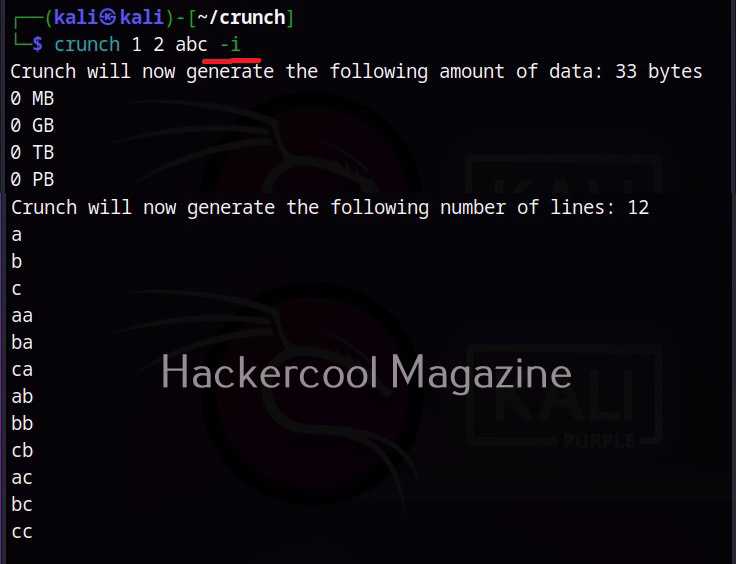
Using this option (-i), we can insert the strings generated in Crunch. In the above wordlist, instead of aa, ab, ac, ba, it will be aa, ba, ca, ab.
Start with a specific string (-s):
While creating a wordlist, you may have a feeling to try a specific string as password but not sure. But you want to try it first in your wordlist. You can set a starting string to the wordlist you are creating using the ‘-s’ option.
Don’t you want repeating characters (-p):
Crunch can generate words that don’t have repeating characters using the ‘-p” option. Setting this option will generate factorial of characters in charset. For example, if there are 3 character in charset, setting this option will generate 3x2x1=6 words. While by default, crunch generates a wordlist the size of “characters in charset” to the power of maximum length specifically.
This option cannot be used along with ‘-s’ option and must be the last option to be specified. Also, this option ignores the maximum and minimum length specified but still needs two numbers to the specified.
You want to specify a pattern (-t):
This option helps you to specify a pattern. The character set can be specified using symbol as shown below.
What if you want symbols to be treated literally (-l):
Setting a specific pattern is very helpful while creating wordlists but what if we have to include @, % ^ character in the string. Don’t worry. Crunch has that option too. Using “-l” option asks crunch to treat the specified characters as literals instead of symbols pointed to other characters.
Save the wordlist as archive (-z):
Sometimes, need arises to save the generated wordlist as a compressed archive. With the “-z” option you can save generated wordlist as gzip, bzip, lzma and 7zip archives.
Resume whenever you want (-r):
You may face some unexpected interruption while generating wordlists with crunch. This may be power cut or unexpected shutdown or some other problem which forces crunch to abort generating wordlists. Don’t you worry. Crunch has the resume (-r) option to restart from where it stopped or got aborted.
Disabling print percentage thread (-u):
Its very nice to see crunch displaying the print percentage thread at the bottom while generating wordlist. But it you don’t like it, you can just disable this print percentage thread with the -u option.
How Organizations Defend Against Password Attacks
Understanding wordlist generation also helps security professionals recognize effective defensive measures. Organizations should encourage long, unique passwords and support password managers. Multifactor authentication adds another layer of protection beyond passwords alone.
Additional measures include rate limiting, monitoring suspicious authentication activity, preventing the use of commonly compromised passwords and protecting stored password hashes with appropriate password-hashing mechanisms.
Security teams should also review authentication logs and establish processes for responding to suspicious account activity. These controls help reduce the risks associated with password guessing and credential attacks.
Conclusion
Crunch is a useful educational tool for understanding wordlist generation and password-security concepts. For beginners, its greatest value is not simply generating large lists of character combinations. It is learning why password length, randomness, predictability and authentication controls matter.
Combine this knowledge with networking fundamentals, Linux, authentication concepts and hands-on practice in authorized environments. Remember: a wordlist generator creates possibilities, not guaranteed passwords. Understanding that distinction is an important step toward becoming a responsible cybersecurity professional.
Start Your Ethical Hacking Journey Today
Learning cybersecurity can feel overwhelming at first. The best way to start is with a clear roadmap and the right resources.
Download The Beginner Ethical Hacker Starter Kit (2026 Edition) and get instant access to:
Ethical Hacking Fundamentals A beginner cybersecurity learning roadmap Essential hacking tools every beginner should know Common vulnerabilities explained simply