Posted on

Beginners guide to bettercap

Hello, aspiring ethical hackers. In our previous blogpost, you learnt about Man in The Middle (MiTM) attack. In this article, you will learn about Bettercap, a network reconnaissance and MiTM attack tool.

What is Bettercap?

Bettercap is a powerful, easily extensible and portable framework written in GO programming language, that is useful to security researchers, Red teamers and reverse engineers in performing reconnaissance and MiTM attacks. It is known as Swiss Army knife for 802.11, BLE, IPV4 and IPV6 network reconnaissance and MiTM attacks. Its features include,

  • Performing WiFi network scanning, de-authentication attacks, clientless PMKID association attack and automatic WPA/WPA2/WPA3 client handshakes capture.
  • Bluetooth Low Energy devices scanning, characteristics enumeration, reading and writing.
  • 2.4Ghz wireless devices scanning and MouseJacking attacks with over-the-air HID frames injection (with DuckyScript support).
  • CAN-bus and DBC support for decoding, injecting and fuzzing frames.
  • Passive and active IP network hosts probing and recon.
  • ARP, DNS, NDP and DHCPv6 spoofers for MITM attacks on IPv4 and IPv6 based networks.
  • Proxies at packet level, TCP level and HTTP/HTTPS application level fully scriptable with easy to implement javascript plugins.
  • A powerful network sniffer for credentials harvesting which can also be used as a network protocol fuzzer.
  • A very fast port scanner.
  • A powerful REST API with support for asynchronous events notification on websocket to orchestrate your attacks easily.
  • A very convenient web UI.

Let’s see how this tool works. For this, we will be using Kali Linux as attacker system as bettercap is available by default in Kali Linux’s repositories. It can be installed using command shown below. As target we will be using Metasploitable 2 . Both the systems are installed as part of our Simple hacking Lab.

bettercap

After installation, bettercap can be started as shown below. Note that it requires SUDO privileges to run.

sudo bettercap

Type “help” on the bettercap interface to learn more about it.

For this tutorial, let’s learn about how to use modules in Bettercap. Bettercap has various modules. By default, only one module is always running. This is the “events.stream” module that shows all that’s happening in bettercap.

To learn about any module all you have to do is use command shown below. For example, let’s view the help details about ‘net.probe’ module.

help <module name>

As you can see in the above image, this module detects the new hosts on the network by sending UDP packets. To start a module in bettercap, the command is given below.

<module name> on

As soon as you turn it ON, it starts probing the network for any new machines. You can see all the active bettercap modules running by using command “active”.

As you can see in the above image, these modules of bettercap are running. They are “events -stream” (which runs by default as soon as we start bettercap, “net.probe” module and “net.recon” modules.

Now, let’s do something useful with this tool. In our previous blogpost on packet sniffing, you learnt how network packets can be captured. Let’s try the same with bettercap.

For this, we start “net.sniff” module on bettercap.

Also, we will start ‘arp.spoof’ module. As you learnt in ARP spoofing, this will allow us to perform MiTM attacks.

For the novices, the “net.sniff” module performs packet sniffing while “arp-spoof” module performs ARP poisoning attack on the the target IP specified (that of Metasploitable 2).

Doing this captures all the network traffic going to or from our target system i.e Metasploitable 2. While bettercap does this, let’s login into Metasploitable 2 DVWA web app from our attacker system.

While we do this, Bettercap captures the credentials, as they are in plain text.

As you can see in the above images, both the password and username are clearly visible and successfully retrieved by this tool. Next, learn about Wireshark, a network analyzer.

Posted on

Beginners guide to wfuzz

Hello, aspiring ethical hackers. In our previous blogpost, you learnt what is fuzzing. In this article, you will learn about wfuzz, a web application fuzzer or brute forcer.

Wfuzz is a tool designed to bruteforce web applications and can be used to find directories, servlets, scripts etc. It can also be used to brutefoce GET and POST parameters for checking different kinds of injections like SQL, XSS, LDAP etc, bruteforce forms (usernames and password) etc. Its features include,

  • Multiple Injection points capability with multiple dictionaries
  • Recursion (When doing directory bruteforce)
  • POST, headers and authentication data brute forcing
  • Output to HTML
  • Colored output
  • Hide results by return code, word numbers, line numbers, regex.
  • Cookies fuzzing
  • Multi threading
  • Proxy support
  • SOCK support
  • Time delays between requests
  • Authentication support (NTLM, Basic)
  • All parameters bruteforcing (POST and GET)
  • Multiple encoders per payload
  • Payload combinations with iterators
  • Baseline request (to filter results against)
  • Brute force HTTP methods
  • Multiple proxy support (each request through a different proxy)
  • HEAD scan (faster for resource discovery)
  • Dictionaries tailored for known applications (Weblogic, Iplanet, Tomcat, Domino, Oracle 9i,
    Vignette, Coldfusion and many more.

Let’s see how this tool works. For this, we will be using Kali Linux as attacker machine as wfuzz is installed by default on it. As target system, we will be using Metasploitable 2. Both machines are installed as part of our Simple Hacking Lab.

Let’s scan for directories first. All you have to do to scan for directories with Wfuzz is as shown below. Just specify a wordlist to use and the URL to be fuzzed.

wfuzz -w <path to wordlist> <URL>

But remember that, the parameter that you are trying to fuzz should be specified with keyword “FUZZ” as shown below. For example, here, we are busting directories. So, we are have added the word “FUZZ” after the URL.

Get colored output (-c)

Sometimes the output of wfuzz can be monotonous and boring. This option can be used to get colored output.

Hide responses with specified HTTP codes (-hc)

In the above images, you can see that wfuzz displays results with all HTTP response codes 404,200,403,301 etc. Using this option, we can specify wfuzz to hide results with specific response code. For example, let’s hide results with response code 404.

As you can see in the above imagers, there are no results shown with response code 404.

Show responses with specific codes (–sc)

Apart from hiding responses of specific codes, we can also specify Wfuzz to show responses with specific codes with this option. For example, here we can specify to view only responses with 200, 301 requests.

Here’s the result.

Follow redirection (-L)

This option is used to specify wfuzz to follow redirections of URLs if specified.

Here’s the output.

Recursion (-R)

This option specifies the depth of recursion level with wfuzz. For example. let’s set recursion to “2”.

Number of connections (-t)

By default, Wfuzz makes 10 concurrent connections at once. This option is used to change that. For example, let’s set the number of concurrent connections to 19.

Time delay between each request (-s)

By default, wfuzz doesn’t add any delay between each request it makes. This can be noisy and raise suspicions on Blue team side. This option can be used to specify some delay in seconds. For example, let’s set delay of 10 seconds between each request.

Save the output to a file (-f)

This option can be used to save output of wfuzz to a file.

Next, learn how to fuzz with ffuf.

Posted on

Beginners guide to Responder

Hello, aspiring ethical hackers. In this article, you will learn about Responder tool, a tool that is helpful in harvesting credentials and passwords on the target network. It is useful mostly in internal penetration testing of services.

What is Responder?

Responder is a LLMNR, NBT-NS and MDNS poisoner with a built in HTTP, SMB, MSSQL, FTP, LDAP rogue authentication servers. It harvests credentials and password hashes by answering to specific NBT-NS (NetBIOS Name Service queries). The goal of responder is to stay stealthy on the network without making much noise.

Let’s see how this tool works. For this, we will be using Kali Linux as attacker system as Responder is installed by default on it. We are performing this tutorial in an Active Directory Hacking Lab. In this lab, Windows 10 is a client system (although any other Windows OS will do), PFSense firewall acts as gateway and firewall and Windows Server 2016 is the server. To use Responder on Kali , Kali Linux needs to be connected to the LAN network in the Active Directory. i.e the internal network.

Kali Linux, the attacker system however need not be joined to the domain. But it will still collect password hashes below belong to users in the network. In real-world scenarios, Responder tool is uploaded to the target system or network.

Once Kali is connected to the internal network, all you have to do is to start Responder on the interface you want as shown below.

sudo responder -I <network_interface>

For example, here are are starting it on interface eth1 where our target domain network is connected.

It starts poisoners and servers as shown below.

Now, all we have to do is WAIT for any user in the network to do a mistake. For example, lets say a user of the organization tries to access a local network share “LOOKRECKAH” and makes a mistake while doing it as shown below. He wants to access network share “LOOKRECKAH” but hits ‘ENTER’ after only typing “LOOK”.

As soon as he does that, he is prompted for his network credentials. This is done by Responder tool.

However, there is no need for any credentials. Responder already logs lots of traffic on the attackers machine i.e. kali.

While we scroll down the traffic, we can see password hash of that user and his username.

While waiting patiently, we can also grab credentials of different users.

All this information is stored by Responder in the /usr/share/responder/logs directory on Kali.

In this directory, credentials and hashes are stored in text files.

Analysis mode

Responder has different modes of operation. Analysis mode is one such mode. In this mode, Responder allows users to see NBT-NS, BROWSER, LLMNR and DNS requests on the network but doesn’t perform any poisoning. Analysis mode can be started using command shown below.

sudo responder -I <interface_name> -A

This mode can still reveal some information about the network.

Using WPAD Proxy Server

WPAD stands for Web Proxy Auto-Discovery protocol. Organizations often make their users connect to a web server through proxies. WPAD allows web browsers and other clients to automatically discover the URL of a proxy server pac files. You can use responder tool to poison these web requests as shown below. WPAD proxy can be started on Responder using command show below.

sudo responder -I <interface_name> -wd

As you can see in the above image, WPAD proxy is on. Now, when a employee of an organization tries to access the internal website and mistypes it on a browser, he will be prompted with a credential screen as shown below.

When he enters his credentials assuming it to be a genuine prompt

We get the user’s password hashes as shown below.

That’s all in Responder tool for now.

Posted on

Beginners guide to SIEM

Hello, aspiring ethical hackers. In our previous blogpost, you learnt about threat intelligence. In this article, you will learn everything you need to know about Security Information & Event Management or SIEM solutions and its role in threat intelligence.

What is SIEM?

You have learnt in threat intelligence that data & information related to security is collected, processed and analyzed to detect upcoming threats to the organization. This data not only includes external data but also data from the organization’s network itself.

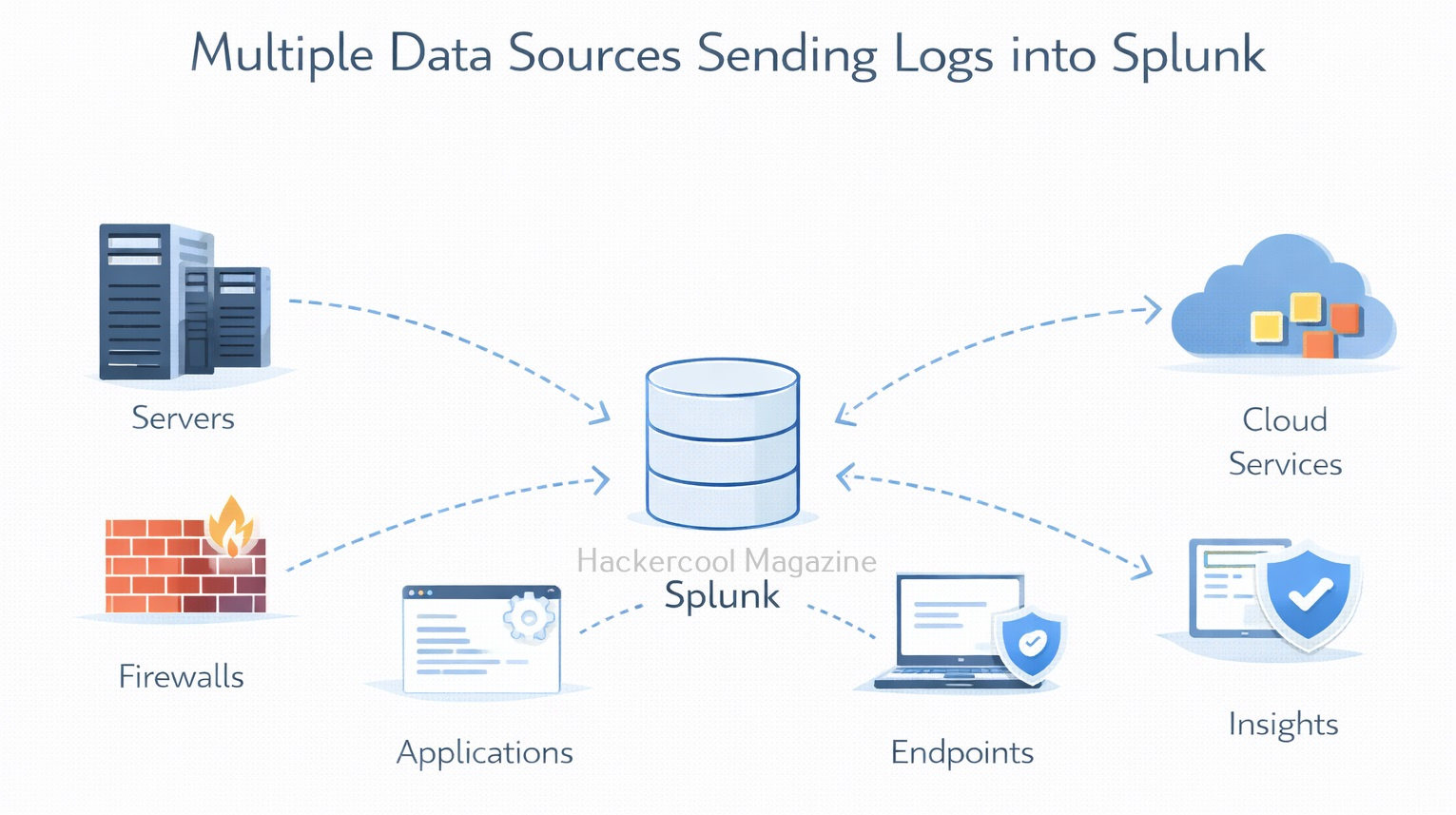
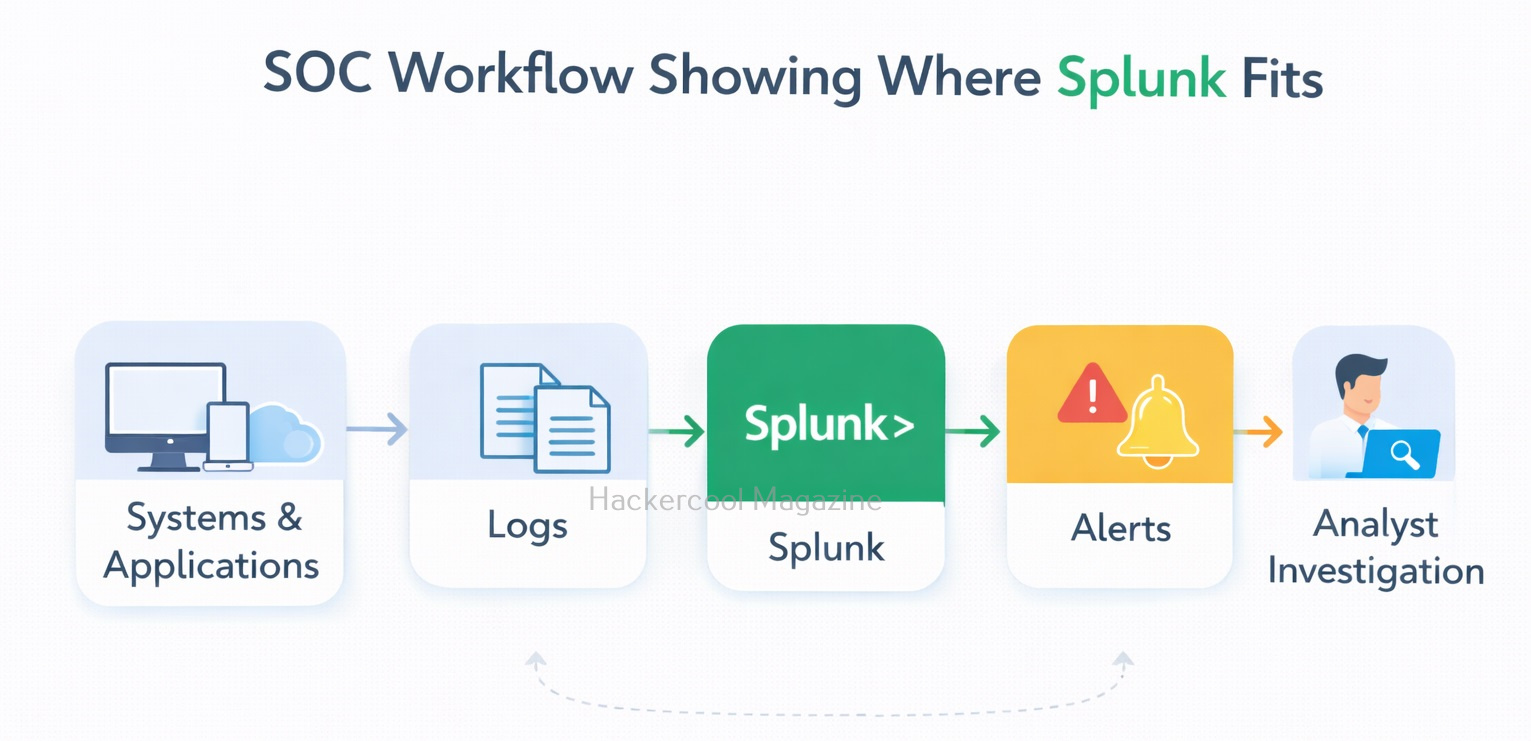
A Security Information & Event Management solution’s role comes here. It collects information, stores, processes, analyzes and upgrades security related data from multiple devices from the organization. This also helps in proper incident response. SIEM can collect, aggregate, analyze data from multiple devices in a network like Firewalls, IDS, IPS, Network gateways, Honeypots, Wireless access points, Endpoint security solutions, Routers, Switches etc. If it finds anything suspicious, it can trigger an alert and even quarantine the resource.

SIEM is a combination of Security Information management (SIM) and Security Event Management (SEM) solutions. It can be considered a successor to log viewers and event management tools.

Importance of SIEM

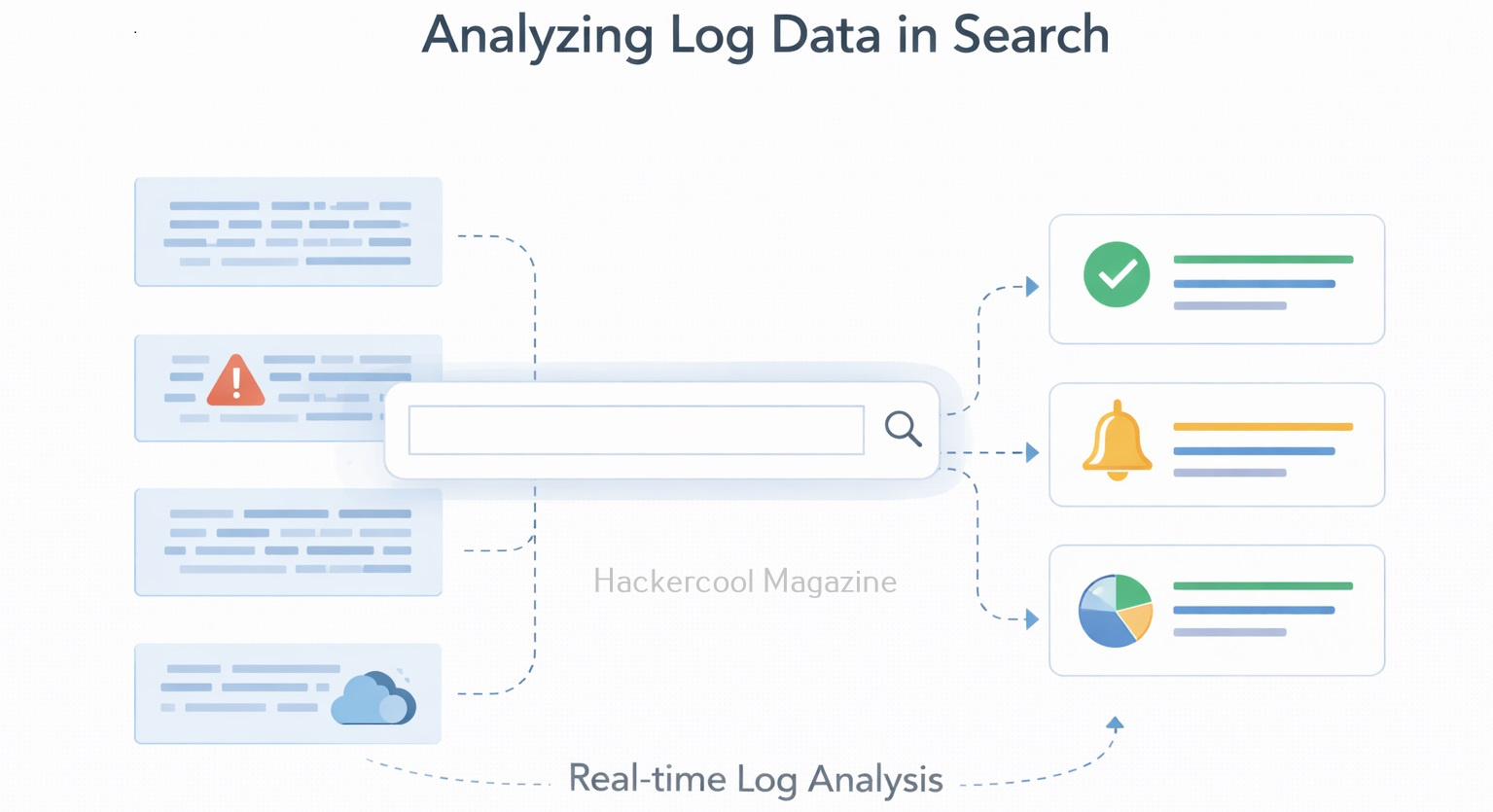
You have just now learnt that Log analysis tools and Event viewer tools are the predecessors of SIEM solutions. Well, manually viewing and analyzing logs and events can be a process requiring efforts of huge proportions. Just imagine that with multiple devices in a network, instead of a single system. This can directly affect the security of the organization as most of the threats nowadays require immediate response.

Here’s where a SIEM solution proves resourceful. It not only simplifies and automates but also enhances the security of the organization. Some popular SIEM vendors include Splunk, IBM QRadar, LogRhythm, Microsoft Sentinel, Securonix, Exabeam, Sumologic etc.

Posted on

Beginners guide to Incident response

Hello, aspiring ethical hackers. In this article, you will learn everything you need to know about Incident Response (IR). Unfortunately, unlike pen testing or ethical hacking, the role of incident response becomes important only after a cyber attack or any other cyber incident has occurred.

What is Incident Response (IR)?

In simple terms, incident response is how you or your organization respond to a cyber attack or a data breach that occurred in your organization. Obviously, any organization will want to respond to any cyber incident in such a way that the impact or damage due to that incident is minimized and contained.

So, IR is a planned and organized response of an organization to a cyber attack or incident.

Why is incident response important?

No matter how much security an organization has, there is no guarantee that a cyber incident may not occur. This cyber attack can damage the organization’s brand reputation, affect customers retention, damage intellectual property etc. A data breach can simply make a business run out of business.
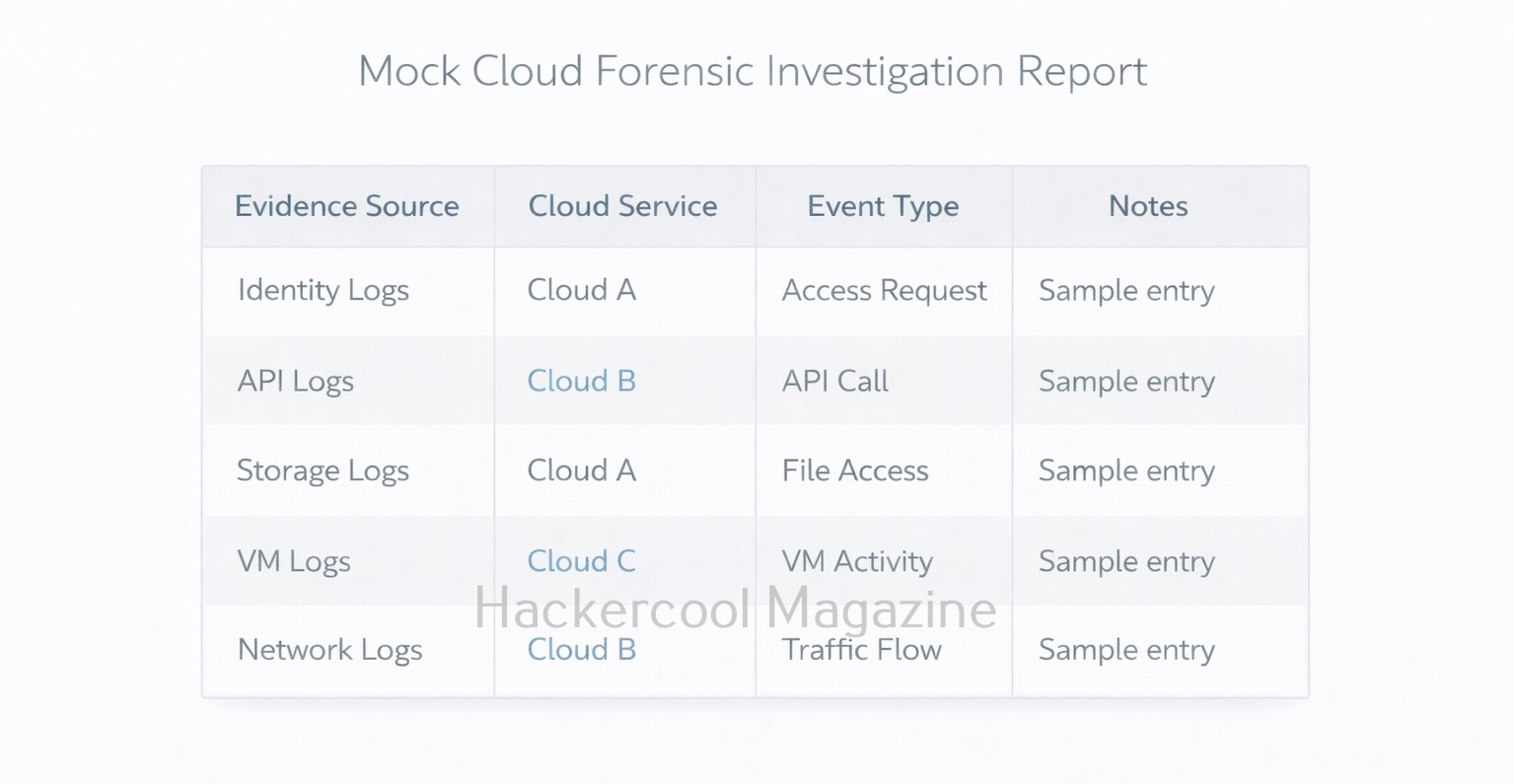
IR aims to reduce this damage as quickly as possible. This requires a definite plan instead of ad hoc responses.

Stages of Incident Response

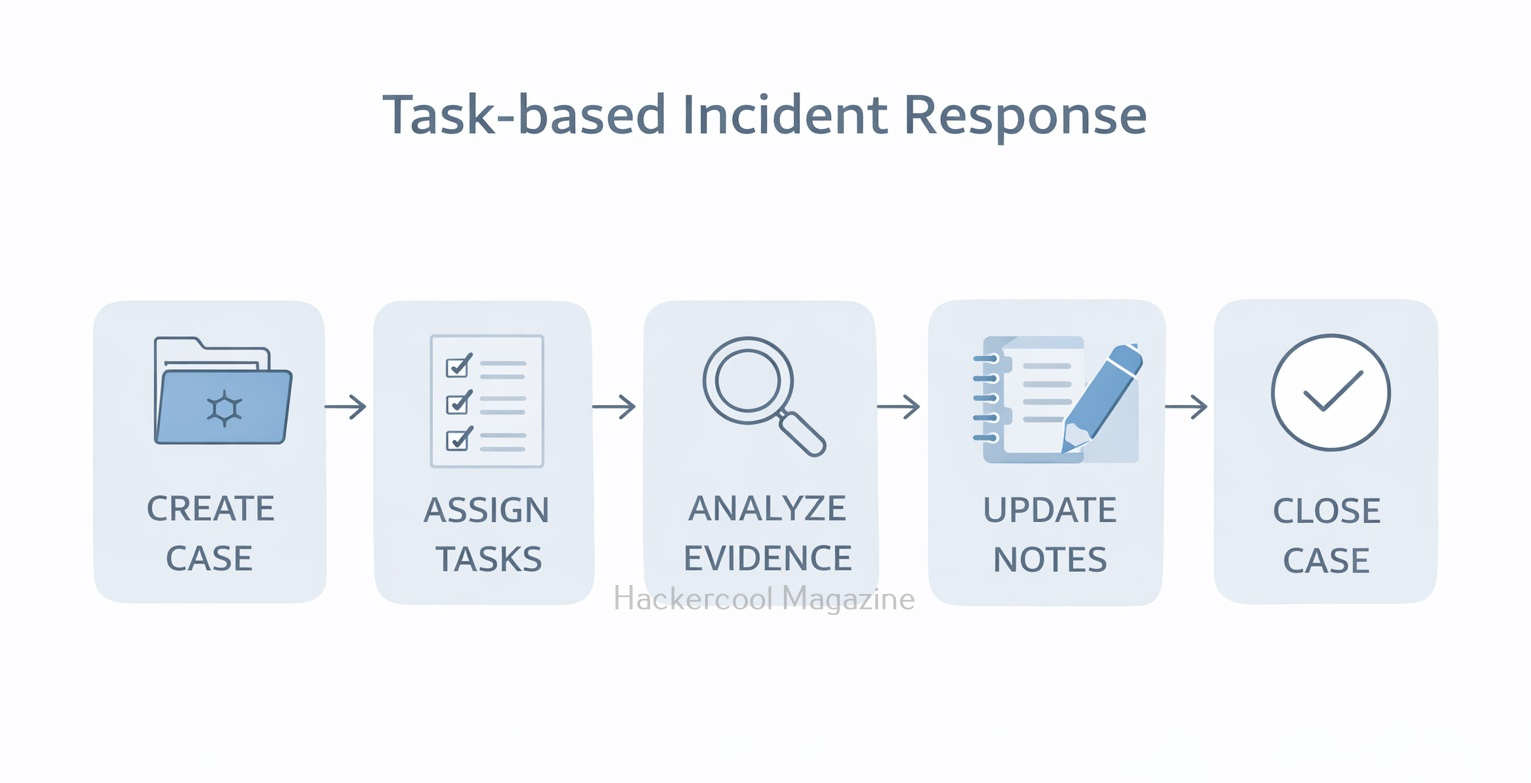
As I told you, Incident response should follow a planned and organized approach that should make the organization quickly recover from the impact of the cyber attack. Any good Incident response should have 5 steps. They are,

1.Preparation or Planning

Every organization should have a definite Incident response plan that caters to its requirements and depends on resources it wants to protect in its organization. This plan should be in written format. It should also have a dedicated incident response team that is not only aware of the incident response plan but also trained in it. This team should have the necessary tools and documentation ready in the case of a cyber attack.

2.Identification:

The next step is identifying the incident. In this era of false positives and false negatives, the incident response teams should be able to first determine what is a cyber attack to its organization. For example, let’s imagine an organization uses Windows XP machines in its organization. You know Windows XP machines are vulnerable to ms08-067.

Multiple SYN requests to SMB port of Windows XP machines of an organization may raise shackles but it is not yet an incident. But somebody exploiting the vulnerability to gain a shell or creating a new user account on that Windows XP machine can be termed as an incident.

3.Containment:

Once an incident has been identified correctly, the next step should be to limit and prevent further damage. The infected resource should be isolated and steps taken to ensure that customers or employees don’t experience any problems in accessing the resource.

Going with the same example we gave above, the infected Windows XP machine should be isolated so that the infection can be prevented from spreading to other devices on the network. In some cases, the network traffic needs to be rerouted or redirected. Once isolated, the forensics team should be informed so that it can perform digital forensics to further investigate the incident.

4.Eradication:

After the infected system or resource is isolated and the forensics team is done with creating forensic images of the infected system, the next step is the removal and restoration of systems affected by the security incident. For example, this stage involves fixing the ms08-067 vulnerability and removing the malware or payload, backdoors from the infected system. The important role of this stage is to make sure that the system cannot be exploited again.

5. Recovery

This stage involves bringing the infected system back into production environment and to make sure that another incident doesn’t occur. Before the infected system is brought back into production again, they are tested, monitored, validated and cleansed of all malware.

All of the above steps should be written in policy plan and should be documented. That’s all about Incident response. Next, learn how to prevent your organization from being hacked with threat intelligence.