Hello, aspiring ethical hackers. In our previous blogpost, you learnt how Windows authentication works. In this article, you will learn about chntpw, a offline Windows password and Registry Editor that can be used to reset or blank local passwords on Windows NT operating systems.
New to Ethical Hacking?
Start your journey with The Beginner Ethical Hacker Starter Kit (2026 Edition).
Inside the free guide, you’ll learn:.
- Ethical hacking fundamentals
- Beginner cybersecurity roadmap
- Essential hacking tools
- Common vulnerabilities explained
Chntpw or Change NT Password is a utility that does the above actions by editing the SAM database where Windows stores its hashes.
Let’s see how this tool works. We can use this tool in two ways. The first method is using it as a package installed in cybersecurity operating systems like Kali, Parrot Security etc. The second method is via a bootable CD/USB image. For this tutorial, we will be using the bootable CD/USB image. It can be downloaded from here.
Using chntpw, we can reset local account passwords of all NT Windows operating systems like Windows NT, 2000, XP, Vista , Windows 7 , windows 8, windows Server 2003 and 2008 etc. We will test this tool on Windows XP SP2.
After making a bootable USB from files downloaded, insert the bootable USB drive of chntpw and power on into BIOS. You should use the screen shown below.
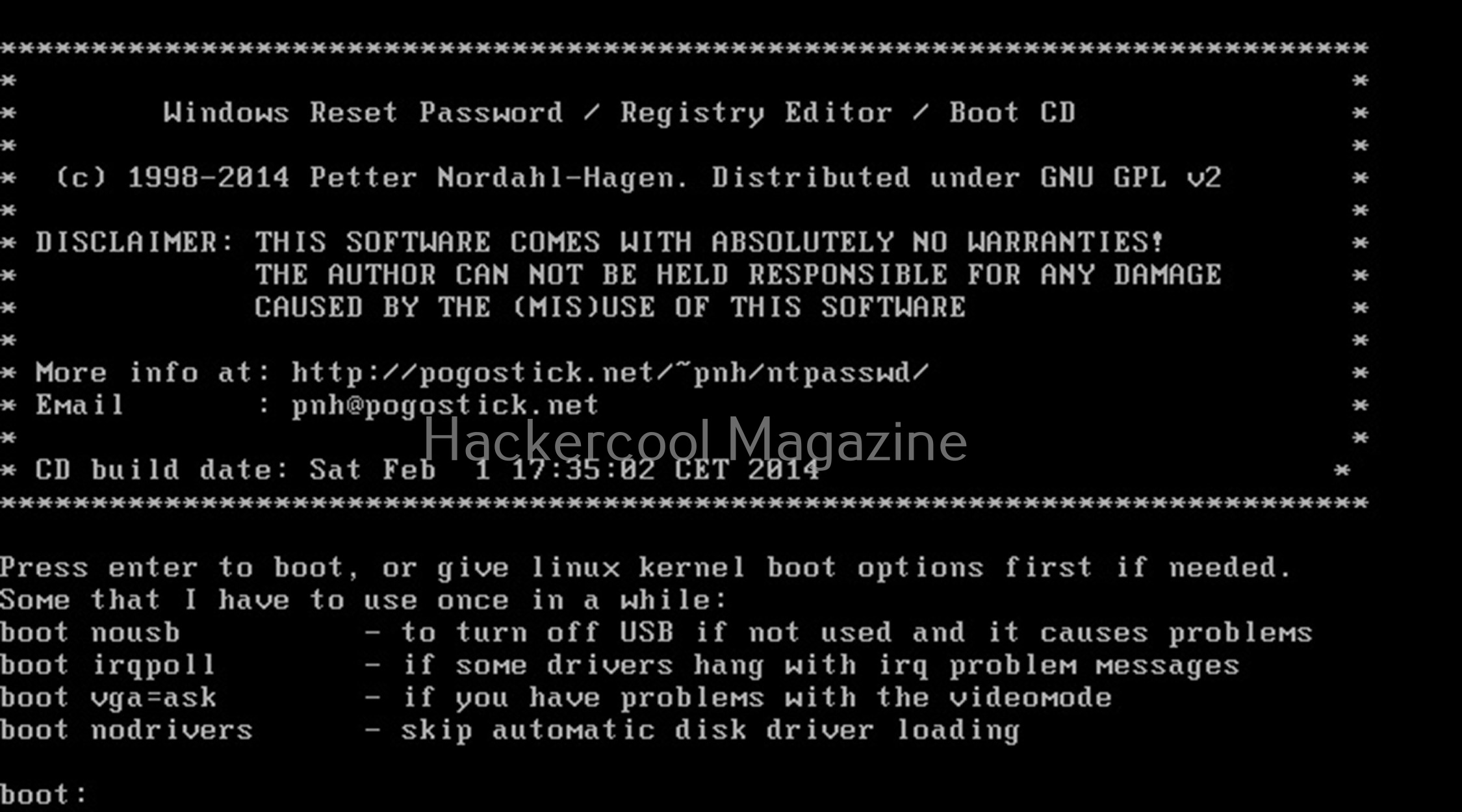
Hit ENTER. You should see the screen shown below.
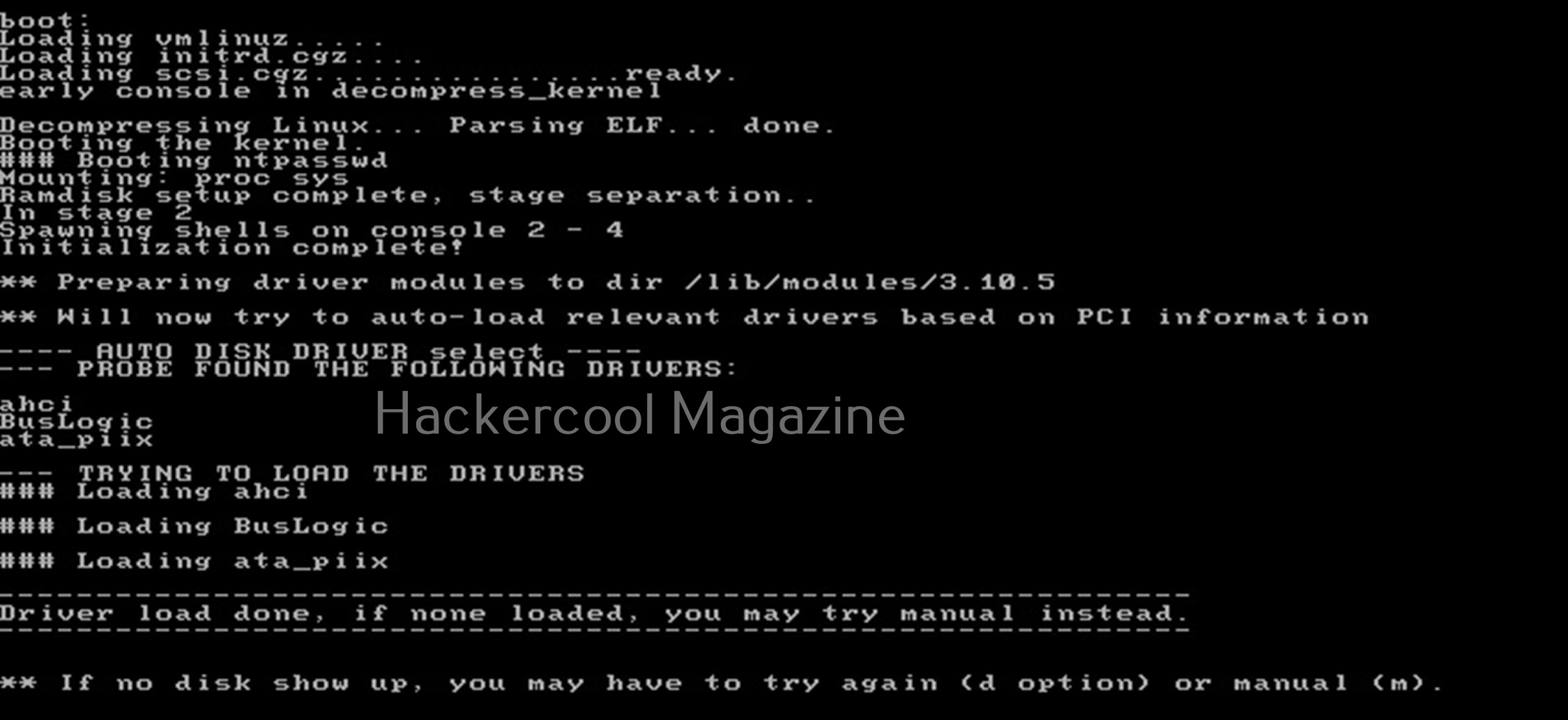
Then, it will show you all the steps to take (total 4 steps). In the first step, you have to select the disk you want to make changes to (The disk on which Windows is installed). In our case, it is disk “sdb”. It will automatically show you disk partitions. All you have to do is select. It will automatically also find Windows installations and show it to you. In this example, there is only one disk set.
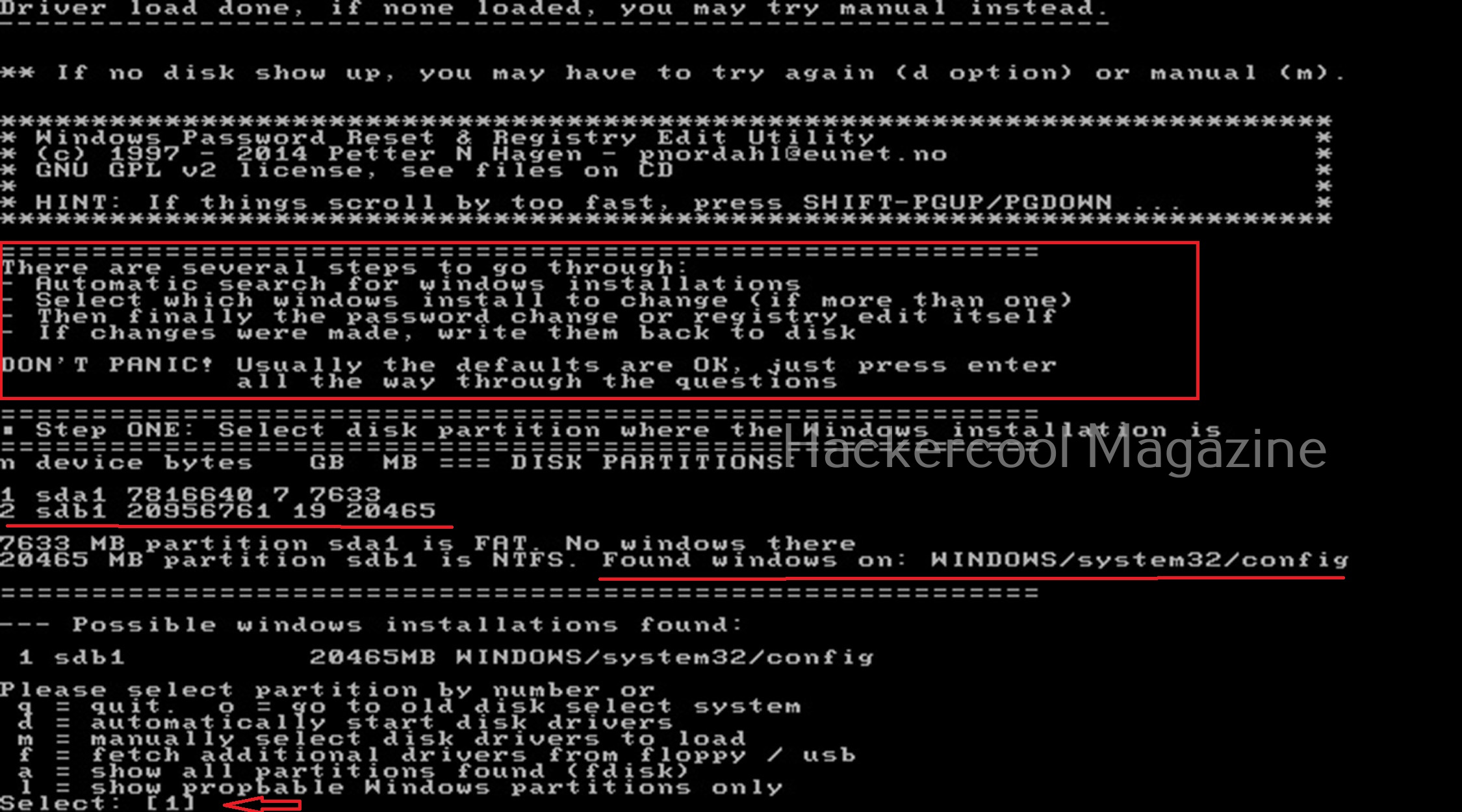
Select ‘1’. The disk will be mounted. The second step is to select the registry files you want to make changes to. It will prompt you to select the part of registry you want to make changes to from the predefined choices listed. The options given are,
1. Password reset
2. Recovery/ console parameters (software).
3. Loading almost all registry files.
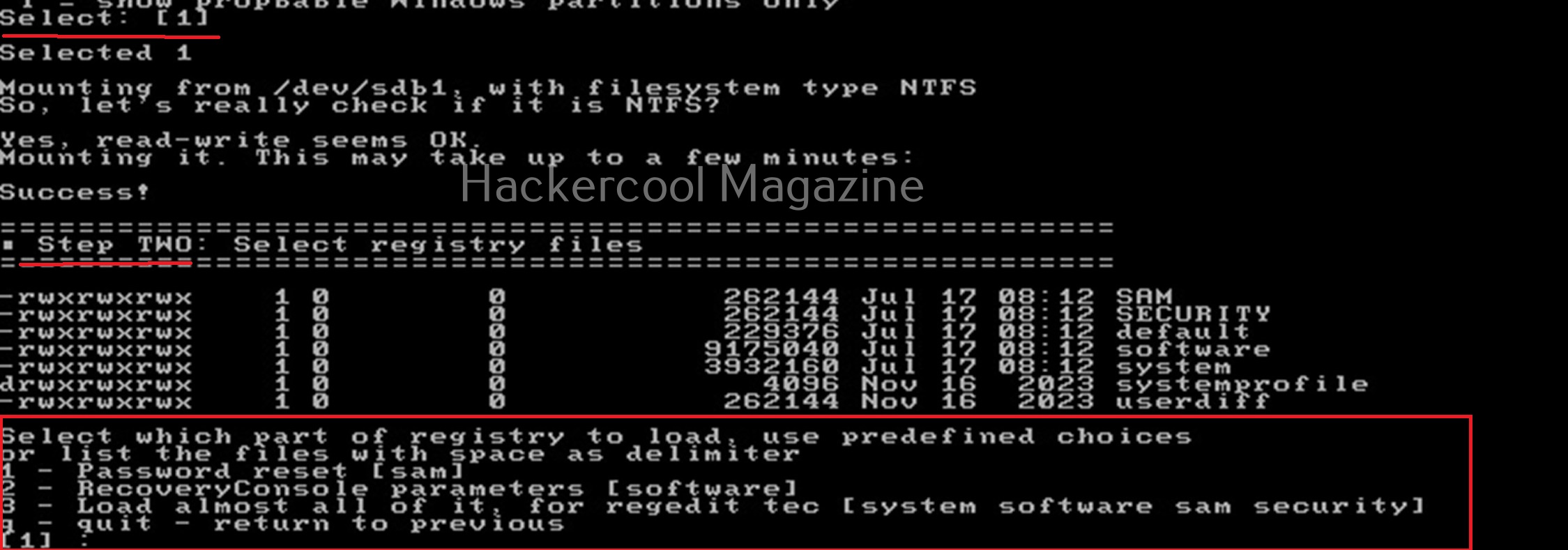
For this tutorial, let’s select the option of “password reset”. Then SAM file will be loaded to the /tmp directory. In the third step, more options are shown as shown below.
Want to Learn Ethical Hacking Step-by-Step?
If you’re serious about learning cybersecurity, a structured roadmap makes the journey much easier.
Download The Beginner Ethical Hacker Starter Kit (2026 Edition) and discover:
✔ The ethical hacking learning path
✔ Beginner-friendly security concepts
✔ Essential tools ethical hackers use
✔ The most common vulnerabilities explained
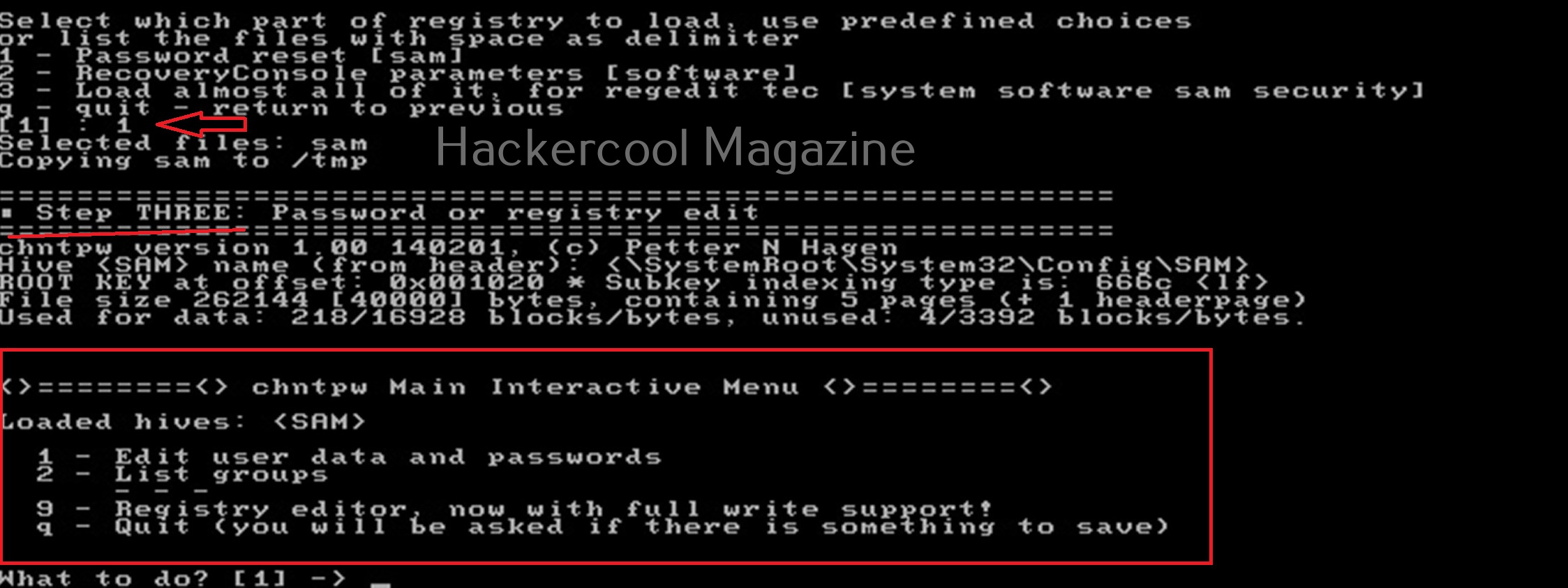
Let’s select the option of “Edit user data and passwords”. Then it will list all the users present on the local system.
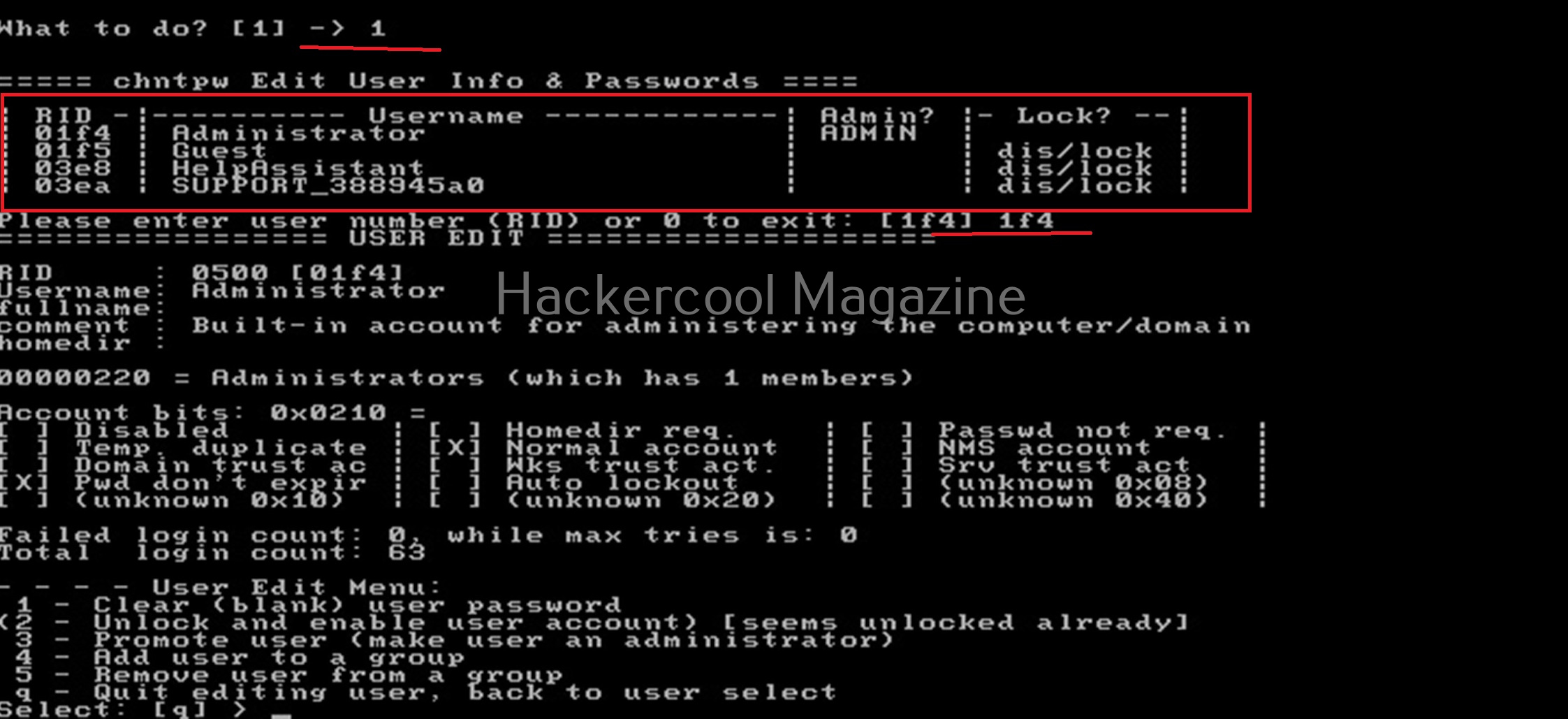
Then it will ask you to select the “RID” of the user you want to make changes to. Let’s select the user with RID ‘rf4’, the Administrator user. Once you select the user, it will present the ‘User edit’ menu asking you to select what changes you want to make.
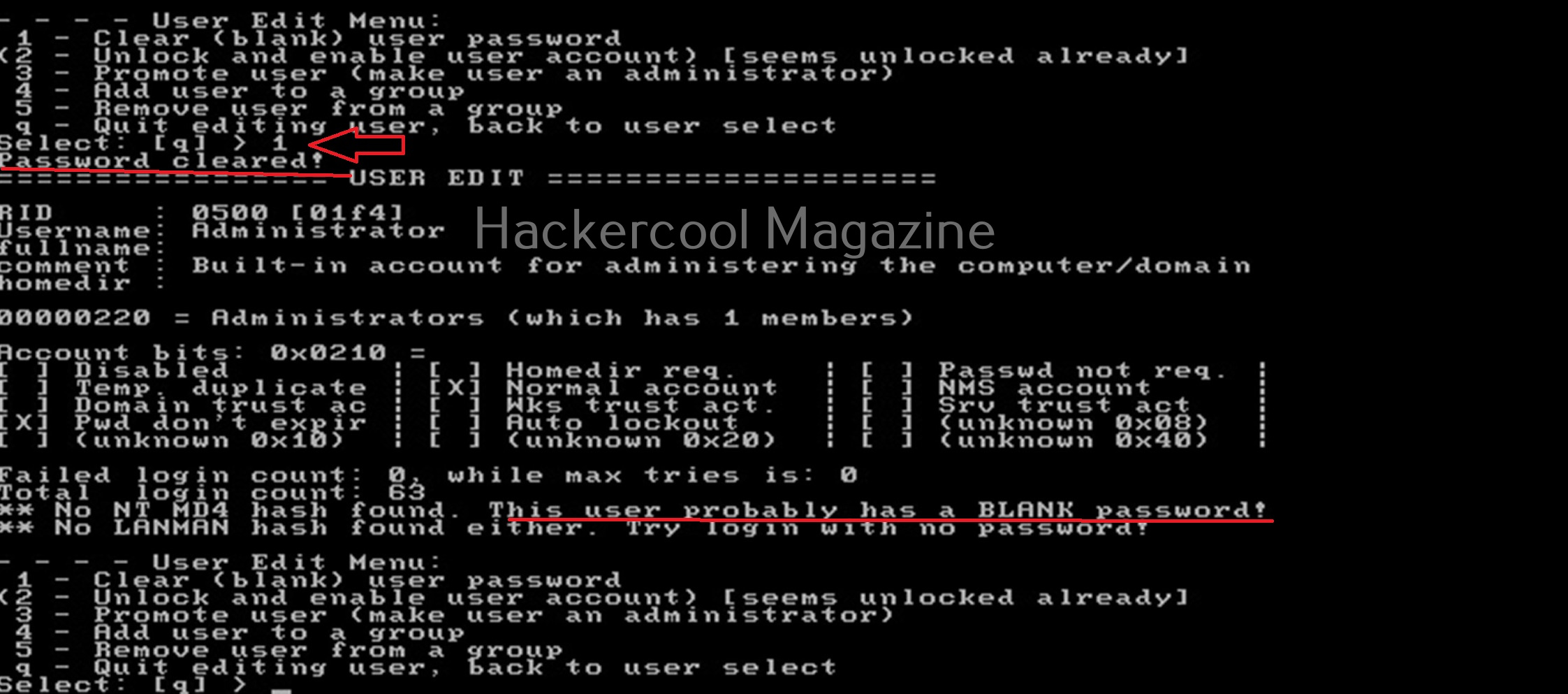
Let’s select the option to clear the password (making blank). Then, it will automatically blank the password of the user. Changes are made but not written to the disk yet. Type ‘q’ to quit the menu.
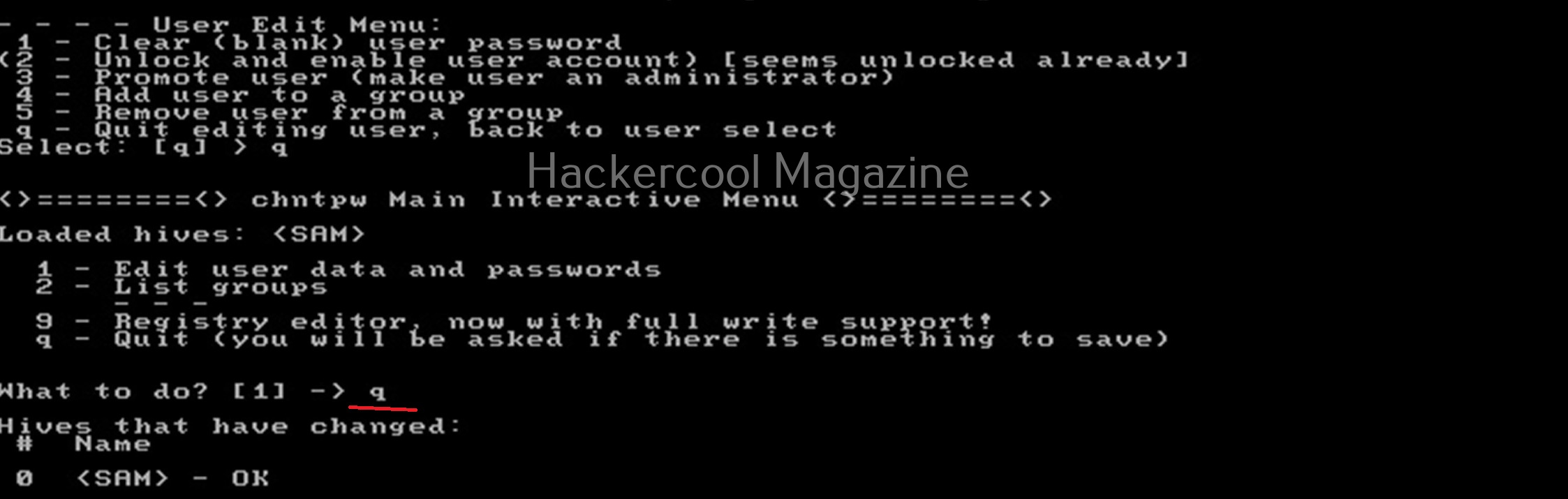
The fourth step is to write the changes to the disk. The tool will prompt you asking if you want to write changes to the disk. Select ‘Yes’ to do it.
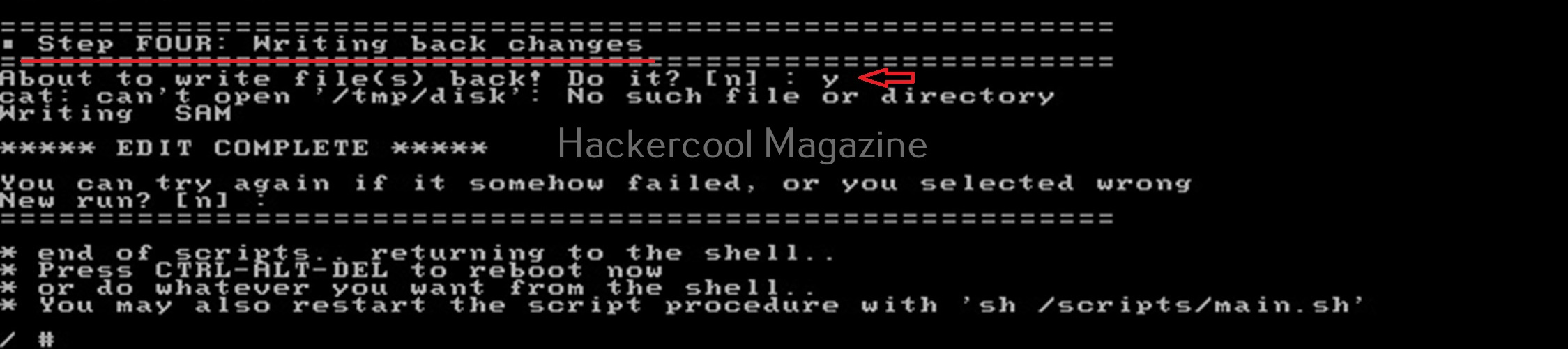
That’s how you can use chntpw to change or blank passwords of local Windows users.
Start Your Ethical Hacking Journey Today
Learning cybersecurity can feel overwhelming at first. The best way to start is with a clear roadmap and the right resources.
Download The Beginner Ethical Hacker Starter Kit (2026 Edition) and get instant access to:
Ethical Hacking Fundamentals
A beginner cybersecurity learning roadmap
Essential hacking tools every beginner should know
Common vulnerabilities explained simply