Hello, aspiring ethical hackers. In this blogpost you will learn about Social Engineering. Social Engineering is one of the most important techniques in Black Hat Hacking. It is used by APTs and Threat Actors even now.
New to Ethical Hacking?
Start your journey with The Beginner Ethical Hacker Starter Kit (2026 Edition).
Social Engineering is the art in which a human is convinced to perform actions which he is not intended to or shouldn’t be performing under normal circumstances. Hackers use social engineering to grab credentials, gather any required information about the organization or to gain initial access etc. It exploits human emotions like intention to trust, curiosity and other emotions.
Types of Social Engineering
Social Engineering can be classified into three types. They are: Human based, Computer based and Mobile based.
Human based Social Engineering
In human based social engineering, hacker interacts with a human personally to perform the attack. There are many types of social engineering attacks. Some of them are,
1. Dumpster diving:
Dumpster diving is a technique in which a hacker searches the dump or dustbin to gather any information about the organization.
Want to Learn Ethical Hacking Step-by-Step?
If you’re serious about learning cybersecurity, a structured roadmap makes the journey much easier.
Download The Beginner Ethical Hacker Starter Kit (2026 Edition) and discover:
✔ The ethical hacking learning path ✔ Beginner-friendly security concepts ✔ Essential tools ethical hackers use ✔ The most common vulnerabilities explained
In this attack, attacker impersonates as another user to gather important information about any organization or performing hacking attacks. Any information obtained in dumpster diving can be useful in this stage. Obviously, an attacker will impersonate as a legitimate user of the organization or a person of authority or anyone else who has a chance to enter a company physically or virtually.
In June 2023, hacking group tracked as “Pink Drainer” impersonated journalists in phishing attacks to gain access to 1932 Discord and Twitter accounts. They stole approximately $29,97,707 worth of cryptocurrency.
3. Piggybacking:
Piggybacking is used to gain access to the premises of a company or organization. In piggybacking, a genuine employee of an organization allows access to the attacker because he/she thinks that the attacker has genuine reason to be on the organization’s premises. It usually happens when the hacker impersonates as anyone who is allowed into company’s premises. For example, delivery boy, technician etc.
4. Tailgating:
In tailgating, which is another social engineering techniques to gain illegal access to the company’s premises, a hacker tries to gain access to the company’s premises by quickly following behind a legitimate or genuine user immediately after he/she gains access into company’s premises.
5. Eavesdropping:
Eaves dropping is secretly listening to the conversation of employees of the organization etc. This can happen anywhere but mostly happens at recreational spots.
6. Shoulder surfing:
Shoulder surfing is the technique in which an attacker spies on the legitimate users of the organization by staying behind them. Shoulder surfing is normally used to see the legitimate user is entering his credentials but it can also be used to gather any valuable information.
7. Vishing:
In vishing, also known as voice phishing, a hacker uses voice over a phone or a VOIP call to perform social engineering. In July 2020, hackers used vishing to trick Twitter employees into revealing account credentials of 130 Twitter account including that of Barack Obama, Joe Biden and Kanye West. The share value of Twitter plummeted by 7% after this incident.
8. Pretexting:
In pretexting, attacker creates specific scenarios or events by which the user he is targeting reveals information he/she makes.
Computer based Social Engineering
When a computer is used in an engineering attack, it is known as computer based social engineering attack. There are two types of computer based social engineering attacks. They are,
1. Phishing:
In phishing, attackers create a fake website (impersonating a genuine website) and divert the target users to this fake website to grab their credentials or make them download malware. There are multiple examples of hackers creating a fake phishing website to steal credentials, credit card information or other sensitive information. In August 2023, Supreme Court (the highest court of India) warned users about a fake website impersonating website of the Supreme Court trying to solicit personal details and confidential information from users. See how to perform phishing attacks with Weeman HTTP server and GoPhish.
2. Spear Phishing:
In spear phishing, a hacker selects specific users as targets and sends them an email with malware attached to the email and luring them to download and execute the attached payloads or take some other action. In February 2022, Russian hacking group known as Gamaredon, targeted Ukrainian government agencies and NGO’s with a spear phishing email campaign with malware laden emails.
Mobile based SE
If an engineering attack uses mobile it is known as mobile based social engineering. SMishing is a type of mobile based social engineering attack.
1. SMishing:
SMishing or SMS phishing is a phishing attack which is performed by sending a SMS to the target user’s mobile phone with a link to the fake website attacker created. In 2020, cyber criminals sent SMS messages to various user’s mobile phones asking them to click on a link to view important information about an upcoming delivery from United States Post Office (USPS). When users clicked on the links in these SMS, it took them to a malicious website that was designed to steal user’s Google account credentials.
Learn about Social Engineering Toolkit (SET), an open-source framework to perform a variety of social engineering attacks.
Start Your Ethical Hacking Journey Today
Learning cybersecurity can feel overwhelming at first. The best way to start is with a clear roadmap and the right resources.
Download The Beginner Ethical Hacker Starter Kit (2026 Edition) and get instant access to:
Ethical Hacking Fundamentals A beginner cybersecurity learning roadmap Essential hacking tools every beginner should know Common vulnerabilities explained simply
Imagine logging in to a website using a username and password. You expect those credentials to remain private. But what happens if the application sends them across a network without proper encryption?
In certain circumstances, someone who can observe that network traffic may be able to read the credentials. This is the basic idea behind password sniffing.
For cybersecurity beginners, understanding password sniffing is important because it explains why secure protocols, encrypted connections and properly configured networks are essential for protecting accounts. In this guide, we’ll explore what password sniffing is, how it works, which protocols are vulnerable, how security professionals study network traffic and how organizations can protect their users.
New to Ethical Hacking?
Start your journey with The Beginner Ethical Hacker Starter Kit (2026 Edition).
Password sniffing is the process of capturing and examining network traffic to identify passwords or other authentication information transmitted between systems. A network sniffer is a tool that captures packets traveling through a network interface. Security professionals use packet analyzers to troubleshoot networks, investigate incidents and identify security problems.
However, when authentication data travels over an unencrypted connection, captured packets may reveal sensitive information. For example, if a legacy application transmits a password in plaintext, someone with access to the relevant traffic may be able to read it.
Important: Capturing network traffic should only be performed on networks and systems you own or have explicit permission to assess.
How Does Password Sniffing Work?
When two devices communicate over a network, they exchange information in the form of packets. Depending on the application and protocol, these packets may contain requests, responses, metadata and sometimes authentication information.
A simplified password-sniffing scenario follows these stages:
Network communication: A user connects to a service and attempts to authenticate.
Packet transmission: The client and server exchange network packets.
Traffic capture: An authorized analyst or an attacker with suitable network access captures relevant traffic.
Protocol analysis: The captured packets are examined to determine which protocol is being used and what information is visible.
Credential exposure: If sensitive authentication data was transmitted without adequate protection, it may be exposed.
Modern networks introduce important limitations. A device connected to a switched Ethernet network generally cannot automatically observe every other device’s unicast traffic. Wireless encryption, network segmentation, endpoint protections and encrypted application protocols can also limit what an observer can see.
Password sniffing is therefore not a magical technique that reveals every password on a network.
Why Are Unencrypted Protocols Dangerous?
The security of a connection depends partly on the protocol used to carry the information. Older protocols were sometimes designed without the encryption protections expected today.
Examples include:
HTTP: Ordinary HTTP does not encrypt application data in transit.
FTP: Traditional FTP does not protect usernames and passwords with transport encryption.
Telnet: Telnet generally transmits session information without encryption.
POP3 or IMAP without TLS: Email authentication and content may be exposed when secure transport is not enabled.
If credentials travel across an observable network using these insecure configurations, they may be readable in captured traffic. By contrast, properly configured HTTPS, SSH and TLS-protected email protocols encrypt data in transit.
Encryption does not solve every security problem but it significantly reduces the risk of passive observers reading transmitted credentials.
These two concepts are often confused but they are different. Password sniffing involves capturing network traffic and examining it for exposed authentication information. Password cracking involves attempting to recover a password from a password hash or another password-related representation, usually by testing candidate passwords.
Consider two scenarios. In the first, an application transmits a password in plaintext. An observer who can capture the relevant traffic may be able to read it directly. In the second, a security tester obtains a password hash from an authorized test environment. The tester may evaluate its resistance to guessing using an approved password-auditing process.
The first scenario concerns network communication. The second concerns password recovery and authentication security. Both demonstrate why organizations must protect credentials throughout their lifecycle.
What Tools Are Used to Analyze Network Traffic?
Cybersecurity professionals use packet-analysis tools to understand how systems communicate.
Wireshark is a widely used network protocol analyzer. It lets analysts capture or inspect packet data and examine protocol fields, connection behavior and communication patterns. It is useful for network troubleshooting, security investigations and learning how protocols operate.
tcpdump is a command-line packet analyzer available on many Unix-like systems. It is useful for inspecting network traffic and investigating communication problems.
Tshark:
TShark is Wireshark’s command-line analysis utility. It supports packet capture and protocol analysis in scripted or terminal-based workflows. These tools do not automatically reveal passwords. What they can show depends on the captured traffic, available permissions, protocol configuration, encryption and the quality of the capture.
Beginners should start with saved sample captures or traffic generated inside an isolated lab.
Can Password Sniffing Work Against HTTPS?
Properly configured HTTPS encrypts application data in transit using TLS. An observer capturing ordinary HTTPS traffic may see information such as IP addresses, connection timing, packet sizes and some connection metadata, depending on the environment. However, the actual application content—including a password submitted through the encrypted connection—is normally protected from passive packet inspection.
HTTPS is not a guarantee against every type of credential theft. Credentials may still be compromised through phishing, malware, compromised endpoints, insecure application design, malicious browser extensions or other attacks. That is why organizations need multiple layers of security rather than relying on encryption alone.
How Can Beginners Practice Password Sniffing Safely?
You can learn the underlying concepts without capturing anyone else’s credentials. Start with a controlled network laboratory using your own devices, an isolated virtual network and sample packet captures.
A safe learning path includes:
Learn packet fundamentals: Understand Ethernet frames, IP packets, TCP, UDP, DNS and HTTP.
Explore Wireshark: Open a sample capture and identify the protocols and communication endpoints.
Compare HTTP and HTTPS: Examine the difference between readable application data in a deliberately constructed HTTP lab and encrypted HTTPS traffic.
Study authentication flows: Learn how applications handle login requests and why secure transport matters.
Document your findings: Record what is visible, what remains encrypted and what security controls reduce exposure.
Use synthetic credentials that have no connection to real accounts. Keep testing within your lab and do not collect passwords belonging to other people.
Let’s see password sniffing practically. For this, we will be using three virtual machines which are on the same network.
They are Metasploitable 2 which acts as server, Ubuntu which acts as client and of course Kali as our Attacker system. As you can see, the IP addresses of the three machines are
Let’s start Wireshark on the attacker machine (on interface eth0). It starts capturing packets on the network.
The reason why we are using Metasploitable 2 as our target is that it already has many services that we need for this tutorial preinstalled. The first service we will be using is Telnet. It is a protocol that is used for remote access on another system. On most Linux systems, Telnet clients are installed by default.
Want to Learn Ethical Hacking Step-by-Step?
If you’re serious about learning cybersecurity, a structured roadmap makes the journey much easier.
Download The Beginner Ethical Hacker Starter Kit (2026 Edition) and discover:
✔ The ethical hacking learning path ✔ Beginner-friendly security concepts ✔ Essential tools ethical hackers use ✔ The most common vulnerabilities explained
So we open a terminal and log into the Metasploitable 2 Telnet server with the credentials shown below.
The login is successful. Now on the Attacker system, we can observe the traffic being captured by the Wireshark sniffer. You can see data related to Telnet being transferred.
We can Right Click on that Telnet data stream and click on “Follow” as shown below.
In the sub menu that opens when we click on the only option “TCP stream” a new window opens that will show only the TCP stream.
In this window, you can see the credentials we just used to login into the target system. Telnet is a plain text protocol which transfers credentials and other sensitive data in plain text. This allows sniffing of data. That’s the reason it has been mostly replaced by Secure Shell (SSH) nowadays.
Let’s see another protocol. File Transfer Protocol (FTP) is a protocol that is used to share files. It is another protocol that transfers data in plain text. From our client, we login into the FTP server with credentials “anonymous:anonymous”.
Anonymous account in FTP is used to share files to anyone without the need for them to know credentials.
On the Wireshark interface, you can see FTP data being transferred.
We can view the TCP stream
This once again shows credentials.
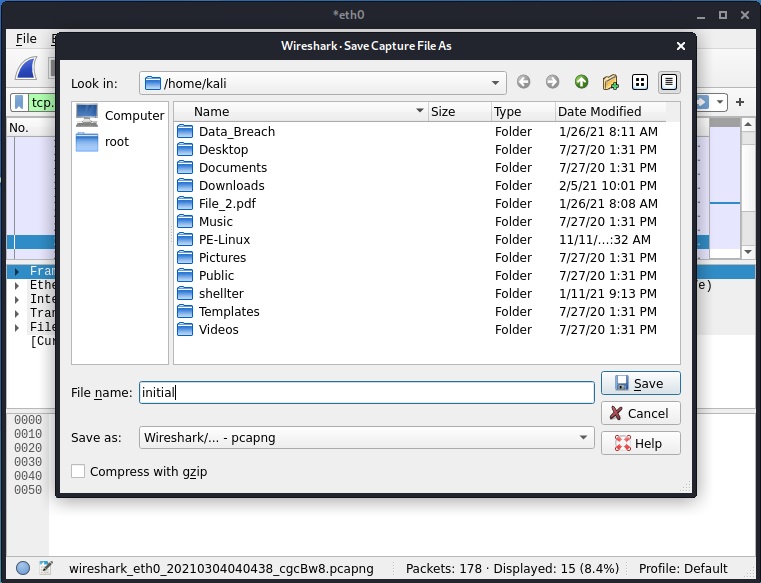
Instead of observing LIVE data transfer and following TCP stream from there, we can also just save the packet capture file and open the file later for analysis.
After opening the file, we can search for specific terms as shown below.
Then following the TCP stream gives us the credentials.
Seeing the vulnerability due to sniffing, many protocols have been replaced with secure protocols which transfer data in encrypted form instead of plain text form. These are given below.
How Can Organizations Prevent Password Sniffing?
1. Enforce HTTPS and TLS
Use HTTPS for web applications and properly configured TLS for other services that transmit authentication data. Redirect users to secure connections where appropriate and avoid insecure fallback mechanisms.
2. Disable Insecure Protocols
Replace Telnet with SSH and traditional FTP with secure alternatives such as SFTP or properly configured FTPS. Disable legacy services that are no longer required.
3. Use a VPN on Untrusted Networks
A properly configured VPN can protect traffic between a device and the VPN endpoint on an untrusted network. It does not replace HTTPS or protect against a compromised endpoint, so use it as one layer of defense.
4. Enable Multi-Factor Authentication
Multi-factor authentication (MFA) adds another authentication requirement beyond a password. Phishing-resistant options, such as passkeys or security keys, can offer stronger protection against credential theft.
5. Secure Wi-Fi Networks
Use modern Wi-Fi security, strong administrative credentials, updated access points and appropriate network segmentation. Public Wi-Fi users should avoid ignoring certificate warnings or entering credentials into suspicious websites.
6. Monitor and Update Systems
Monitor network activity for unexpected protocols and suspicious authentication behavior. Keep operating systems, applications and network devices updated and investigate unnecessary plaintext traffic.
Conclusion
Password sniffing shows how the security of a password depends on more than its length or complexity. A strong password can still be exposed if an application transmits it insecurely. For beginners, the most useful lesson is to understand how network protocols work, how encryption protects data in transit and how packet-analysis tools help identify security weaknesses.
Start with networking fundamentals and Wireshark, use authorized lab traffic and learn to distinguish encrypted communication from exposed data.
For ethical hackers, this knowledge supports responsible security assessments. For defenders, it helps identify insecure protocols before attackers can exploit them. The goal is not simply to learn how credentials can be captured. It is to understand how to prevent that exposure and build safer systems.
Start Your Ethical Hacking Journey Today
Learning cybersecurity can feel overwhelming at first. The best way to start is with a clear roadmap and the right resources.
Download The Beginner Ethical Hacker Starter Kit (2026 Edition) and get instant access to:
Ethical Hacking Fundamentals A beginner cybersecurity learning roadmap Essential hacking tools every beginner should know Common vulnerabilities explained simply
At first glance, an ordinary image may look like nothing more than a photograph but what if that image contained another piece of information that wasn’t immediately visible?
That is the basic idea behind steganography. Steganography is the practice of hiding information inside another seemingly ordinary file or communication medium so that the existence of the hidden information is difficult to notice. The word comes from Greek roots meaning roughly “covered writing.”
Unlike encryption, which transforms information into an unreadable form, steganography attempts to hide the existence of the information itself. For cybersecurity beginners, understanding steganography is useful because it introduces an important security concept: information can sometimes be hidden in places that appear completely ordinary.
New to Ethical Hacking?
Start your journey with The Beginner Ethical Hacker Starter Kit (2026 Edition).
Steganography is a technique for concealing data inside a cover medium.
The cover medium could be:
An image
An audio file
A video
A document
Network traffic
Another digital file
The hidden information is often called the payload, while the original file used to carry it is called the cover.
Conceptually:
Cover File + Hidden Data → Stego File
The resulting file may look normal to an ordinary user, even though additional information has been embedded inside it. For example, a photograph could contain hidden text while still opening normally as an image. This is what makes steganography interesting from a cybersecurity perspective.
Steganography vs Encryption
Steganography and encryption are related to information protection but they solve different problems.
Encryption attempts to make the contents of information unreadable to anyone without the appropriate key. Steganography attempts to make the presence of the information difficult to detect.
Imagine sending a locked box. Encryption is like putting the message inside the locked box. Steganography is more like hiding the box inside something that doesn’t attract attention.
The two techniques can also be combined. Sensitive information can be encrypted first and then embedded inside another file.
This creates two different security layers:
Encryption → protects the contents Steganography → hides the existence
Neither technique is automatically secure simply because it is being used.
How Does Digital Steganography Work?
Digital steganography generally works by making small changes to a carrier file. The goal is to modify the carrier without creating obvious visual, audio or structural differences.
Consider a digital image. Images contain large amounts of numerical information representing pixels and colors. A steganographic system may manipulate carefully selected portions of this information to encode additional data. If the changes are small enough, the resulting image may appear identical to a person viewing it normally.
The challenge is finding the right balance. If too little information is embedded, the technique may have limited usefulness. If too much information is embedded, the changes may become detectable or may noticeably affect the carrier file.
Images are one of the most commonly discussed steganography carriers. A digital image contains many pixels and each pixel contains numerical information describing its color.
One classic concept involves modifying the least significant bits of pixel values. A tiny change to an individual color value may not be noticeable to the human eye. For example, changing a numerical pixel value from one nearby value to another may produce no visible difference.
When many carefully selected pixels are used, these tiny changes can represent hidden information. This is only one conceptual approach. Modern steganographic techniques can use considerably more sophisticated methods.
Audio Steganography
Audio files can also contain hidden information. Digital audio consists of numerical samples representing sound. Small modifications to selected samples may allow additional information to be embedded without creating an obvious difference to human listeners.
Audio steganography therefore uses the characteristics of human hearing and digital audio representation. However, audio processing can also destroy hidden information. Converting formats, compressing files or modifying the audio may interfere with the embedded data.
Video Steganography
Video provides another interesting carrier because it contains both images and audio. A video may therefore provide many possible locations for hidden information. Information can potentially be embedded within visual frames, audio streams or other components of the file.
The large amount of data contained in video can provide greater capacity than some other media. At the same time, video compression and transcoding can make reliable hiding more difficult.
Document and File-Based Steganography
Steganography isn’t limited to photographs, music and video. Digital documents and other file formats can potentially contain concealed information. Some approaches manipulate metadata or unused areas of a file format, while others take advantage of how particular applications interpret structured data.
This makes file-format knowledge important when investigating suspicious files. However, not every unusual file characteristic represents steganography. A legitimate document can contain metadata, embedded objects, application-specific information or unusual formatting for perfectly normal reasons.
Network Steganography
Considered to be more advanced and practically useful to Black Hat Hackers, in Network steganography information is hidden in network traffic. For example, it can be hidden in the TCP/IP headers etc.
Where Is Steganography Used?
Steganography has legitimate applications.
Privacy:
People may use information-hiding techniques to communicate sensitive information in situations where simply identifying the existence of a communication could create a problem.
Digital Watermarking:
Steganographic concepts are closely related to digital watermarking. A creator may embed information into media to help establish ownership, identify a source or track distribution.
Security Research:
Security researchers study steganography to understand how information can be concealed and how defensive systems can detect it.
Forensic investigators may examine suspicious images, documents, audio files or other media for hidden information.
Cybersecurity Training:
Steganography is also useful in security education and capture-the-flag exercises, where learners are given a file and asked to determine whether it contains concealed information.
Want to Learn Ethical Hacking Step-by-Step?
If you’re serious about learning cybersecurity, a structured roadmap makes the journey much easier.
Download The Beginner Ethical Hacker Starter Kit (2026 Edition) and discover:
✔ The ethical hacking learning path ✔ Beginner-friendly security concepts ✔ Essential tools ethical hackers use ✔ The most common vulnerabilities explained
This is where steganalysis becomes important. Steganalysis is the process of detecting or analyzing suspected steganographic content.
A security analyst might look for unusual characteristics such as:
Unexpected file sizes
Strange metadata
Inconsistent file structures
Statistical anomalies
Unexpected embedded objects
Suspicious modifications to media
Differences between expected and actual file characteristics
However, detection is not always straightforward. A well-designed steganographic method may attempt to minimize detectable changes. Security analysts therefore often combine multiple forms of analysis instead of relying on a single indicator.
Steganography in Digital Forensics
Suppose an investigator receives an image during a forensic investigation. The image opens normally. There is no obvious visual problem. That does not necessarily mean the file contains only ordinary image data.
First, preserve the original evidence. Then examine the file structure, metadata, size, encoding characteristics and other relevant properties. If something appears suspicious, the analyst can conduct deeper analysis using appropriate forensic tools. The key principle is to avoid modifying the original evidence during investigation.
Steganography and Cybersecurity
Why should an ethical hacker or security analyst care about steganography?
Because attackers can potentially use information-hiding techniques to make malicious or sensitive data less obvious.
For defenders, this creates another problem:
The file itself may look legitimate.
An organization might therefore need security controls capable of inspecting files, analyzing unusual behavior and identifying suspicious data movement. Steganography should not be viewed as a magical way to bypass security systems. Modern security environments use multiple layers of monitoring, endpoint protection, network analysis and behavioral detection.
Real-world Examples of Steganography attacks
In September 2022, researchers at ESET discovered a previously unknown Threat actor they named Worok hiding malicious payload in PNG files.
In 2019, researchers at Symantec observed a Russian cybersecurity group waterbug (also known as just the malicious) delivering a publicly known backdoor by hiding it in a WAV file.
In the same year, security researchers at Cylance observed a hacking campaign that was delivering XMRIG Monero CPU miner by hiding them in WAV files.
PLATINUM hacker group, that usually targets Governments of South Asia and South East Asia, embedded their malware commands in the HTML code of a website. They achieved this by encoding malware commands in a specific sequence of “TAB” and “SPACE” bar.
How Beginners Can Practice Steganography Safely
Steganography is particularly suitable for a controlled cybersecurity laboratory. Start with harmless files that you created yourself. For example, create an ordinary image and experiment with embedding a short piece of non-sensitive sample data in an isolated lab environment.
Then compare:
Original file size
Modified file size
Image quality
Metadata
File structure
Behavior after conversion or compression
You can then investigate how defensive analysis might identify differences. Capture-the-flag and cybersecurity training environments can also provide intentionally designed steganography challenges. The goal should be to understand how information hiding works and how defenders can detect it, not to conceal unauthorized information.
Steganography vs Obfuscation
These terms are sometimes confused.
Steganography focuses on hiding the existence of information. Obfuscation makes information or code harder to understand.
For example, changing program code so that it becomes difficult to read is obfuscation. Embedding information inside an apparently ordinary image is steganography. They can be used together but they solve different problems.
Conclusion
Steganography demonstrates an important cybersecurity principle:
Not everything suspicious looks suspicious.
A completely ordinary image, document, audio file or video can potentially contain information that isn’t immediately visible. For beginners, the most important concepts to understand are the difference between encryption and steganography, how digital media can carry hidden information, how steganalysis works and why file analysis matters in cybersecurity and digital forensics.
You don’t need to begin with complicated techniques. Start by understanding how digital files are structured. Learn how images, audio, video and documents store information. Then experiment with harmless data inside an isolated laboratory.
Finally, approach steganography from both sides:
How can information be hidden?
and
How can defenders recognize that something has been hidden?
That combination of offensive understanding and defensive analysis is what makes steganography a valuable topic for anyone learning cybersecurity.
Start Your Ethical Hacking Journey Today
Learning cybersecurity can feel overwhelming at first. The best way to start is with a clear roadmap and the right resources.
Download The Beginner Ethical Hacker Starter Kit (2026 Edition) and get instant access to:
Ethical Hacking Fundamentals A beginner cybersecurity learning roadmap Essential hacking tools every beginner should know Common vulnerabilities explained simply
Privilege escalation is one of the most important concepts beginners encounter when learning ethical hacking and penetration testing.
Getting initial access to a system is often only one part of a security assessment. An account or process may have limited permissions while sensitive files, administrative settings, security controls and critical systems require higher privileges. Understanding how permissions are assigned and how misconfigurations can allow those permissions to be abused—is therefore an essential cybersecurity skill.
This guide explains privilege escalation from a beginner’s perspective, including the difference between horizontal and vertical privilege escalation, common Linux and Windows weaknesses, a typical assessment methodology and safe ways to practice.
Important: Privilege-escalation techniques should only be tested on systems you own or have explicit authorization to assess. Use intentionally vulnerable labs, virtual machines and training platforms.
New to Ethical Hacking?
Start your journey with The Beginner Ethical Hacker Starter Kit (2026 Edition).
Privilege escalation occurs when a user, process or application gains access to resources or capabilities beyond what it was originally authorized to use.
Imagine a system with three users:
A standard user
A department administrator
A system administrator
If the standard user discovers a legitimate path to administrator-level permissions because of a security weakness, that situation represents privilege escalation. The same concept applies to servers, workstations, cloud environments, applications and enterprise identity systems.
Privilege escalation is generally divided into two categories. They are,
Vertical Privilege Escalation:
Vertical escalation occurs when a lower-privileged user gains higher privileges.
For example:
Standard User → Administrator → System-Level Access
This is the type most beginners associate with privilege escalation.
Horizontal Privilege Escalation:
Horizontal escalation occurs when one user accesses resources belonging to another user with a similar privilege level.
For example, imagine two ordinary accounts:
User A → User B’s Account or Data
The attacker may not become an administrator but accessing another user’s resources can still represent a serious security problem. Understanding this distinction is important because not every privilege problem involves becoming a system administrator.
Why Does Privilege Escalation Matter?
Organizations use permissions to limit what users and applications can do. A normal employee may need access to business applications but should not necessarily be able to modify security settings, install arbitrary software or access another employee’s confidential files.
Privilege separation reduces the impact of compromised accounts. If an attacker compromises a standard account and discovers that the account can immediately obtain administrative privileges because of a configuration mistake, the security boundary becomes much weaker.
This is why penetration testers don’t stop after obtaining an initial foothold. They examine what that access actually allows.
How Privilege Escalation Fits Into a Security Assessment
A simplified penetration-testing workflow might look like this:
Privilege escalation generally happens after some level of access has already been obtained.
The tester asks questions such as:
What account am I using?
What permissions does this account have?
What groups is it part of?
Which applications are running?
Which files are accessible?
Which services operate with elevated privileges?
Are there incorrectly configured permissions?
Are outdated components present?
Are credentials or secrets unnecessarily exposed?
Are administrative functions restricted correctly?
The important lesson is that enumeration comes before exploitation. Beginners sometimes immediately search for an exploit. A better approach is to first understand the system.
Linux systems use a permission model involving users, groups, files, processes, services and administrative privileges.
A beginner learning Linux privilege escalation should first understand:
Users and Groups
Linux permissions are strongly connected to users and groups. A file might belong to one user and group while allowing different levels of access to the owner, group members and other users. Understanding this model is more important than memorizing individual privilege-escalation tricks.
Sudo and Administrative Permissions
Linux systems can allow selected users to perform certain administrative operations. Misconfigured administrative permissions can create security risks. For example, giving a user permission to perform a powerful administrative operation without sufficient restrictions can potentially allow that user to cross a security boundary.
This is why security assessments examine administrative permissions carefully.
File and Directory Permissions
Incorrect ownership or overly permissive access controls can expose sensitive information or allow unauthorized modification.
A beginner should learn how to reason about:
Owner → Group → Permissions → Sensitive Resource
rather than simply looking for a particular command or exploit.
Services and Scheduled Tasks
Background services and scheduled processes may run with higher privileges. If such a process interacts with files, scripts or other resources that lower-privileged users can modify, the configuration may create a privilege-escalation risk.
This is an important security concept because the weakness can come from the relationship between two individually legitimate components.
Want to Learn Ethical Hacking Step-by-Step?
If you’re serious about learning cybersecurity, a structured roadmap makes the journey much easier.
Download The Beginner Ethical Hacker Starter Kit (2026 Edition) and discover:
✔ The ethical hacking learning path ✔ Beginner-friendly security concepts ✔ Essential tools ethical hackers use ✔ The most common vulnerabilities explained
Windows privilege escalation has a different ecosystem but follows many of the same underlying principles.
Beginners should understand:
User and Group Membership
Windows uses users and groups to control access to resources. Membership in certain administrative or powerful groups can significantly change what an account can do.
Services
Windows services frequently run in privileged security contexts. A poorly configured service can become a security weakness if a lower-privileged user can improperly influence how that service operates.
File and Registry Permissions
Windows uses access control mechanisms to determine who can read, modify or execute resources. Weak permissions on sensitive files, directories or configuration information can create opportunities for unauthorized access.
Scheduled Tasks
Scheduled tasks can execute automatically under particular accounts or security contexts. Incorrect permissions surrounding a scheduled task can therefore create a privilege boundary problem.
Credentials and Secrets
Passwords, tokens, configuration files and other secrets should never be unnecessarily exposed to low-privileged users.
During an authorized assessment, testers look for situations where sensitive authentication material is stored or exposed incorrectly.
Common Privilege-Escalation Weaknesses
Although every operating system is different, several recurring categories appear in security assessments:
Weak permissions
Misconfigured services
Excessive administrative privileges
Unpatched software
Exposed credentials or secrets
Insecure scheduled tasks
Poorly configured applications
Weak separation between users and resources
Unsafe scripts or automation
Improper access-control design
Notice that many of these are configuration problems rather than sophisticated software vulnerabilities. That is an important lesson for beginners. Security is often broken by ordinary components that have been configured incorrectly.
A Beginner’s Privilege-Escalation Methodology
Instead of memorizing hundreds of techniques, develop a repeatable process.
Step 1: Identify Your Current Context
Determine which account, groups, permissions and security context you currently have.
Step 2: Understand the System
Identify the operating system, installed applications, running services, network configuration and important directories.
Step 3: Review Permissions
Look for resources that your current account can access or modify.
Step 4: Look for Misconfigurations
Focus on excessive privileges, writable sensitive resources, insecure services, exposed credentials and weak access controls.
Step 5: Research the Finding
If you discover an unusual configuration or vulnerable component, research its security implications using trusted documentation and vulnerability databases.
Step 6: Validate Safely
In an authorized laboratory, determine whether the suspected weakness actually crosses a privilege boundary.
Step 7: Document Everything
Record the original privilege level, the weakness discovered, the security impact and the recommended remediation.
This methodology is more valuable than memorizing a collection of commands.
How Beginners Can Practice Safely
The best way to learn privilege escalation is through deliberately vulnerable environments. Create an isolated virtual lab containing systems you control. Beginner-friendly cybersecurity training platforms and vulnerable virtual machines can also provide structured exercises.
Your goal should not simply be:
“How do I become administrator?”
Instead, ask:
“Why was the privilege boundary weak?”
That question develops a much stronger security mindset.
For example, if a lab demonstrates an insecure service configuration, investigate why the service had excessive privileges, what permission allowed the lower-privileged account to influence it and how an administrator could correct the problem.
How to Prevent Privilege Escalation
Learning offensive security should also teach you how to defend systems.
Organizations can reduce privilege-escalation risk by:
Applying security updates regularly
Following the principle of least privilege
Reviewing administrator and group memberships
Restricting service permissions
Protecting credentials and secrets
Monitoring privileged activity
Removing unnecessary software and services
Reviewing file and registry permissions
Separating administrative accounts from normal accounts
Auditing configuration changes
Least privilege is particularly important. Users and applications should receive only the permissions they actually need.
What Beginners Should Learn Next
Privilege escalation sits at the intersection of several important cybersecurity fundamentals.
A useful learning sequence is:
Networking → Linux → Windows → Permissions → Authentication → Enumeration → Vulnerability Management → Privilege Escalation → Active Directory → Security Reporting
You don’t need to master everything at once. Start with operating-system fundamentals. Learn how users, groups, processes, services, files, permissions and authentication work.
Then practice identifying security weaknesses in controlled environments. Eventually, privilege escalation becomes less about memorizing tricks and more about recognizing relationships between users, permissions, processes, services, applications and resources.
Conclusion
Privilege escalation is an essential skill for anyone learning ethical hacking. The most important lesson for beginners is that privilege escalation isn’t simply about finding a clever exploit. It is about understanding why a system allows one security boundary to be crossed.
A strong ethical hacker can look at a system and reason about permissions, trust relationships, configuration, and security controls.
Build that foundation first. Practice only in authorized environments. Document what you discover.
And most importantly, learn both sides of the problem: how privilege boundaries can fail and how administrators can build stronger ones.
That is what turns privilege escalation from a collection of hacking tricks into a genuine cybersecurity skill.
Start Your Ethical Hacking Journey Today
Learning cybersecurity can feel overwhelming at first. The best way to start is with a clear roadmap and the right resources.
Download The Beginner Ethical Hacker Starter Kit (2026 Edition) and get instant access to:
Ethical Hacking Fundamentals A beginner cybersecurity learning roadmap Essential hacking tools every beginner should know Common vulnerabilities explained simply
When learning ethical hacking, beginners often encounter tools designed to help understand password security. One such tool is Crunch, a wordlist generator commonly associated with Kali Linux and password-security testing.
Crunch helps security learners generate lists of possible character combinations based on specified rules. These lists, known as wordlists are used in controlled password-auditing exercises and security research.
But what exactly is Crunch? How does wordlist generation work and why should beginners understand it when studying password security?
In this guide, we’ll explore Crunch, its features, practical applications, limitations and how to study it responsibly in an authorized cybersecurity lab.
New to Ethical Hacking?
Start your journey with The Beginner Ethical Hacker Starter Kit (2026 Edition).
Crunch is a command-line wordlist generator used in cybersecurity and password auditing. It creates lists of character combinations according to parameters such as minimum and maximum length, character sets and predefined patterns.
For example, a security researcher might use a wordlist generator to understand how password length and character selection affect the number of possible password combinations. Crunch is commonly associated with Kali Linux, a Linux distribution used for penetration testing and security research.
Unlike a password-cracking tool, Crunch primarily generates candidate strings. It does not independently authenticate to a system or determine whether a password is correct. Its output can be used in authorized password-security assessments and controlled educational exercises.
What Is a Wordlist?
A wordlist is a collection of words, strings or candidate passwords stored in a file. Wordlists can contain ordinary words, combinations of characters or strings generated according to specific rules.
In cybersecurity, wordlists are used in several contexts:
Password auditing in authorized environments.
Studying password strength and predictability.
Testing password policies using synthetic data.
Understanding the relationship between password length and complexity.
Learning about password security in isolated training labs.
Wordlists can be created manually or generated using specialized tools. Crunch focuses on generating character combinations according to user-defined parameters.
The important distinction is that a generated candidate is not necessarily a real password. It is simply a possible string that can be used in a controlled security exercise.
A wordlist or a dictionary is a file containing credentials that is useful while using any password cracking tool like Brutus, Hydra, Medusa or John The Ripper usually when you are using Dictionary attack.
How Does Crunch Work?
Crunch generates candidate strings based on defined rules. The general idea is straightforward: specify the characteristics of the strings you want to study and the generator produces combinations that satisfy those characteristics. Three important concepts are involved here. They are,
Minimum and Maximum Length:
These settings define the length range of the generated strings. For example, a researcher studying password policies might compare synthetic strings of different lengths to understand how the number of possible combinations changes.
Character Sets:
A character set defines which characters may appear in generated strings. Character categories can include lowercase letters, uppercase letters, digits and symbols.
Increasing the number of permitted characters increases the number of possible combinations for a given length.
Patterns and Rules:
Some security exercises involve studying strings that follow a predefined structure. A pattern-based approach can restrict the generated combinations to a particular format. This is useful for understanding how predictable password structures affect security.
However, predictable patterns should not be confused with strong password generation. A password that follows an easily guessed structure may still be vulnerable even if it contains different character types.
Why Is Crunch Used in Ethical Hacking?
Crunch is primarily useful for understanding password-security concepts and supporting authorized auditing exercises.
Password Policy Evaluation:
Organizations need to understand whether their password policies encourage sufficiently strong passwords. In a controlled environment, synthetic candidate strings can help demonstrate why short or predictable passwords offer limited protection.
Password Security Education:
Beginners can use wordlist-generation concepts to understand password search spaces, character diversity and the importance of password length. This provides a practical way to connect mathematical concepts with real cybersecurity principles.
Controlled Security Research:
Security professionals may use generated test data in isolated environments to evaluate password-related controls. Such work should use synthetic accounts and test credentials, not real users’ passwords or accounts without explicit authorization.
Crunch and Password Complexity
One of the most important concepts behind wordlist generation is the size of the possible password search space. Suppose a hypothetical password consists of a fixed number of characters and every position can contain any character from a defined character set.
The total number of possible combinations depends on two factors: the number of available characters and the password length. For a fixed length, increasing the character-set size increases the number of combinations. Increasing the length can expand the search space even more substantially.
This is why password length is an important security consideration. However, theoretical complexity is not the only factor that matters. Human-generated passwords may contain names, familiar words, predictable sequences or common substitutions. Such patterns can make a password easier to guess than a truly random password of the same length. A password manager can help users create and store unique, randomly generated passwords.
Crunch vs Password-Cracking Tools
Crunch is often mentioned alongside password-cracking tools but their functions are different.
Tool or category
Primary purpose
Crunch
Generates candidate strings according to defined rules.
John the Ripper
Performs password-security auditing and password-hash analysis.
Hashcat
Performs password recovery and auditing using supported hash formats and computing resources.
Discovers and assesses network services; it is not a wordlist generator.
Crunch generates potential candidates. Password-auditing tools may evaluate candidates within supported, authorized testing workflows. Understanding this distinction helps beginners avoid assuming that every cybersecurity tool performs the same job.
Limitations of Crunch
Although Crunch is useful for educational purposes, it has significant limitations.
Large Output Files:
The number of generated combinations can grow extremely quickly. Large outputs may consume substantial storage space and take considerable time to generate.
Computational Costs:
Generating candidates is only one part of a password-security exercise. Evaluating large numbers of candidates can require significant computing resources.
Predictability:
A generated list is only as useful as the assumptions behind it. A narrow or unrealistic character set may not represent the password policy or threat model being studied.
No Guarantee of Success:
Crunch does not know whether a generated string is an actual password. Producing a large wordlist does not guarantee that a password will be identified.
These limitations make careful planning and a clearly defined educational objective important.
How Beginners Can Study Crunch Safely
Beginners should learn wordlist generation in a controlled environment. A suitable starting point is an isolated virtual machine or a dedicated ethical hacking lab or cybersecurity practice platforms . Use synthetic test accounts and deliberately created test credentials. Keep the exercise within systems you own or have explicit permission to assess.
A useful learning sequence is:
Understand password length and character-set concepts.
Study how theoretical password search spaces are calculated.
Explore how wordlist generators organize candidate strings.
Observe the storage and resource requirements of synthetic datasets.
Study password managers, multifactor authentication and account protection.
Document the learning exercise and its security implications.
Never use generated wordlists to attempt unauthorized access to online accounts, third-party systems or services. Professional ethical hacking requires clear authorization and adherence to the agreed assessment scope.
Complete Practical Walkthrough
A good wordlist goes a long way in the success of a password cracking attack. Let’s see how to use Crunch to generate the best wordlist we want. Crunch is installed by default in Kali Linux and it can be started using command “crunch”. The syntax of crunch is given below.
crunch <min> <max> <options>
where “min” stands for minimum length of the password you want and “max” stands for the maximum length of the password string you want. For example, to generate a wordlist containing random passwords with minimum and a maximum length 1 and 2 respectively, this is the command we have to use.
If you want a wordlist with specific characters, you can also specify them as shown below.
Crunch already has a collection of character sets stored in “charset.lst” file located in /use/share/crunch/ directory. Here is the list of character sets it has.
For example, if you want to create the wordlist with only uppercase alphabets, you can use the command shown below.
What’s a wordlist without a saved file? (-o):
Really, what is a wordlist without a saved file. To save the output, use the “-o” option as shown below.
Want to Learn Ethical Hacking Step-by-Step?
If you’re serious about learning cybersecurity, a structured roadmap makes the journey much easier.
Download The Beginner Ethical Hacker Starter Kit (2026 Edition) and discover:
✔ The ethical hacking learning path ✔ Beginner-friendly security concepts ✔ Essential tools ethical hackers use ✔ The most common vulnerabilities explained
Be careful with the size of the wordlist (-b and -c):
Sometimes while making a huge wordlist, the size of the wordlist may become too large in size, usually adding up to Giga bytes (GB). This can put a lot of pressure on memory and resource of the computer or may be even difficult to open. Don’t worry though. Crunch has a feature to overcome this problem. The “-b” option can be used to set the size you want for the wordlist.
Once the size of the file reaches this limit, it saves the output to a new file with the same size. Let me show you practically. For example, here we create a wordlist and its size is 2620200 bytes as shown below.
Now, let’s create the wordlist size of just 1 MB as shown. While using the ‘-b’ option, ‘-o’ option and “START” are compulsory.
When we do this, instead of creating a single wordlist, crunch will create three wordlists as shown below.
Add up the size of the first three files and that should add up to the size of the “wordlist.txt” dictionary. Also note that while we use the “-b” option, the name of the wordlist is the first and last string in the wordlist.
Crunch can also create a wordlist with a specified number of lines. For example, the wordlist we created here has 3,75,922 lines.
Now, if you want your wordlist to have just 100 lines, you can use the ‘-c’ option to achieve this as shown below.
Let’s check the number of lines in each wordlist.
Remove duplicates (-d):
Using the ‘-d’ option, we can remove the duplicate characters from the values in the wordlist.
In the above wordlist, you can see duplicate characters like aa, bbb, ccc etc. Let’s say you want to limit the duplicate characters to two alphabets. This can be done by setting ‘2@’ value to -d option.
You can see that “bbb” and “ccc” are gone from the wordlist. The format to give value to the “-d” option is the number and the symbol. In ‘2@’, 2 is the maximum number of consecutive characters to be allowed and @ in the symbol of the characters we want to limit. The symbol for different character sets for crunch are given below.
Exit after a specific string is created (-e):
You just don’t have to wait for the entire wordlist to be created with crunch. You can exit wordlist generation after a specific string is generated. Let’s see an example.
Now, you want to exit crunch after creation of string ‘ab’ in the above wordlist, you can do so as shown below.
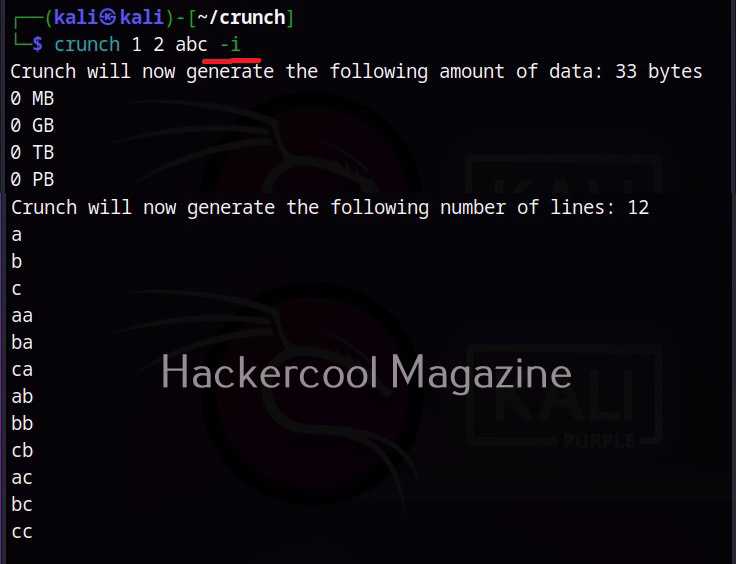
Invert the strings (-i):
Using this option (-i), we can insert the strings generated in Crunch. In the above wordlist, instead of aa, ab, ac, ba, it will be aa, ba, ca, ab.
Start with a specific string (-s):
While creating a wordlist, you may have a feeling to try a specific string as password but not sure. But you want to try it first in your wordlist. You can set a starting string to the wordlist you are creating using the ‘-s’ option.
Don’t you want repeating characters (-p):
Crunch can generate words that don’t have repeating characters using the ‘-p” option. Setting this option will generate factorial of characters in charset. For example, if there are 3 character in charset, setting this option will generate 3x2x1=6 words. While by default, crunch generates a wordlist the size of “characters in charset” to the power of maximum length specifically.
This option cannot be used along with ‘-s’ option and must be the last option to be specified. Also, this option ignores the maximum and minimum length specified but still needs two numbers to the specified.
You want to specify a pattern (-t):
This option helps you to specify a pattern. The character set can be specified using symbol as shown below.
What if you want symbols to be treated literally (-l):
Setting a specific pattern is very helpful while creating wordlists but what if we have to include @, % ^ character in the string. Don’t worry. Crunch has that option too. Using “-l” option asks crunch to treat the specified characters as literals instead of symbols pointed to other characters.
Save the wordlist as archive (-z):
Sometimes, need arises to save the generated wordlist as a compressed archive. With the “-z” option you can save generated wordlist as gzip, bzip, lzma and 7zip archives.
Resume whenever you want (-r):
You may face some unexpected interruption while generating wordlists with crunch. This may be power cut or unexpected shutdown or some other problem which forces crunch to abort generating wordlists. Don’t you worry. Crunch has the resume (-r) option to restart from where it stopped or got aborted.
Disabling print percentage thread (-u):
Its very nice to see crunch displaying the print percentage thread at the bottom while generating wordlist. But it you don’t like it, you can just disable this print percentage thread with the -u option.
How Organizations Defend Against Password Attacks
Understanding wordlist generation also helps security professionals recognize effective defensive measures. Organizations should encourage long, unique passwords and support password managers. Multifactor authentication adds another layer of protection beyond passwords alone.
Additional measures include rate limiting, monitoring suspicious authentication activity, preventing the use of commonly compromised passwords and protecting stored password hashes with appropriate password-hashing mechanisms.
Security teams should also review authentication logs and establish processes for responding to suspicious account activity. These controls help reduce the risks associated with password guessing and credential attacks.
Conclusion
Crunch is a useful educational tool for understanding wordlist generation and password-security concepts. For beginners, its greatest value is not simply generating large lists of character combinations. It is learning why password length, randomness, predictability and authentication controls matter.
Combine this knowledge with networking fundamentals, Linux, authentication concepts and hands-on practice in authorized environments. Remember: a wordlist generator creates possibilities, not guaranteed passwords. Understanding that distinction is an important step toward becoming a responsible cybersecurity professional.
Start Your Ethical Hacking Journey Today
Learning cybersecurity can feel overwhelming at first. The best way to start is with a clear roadmap and the right resources.
Download The Beginner Ethical Hacker Starter Kit (2026 Edition) and get instant access to:
Ethical Hacking Fundamentals A beginner cybersecurity learning roadmap Essential hacking tools every beginner should know Common vulnerabilities explained simply