Posted on

Splunk for Beginners: Making Sense of Logs and Security Data

Hello, aspiring ethical hackers. In our previous blogpost, you learnt about Blue Teaming. In this article, you will learn about Splunk, a platform that plays a vital role in Blue Teaming. When you start learning cybersecurity, one of the first things you hear is: “Check the logs.” But what logs? Where are they stored? And how do you make sense of millions of events generated every day? This is where this platform comes in.

Splunk is a powerful platform that helps organizations collect, search, analyze and visualize machine data. For beginners, it serves as an excellent introduction to how real security teams monitor systems, investigate incidents and find suspicious activity.

What Is Splunk?

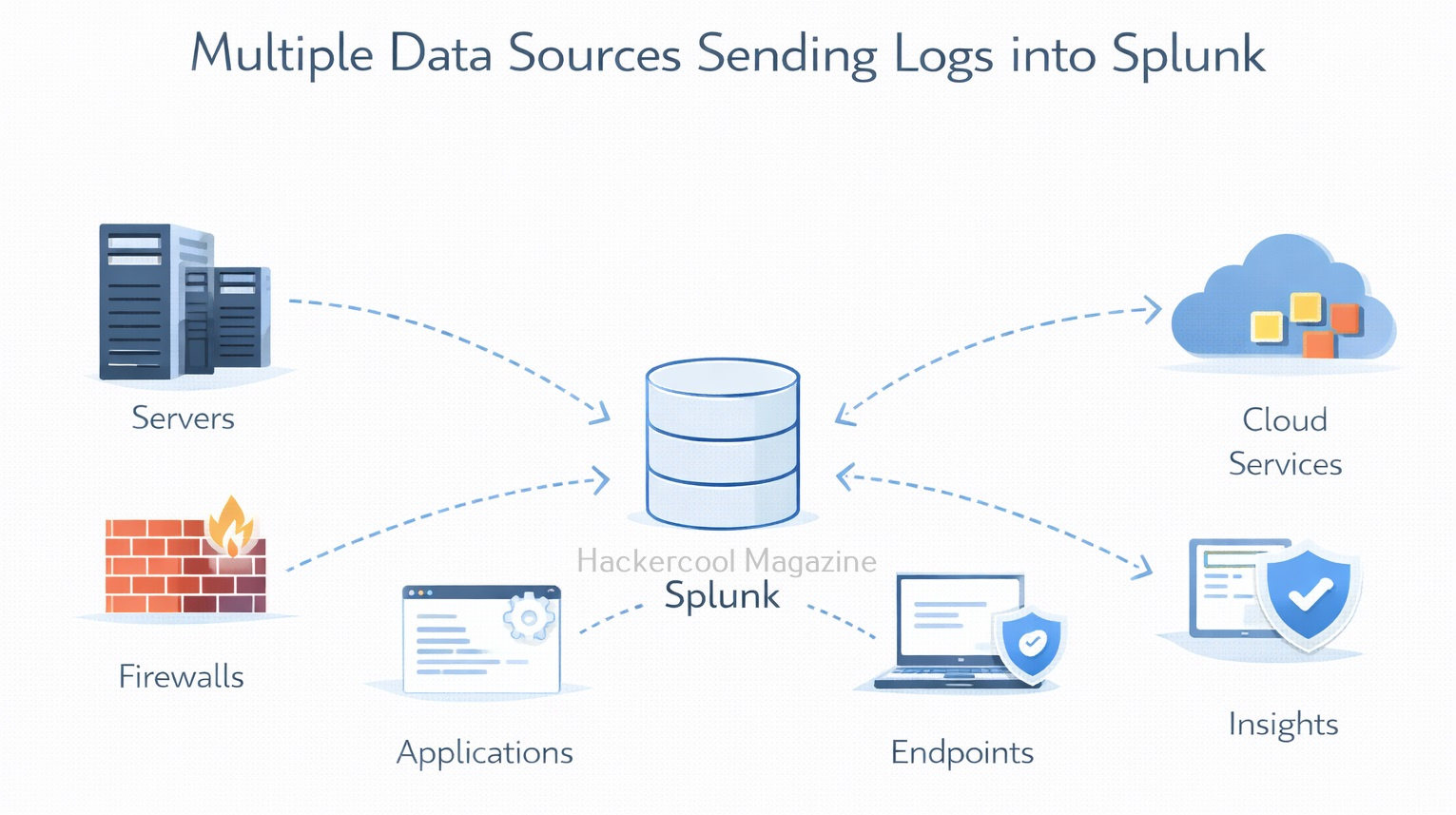
Splunk is a data analytics platform that specializes in machine-generated data, such as logs from servers, applications, firewalls, endpoints and cloud services. It is widely used by Security Operations Centers (SOCs), IT teams and incident responders.

It is commonly used for:

  • Log management
  • Security monitoring
  • Incident investigation
  • Operational troubleshooting

In simple terms, Splunk helps answer the question:
“What is happening across my systems right now and what happened in the past?”
How Splunk Works?

At a high level, it works in three main steps. They are,

1. Data Ingestion:

Splunk collects data from many sources, such as:

  • Operating system logs
  • Application logs
  • Network devices
  • Cloud services

This data is indexed so it can be searched quickly.
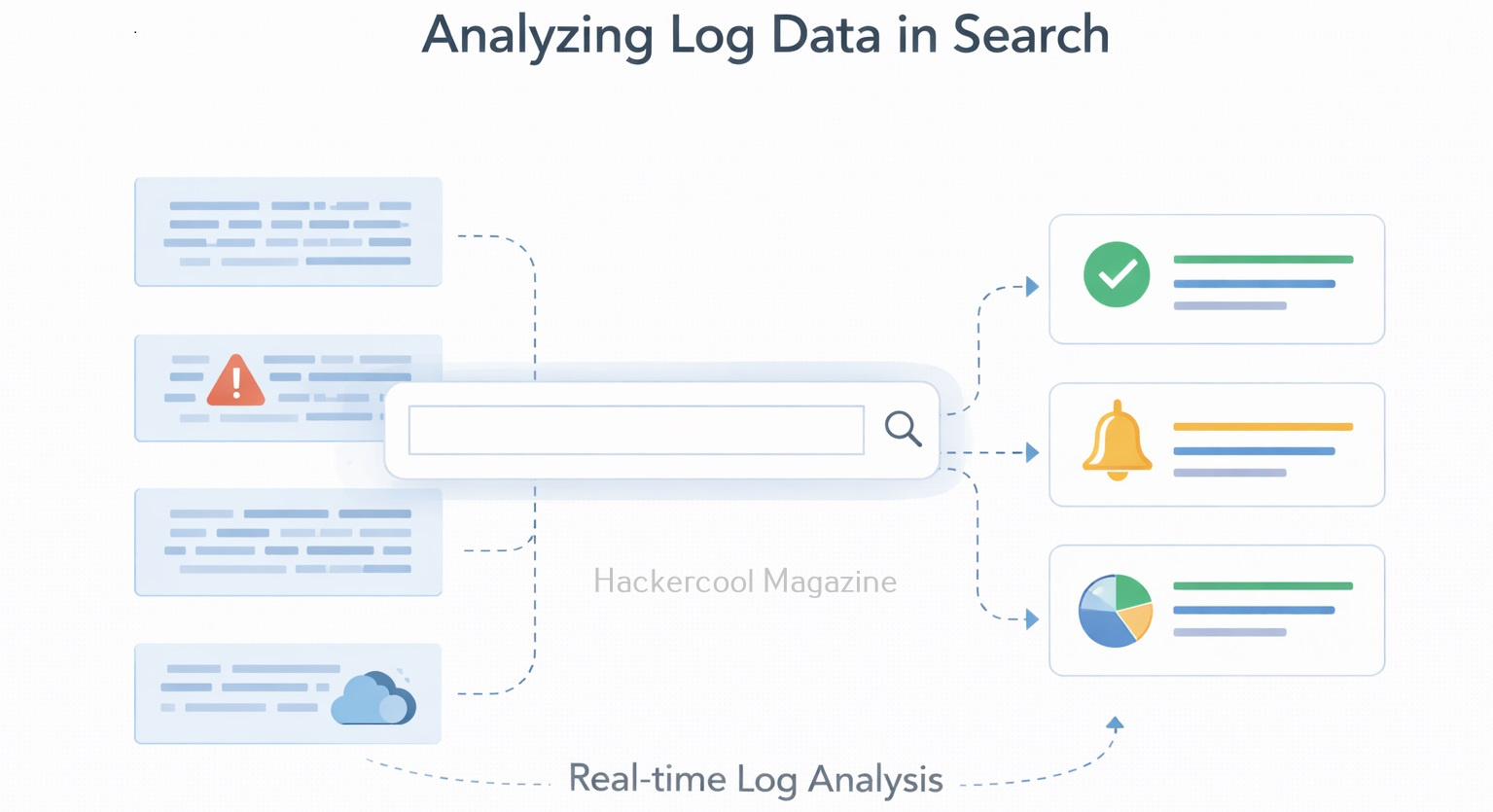
2. Searching and Analysis:

Once data is indexed, users can search it using the Splunk Search Processing Language (SPL). Beginners don’t need to master SPL immediately. Basic searches are often enough to get started.

3. Visualization and Alerts:

It also allows users to create:

  • Dashboards
  • Charts and graphs
  • Alerts based on conditions

These features help teams spot issues quickly and track trends over time.
Common Security Use Cases of Splunk

It is widely used in cybersecurity for tasks such as:

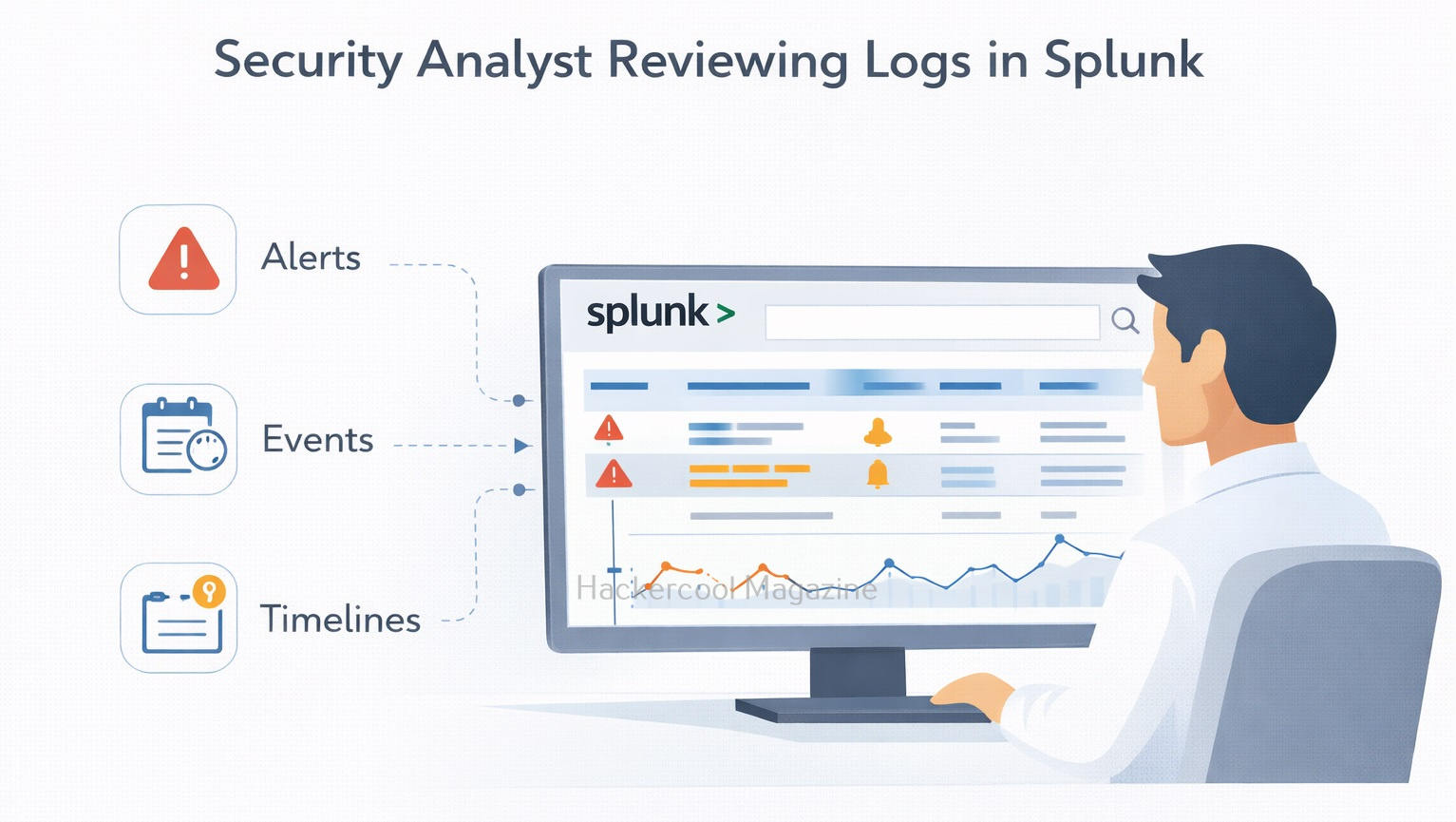
  • Log analysis – Reviewing authentication attempts, errors and access logs
  • Threat detection – Identifying suspicious behavior or anomalies
  • Incident investigation – Reconstructing timelines during security incidents
  • Compliance monitoring – Tracking access and configuration changes
  • SOC dashboards – Providing real-time visibility into security events

Many SOC analysts spend a large part of their day inside Splunk.
Splunk in a SOC Workflow

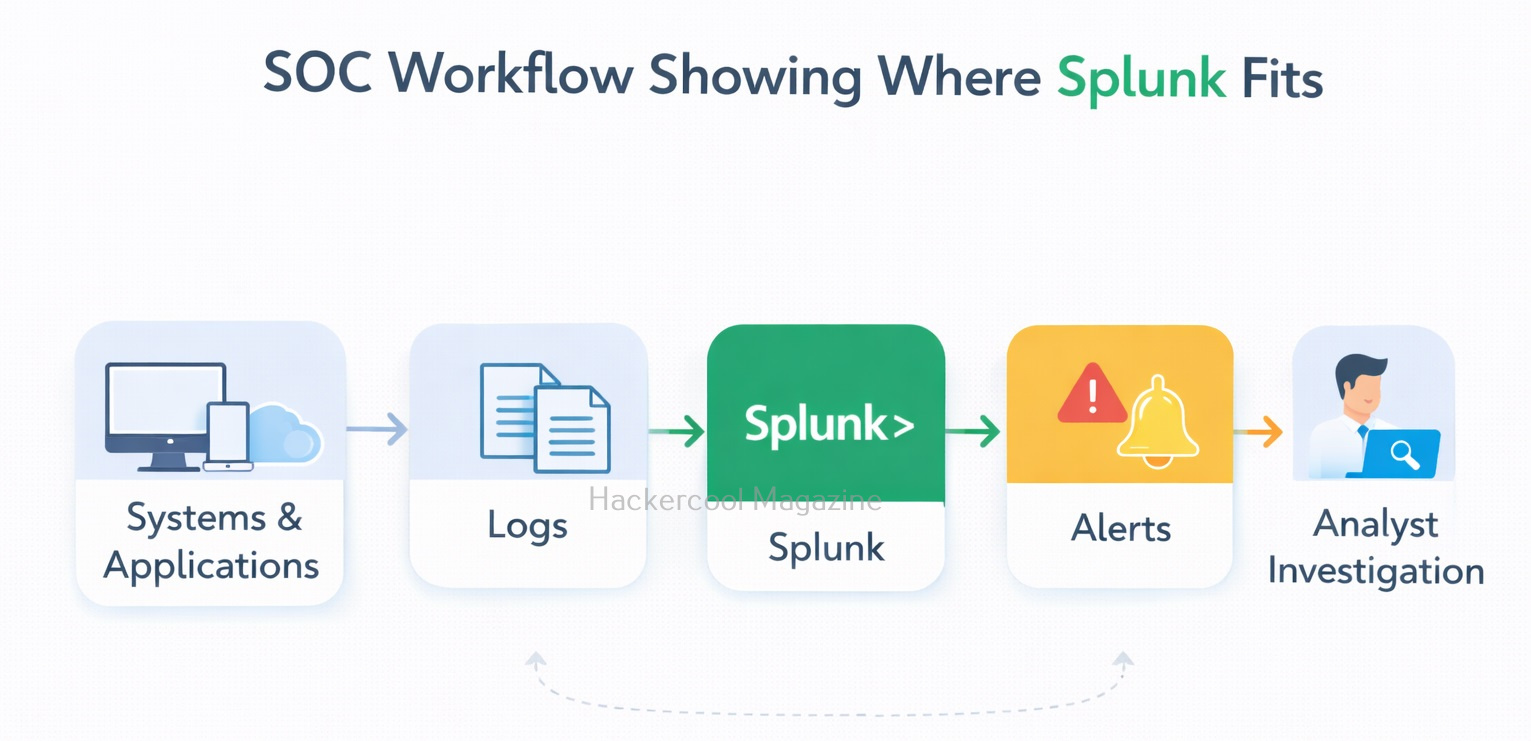
This platform is usually part of a larger security ecosystem. A simplified SOC workflow looks like this:

  1. Systems and applications generate logs
  2. Logs are sent to Splunk
  3. Alerts are created based on suspicious patterns
  4. Analysts investigate events in Splunk
  5. Findings are escalated or documented

It helps connect alerts to actual evidence, instead of treating them as isolated warnings.
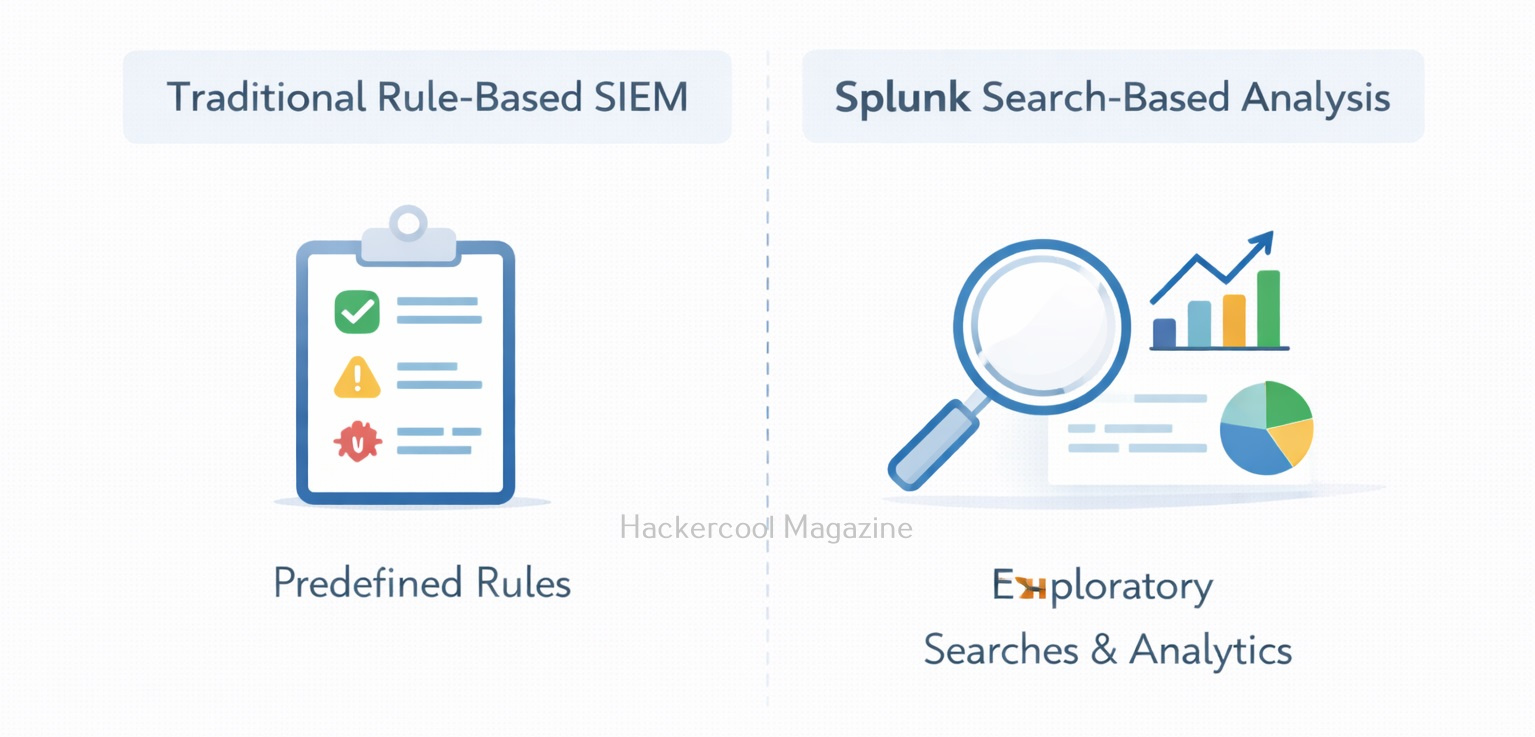
Splunk Vs SIEM

Beginners often hear Splunk described as a SIEM (Security Information and Event Management) tool. While it can really act as a SIEM, its core strength is data analysis.

  • Traditional SIEMs often focus on predefined security rules
  • Splunk focuses on flexible searching and analysis

Why Splunk Matters for Beginners?

Beginners often focus on individual tools or attacks, but real-world security work is about visibility and context. Splunk teaches beginners how to:

  • Work with large volumes of log data
  • Identify patterns and anomalies
  • Investigate alerts using evidence
  • Think like a SOC analyst

Learning this early helps bridge the gap between theory and real operational security. Moreover, Splunk skills are in high demand across:

Even basic knowledge of this helps beginners understand how organizations monitor and investigate their environments. The skills you learn: log analysis, correlation and investigation transfer easily to other tools.

What Beginners Should Focus On First?

Splunk can feel overwhelming at first. To make learning simple, beginners should focus on a few fundamentals:

  • Understanding what logs are and why they matter
  • Learning basic search queries
  • Reading timestamps and event fields
  • Building simple dashboards
  • Following investigation workflows

You do not need to learn advanced SPL or automation on day one.

Challenges Beginners May Face

It’s normal to face some challenges when learning Splunk, such as:

  • Large volumes of data
  • Complex search syntax
  • Too many dashboards and features
  • Difficulty knowing what is “normal” behavior

These challenges improve with practice and exposure. Labs and sample datasets are especially helpful for beginners.
Conclusion

Splunk is not just a tool. It’s a way of thinking about data and security. For beginners, it provides a practical window into how real-world security teams detect problems, investigate incidents and make decisions based on evidence.
By learning this early, beginners gain confidence working with logs, understanding alerts and seeing the bigger picture of cybersecurity operations. As you progress, this tool becomes not just a platform you use, but a skill that supports almost every area of modern security work.

Posted on 1 Comment

TheHive for Beginners: Managing Security Incidents the Smart Way

Hello, aspiring ethical hackers. In our previous blogpost, you have learnt about Blue Teaming. In this article, you will learn about TheHive, a platform that helps manage security incidents the smart way. When learning cybersecurity, many beginners focus on tools that detect threats—alerts, logs and suspicious activity. But detection is only the beginning. Once an alert fires, security teams still need to track, investigate, collaborate and document what happens next. This is where TheHive becomes important.

TheHive is a security incident response platform designed to help teams manage investigations in an organized, repeatable and collaborative way. For beginners, it provides a structured introduction to how real-world security operations centers (SOCs) handle incidents.

What Is TheHive?

TheHive is an open-source Security Incident Response Platform (SIRP) used by SOCs and DFIR teams to manage security alerts and incidents. Instead of relying on spreadsheets, emails or chat messages, teams use TheHive to centralize investigations in one place.

TheHive was developed by TheHive Project and is widely adopted by blue teams because it focuses on workflow, collaboration and documentation, not just tools.

In simple terms, TheHive answers the question:
“How do we handle security incidents in an organized and consistent way?”

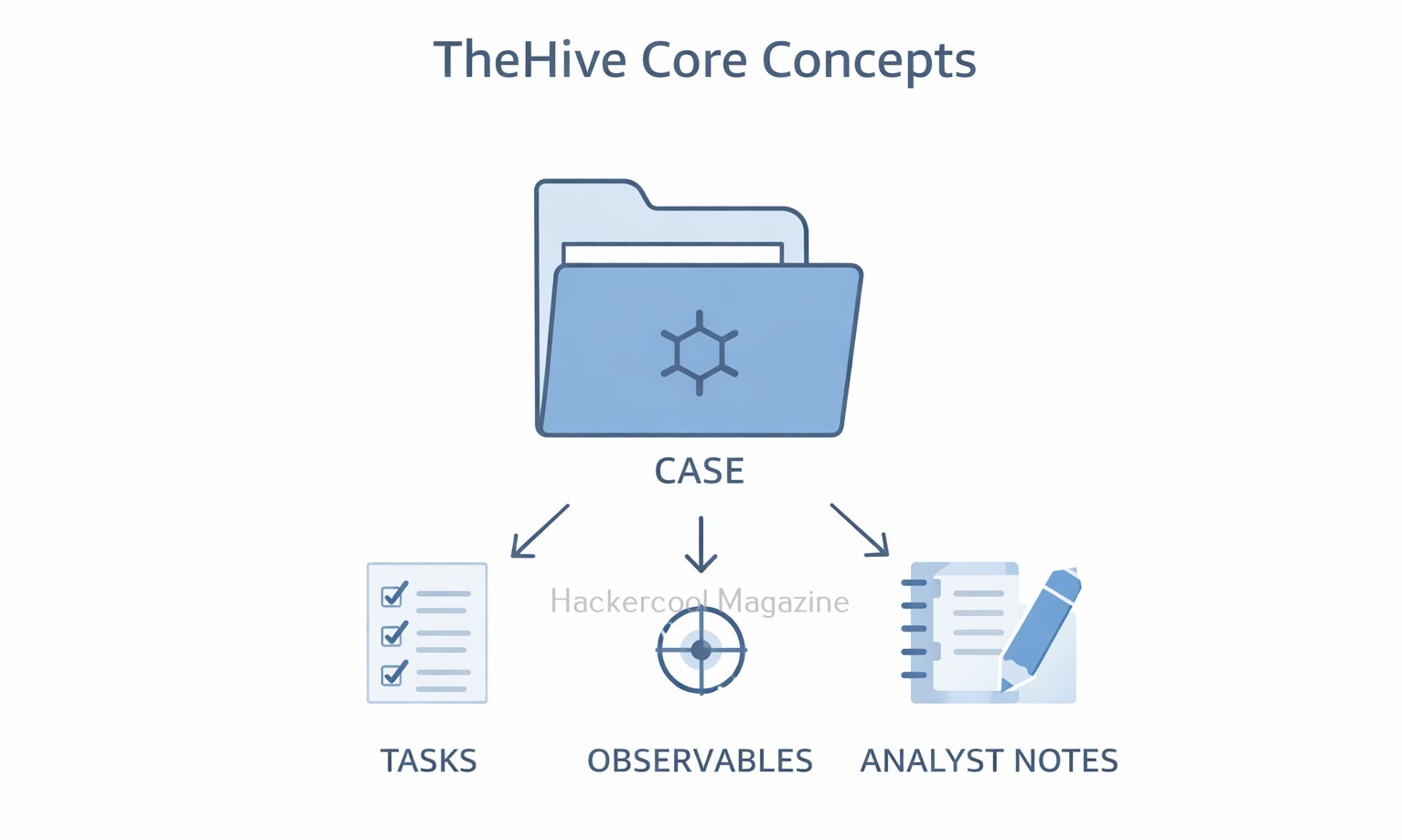
Core Concepts of TheHive

If you want to learn about TheHive, you should begin with understanding a few key concepts which make it much easier to learn.

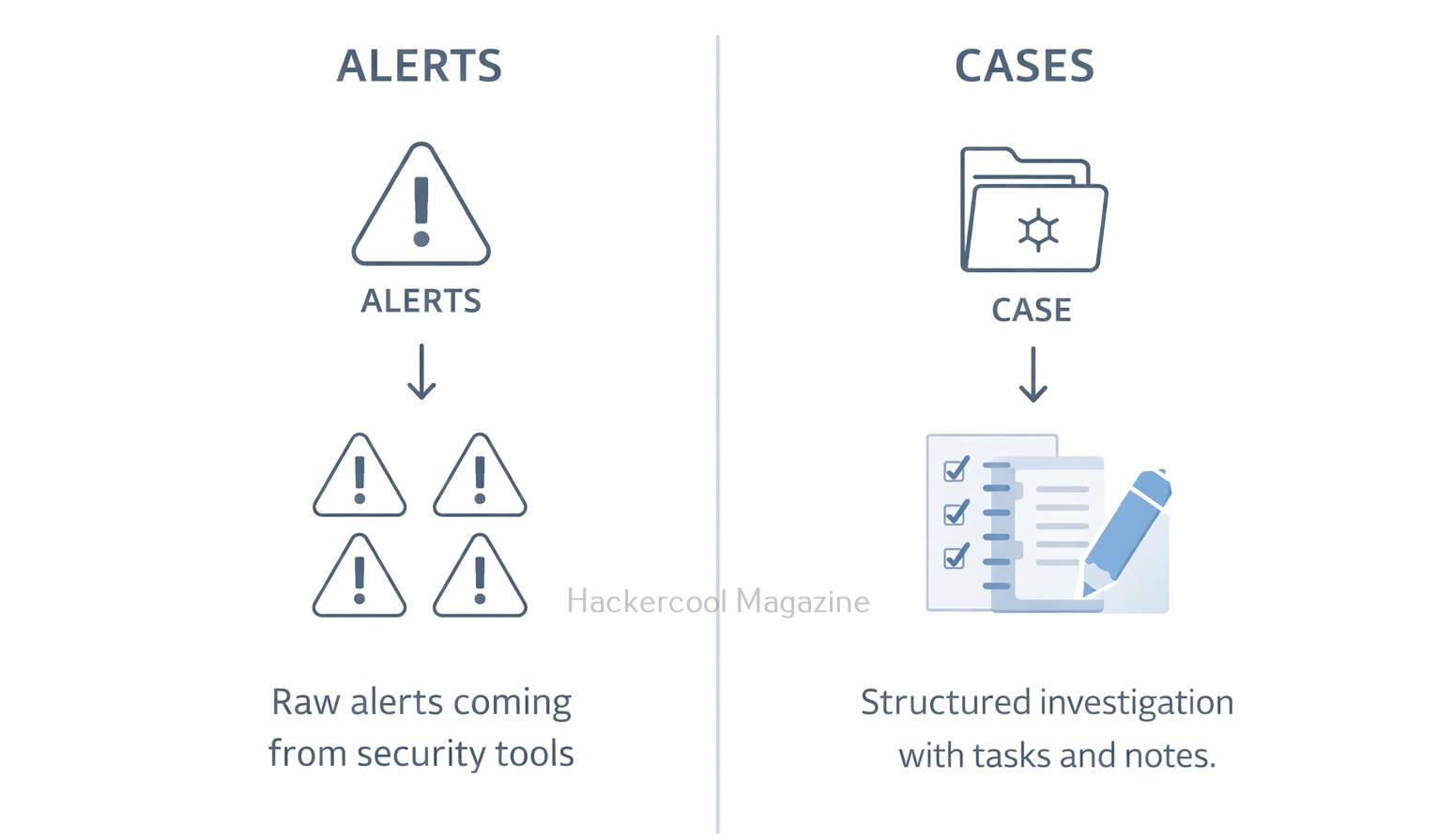
Alerts:

Alerts are raw security signals coming from other tools, such as SIEMs, EDR platforms or scripts. Alerts may indicate suspicious activity, but they are not yet confirmed incidents.

Cases:

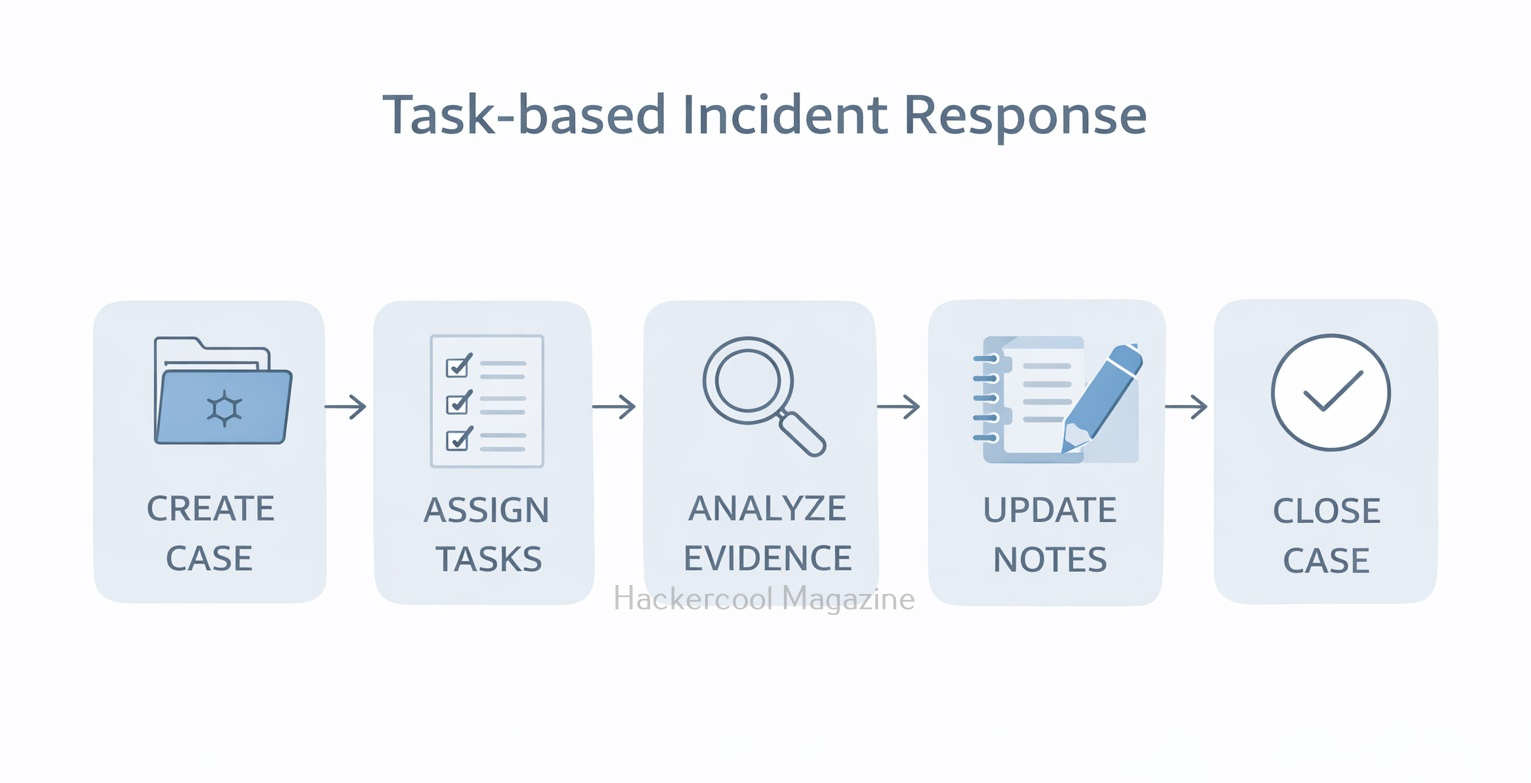
A case is created when an alert is worth investigating. A case represents an incident under investigation and contains all related information, tasks and evidence.

Tasks:

Tasks break an investigation into actionable steps, such as:

  • Review logs
  • Analyzing an IP address
  • Collect endpoint data
  • Write a summary

Observables:

Observables are pieces of data related to an incident, such as:

  • IP addresses
  • Domains
  • File hashes
  • Email addresses

How TheHive Fits into a SOC Workflow

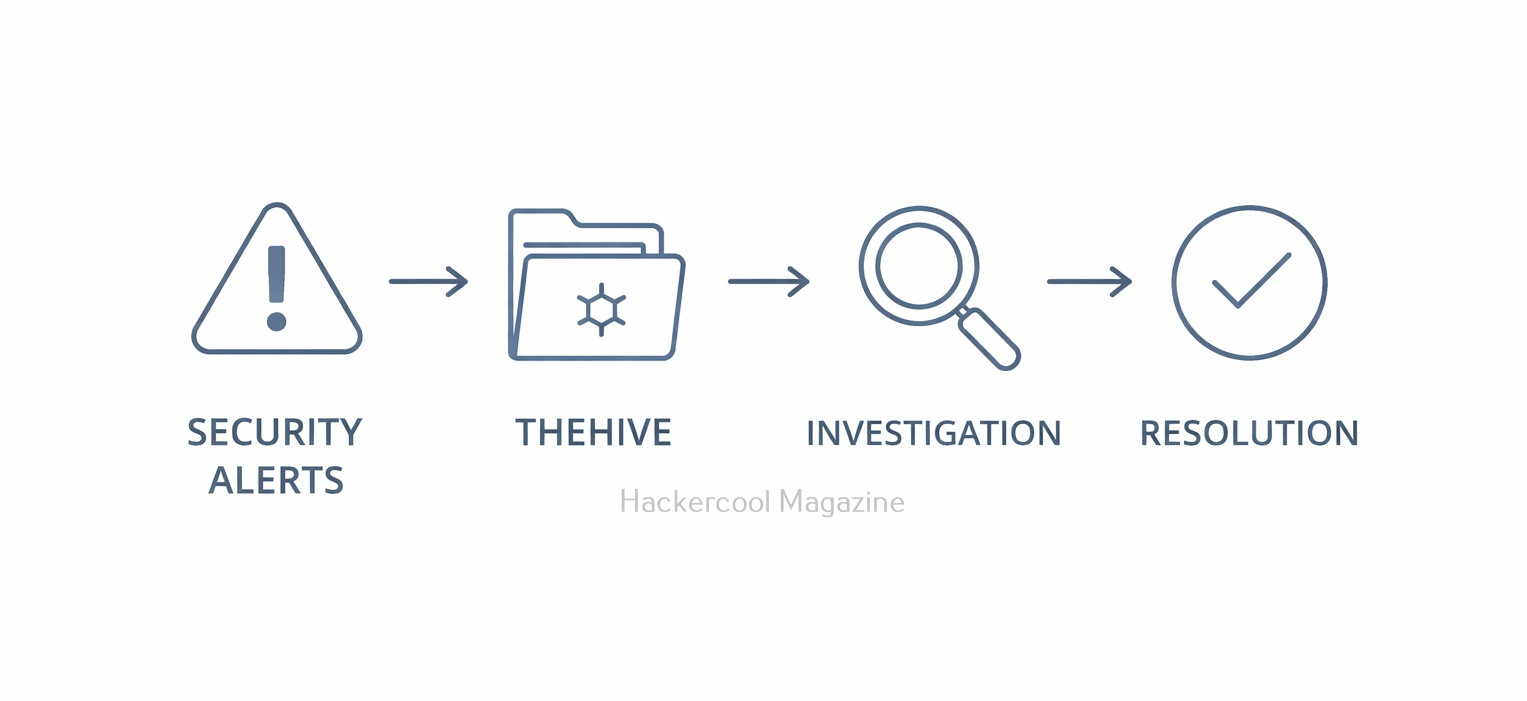
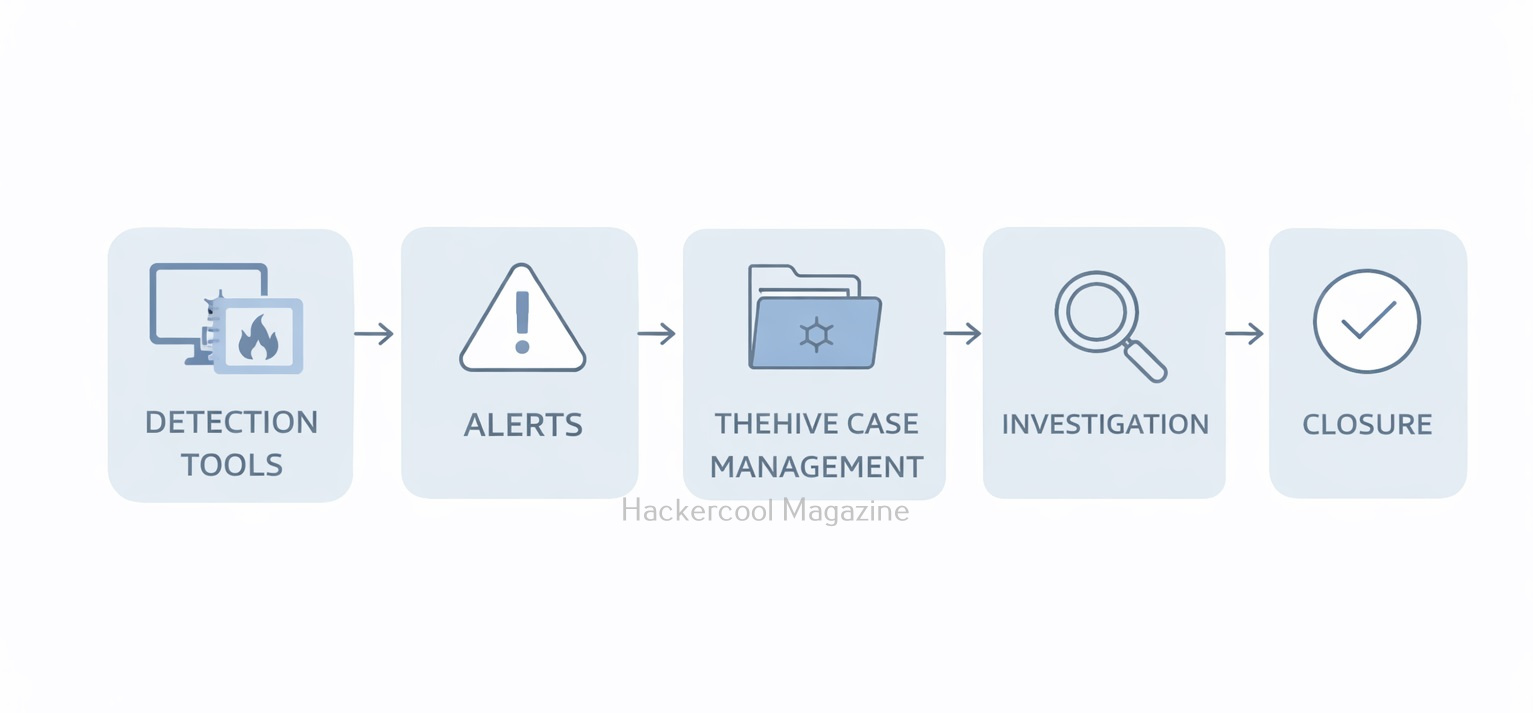
TheHive is not a detection tool. It sits after detection in the security workflow. A simplified SOC workflow looks like this:

  1. A security tool generates an alert
  2. The alert is sent to TheHive
  3. An analyst reviews the alert
  4. A case is created if investigation is needed
  5. Tasks are assigned and completed
  6. Findings are documented and closed

For beginners, this provides a clear picture of how alerts turn into real investigations.

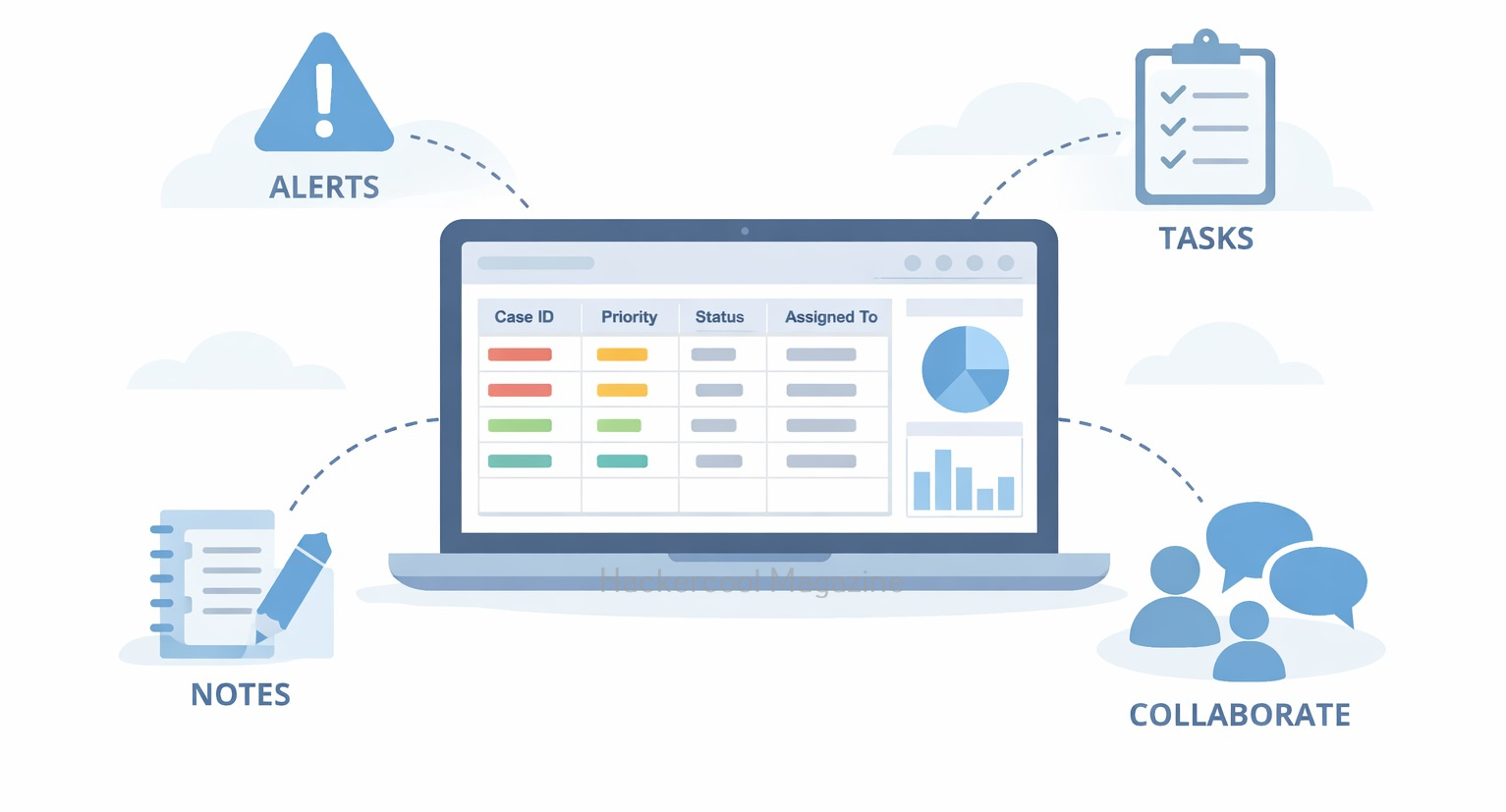
Collaboration and Case Management

One of TheHive’s biggest strengths is its collaboration. Using TheHive, multiple analysts can:

  • Work on the same case
  • Add notes and evidence
  • Assign tasks to each other
  • Track progress in real time

This reflects how real SOCs operate.

TheHive Compared to Other Security Tools

Beginners sometimes confuse TheHive with tools like SIEMs or forensic frameworks. However, there is lot of difference between them.

  • SIEMs focus on collecting and correlating logs
  • EDR tools focus on endpoint detection and response
  • Forensic tools focus on deep technical analysis
  • Whereas TheHive focuses on managing the investigation process

TheHive does not replace all the above other tools but it connects them together through workflow.

Why Beginners Should Learn TheHive?

Beginners often learn tools like scanners, SIEMs or forensic utilities, but struggle to understand how investigations are actually managed. TheHive fills this gap by teaching:

  • How alerts become investigations
  • How tasks are assigned and tracked
  • How evidence and notes are documented
  • How multiple people collaborate on the same incident

Learning TheHive helps beginners think like SOC analysts, not just tool operators.

Challenges Beginners May Face

Like any platform, TheHive has a learning curve. Beginners may find:

  • Case workflows unfamiliar at first
  • The number of features overwhelming
  • Integration concepts confusing

These challenges are normal. Beginners should focus on basic case creation, tasks and documentation before exploring automation or integrations.

Conclusion

TheHive teaches one of the most important cybersecurity lessons: handling incidents is as important as detecting them. For beginners, it provides a realistic view of how SOCs and DFIR teams organize investigations, collaborate and learn from incidents.

By learning TheHive early, beginners build strong foundations in incident response thinking—skills that remain valuable regardless of which tools or technologies they use in the future.

Posted on

Beginners guide to Threat Hunting

Hello aspiring Ethical Hackers. In our previous blogpost, you learnt about Blue Teaming. In this article, you will learn about Threat Hunting, which plays a powerful role in Blue Teaming. In today’s digital landscape, cyber threats are becoming increasingly sophisticated. Attackers often hide deep within networks, evading traditional security tools like antivirus software and firewalls. So how do organizations detect these stealthy intrusions before they cause serious damage? That’s where threat hunting plays an important role.

If you’re new to cybersecurity or curious about how security professionals find hidden threats, this beginner’s guide to threat hunting will explain what it is, why it matters and how to get started.

What is Threat Hunting?

Threat hunting is the process in which a proactive search is performed to detect malicious activity or threats within a network or system that have evaded existing security defenses. Instead of waiting for automated alerts, threat hunters actively look for suspicious patterns, behaviors or anomalies that indicate an attacker might be lurking undetected.

Think of it as a detective searching for clues that a criminal has been in the building — even when alarms haven’t gone off. Unlike reactive approaches (such as responding to alerts), hunting threats focuses on finding what security tools might have missed by leveraging human intuition, knowledge, experience and analytical skills.

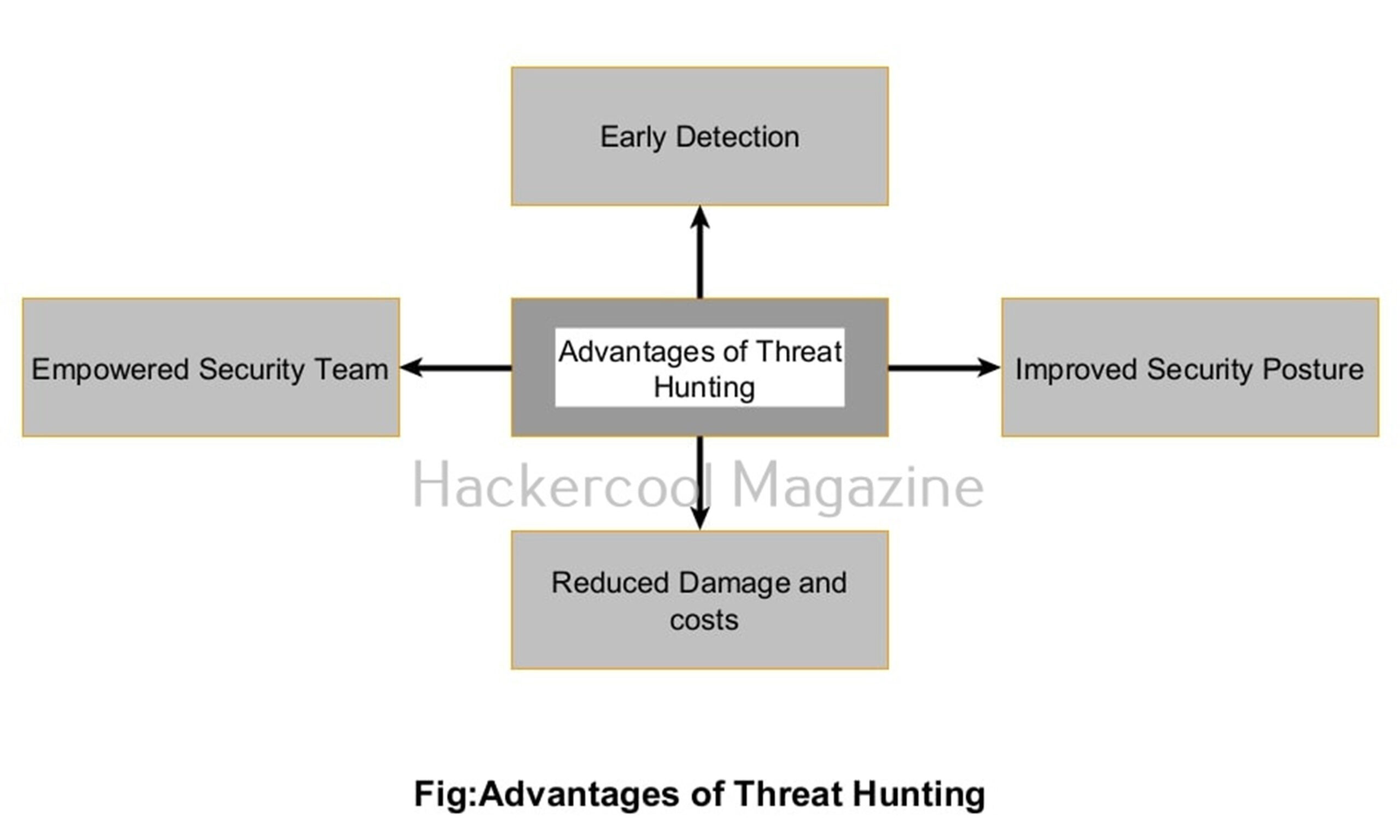
Why Is Threat Hunting Important?

1. Early Detection of Advanced Threats:

Many modern attackers use highly advanced techniques designed specifically to avoid detection. Threat hunting helps find these stealthy attackers early, reducing the attacker’s ‘dwell time’. ‘Dwell time’ is the time attackers spend inside a network they have compromised.

2. Improves Overall Security Posture:

By uncovering hidden threats and attack techniques, threat hunters provide valuable feedback to improve the organization’s detection rules, incident response processes etc.

3. Reduces Damage and Costs:

The sooner an attacker is detected, the less damage they can do — whether it’s stealing data, disrupting operations or installing ransomware. So it reduces damage and costs.

4. Empowers Security Teams:

Threat hunting encourages curiosity, creativity and deeper understanding of your environment, turning security analysts into proactive defenders.

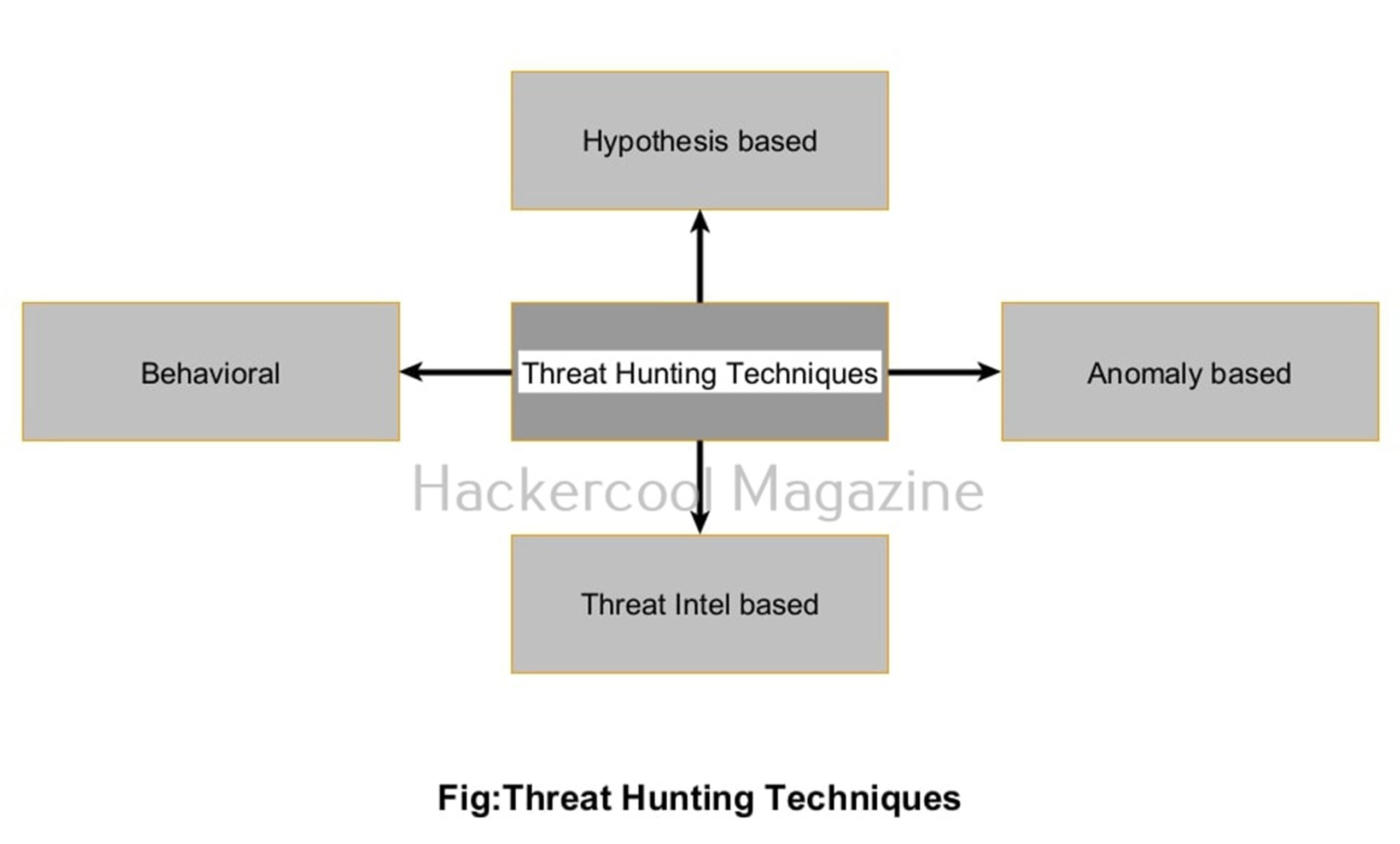
Common Threat Hunting Techniques

Threat hunting blends data analysis, hypothesis-driven investigation and tool usage. Here are some popular approaches:

1. Hypothesis-Driven Hunting:

In this technique, Threat Hunters start with a theory or suspicion, like “What if an attacker already in our network is using PowerShell to run malicious scripts?” They then look for signs matching this hypothesis.

2. Anomaly Detection:

In this type of hunting, threat hunters search for unusual behavior that stands out, such as:

  • A user logging in at odd hours
  • Unexplained data transfers
  • Processes launching unexpectedly

3. Tactical Hunting based on Threat Intelligence:

In this technique, threat hunters use known Indicators of Compromise (IOCs) like IP addresses, domain names or file hashes linked to malware campaigns.

4. Behavioral Analysis:

In this technique, threat hunters focus on patterns of activity (e.g., lateral movement or privilege escalation) rather than specific malware signatures.

Keys for successful Threat Hunting

Successful threat hunting relies on access to good data and other factors. They are:

  • Security Information and Event Management (SIEM) platforms: These help in centralizing logs and provide search/query capabilities (e.g., Splunk, Elastic Stack, QRadar).
  • Endpoint Detection and Response (EDR) tools: These tools monitor endpoint behavior in real-time (e.g., CrowdStrike, Carbon Black).
  • Network Traffic Analysis: This helps in examining network packets for suspicious activity (e.g., Zeek, Wireshark)
  • Threat Intelligence Feeds: Provide updated information on attacker tactics and IOCs.
  • Scripting Languages: Python or PowerShell are used to automate data analysis and custom hunting queries.

Threat Hunting Process for beginners

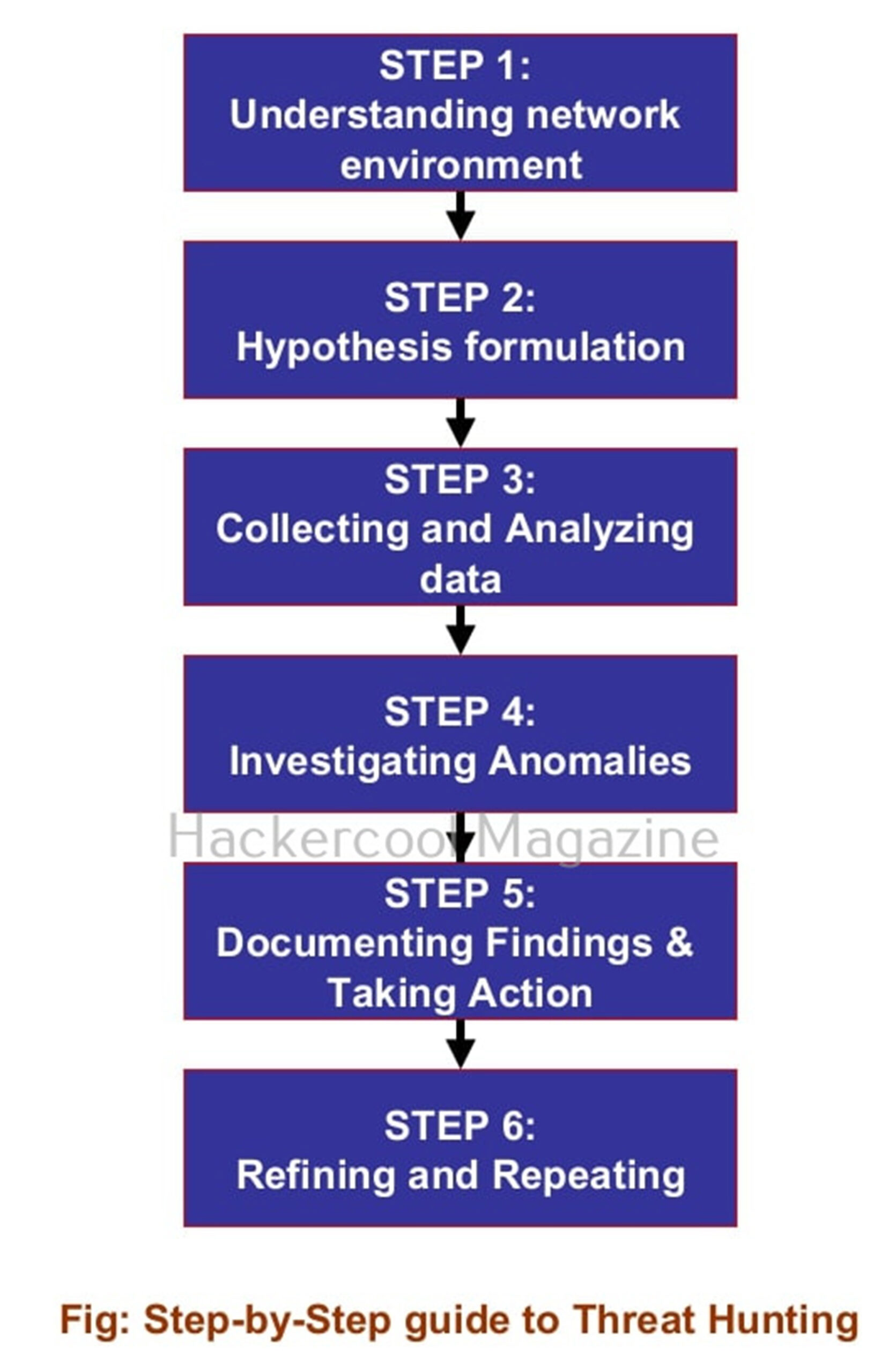
Here’s a Step-by-step process you can follow to start threat hunting:

Step 1: Understand your network environment:

Before you can find anomalies or threats, you need to first know what “normal” looks like for your network. Study your network architecture, user behaviors, typical processes and baseline logs.

Step 2: Formulate a Hypothesis:

Once you have understood your environment, formulate a Hypothesis. Start with a focused question or theory relevant to your target network. For example:

  • “Are there signs of credential dumping?”
  • “Is anyone using PowerShell scripts outside of business hours?”
  • “Is there unusual DNS traffic indicating data exfiltration?”

Step 3: Collect and Analyze Data:

Once you have a hyposthesis, gather logs from endpoints, servers, firewalls and other relevant network devices. Use your SIEM or EDR tools to search for patterns that support or disprove your hypothesis.

Step 4. Investigate Anomalies:

If you spot any anomalies or unusual events while analyzing, dig deeper. Cross-reference with threat intelligence, check related logs and look for lateral movement or privilege escalation attempts.

Step 5. Document Findings and Take Action:

Record if you find anything suspicious including timelines, affected assets and attacker behavior. Alert your incident response team or take remediation steps as necessary.

Step 6: Refine and Repeat:

Always remember Threat hunting is an iterative process. Use lessons learned to update detection rules, improve data collection and form new hypotheses.

Conclusion

Threat hunting is a powerful, proactive approach to cybersecurity that complements automated defenses by leveraging human insight and analysis. Whether you’re a security analyst, IT professional or just passionate about cybersecurity, developing threat hunting skills will make you a valuable defender in today’s complex threat landscape.

Posted on

Beginners guide to bettercap

Hello, aspiring ethical hackers. In our previous blogpost, you learnt about Man in The Middle (MiTM) attack. In this article, you will learn about Bettercap, a network reconnaissance and MiTM attack tool.

What is Bettercap?

Bettercap is a powerful, easily extensible and portable framework written in GO programming language, that is useful to security researchers, Red teamers and reverse engineers in performing reconnaissance and MiTM attacks. It is known as Swiss Army knife for 802.11, BLE, IPV4 and IPV6 network reconnaissance and MiTM attacks. Its features include,

  • Performing WiFi network scanning, de-authentication attacks, clientless PMKID association attack and automatic WPA/WPA2/WPA3 client handshakes capture.
  • Bluetooth Low Energy devices scanning, characteristics enumeration, reading and writing.
  • 2.4Ghz wireless devices scanning and MouseJacking attacks with over-the-air HID frames injection (with DuckyScript support).
  • CAN-bus and DBC support for decoding, injecting and fuzzing frames.
  • Passive and active IP network hosts probing and recon.
  • ARP, DNS, NDP and DHCPv6 spoofers for MITM attacks on IPv4 and IPv6 based networks.
  • Proxies at packet level, TCP level and HTTP/HTTPS application level fully scriptable with easy to implement javascript plugins.
  • A powerful network sniffer for credentials harvesting which can also be used as a network protocol fuzzer.
  • A very fast port scanner.
  • A powerful REST API with support for asynchronous events notification on websocket to orchestrate your attacks easily.
  • A very convenient web UI.

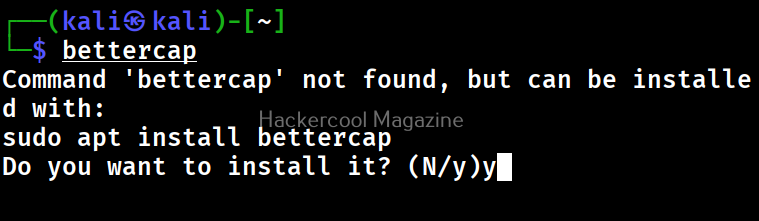
Let’s see how this tool works. For this, we will be using Kali Linux as attacker system as bettercap is available by default in Kali Linux’s repositories. It can be installed using command shown below. As target we will be using Metasploitable 2 . Both the systems are installed as part of our Simple hacking Lab.

bettercap

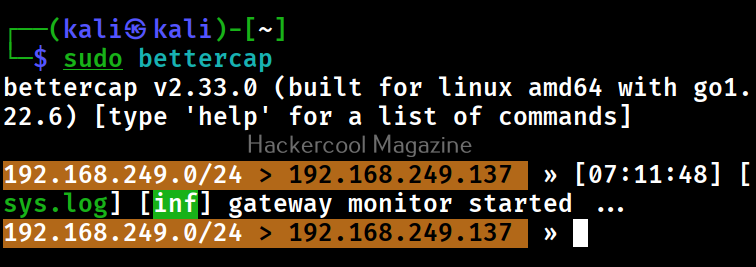
After installation, bettercap can be started as shown below. Note that it requires SUDO privileges to run.

sudo bettercap

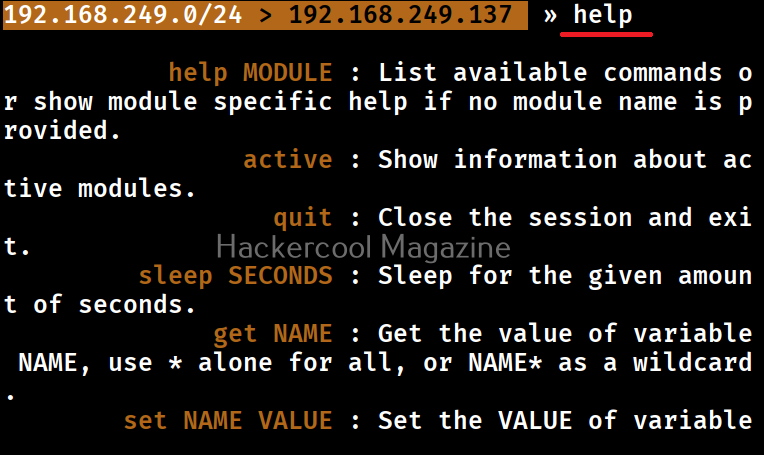
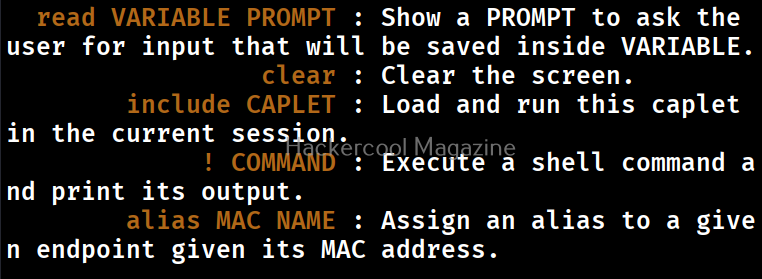
Type “help” on the bettercap interface to learn more about it.

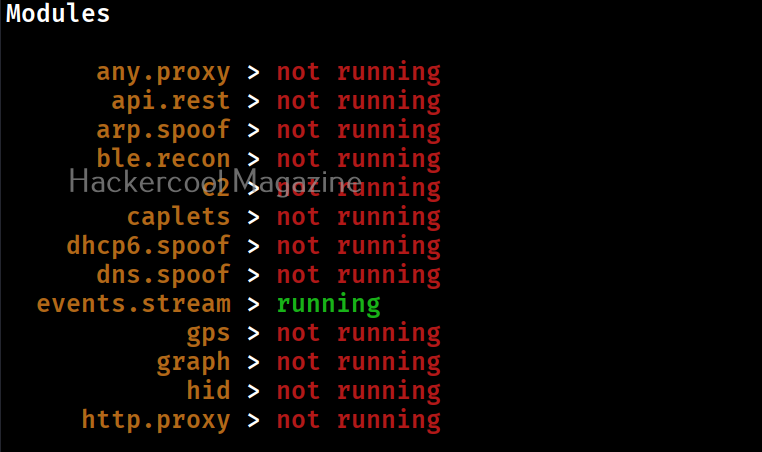
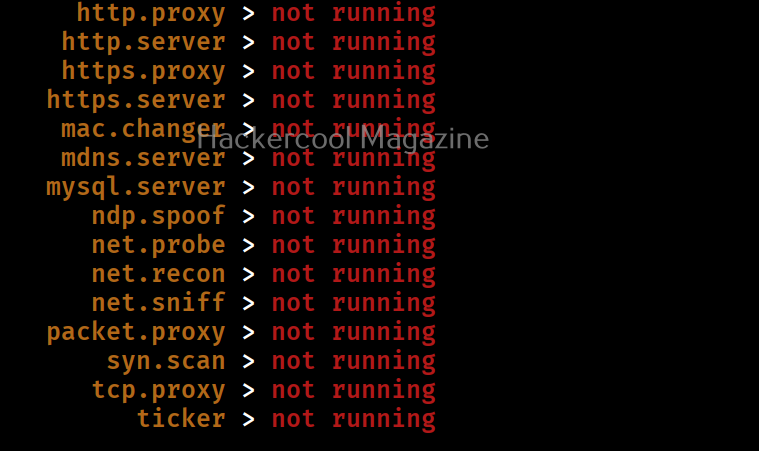
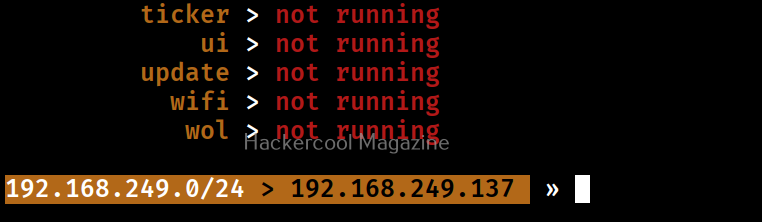
For this tutorial, let’s learn about how to use modules in Bettercap. Bettercap has various modules. By default, only one module is always running. This is the “events.stream” module that shows all that’s happening in bettercap.

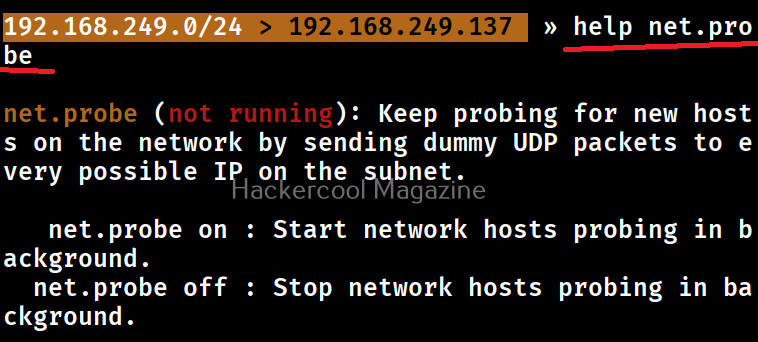
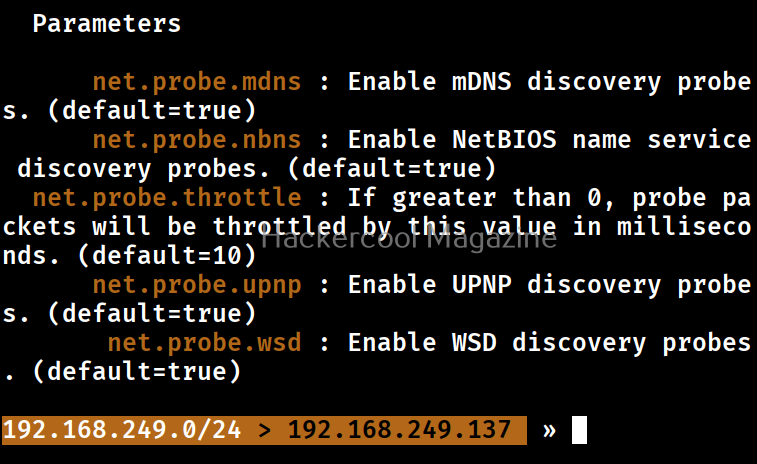
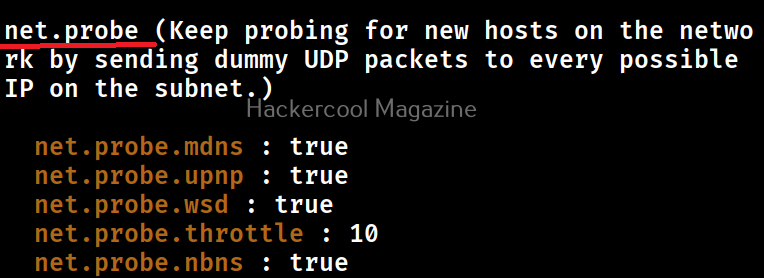
To learn about any module all you have to do is use command shown below. For example, let’s view the help details about ‘net.probe’ module.

help <module name>

As you can see in the above image, this module detects the new hosts on the network by sending UDP packets. To start a module in bettercap, the command is given below.

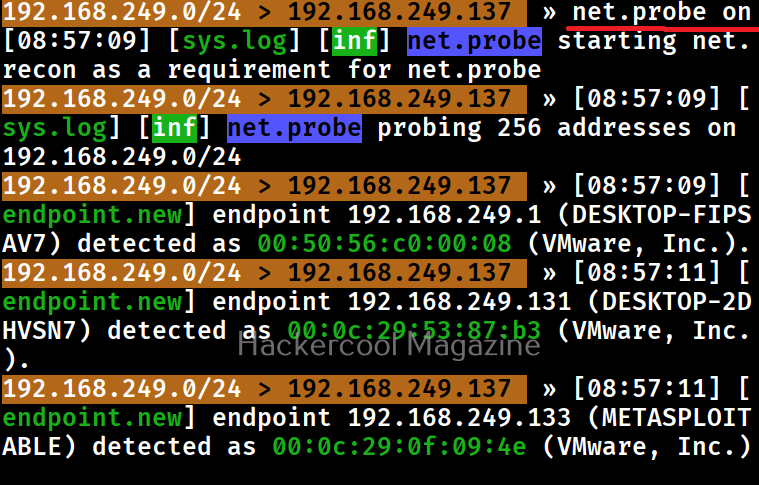
<module name> on

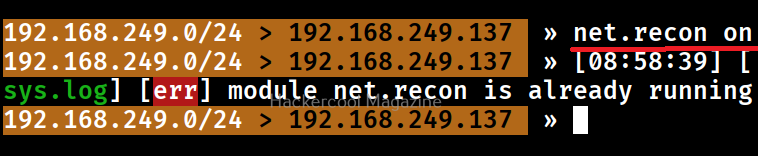
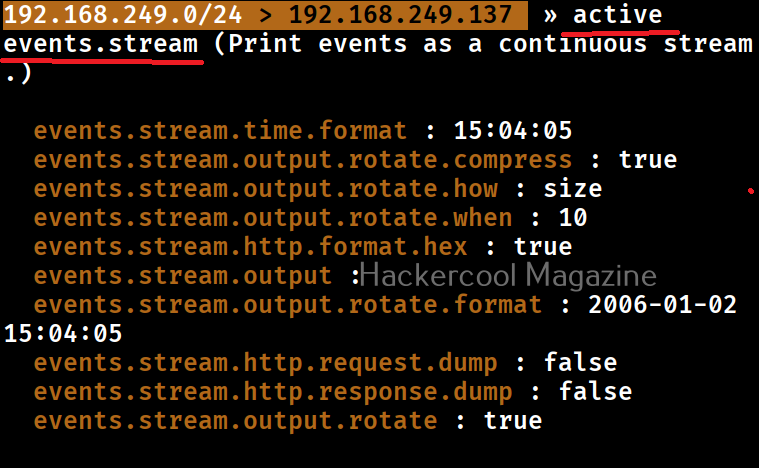
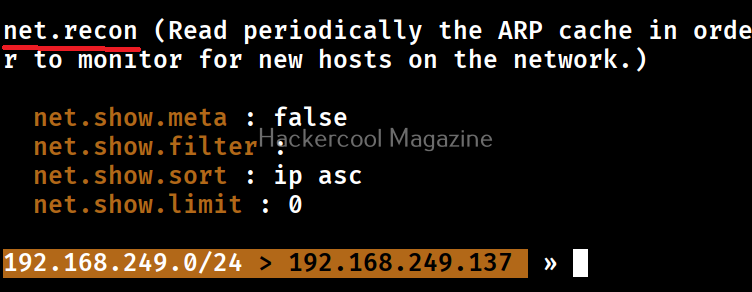
As soon as you turn it ON, it starts probing the network for any new machines. You can see all the active bettercap modules running by using command “active”.

As you can see in the above image, these modules of bettercap are running. They are “events -stream” (which runs by default as soon as we start bettercap, “net.probe” module and “net.recon” modules.

Now, let’s do something useful with this tool. In our previous blogpost on packet sniffing, you learnt how network packets can be captured. Let’s try the same with bettercap.

For this, we start “net.sniff” module on bettercap.

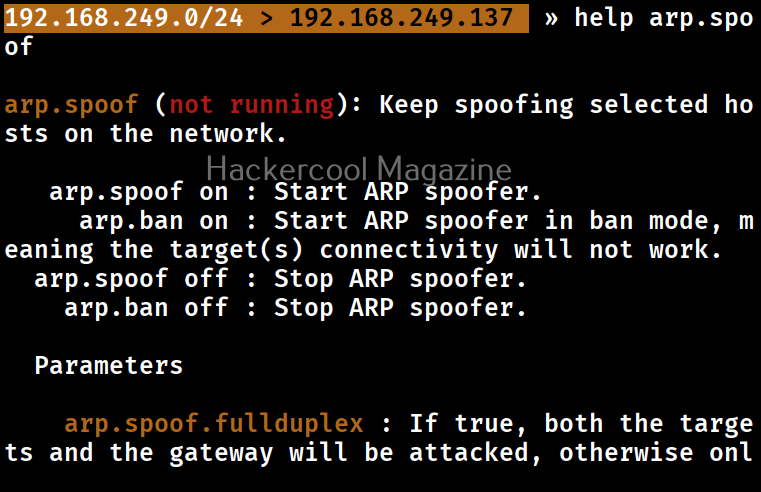
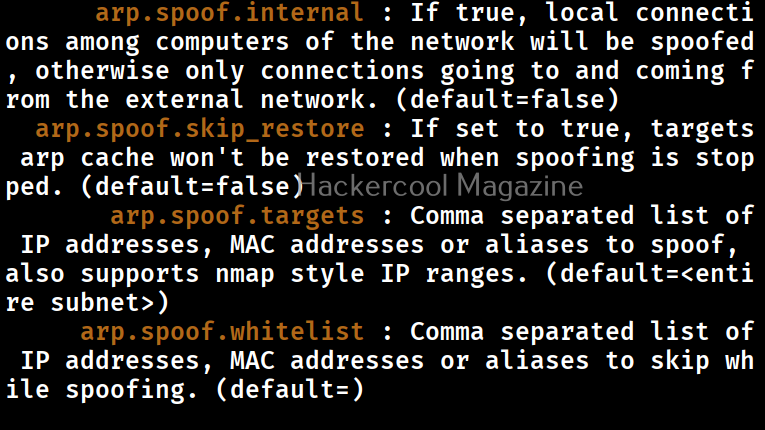
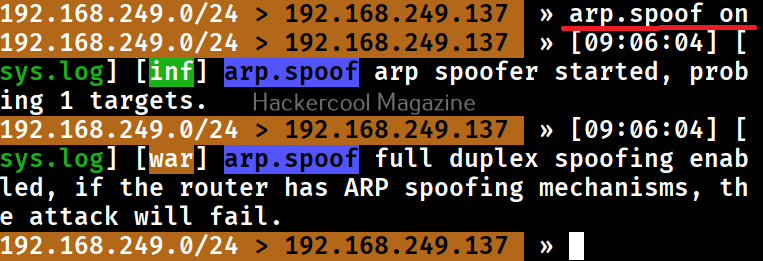
Also, we will start ‘arp.spoof’ module. As you learnt in ARP spoofing, this will allow us to perform MiTM attacks.

For the novices, the “net.sniff” module performs packet sniffing while “arp-spoof” module performs ARP poisoning attack on the the target IP specified (that of Metasploitable 2).

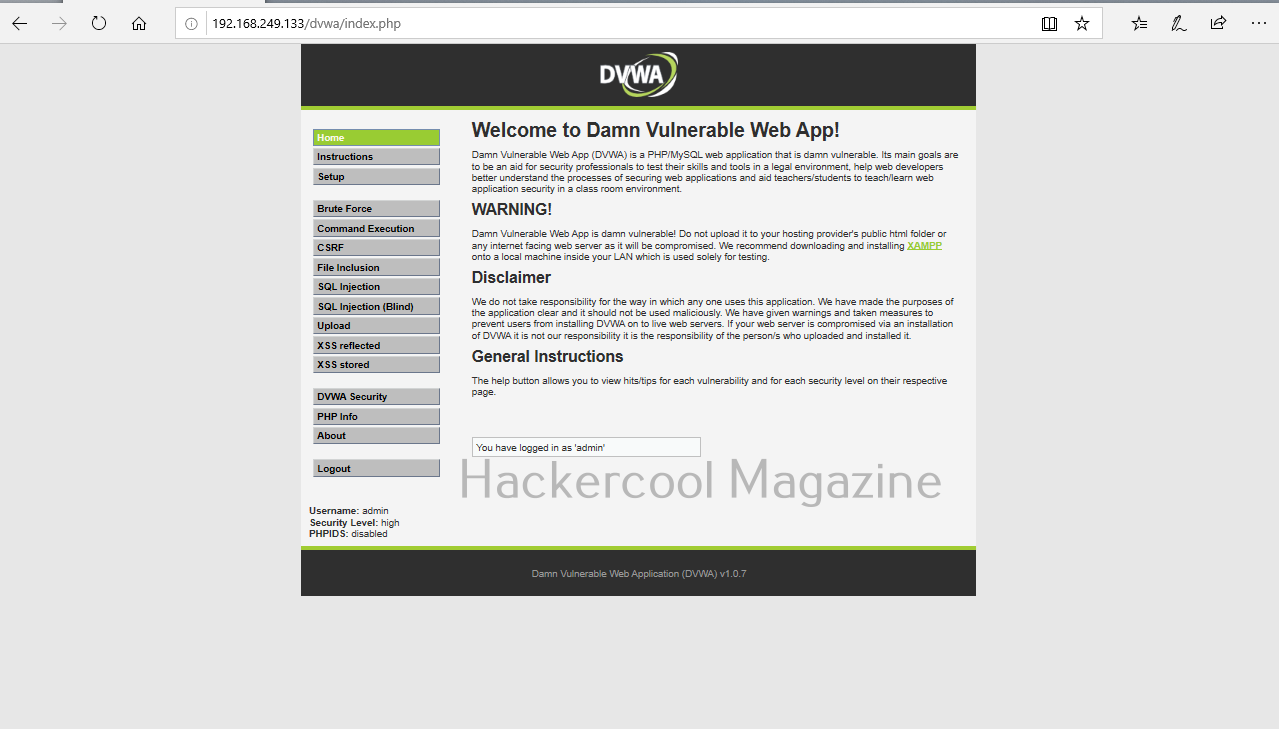
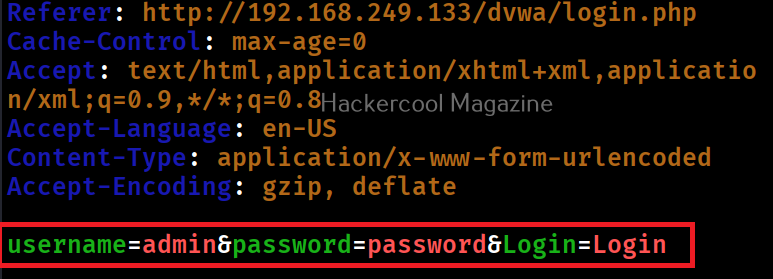
Doing this captures all the network traffic going to or from our target system i.e Metasploitable 2. While bettercap does this, let’s login into Metasploitable 2 DVWA web app from our attacker system.

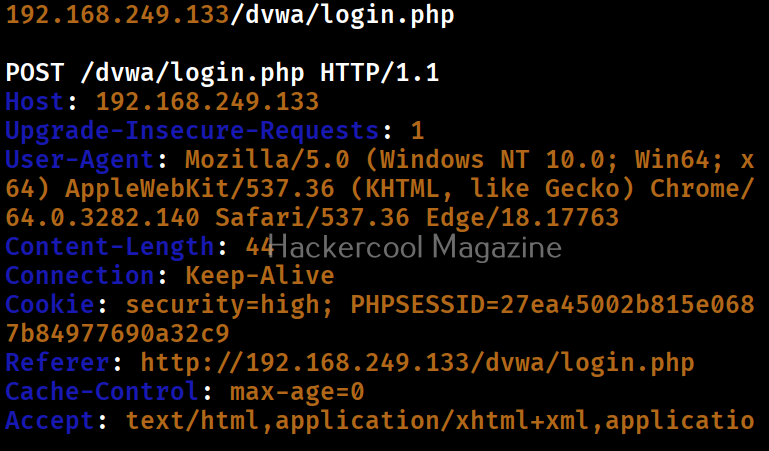
While we do this, Bettercap captures the credentials, as they are in plain text.

As you can see in the above images, both the password and username are clearly visible and successfully retrieved by this tool. Next, learn about Wireshark, a network analyzer.

Posted on

Beginners guide to wfuzz

Hello, aspiring ethical hackers. In our previous blogpost, you learnt what is fuzzing. In this article, you will learn about wfuzz, a web application fuzzer or brute forcer.

Wfuzz is a tool designed to bruteforce web applications and can be used to find directories, servlets, scripts etc. It can also be used to brutefoce GET and POST parameters for checking different kinds of injections like SQL, XSS, LDAP etc, bruteforce forms (usernames and password) etc. Its features include,

  • Multiple Injection points capability with multiple dictionaries
  • Recursion (When doing directory bruteforce)
  • POST, headers and authentication data brute forcing
  • Output to HTML
  • Colored output
  • Hide results by return code, word numbers, line numbers, regex.
  • Cookies fuzzing
  • Multi threading
  • Proxy support
  • SOCK support
  • Time delays between requests
  • Authentication support (NTLM, Basic)
  • All parameters bruteforcing (POST and GET)
  • Multiple encoders per payload
  • Payload combinations with iterators
  • Baseline request (to filter results against)
  • Brute force HTTP methods
  • Multiple proxy support (each request through a different proxy)
  • HEAD scan (faster for resource discovery)
  • Dictionaries tailored for known applications (Weblogic, Iplanet, Tomcat, Domino, Oracle 9i,
    Vignette, Coldfusion and many more.

Let’s see how this tool works. For this, we will be using Kali Linux as attacker machine as wfuzz is installed by default on it. As target system, we will be using Metasploitable 2. Both machines are installed as part of our Simple Hacking Lab.

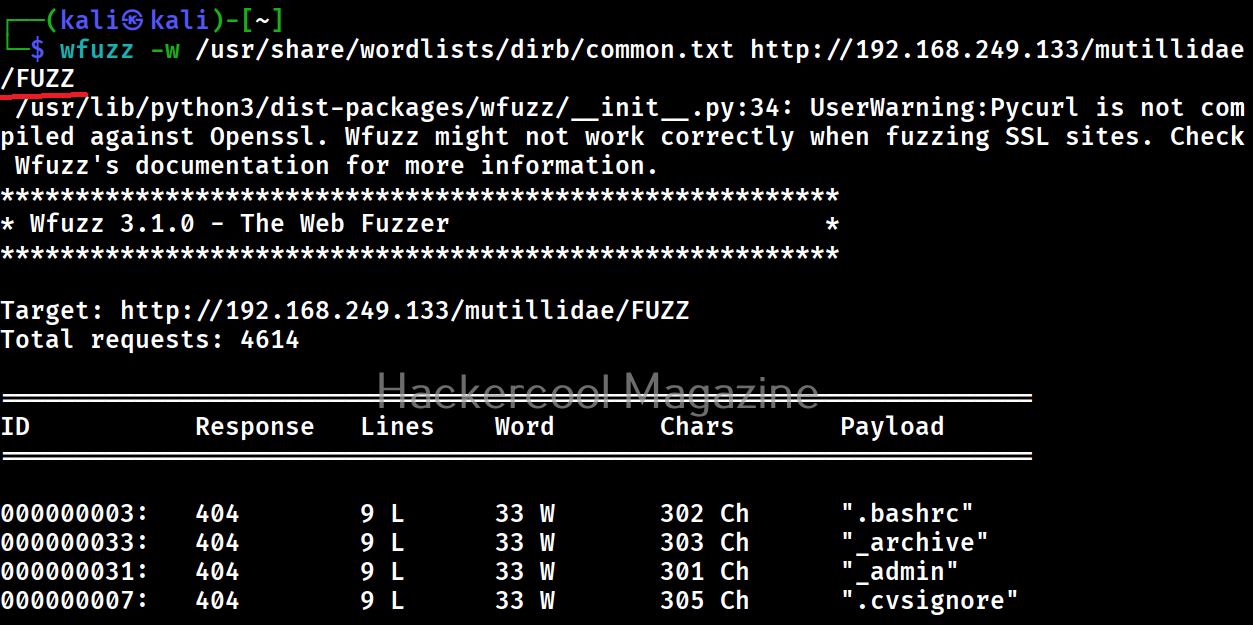
Let’s scan for directories first. All you have to do to scan for directories with Wfuzz is as shown below. Just specify a wordlist to use and the URL to be fuzzed.

wfuzz -w <path to wordlist> <URL>

But remember that, the parameter that you are trying to fuzz should be specified with keyword “FUZZ” as shown below. For example, here, we are busting directories. So, we are have added the word “FUZZ” after the URL.

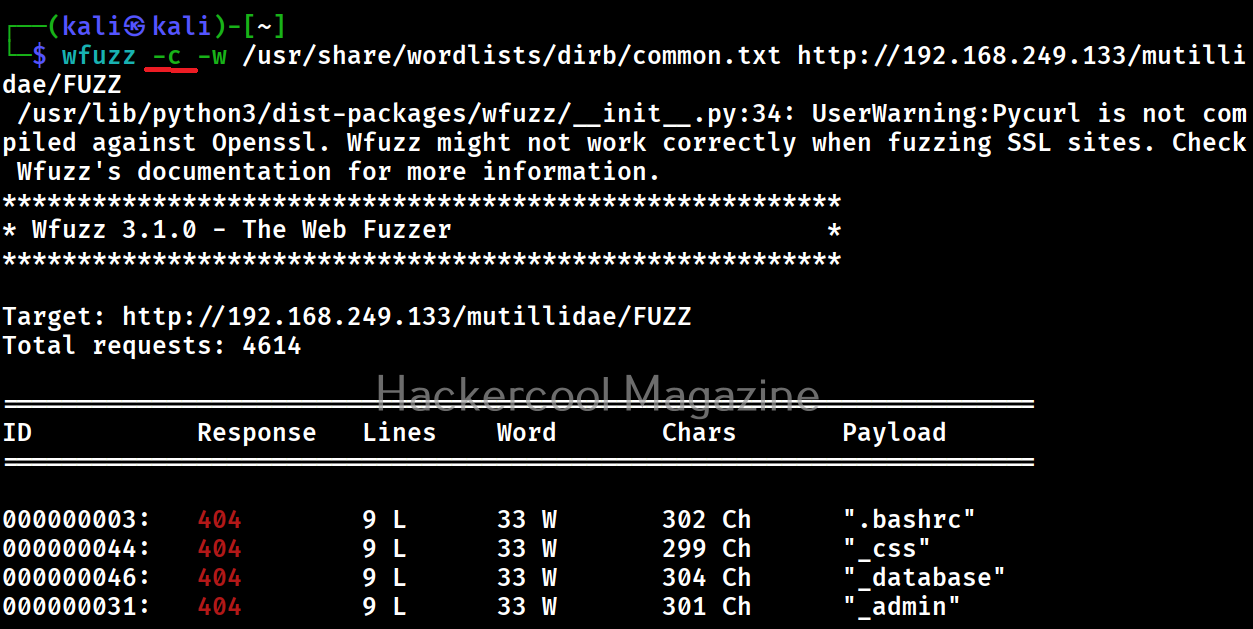
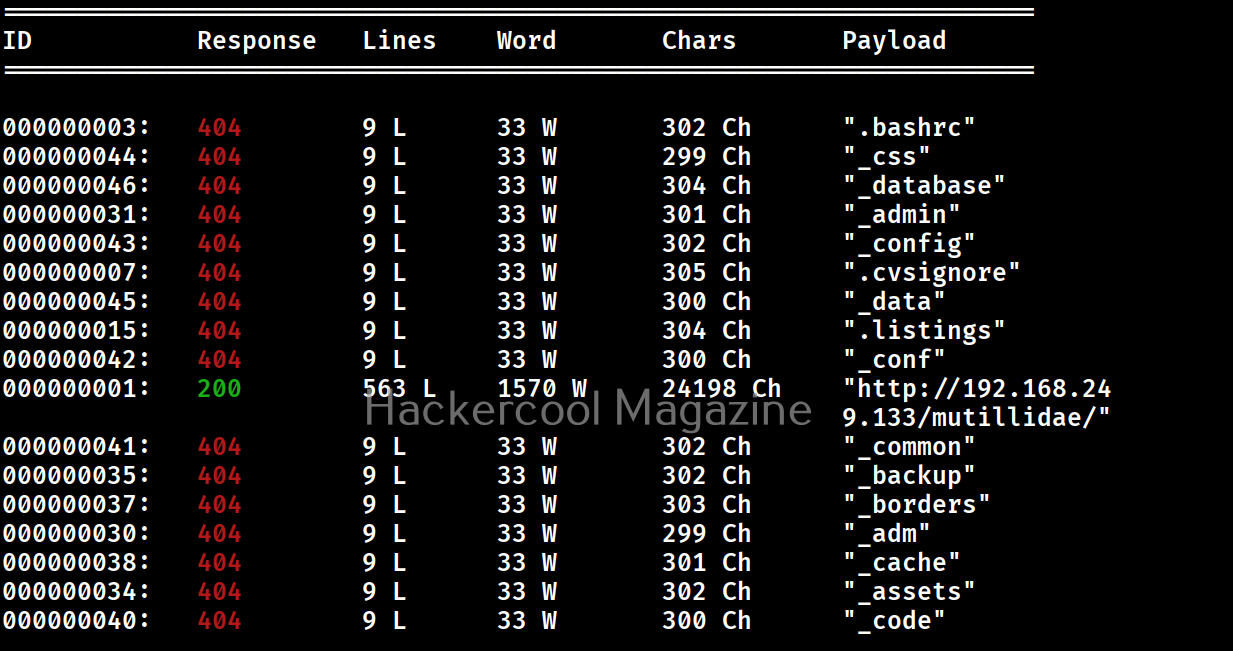
Get colored output (-c)

Sometimes the output of wfuzz can be monotonous and boring. This option can be used to get colored output.

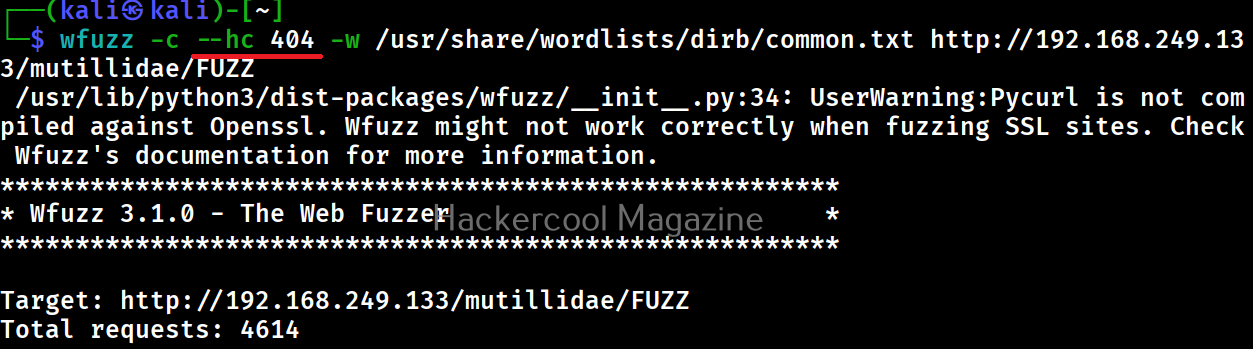
Hide responses with specified HTTP codes (-hc)

In the above images, you can see that wfuzz displays results with all HTTP response codes 404,200,403,301 etc. Using this option, we can specify wfuzz to hide results with specific response code. For example, let’s hide results with response code 404.

As you can see in the above imagers, there are no results shown with response code 404.

Show responses with specific codes (–sc)

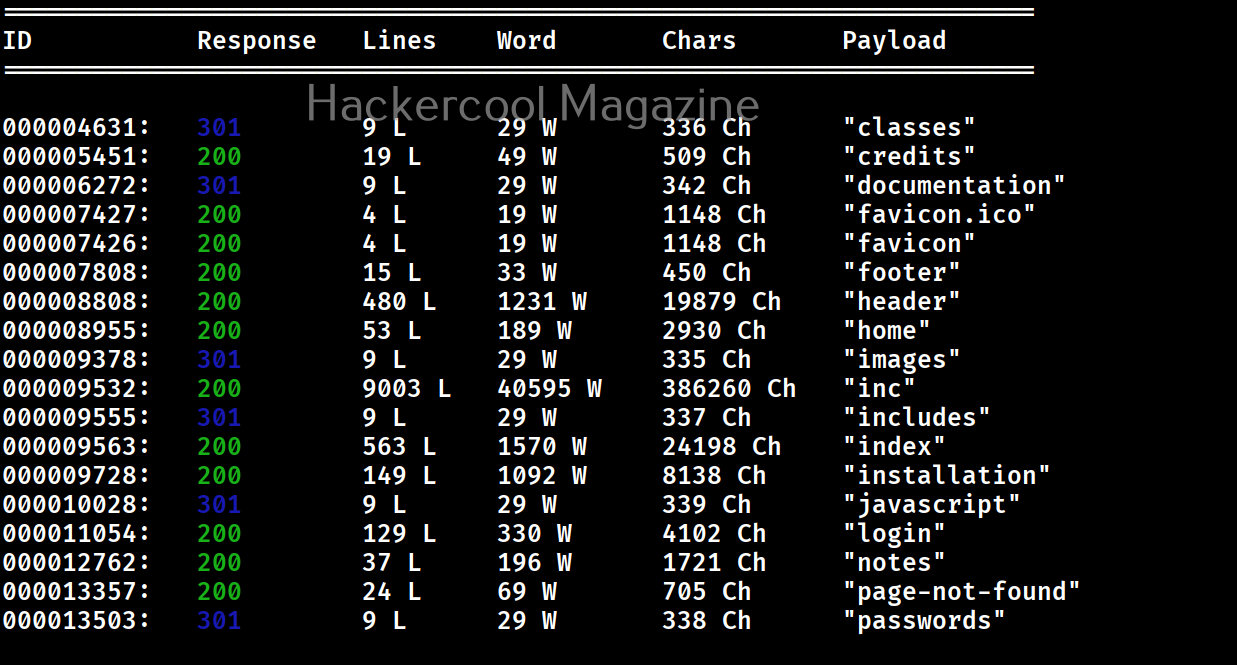
Apart from hiding responses of specific codes, we can also specify Wfuzz to show responses with specific codes with this option. For example, here we can specify to view only responses with 200, 301 requests.

Here’s the result.

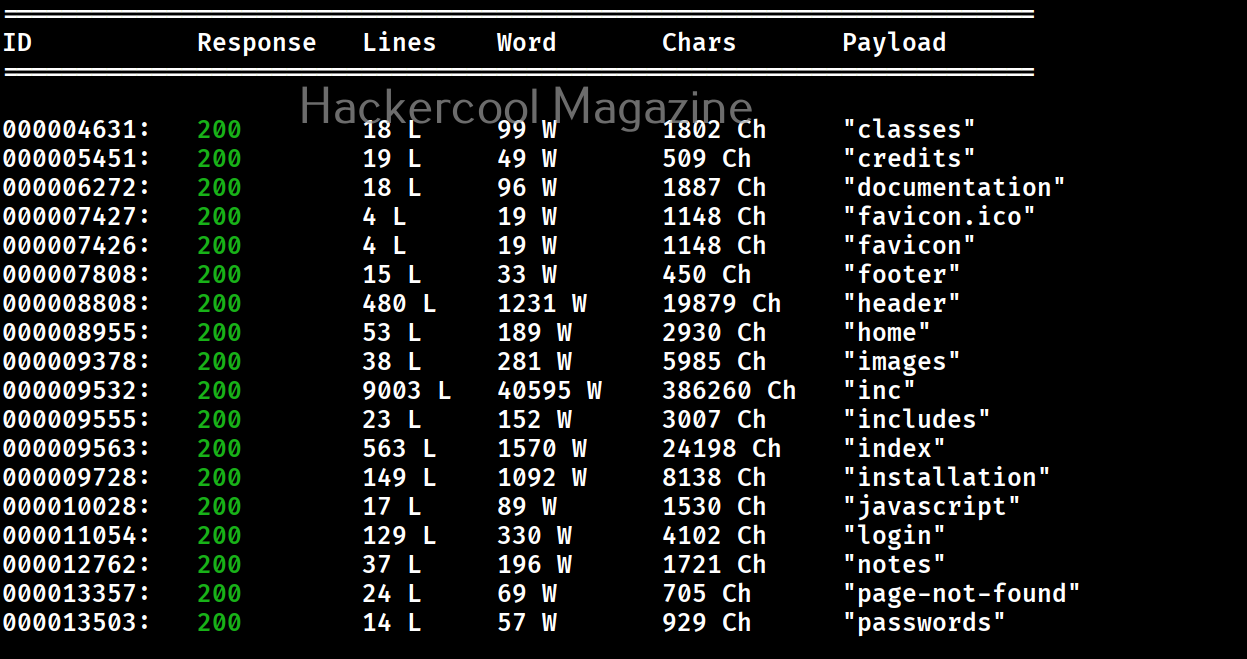
Follow redirection (-L)

This option is used to specify wfuzz to follow redirections of URLs if specified.

Here’s the output.

Recursion (-R)

This option specifies the depth of recursion level with wfuzz. For example. let’s set recursion to “2”.

Number of connections (-t)

By default, Wfuzz makes 10 concurrent connections at once. This option is used to change that. For example, let’s set the number of concurrent connections to 19.

Time delay between each request (-s)

By default, wfuzz doesn’t add any delay between each request it makes. This can be noisy and raise suspicions on Blue team side. This option can be used to specify some delay in seconds. For example, let’s set delay of 10 seconds between each request.

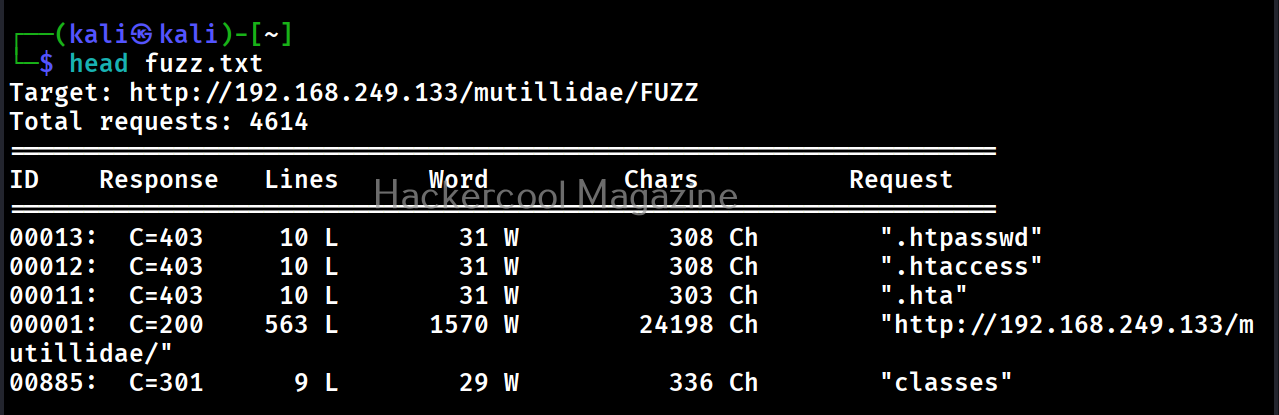
Save the output to a file (-f)

This option can be used to save output of wfuzz to a file.

Next, learn how to fuzz with ffuf.