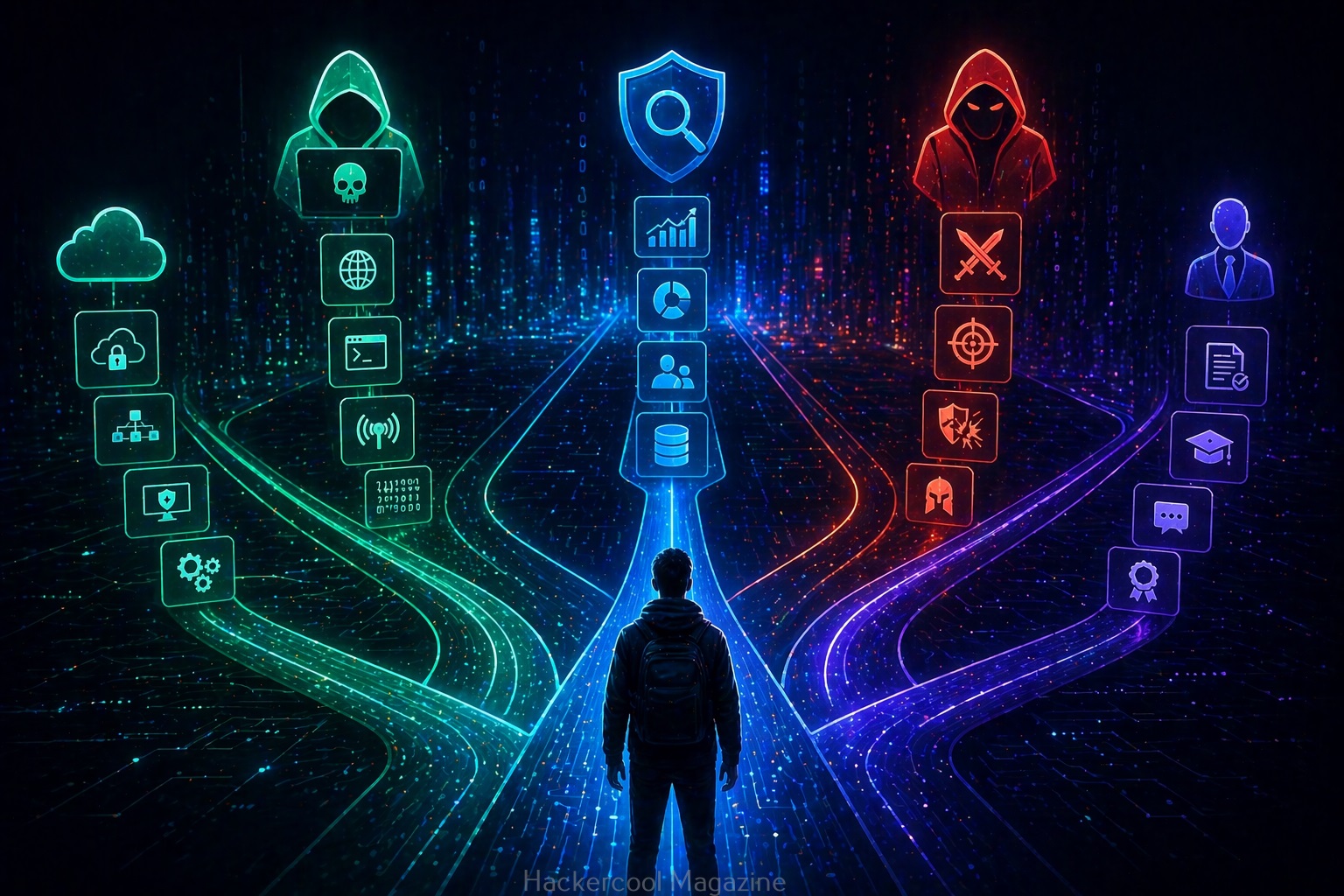
If you’re starting your ethical hacking journey, one of the first things you’ll notice is this:
There are hundreds of hacking tools.
That can feel exciting but also overwhelming. Many beginners make the mistake of trying to learn every tool at once. The result?
Confusion, frustration and very little real progress.
Here’s the truth:
- You do not need to learn every tool.
- You only need to understand the right beginner tools and how they fit into the ethical hacking process.
New to Ethical Hacking?
Start your journey with The Beginner Ethical Hacker Starter Kit (2026 Edition).
Inside the free guide, you’ll learn:.
- Ethical hacking fundamentals
- Beginner cybersecurity roadmap
- Essential hacking tools
- Common vulnerabilities explained
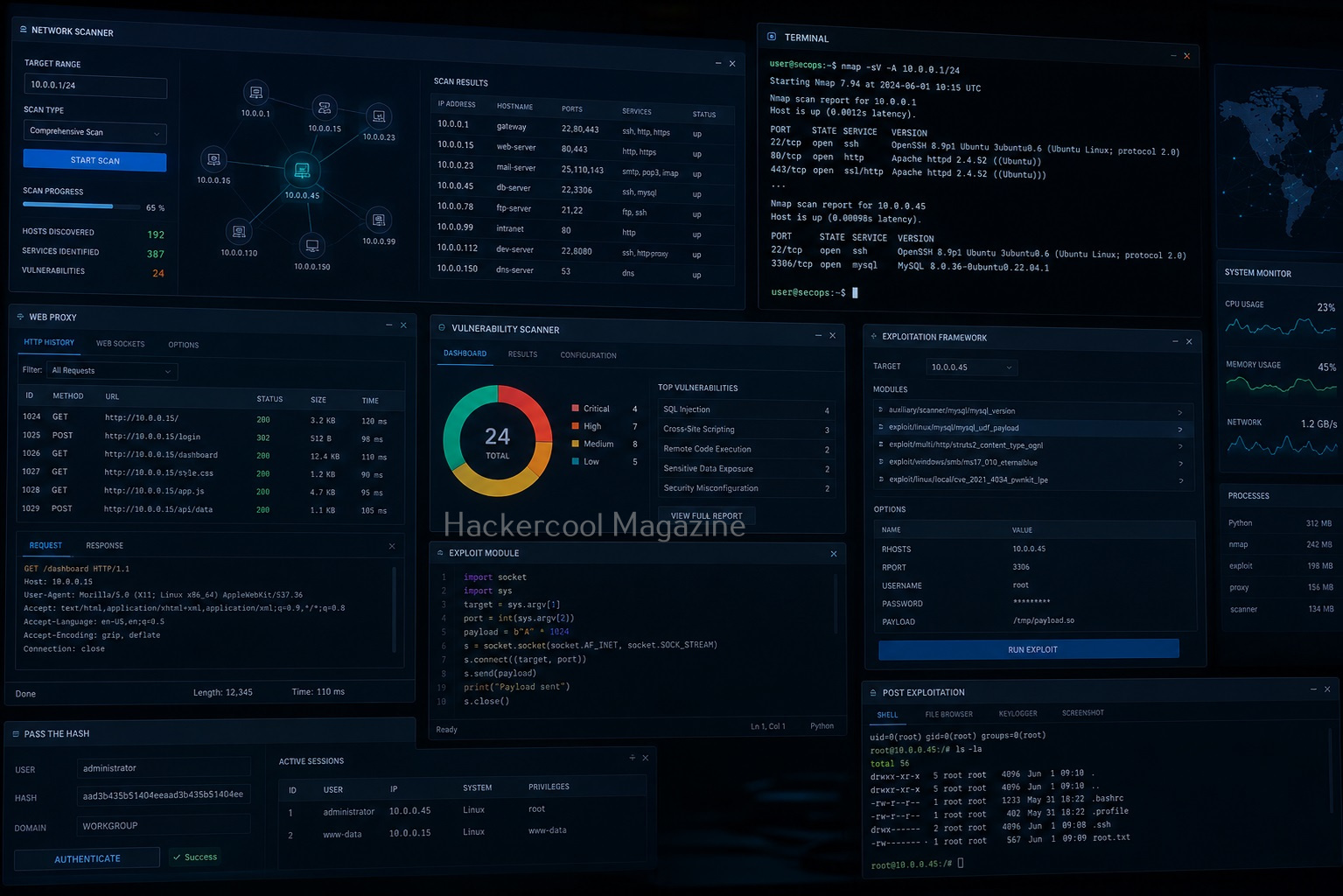
In this guide, you’ll learn the top ethical hacking tools beginners should focus on first, what they do and why they matter.
Important Reminder Before You Start
Ethical hacking tools must only be used:
- In legal lab environments
- On systems you own
- With proper authorization
Never:
- Attack real systems without permission
- Use tools for illegal activity
Ethical hacking is about learning and defense.
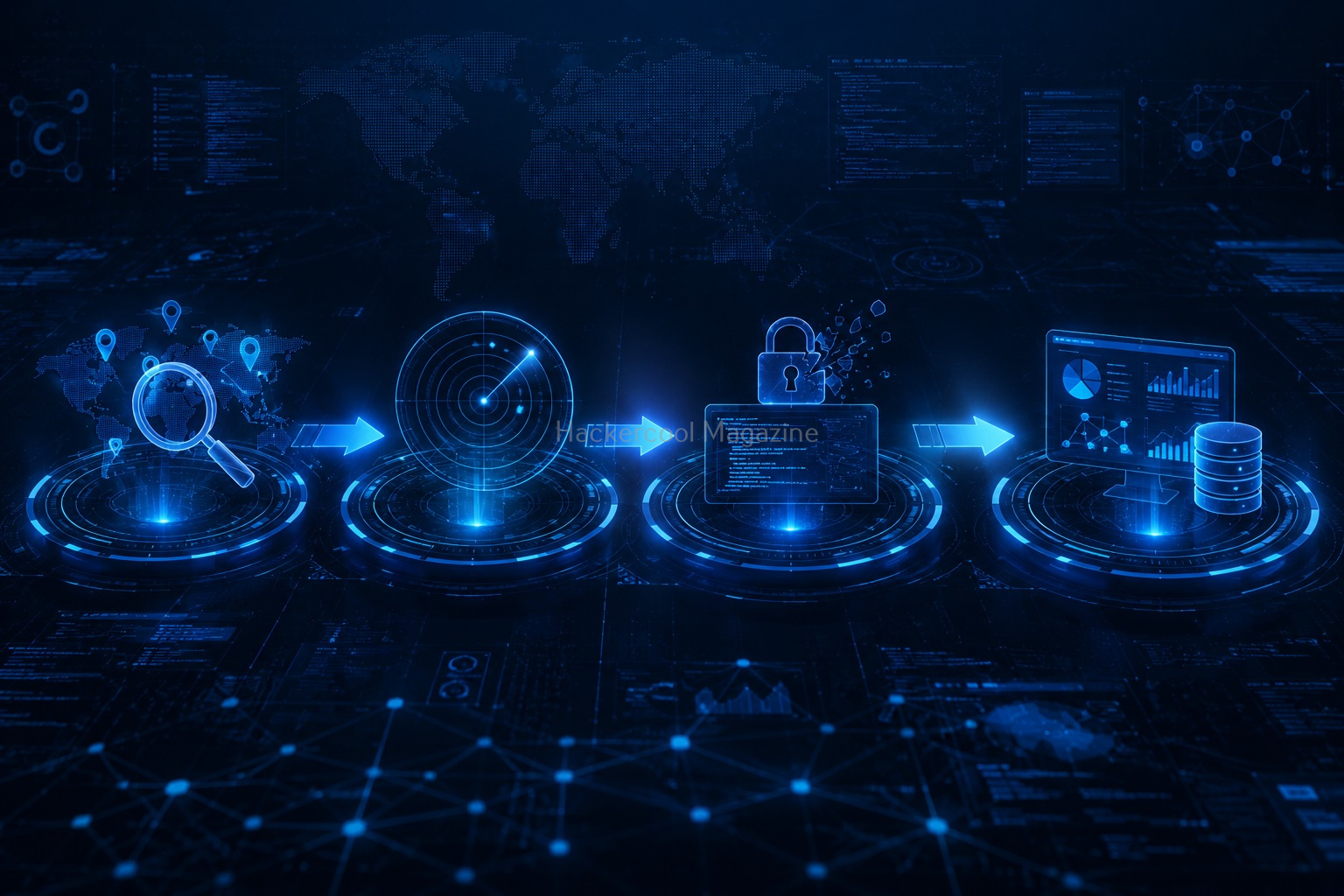
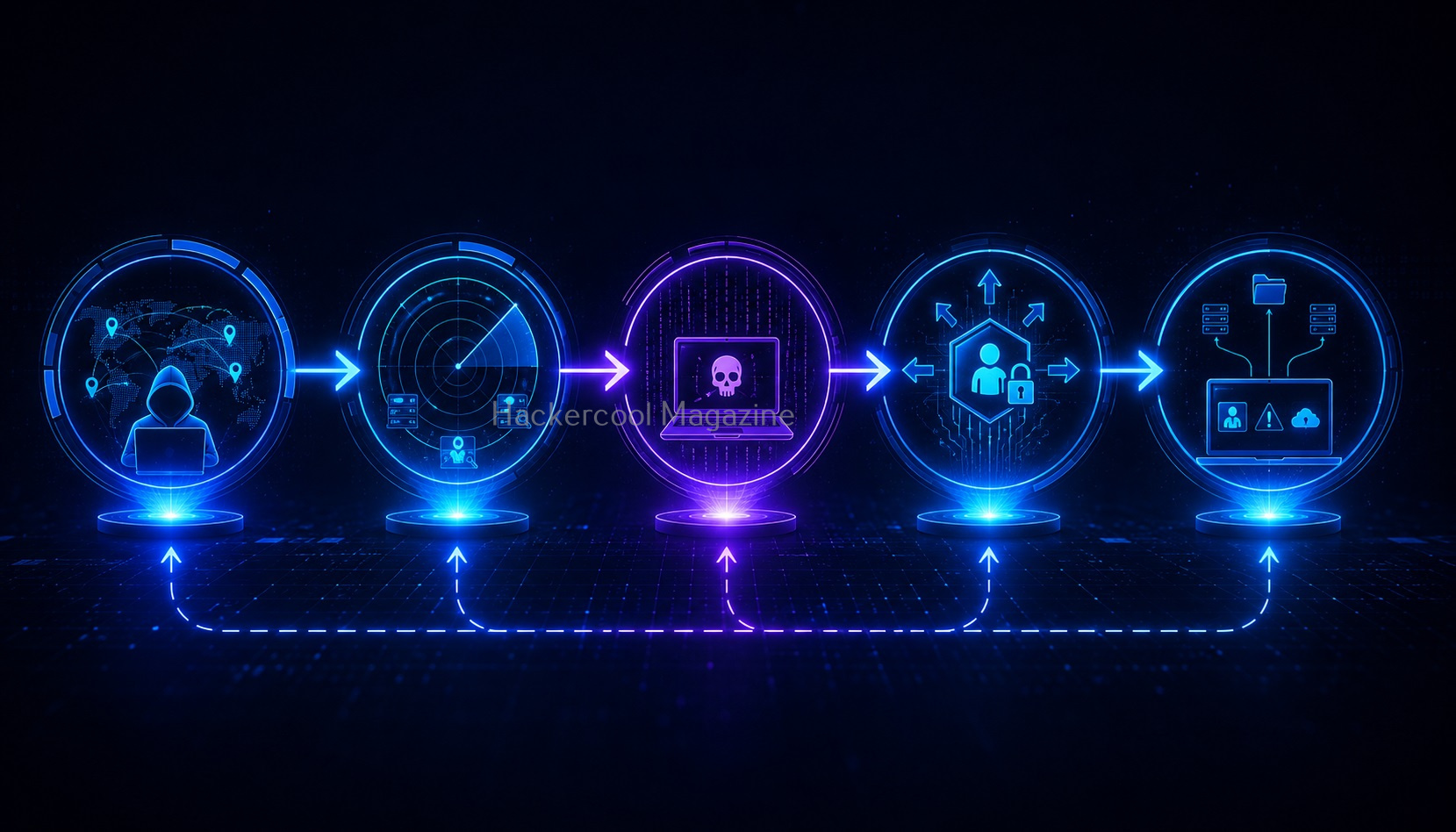
Understanding the Ethical Hacking Workflow
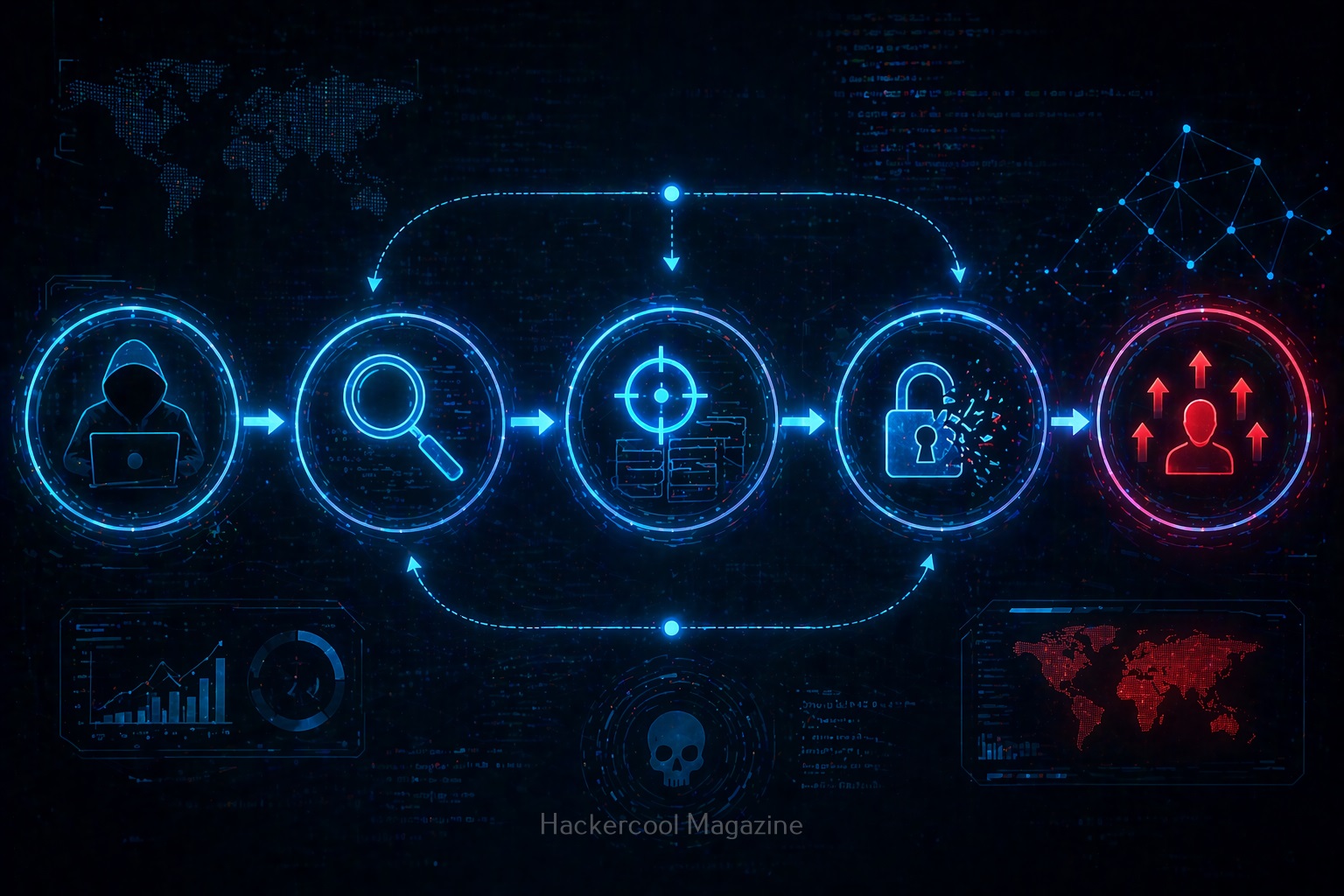
Before learning tools, understand the process. Mostly, ethical hacking tools follow these stages:
- Reconnaissance
- Scanning & Enumeration
- Exploitation
- Privilege Escalation
- Post-Exploitation
Different tools help in different stages.

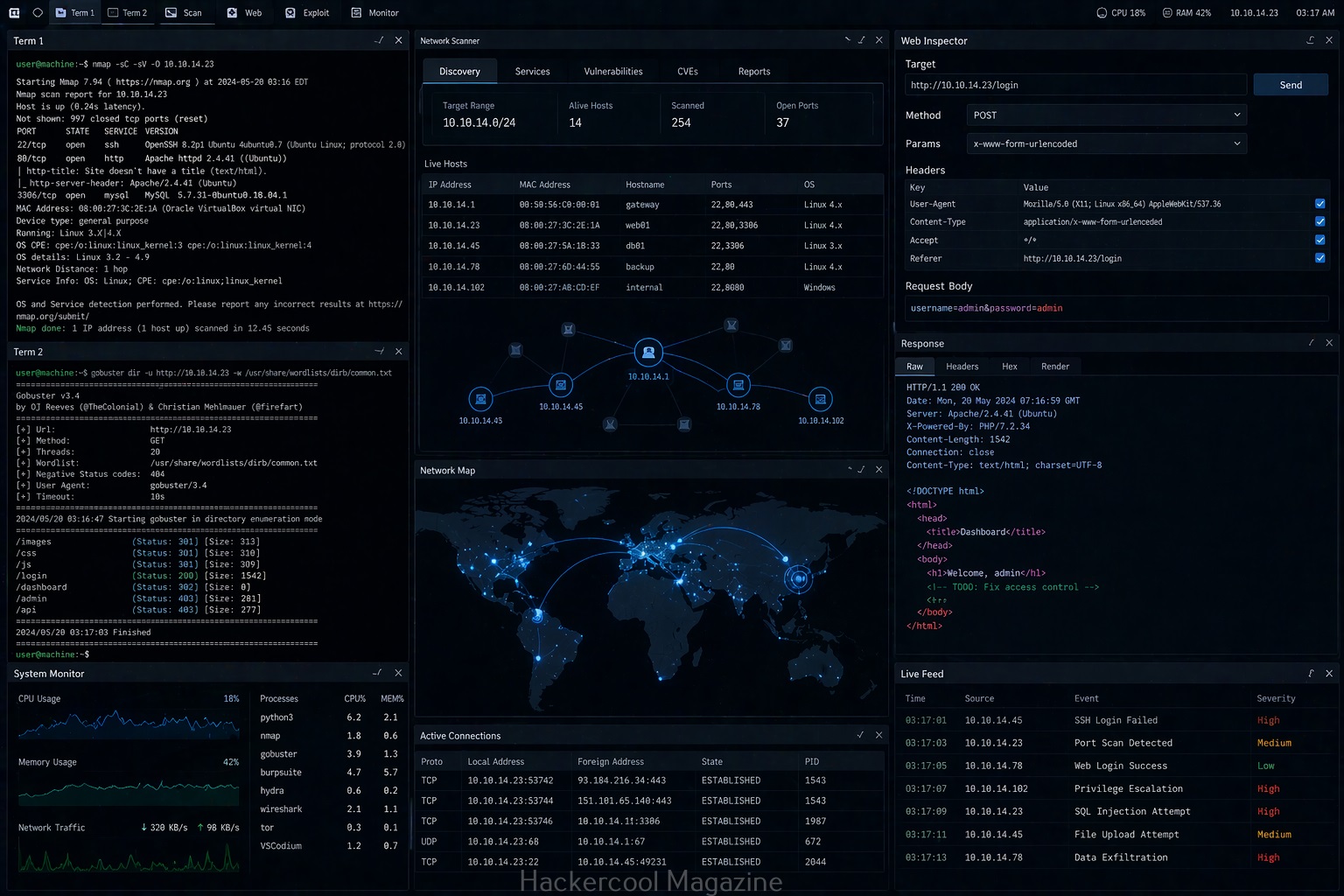
1. Nmap (Network Scanning)
One of the first tools every beginner should learn about.
What Does Nmap Do?
Nmap helps you:
- Discover devices on a network
- Find open ports
- Identify running services
Simply put, it shows what’s exposed on a system.
Why Beginners Should Learn It
Nmap teaches:
- Networking basics
- Service identification
- Reconnaissance skills
Example Uses
- Finding web servers
- Identifying SSH access
- Discovering open services
It’s one of the most important beginner tools.

2. Wireshark (Packet Analysis)
Wireshark helps you see what’s happening inside a network.
What Does Wireshark do?
It captures and analyzes network traffic. You can inspect:
- Requests
- Responses
- Protocols
Why It Matters:
Wireshark helps beginners:
- Understand networking deeply
- Learn how protocols work
It’s like an X-ray machine for networks.

3. Burp Suite (Web Application Testing)
One of the best beginner tools for web security.
What Does Burp Suite Do?
It allows you to:
- Intercept web requests
- Modify traffic
- Analyze web applications
Why Beginners Should Learn It?
Most modern attacks target websites. Burp Suite helps you understand:
- How web apps communicate
- How vulnerabilities happen
Essential for web application security.

4. Gobuster (Directory Discovery)
Websites often contain hidden directories. Gobuster helps discover them.
What Does Gobuster Do?
It searches for:
- Hidden folders
- Admin panels
- Backup files
Why It’s Useful?
Beginners learn:
- Website structure
- Hidden attack surfaces
Great for reconnaissance practice.

5. Metasploit (Exploitation Framework)
One of the most famous ethical hacking tools.
What Does Metasploit Do?
It helps simulate attacks using known vulnerabilities.
Why Beginners Use It?
It teaches:
- Exploitation concepts
- Payloads
- Vulnerability validation
Important:
Don’t rely on Metasploit too early. Learn concepts first.

6. John the Ripper (Password Testing)
Passwords remain major weakness.
What Does It Do?
Tests password strength using:
- Dictionaries
- Wordlists
Want to Learn Ethical Hacking Step-by-Step?
If you’re serious about learning cybersecurity, a structured roadmap makes the journey much easier.
Download The Beginner Ethical Hacker Starter Kit (2026 Edition) and discover:
✔ The ethical hacking learning path
✔ Beginner-friendly security concepts
✔ Essential tools ethical hackers use
✔ The most common vulnerabilities explained
Why Beginners Should Learn It?
You’ll understand:
- Weak password risks
- Password security concepts
Important for security awareness.

7. Nikto (Web Server Analysis)
Nikto scans web servers for common issues.
What Does Nikto Do?
Checks for:
- Misconfigurations
- Outdated software
- Known vulnerabilities
Why It’s Good for Beginners?
It introduces:
- Web server security
- Automated scanning concepts
8. Hydra (Authentication Testing)
Hydra tests login security.
What Does Hydra Do?
Performs password testing against:
- Login portals
- Services
Beginner Warning:
Use only in:
- Labs
- Authorized systems
Helps understand authentication weaknesses.

9. SQLmap (SQL Injection Testing))
A powerful tool for web security testing.
What Does SQLmap Do?
Automates SQL injection testing.
Why Learn It?
Helps beginners understand:
- Database attacks
- Input validation flaws
Learn the concept, not just automation.

10. Kali Linux (Learning Environment)
Kali Linux is not just a tool. It’s a platform for penetration testers and ethical hackers.
What Is Kali Linux?
A Linux distribution designed for cybersecurity and penetration testing.
Why Beginners Use It?
Because it comes preloaded with:
- Security tools
- Testing utilities
It is widely used in labs and training.
How Beginners Should Learn Tools?
This is very critical. Here are some tips for beginners to learn these tools.
Don’t Memorize Commands
Instead:
- Understand what the tool does
Don’t Learn Everything at Once
Focus on:
- One tool at a time
Practice in Labs
Hands-on learning is essential.
Combine Tools
Real ethical hacking uses multiple tools together.

Beginner Practice Workflow
Here’s a simple beginner flow for you master these tools.
Step 1:
Use Nmap to scan target.
Step 2:
Use Gobuster to find hidden directories.
Step 3:
Use Burp Suite to inspect requests.
Step 4:
Analyze findings manually.
This builds real skills.

Common Mistakes Beginners Make
Here are some common mistakes beginners make while learning hacking tools. Please avoid making these mistakes.
Tool Collecting:
Knowing many tools is not as same as having real skills.
Blind Automation:
Always understand results.
Skipping Fundamentals:
Networking and web basics matter more.
Practicing on Real Targets:
Always use legal labs.
Pro Tips for Faster Learning
Here are some PRO tips to learn this tools fast.
Learn the “Why”:
Understand the logic behind the tool.
Take Notes:
Document commands and observations.
Repeat Labs:
Repetition builds confidence.
Focus on Concepts:
Tools change—concepts stay.

Why Tool Knowledge Matters for Careers in Cybersecurity
Employers expect beginners to know:
- Basic scanning
- Web testing
- Reconnaissance
These tools help build:
- Practical experience
- Problem-solving skills
Ethical & Legal Reminder
Always remember. Never:
- Attack systems without permission
- Use tools irresponsibly
Always:
- Practice ethically
- Use labs and safe environments

Conclusion
Tools are important but they are only part of the journey. Real ethical hackers focus on:
- Fundamentals
- Practice
- Understanding systems
Key Takeaway for you is,
- Learn fewer tools deeply
- Practice consistently
- Focus on concepts over automation
If you do that, you’ll build real ethical hacking skills, not just tool knowledge.
Start Your Ethical Hacking Journey Today
Learning cybersecurity can feel overwhelming at first. The best way to start is with a clear roadmap and the right resources.
Download The Beginner Ethical Hacker Starter Kit (2026 Edition) and get instant access to:
Ethical Hacking Fundamentals
A beginner cybersecurity learning roadmap
Essential hacking tools every beginner should know
Common vulnerabilities explained simply